
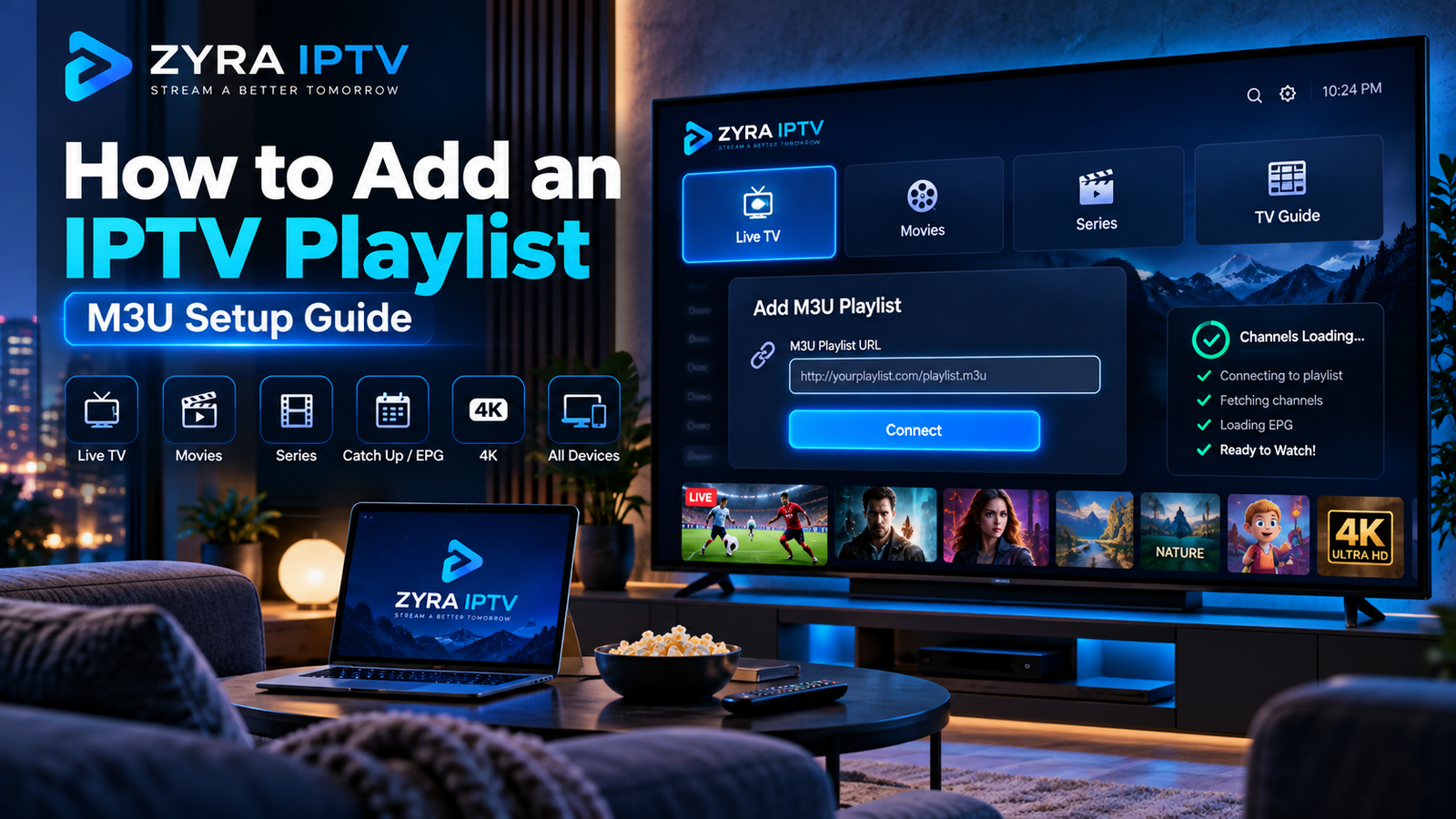
If you are searching for how to add playlist on IPTV, the basic process is simple: install a compatible IPTV player, choose its Add Playlist or M3U option, enter the M3U URL supplied by your provider, save it, and allow the app to load your available channels.
The exact menu names vary between IPTV apps, but the underlying process is similar on Smart TVs, Android TV devices, phones, tablets, and computers.
An important point for beginners is that the playlist comes from your IPTV provider or another authorized source. The IPTV player itself does not necessarily include television channels.
What Is an IPTV Playlist?
An IPTV playlist is a list of media streams that a compatible IPTV player can read and organize.
One of the most common playlist formats is M3U.
An M3U playlist may contain information such as:
- channel names
- stream URLs
- channel groups
- channel logos
- identifiers used with EPG data
The official Kodi IPTV Simple Client documentation confirms that its IPTV client supports M3U playlists as live TV sources and XMLTV data for EPG information.
An M3U playlist can normally be provided in one of two ways:
| Playlist method | What you receive |
|---|---|
| M3U URL | A web address pointing to the playlist |
| M3U file | A .m3u or .m3u8 file saved locally |
For most users, an M3U URL is easier because the IPTV player can retrieve the playlist directly from the provider.
What You Need Before Adding a Playlist
Before opening your IPTV player, prepare:
- a compatible IPTV app
- an active IPTV account or authorized stream source
- your M3U URL or M3U file
- a working internet connection
- an EPG URL if your provider supplies one separately
If your provider gave you a username, password, and server address instead of one playlist URL, you may have an account-based login rather than an M3U setup.
Similarly, a portal URL with device registration may use a different connection method.
Use the format your provider actually supplies instead of trying to convert credentials yourself.
Step 1: Install a Compatible IPTV Player
Start by choosing an IPTV player that supports M3U playlists.
Availability depends on your operating system and device.
Possible platforms include:
- Smart TV
- Android TV
- Android phone or tablet
- iPhone or iPad
- Apple TV
- computer
- compatible streaming devices
Do not assume the same application is available on every platform.
If you are unsure which installation route applies to your device, review the Zyra IPTV installation guides before adding your playlist.
Step 2: Find the Add Playlist Option
Open your IPTV app.
Look for a menu option with wording such as:
- Add Playlist
- Add User
- Add Source
- M3U Playlist
- Load Playlist
- Import Playlist
Some apps show this immediately when opened for the first time. Others place it under Settings or Playlist Management.
The wording is not important as long as the application supports M3U input.
Step 3: Choose M3U URL or Local File
Next, tell the application how you want to provide the playlist.
Add by M3U URL
Choose this option if your provider sent you a web address.
A fictional example might look like:
https://example.com/playlist.m3u
Do not use this example as an actual playlist.
Paste the complete URL exactly as supplied.
Add by Local File
Choose this option if your provider supplied an .m3u file that you downloaded to the device.
Use the app’s file browser to locate and select it.
Kodi’s official IPTV Simple Client documentation supports both local and remote M3U resources, which illustrates the two common playlist-loading approaches.
Step 4: Enter the Playlist Carefully
M3U URLs can be long, and some may contain account information.
Whenever possible, copy and paste the link rather than entering it manually.
Check for:
- missing characters
- extra spaces
- incorrect
httporhttps - incomplete query parameters
- incorrect capitalization where relevant
If the URL contains your username or password, treat the entire link as private.
Do not post your M3U URL in forums, comments, screenshots, or public troubleshooting discussions.
Someone who obtains a credential-bearing URL may potentially gain access to your account.
Step 5: Name and Save the Playlist
Many IPTV applications ask you to give the playlist a name.
Choose something recognizable, particularly if you expect to add more than one source.
For example:
Living Room IPTV
or
Main TV Playlist
The playlist name normally affects only how it appears inside your player.
After naming it, choose Save, Add, Continue, or the equivalent option.
The player should then attempt to retrieve and process the playlist.
Step 6: Wait for the Channels to Load
Once the playlist is accepted, the player reads its entries and builds the channel list.
Depending on the source, you may see categories for live television and other available media.
Do not assume every M3U playlist includes the same categories or content.
After loading completes, test several channels rather than relying on a single stream.
If the list appears but nothing plays, the playlist import may have succeeded while the individual stream or account has another problem.
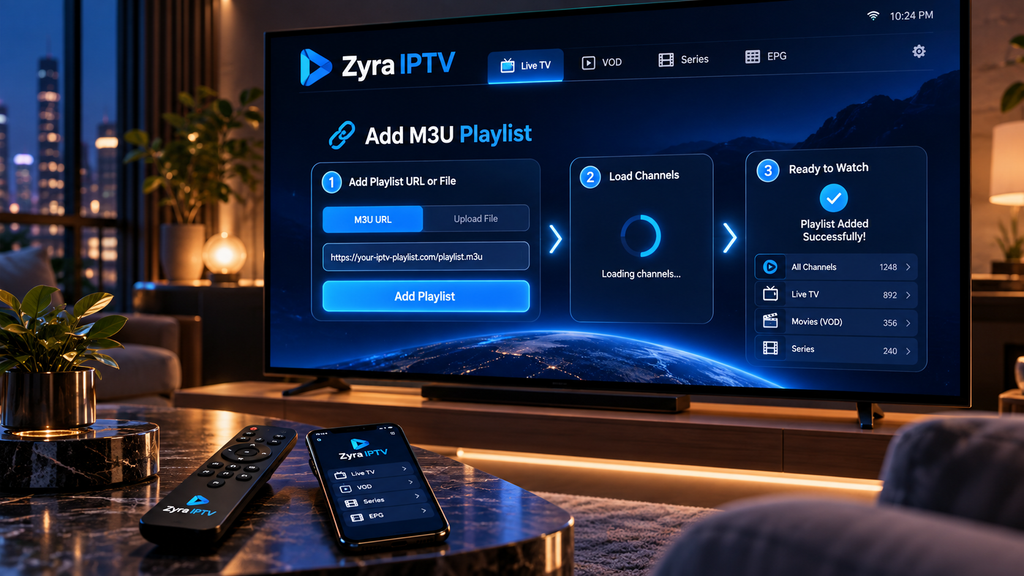
How to Add EPG to an IPTV Playlist
EPG stands for Electronic Program Guide.
It displays scheduling information such as:
- current programmes
- upcoming programmes
- start times
- end times
- programme descriptions
An M3U playlist and an EPG are related but separate.
Kodi’s documentation notes that its IPTV Simple Client uses M3U for live TV sources and XMLTV for EPG information.
If your provider gives you a separate EPG URL:
- Open your playlist settings.
- Find EPG, TV Guide, or EPG Source.
- Enter the supplied XMLTV or EPG URL.
- Save the settings.
- Refresh the guide.
If channels work but the guide remains empty, the issue may be with EPG data or channel matching rather than the M3U playlist itself.
M3U vs M3U8: What Is the Difference?
M3U and M3U8 are closely related playlist formats.
M3U is a text-based playlist format.
M3U8 generally refers to an M3U playlist encoded using UTF-8. It is also widely associated with HLS streaming.
For a normal IPTV user, the important question is not which extension sounds better. It is whether your player supports the format supplied by your provider.
Do not rename an incompatible file from .m3u to .m3u8 and expect that alone to change how the stream works.
M3U Playlist vs Username and Password Login
You may encounter two different setup methods.
M3U setup
You receive one playlist URL or file.
You enter it through the player’s M3U or playlist option.
Account-based setup
You receive information such as:
- server URL
- username
- password
You enter each item into the corresponding login fields.
These methods may ultimately access the same subscription, but they should not be treated as interchangeable without confirmation from your provider.
If your provider gives you account credentials rather than an M3U link, use its recommended login method.
How to Add a Playlist on Android TV
The general process on Android TV is:
- Install a compatible IPTV player.
- Open the app.
- Choose Add Playlist.
- Select M3U URL or M3U file.
- Enter the source.
- Save it.
- Wait for channels to load.
Zyra IPTV’s Android TV instructions specifically mention playlist activation and the use of an M3U link as one available setup approach.
App menus still vary, so follow the instructions for the particular player you use.
How to Add an IPTV Playlist on a Smart TV
Smart TVs use different operating systems, which means the exact steps depend on the television and application.
The general workflow remains:
- Install a compatible player.
- Open its playlist management screen.
- Add the supplied M3U information.
- Save the playlist.
- Load the channel list.
- Add EPG information if required.
Some Smart TV players use a web-based playlist upload process rather than letting you type the URL directly on the television.
Check the application’s official instructions before uploading account information to any website.
For television-specific setup information, see the Smart TV IPTV guide.
Why Is My IPTV Playlist Not Loading?
Several different problems can prevent an M3U playlist from loading.
| Problem | What to check |
|---|---|
| Playlist rejected | Verify the complete M3U URL |
| No channels appear | Check whether the source is active |
| Channels appear but do not play | Check account status, stream source, and network |
| EPG is empty | Verify the separate EPG source |
| Playlist worked before | Ask whether the provider changed the URL |
| Works on one device only | Check app compatibility and device configuration |
Start with the simplest checks.
Copy the original URL again from your provider and confirm your internet connection before reinstalling the entire application.
Common Playlist Setup Mistakes
Avoid these frequent problems:
- entering a website homepage instead of an M3U URL
- using a portal URL in the M3U field
- adding an EPG URL as the channel playlist
- accidentally copying spaces with the URL
- sharing credential-containing links publicly
- assuming an IPTV player automatically includes channels
- using an unsupported player
- repeatedly changing settings before identifying the problem
Keeping the playlist, account credentials, and EPG information separate makes troubleshooting much easier.
Frequently Asked Questions
How to add playlist on IPTV?
Open a compatible IPTV player, select Add Playlist or M3U, paste the M3U URL supplied by your provider, give the playlist a name, save it, and wait for the channel list to load.
Where do I get an IPTV playlist?
Obtain the playlist from your IPTV provider or another authorized source. An IPTV player does not necessarily supply content.
What is an M3U playlist?
An M3U playlist is a text-based file or URL containing references to media streams and related channel information.
Can I add an M3U file instead of a URL?
Yes, if your IPTV player supports local playlist files. Select its local file or import option and locate the .m3u file on your device.
Is an EPG URL the same as an M3U URL?
No. The M3U source generally provides the channels or streams, while an EPG source provides programme scheduling information.
Why does my playlist load but show no TV guide?
The channel playlist and EPG can be separate. Check whether your provider supplied a compatible EPG source and whether the player has loaded it correctly.
Add Your IPTV Playlist the Right Way
Learning how to add playlist on IPTV mainly involves identifying the correct M3U source, entering it into a compatible player, and keeping your playlist information separate from EPG or other login methods.
Copy URLs carefully, keep credential-containing links private, and use only playlists you are authorized to access. If something fails, check the playlist source, account status, player compatibility, and network before making unnecessary changes.
If you are preparing an IPTV setup and need device-specific installation information, visit Zyra IPTV and review the available setup guidance for your preferred device.
Do you like this personality?