
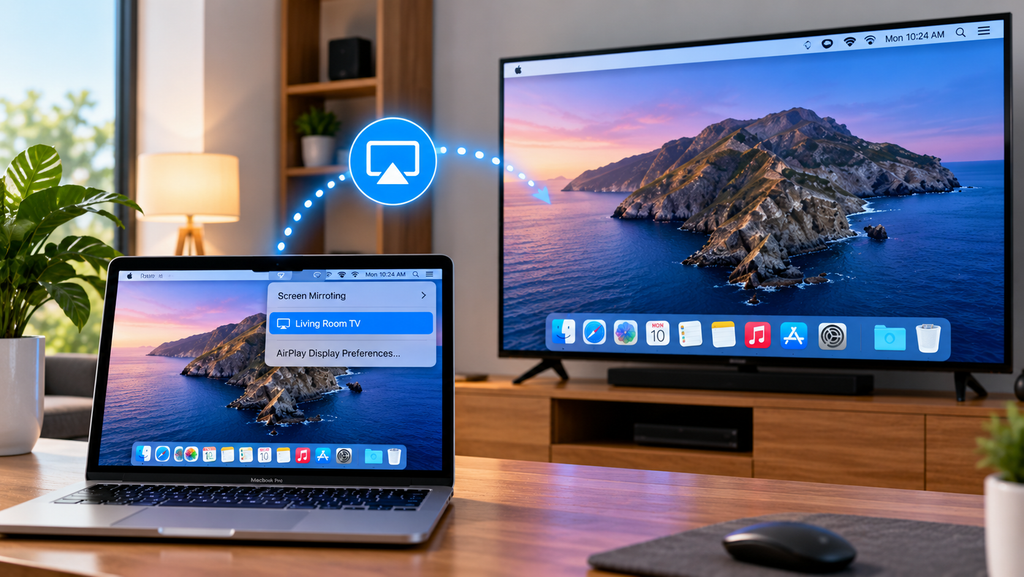
If you want to know how to screen mirror MacBook to TV, the easiest wireless method is usually AirPlay. Connect your MacBook and an AirPlay-compatible television or Apple TV to the same Wi-Fi network, open Control Center on the Mac, select Screen Mirroring, and choose the TV.
You can then show the MacBook screen on the television, extend your desktop, or share a particular window depending on your macOS version and setup. Apple currently supports these options through the Screen Mirroring controls on compatible Macs.
If your television does not support AirPlay, you can usually connect the MacBook with an HDMI cable or a compatible USB-C or Thunderbolt adapter instead.
What Do You Need to Mirror a MacBook to a TV?
For wireless screen mirroring, you generally need:
- a compatible MacBook
- an Apple TV 4K or AirPlay-compatible smart TV
- Wi-Fi enabled on both devices
- both devices connected to the same network
- AirPlay enabled on the receiving television
- current software on the MacBook and television
Apple’s current AirPlay guidance recommends keeping both devices on the same network before attempting to mirror a Mac display.
If your television does not have built-in AirPlay support, an Apple TV can act as the receiving device.
How to Screen Mirror MacBook to TV With AirPlay
For current macOS versions, the basic process is:
- Turn on your MacBook and television.
- Confirm that both devices are connected to the same Wi-Fi network.
- Open Control Center from the Mac menu bar.
- Select Screen Mirroring.
- Choose your television or Apple TV from the available devices.
- If a four-digit AirPlay code appears on the TV, enter it on your MacBook.
- Choose whether you want to mirror the screen, extend it, or share a specific window when those options are presented.
Apple’s current Mac instructions follow this same process and allow users to mirror, extend, or share windows with supported receiving devices.
Once connected, your television becomes an additional display for the MacBook.
What Is the Difference Between Mirroring and Extending?
Screen mirroring and extending your display are related, but they are not identical.
| Mode | What happens | Best for |
|---|---|---|
| Mirror display | TV shows the same content as MacBook | Movies, demonstrations, presentations |
| Extend display | TV becomes a second desktop | Multitasking and extra workspace |
| Share window | Only selected content is shared | Privacy and presentations |
| Stream video | Compatible video is sent directly through AirPlay | Movies and supported streaming apps |
If you simply want people in the room to see exactly what is on your MacBook, choose mirroring.
If you want to keep working privately on the MacBook while showing another application on the television, extending the desktop or sharing a window may be more useful.
How to Mirror MacBook to TV Without Apple TV
You do not necessarily need an Apple TV box.
If your Smart TV has compatible AirPlay support built in, it can appear directly in your MacBook’s Screen Mirroring list.
The exact AirPlay availability depends on the TV model and its software, not simply the brand.
Check the television’s documentation or settings for AirPlay support.
If you are also configuring streaming applications directly on the television, Zyra’s Smart TV IPTV guide explains the separate Smart TV setup process.
How to Screen Share Mac to TV With HDMI
AirPlay is convenient, but it is not the only option.
Apple confirms that compatible Macs can connect to a television through HDMI. Macs with a built-in HDMI port can connect directly, while Macs with compatible USB-C or Thunderbolt ports can use an appropriate HDMI adapter.
A basic wired setup is:
- Connect an HDMI cable to the television.
- Connect the other end directly to the MacBook or to a compatible adapter.
- Select the correct HDMI input on the TV.
- Open System Settings > Displays on the MacBook.
- Configure the television as a mirrored or extended display.
A wired connection can be useful when wireless mirroring is unreliable or when you want to avoid depending on Wi-Fi for the display connection.
AirPlay vs HDMI for MacBook Screen Mirroring
Both methods can work well.
| AirPlay | HDMI |
|---|---|
| Wireless | Wired |
| Requires compatible AirPlay receiver | Requires compatible cable or adapter |
| Convenient for casual viewing | Reliable for long sessions |
| Depends on local network quality | Does not depend on Wi-Fi for video connection |
| Easy to disconnect and reconnect | Requires physical connection |
| Can mirror or extend | Can mirror or extend |
For presentations or frequent movement around a room, AirPlay is convenient.
For a fixed setup where reliability matters more than being wireless, HDMI can be simpler.
Why Is My TV Not Showing in Screen Mirroring?
If the television does not appear, check the basics before changing advanced settings.
Make Sure Both Devices Are on the Same Network
Your MacBook and receiving device should normally be connected to the same Wi-Fi network.
A guest Wi-Fi network can sometimes isolate devices from each other, preventing discovery.
Check That AirPlay Is Enabled
Some smart TVs include a setting that allows AirPlay to be turned on or off.
The exact menu varies by manufacturer and model.
Move the Devices Closer
Apple recommends making sure compatible devices are turned on and near each other when troubleshooting AirPlay.
Update the Software
Outdated macOS or television software can cause connection problems.
Apple recommends updating both devices when AirPlay or screen mirroring is not working correctly.
Restart Both Devices
Restart the MacBook and television or Apple TV, then try Screen Mirroring again.
This can clear temporary connection or discovery problems.
MacBook Connects to TV but Screen Is Black
A successful AirPlay connection does not guarantee that every application will display all video content.
If your desktop appears normally but a particular video shows a black screen, the issue may relate to that application, playback method, or protected content.
Test ordinary desktop content or another application.
If everything except one streaming service works, troubleshoot that service rather than the entire AirPlay connection.
Why Is MacBook Screen Mirroring Lagging?
Wireless mirroring uses your local network, so performance can be affected by:
- weak Wi-Fi
- interference
- network congestion
- distance from the router
- other large downloads
- temporary network problems
Try moving closer to the router or reducing heavy network activity.
For activities where delay is especially noticeable, such as fast gaming or interactive presentations, a wired display connection may be preferable.
How to Stop Screen Mirroring From MacBook to TV
When you finish mirroring:
- Open Control Center.
- Select Screen Mirroring.
- Select the active television.
- Choose the stop or disconnect option.
Apple also allows you to change the display arrangement or add and remove shared windows while connected.
Can You Screen Mirror IPTV From MacBook to TV?
If you are watching IPTV through a compatible application or browser on your MacBook, screen mirroring may allow you to display that Mac screen on a compatible TV.
However, mirroring is not always the most convenient long-term setup.
If your television supports an appropriate IPTV application, installing the player directly on the TV can remove the need to connect your MacBook every time you watch.
For computer-based IPTV viewing, see Zyra’s computer IPTV setup guide. For other device installation options, the IPTV installation guides cover several supported device categories.
Frequently Asked Questions
How to screen mirror MacBook to TV?
Open Control Center on your MacBook, choose Screen Mirroring, select your AirPlay-compatible television or Apple TV, and enter the code shown on the television if requested.
How to mirror MacBook screen to TV without a cable?
Use AirPlay with an Apple TV or compatible Smart TV connected to the same Wi-Fi network.
How to screen mirroring Mac to TV if AirPlay is unavailable?
Use an HDMI cable. Depending on your MacBook, you may need a compatible USB-C or Thunderbolt to HDMI adapter.
Can I screen share Mac to TV without mirroring everything?
Yes. Current macOS AirPlay controls can offer options for sharing a specific window or extending the desktop instead of duplicating the complete screen.
Why can’t my MacBook find my TV?
Check that the TV supports AirPlay, AirPlay is enabled, both devices are on the same Wi-Fi network, software is updated, and the devices are near each other.
Can I use a TV as a second MacBook monitor?
Yes. With a compatible setup, you can extend the Mac desktop onto the television instead of mirroring the same image.
Mirror Your MacBook to TV With the Right Method
Learning how to screen mirror MacBook to TV is straightforward when your television supports AirPlay. Open Screen Mirroring from Control Center, choose the television, and decide whether you want to mirror, extend, or share selected content.
When AirPlay is unavailable or Wi-Fi performance is inconsistent, HDMI provides a practical wired alternative.
If you are using screen mirroring mainly to watch IPTV on a larger display, you can also explore direct television and computer setup options through Zyra IPTV.