
If you want to know how to cast from MacBook to TV, there are two main wireless methods: AirPlay and Google Cast through Chrome.
AirPlay works with Apple TV and compatible smart TVs. Google Cast works with Chromecast, Google TV Streamer, and televisions with Google Cast support. The best method depends on your television and whether you want to send one video, one browser tab, or your entire Mac screen.
Casting is also slightly different from screen mirroring. Casting can send specific content to the television while you continue using your Mac, while mirroring duplicates your Mac display.
What Do You Need to Cast From Mac to TV?
Before starting, check which wireless technology your television supports.
You will generally need:
- a MacBook or compatible Mac
- a television or streaming device that supports AirPlay or Google Cast
- Wi-Fi on both devices
- both devices connected to the appropriate local network
- updated system or browser software
- the streaming application or browser you want to use
For AirPlay, Apple currently instructs users to keep both devices connected to the same Wi-Fi network.
For Google Cast, Google says the Mac and Google Cast receiver should also have a strong connection to the same Wi-Fi network and that Chrome should be up to date.
How to Cast From MacBook to TV With AirPlay
AirPlay is the most direct built-in wireless method for a Mac when the television supports Apple’s technology.
To cast video using AirPlay:
- Connect your MacBook and TV to the same Wi-Fi network.
- Open the video you want to watch.
- Look for the AirPlay icon in the playback controls.
- Select your Apple TV or compatible smart TV.
- If requested, enter the code displayed on the television.
- Start playback.
Apple currently supports streaming video directly from a Mac to Apple TV 4K or a compatible smart TV using the AirPlay control inside supported playback apps.
This method is useful when you want the television to play the video without displaying everything else on your MacBook.
How to Cast Your Entire Mac Screen With AirPlay
If you need to show more than one video or browser page, you can send the Mac display to the television.
On current macOS versions:
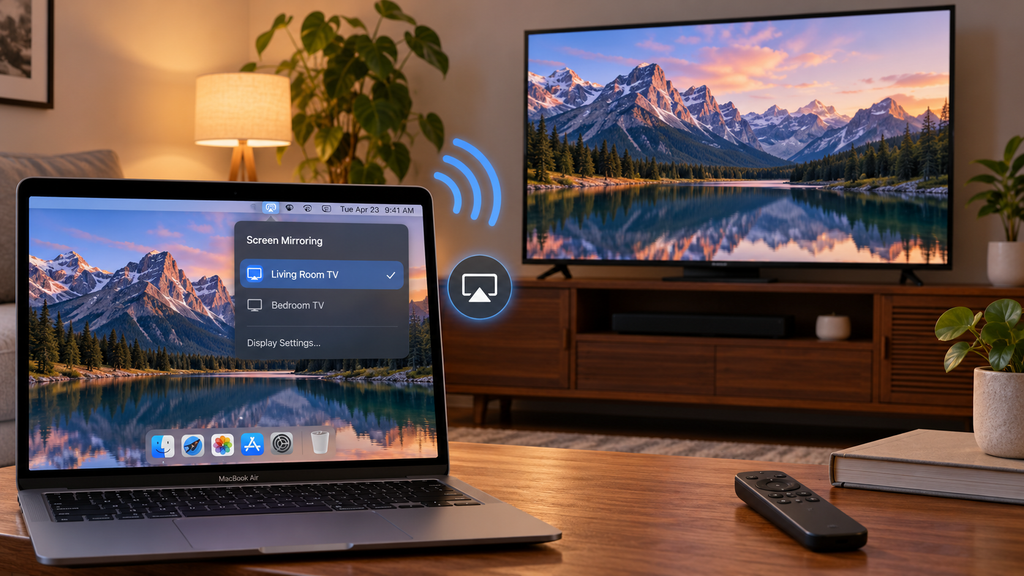
- Open Control Center on your MacBook.
- Select Screen Mirroring.
- Choose your television.
- Enter a four-digit code if one appears on the TV.
- Choose whether to mirror the display, extend it, or share a window.
Apple’s current Mac documentation supports sharing a window as well as mirroring or extending the desktop.
This is technically screen sharing or mirroring rather than content-only casting, but it is often what users mean when they search how to cast from Mac to TV.
How to Cast From MacBook to TV With Google Chrome
If your television supports Google Cast instead of AirPlay, Google Chrome provides another wireless option.
Google currently supports casting from Chrome on macOS to Chromecast, Chromecast with Google TV, Google TV Streamer, and televisions with Google Cast.
To cast a Chrome tab:
- Connect the MacBook and Google Cast device to the same Wi-Fi network.
- Open Google Chrome.
- Open the website or video you want to display.
- Select the three-dot Chrome menu.
- Choose Cast, save, and share.
- Select Cast.
- Choose your television or Google Cast receiver.
When you finish, select the Cast control again and choose Stop casting.
This method is particularly useful for websites and browser-based streaming.
Cast a Chrome Tab or the Entire Mac Screen?
Google Chrome gives you more than one source option.
| Casting option | What appears on TV | Best use |
|---|---|---|
| Cast tab | One Chrome tab | Web video and browser content |
| Cast screen | Entire Mac display | Presentations and general screen sharing |
| AirPlay video | Supported video only | Movies and compatible media |
| AirPlay mirroring | Full Mac display | General Mac-to-TV viewing |
Google recommends casting the browser tab for video where possible because it is designed to handle browser media more directly. Google also notes that when casting the entire screen from a Mac, audio may remain on the computer, while casting a tab can send its audio to the television.
How to Cast the Full Mac Screen With Chrome
If you have a Google Cast television or receiver and want to show the complete Mac display:
- Open Chrome.
- Select the three-dot menu.
- Choose Cast, save, and share, then Cast.
- Open Sources.
- Select Cast screen.
- Choose the television.
Google confirms that the entire computer screen can be cast from Chrome on macOS.
Remember that audio behaviour differs from casting an individual browser tab.
macOS 15 or Later: Check Local Network Permission
One important issue on newer Macs is local network permission.
Google states that on macOS 15 or later, Chrome needs permission to access devices on your local network for casting.
If your television or Chromecast does not appear:
- Open System Settings on the Mac.
- Select Privacy & Security.
- Open Local Network.
- Make sure Google Chrome is allowed access.
- Restart Chrome and try casting again.
This can solve cases where the Google Cast device works on other phones or computers but does not appear on the MacBook.
AirPlay vs Google Cast on MacBook
The correct method depends mostly on your television.
Use AirPlay when:
- your TV has AirPlay support
- you use Apple TV
- you want native Mac screen mirroring
- the video app has a built-in AirPlay control
Use Google Cast when:
- your television has Google Cast
- you use Chromecast or Google TV Streamer
- you want to cast a Chrome tab
- your content is primarily browser-based
You do not need to force AirPlay onto a Google Cast-only television or Google Cast onto an AirPlay-only television.
Check which protocol the receiving device actually supports.
Can You Cast MacBook to a Smart TV Without Apple TV?
Yes.
Many televisions can receive wireless content directly, but compatibility varies by model.
If the TV supports AirPlay, the MacBook can connect without an Apple TV box. If it supports Google Cast, Chrome can cast directly to it without a separate Chromecast device.
Do not assume that every Smart TV supports both technologies.
Check your television’s settings or manufacturer documentation first.
For people who prefer to run streaming apps directly on the television, Zyra’s Smart TV IPTV setup guide covers the separate process of installing IPTV on supported Smart TVs.
Why Is My MacBook Not Finding My TV?
If your TV does not appear, check these common causes.
Different Wi-Fi Networks
The Mac and receiving device generally need to be discoverable on the same local network.
Guest networks may isolate connected devices and prevent casting.
Wrong Casting Technology
A television that supports AirPlay may not necessarily support Google Cast, and the reverse is also true.
AirPlay Is Disabled
Some televisions include an AirPlay setting that can be switched off.
Chrome Cannot Access the Local Network
On macOS 15 or later, check Chrome’s Local Network permission.
Devices Need Restarting
Restart the MacBook, television, streaming receiver, and router if discovery suddenly stops working.
Software Is Out of Date
Update macOS, Chrome, and your TV or streaming device where updates are available.
Why Does Casting Lag or Buffer?
Wireless casting depends on your local network as well as the internet connection used by the streaming service.
Performance can be affected by:
- weak Wi-Fi
- network congestion
- distance from the router
- interference
- large downloads
- other simultaneous streams
- problems with the original video service
If the MacBook and television are far from the router, improving Wi-Fi coverage can help.
For IPTV watched directly on a computer, Zyra’s computer IPTV guide covers computer-based setup separately.
Can You Cast IPTV From MacBook to TV?
Potentially, yes.
If IPTV is playing in a browser, you may be able to cast the relevant Chrome tab to a Google Cast-compatible television.
If the IPTV player supports AirPlay, you may also be able to stream through AirPlay.
Another option is to mirror the complete Mac screen.
The best method depends on:
- the IPTV player
- stream format
- television
- casting protocol
- playback restrictions
Casting is not always necessary. If a compatible IPTV app can run directly on your television or streaming device, direct installation can be more convenient for regular viewing.
Zyra’s IPTV installation guides cover additional setup options for different devices.
Casting vs Screen Mirroring: Are They the Same?
Not exactly.
Casting normally sends selected content, such as a browser tab or video, to another device.
Screen mirroring copies the entire MacBook display.
For example, when you cast a Chrome tab, you can often continue using other Mac applications without displaying them on the television.
When you mirror the entire Mac screen, whatever appears on your Mac can also appear on the television.
This distinction is useful when choosing the best wireless method.
Frequently Asked Questions
How to cast from MacBook to TV?
Use AirPlay with an Apple TV or AirPlay-compatible television, or use Google Chrome with a Google Cast-compatible television, Chromecast, or Google TV Streamer.
How to cast from Mac to TV using Chrome?
Open Chrome, select the three-dot menu, choose Cast, save, and share, select Cast, then choose your television or Google Cast receiver.
Can I cast from Mac without Apple TV?
Yes. A compatible smart TV can receive AirPlay directly, while a Google Cast-compatible television can receive content through Chrome.
Can MacBook cast to Chromecast?
Yes. Google officially supports casting a Chrome tab or the entire computer screen from macOS to supported Google Cast devices.
Why is Chromecast not showing on my Mac?
Check the Wi-Fi connection and Chrome permissions. On macOS 15 or later, Google says Chrome needs Local Network permission to discover compatible casting devices.
Is casting better than screen mirroring?
It depends on the task. Casting a specific video or browser tab can be more convenient for media, while screen mirroring is better when you need the television to show the entire Mac desktop.
Cast From MacBook to TV Using the Right Wireless Method
Learning how to cast from MacBook to TV starts with identifying what your television supports.
Use AirPlay for Apple TV and compatible AirPlay televisions. Use Google Chrome for Chromecast, Google TV Streamer, and televisions with Google Cast. If you need the complete Mac desktop instead of one piece of content, choose screen mirroring or full-screen casting.
If your main goal is watching IPTV on a larger screen, Zyra IPTV also provides device and installation guidance for alternative TV and computer setups.