
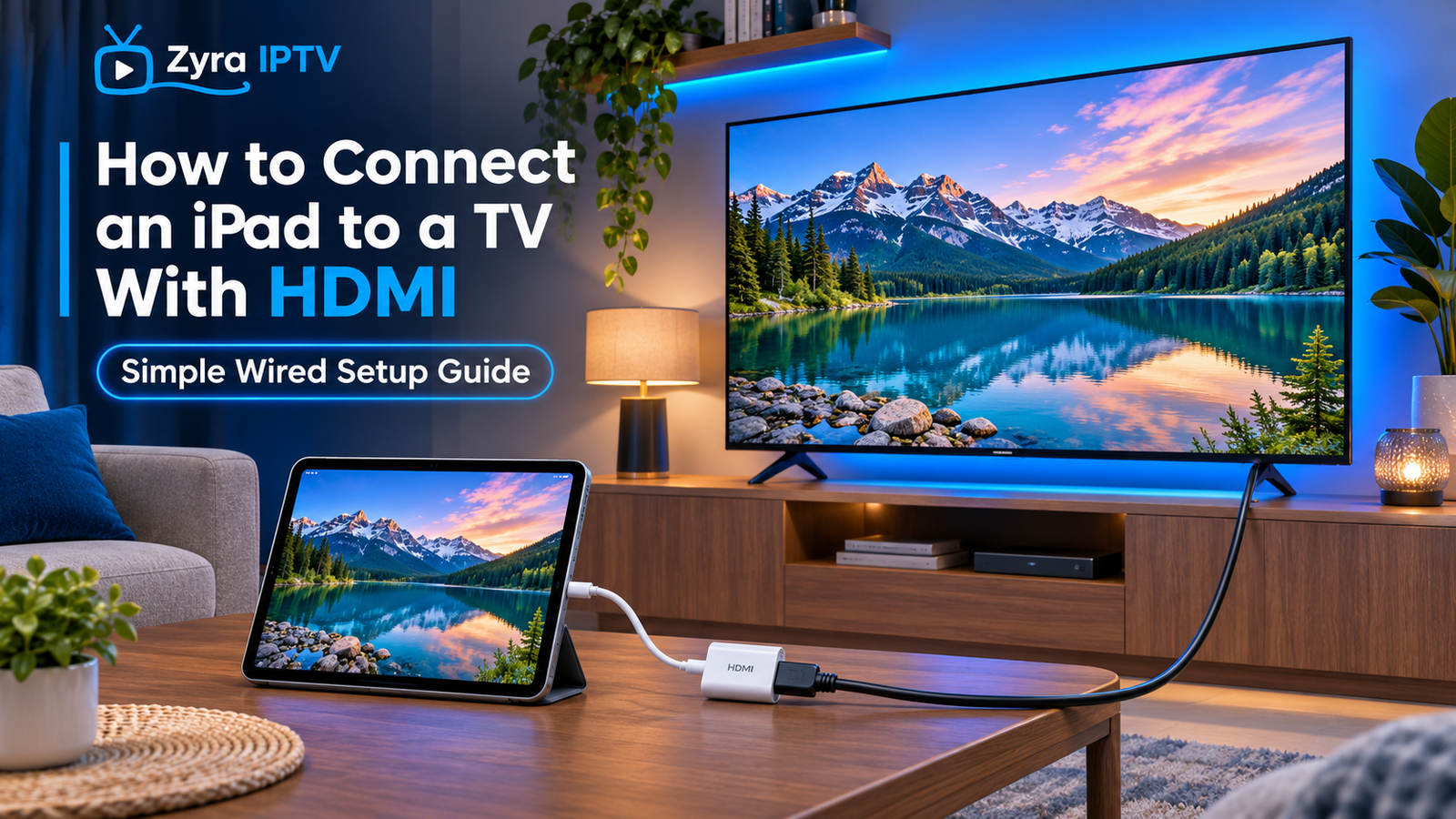
Connecting an iPad to a television with HDMI is one of the simplest ways to display videos, presentations, photos, streaming apps, or your iPad screen on a larger display without relying on Wi-Fi.
The main thing you need to know is which charging port your iPad uses. A USB-C iPad requires a USB-C to HDMI adapter or compatible hub, while an older iPad with a Lightning connector requires a Lightning Digital AV Adapter. You then connect a standard HDMI cable between the adapter and your TV.
Apple officially supports connecting compatible iPads to televisions and other external displays using these types of wired connections.
What You Need to Connect an iPad to a TV With HDMI
Before connecting anything, check the port on the bottom or side of your iPad.
| iPad connector | What you need |
|---|---|
| USB-C | USB-C to HDMI adapter or USB-C Digital AV Multiport Adapter |
| Lightning | Lightning Digital AV Adapter |
| TV | Available HDMI input |
| Connection | Standard HDMI cable |
You normally cannot connect a regular HDMI cable directly to the iPad because the tablet does not have a full-size HDMI port.
The adapter converts the video output from the iPad into a signal your television can receive through HDMI.
How to Connect iPad to TV HDMI With USB-C
Most recent iPads use USB-C or a compatible Thunderbolt/USB-C connector.
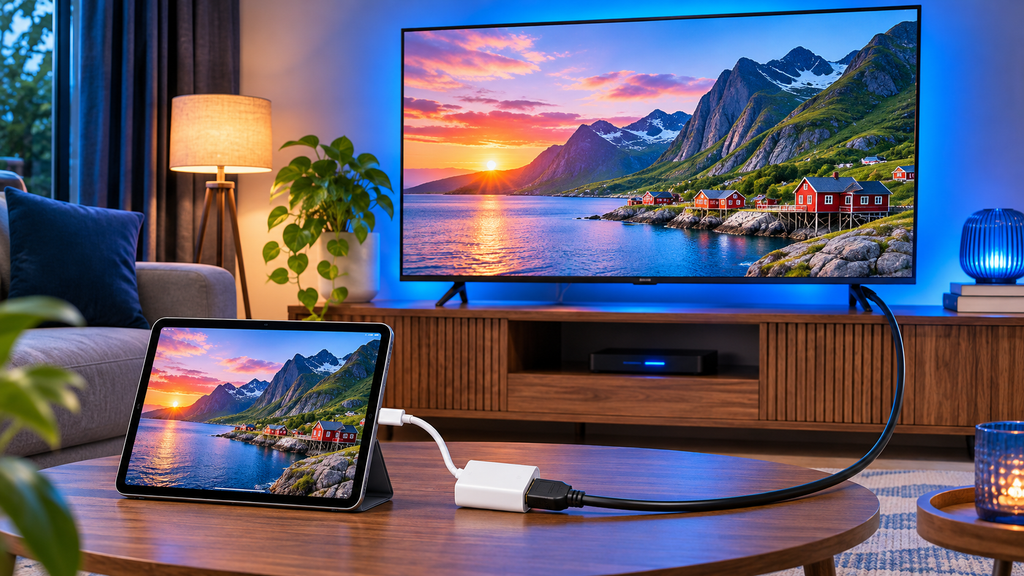
To connect a USB-C iPad:
- Connect the USB-C to HDMI adapter to the iPad.
- Plug one end of your HDMI cable into the adapter.
- Connect the other end of the HDMI cable to an available HDMI port on your TV.
- Turn on the television.
- Use the TV remote to select the matching HDMI input.
- Unlock the iPad and open the content you want to view.
The television should normally detect the signal automatically.
Apple confirms that USB-C iPads can connect to HDMI televisions through a compatible USB-C to HDMI adapter. Some supported iPad models can also output video at up to 4K and 60 Hz when used with appropriate HDMI 2.0 hardware, although maximum resolution varies by iPad model and adapter.
You do not need a 4K-capable adapter just to display a basic iPad screen on a television. A compatible standard HDMI setup is sufficient for many everyday uses.
How to Connect an iPad With Lightning to HDMI
If your iPad has Apple’s smaller Lightning connector rather than USB-C, the process is similar but requires a different adapter.
You will need a Lightning Digital AV Adapter that provides an HDMI connection.
Follow these steps:
- Insert the Lightning adapter into your iPad.
- Connect an HDMI cable to the adapter.
- Plug the other end into an HDMI input on the television.
- Turn on the TV.
- Select the correct HDMI source using the remote.
- Open the app, photo, presentation, or video you want to display.
Apple’s current iPad guide confirms that Lightning-equipped models can connect to a television using a Lightning Digital AV Adapter and HDMI cable.
How Do You Know Which HDMI Input to Select?
Modern televisions often have several inputs labelled HDMI 1, HDMI 2, HDMI 3, or similar.
Look at the port where you inserted the HDMI cable, then choose the corresponding input on the television.
For example, if your cable is plugged into HDMI 2, press the Input, Source, or Home button on the television remote and select HDMI 2.
Selecting the wrong source is one of the most common reasons a connected iPad appears not to work.
Does HDMI Mirror the Entire iPad Screen?
In many situations, the TV will display the same content shown on your iPad.
However, behaviour can vary depending on the iPad model and application. Some apps provide their own second-screen experience, while supported iPads and applications can use external displays differently.
Apple notes that an external display may show the same content as the iPad, provide a dedicated second-screen experience, or support an extended workspace on compatible hardware.
This means the screen does not always behave exactly like simple mirroring in every application.
Can You Watch Streaming Video Through HDMI?
Many video and streaming applications can work over HDMI, but compatibility is controlled partly by the application and the content provider.
Certain protected movies, television programs, and streaming services use HDCP, or High-bandwidth Digital Content Protection. Apple notes that protected video may require an HDCP-compatible digital connection. Some applications may also restrict video output through particular adapters.
If an application’s menus appear on the television but the actual video remains black or produces an error, check:
- whether the application supports external displays
- whether your adapter supports the required video protection
- whether the HDMI cable and television support the connection
- whether the application has specific external-display restrictions
For IPTV-related viewing, you can also review Zyra IPTV’s iOS setup guide for information about supported iOS viewing workflows.
Does HDMI Carry Sound From the iPad?
Yes, HDMI is designed to carry both video and digital audio.
When everything is connected correctly, audio will normally play through the television rather than the iPad speakers.
If you have picture but no sound, first increase the TV volume and confirm the television is using the correct HDMI source.
Apple specifically distinguishes HDMI-based Digital AV adapters from VGA adapters because VGA does not carry audio.
Can You Charge the iPad While Using HDMI?
That depends on the adapter.
Some multiport adapters include a separate USB-C or Lightning power input that lets you connect the iPad charger while the HDMI cable remains connected.
Apple’s USB-C Digital AV Multiport Adapter, for example, provides HDMI, USB-A, and USB-C charging connectivity, and compatible ports can be used simultaneously.
For Lightning models, Apple’s instructions also describe using the additional charging port on compatible adapters while the display is connected.
This can be particularly useful during long movies, live TV sessions, presentations, or extended streaming.
What to Do if Your iPad Does Not Show on the TV
If the television displays “No Signal” or remains blank, work through the connection one component at a time.
Check the TV input
Confirm the television is set to the same HDMI port where the cable is connected.
Disconnect and reconnect the adapter
Remove the adapter from the iPad, reconnect it firmly, and then reconnect the HDMI cable.
Apple recommends disconnecting and reconnecting the adapter when troubleshooting display problems.
Try another HDMI cable
A damaged or incompatible cable can prevent the signal from reaching the television.
If another HDMI cable is available, test it before assuming the iPad or adapter is faulty.
Try another HDMI port
Move the cable to another HDMI port on the television and select that input.
This can help identify whether the original HDMI socket is the problem.
Remove unnecessary converters
Avoid complicated chains involving HDMI converters, extension cables, or multiple adapters.
Apple warns that certain accessories that convert HDMI or VGA signals into other video formats may not work correctly with its Digital AV adapters.
Update iPadOS
Install current iPadOS updates when available, especially if an accessory previously worked but has started behaving unexpectedly.
For more device and setup information, the Zyra IPTV guides cover additional streaming and television configuration topics.
HDMI vs Wireless Screen Mirroring
HDMI and wireless mirroring solve the same general problem, but they work differently.
A wired HDMI connection does not depend on your Wi-Fi network to send the display signal from the iPad to the television. That can make it useful when:
- Wi-Fi is unavailable
- wireless mirroring is unreliable
- you are travelling
- you are using a projector
- you want a straightforward physical connection
Wireless methods such as AirPlay are more convenient when you do not want cables, but they require compatible devices and appropriate network conditions.
If your goal is specifically a wired connection, HDMI is usually the most direct approach.
Frequently Asked Questions
Can I connect an iPad directly to HDMI?
Not with a standard HDMI cable alone. You normally need a USB-C to HDMI adapter for a USB-C iPad or a Lightning Digital AV Adapter for a Lightning iPad.
How do I connect an iPad to HDMI without Apple TV?
Use the appropriate HDMI adapter for your iPad, connect it to the television with an HDMI cable, and select the matching HDMI input. Apple TV is not required for a wired connection.
Why does my TV say no signal when the iPad is connected?
The most common causes are the wrong television input, a loose connection, a faulty HDMI cable, or an incompatible adapter. Reconnect each component and test another HDMI cable or port.
Can an iPad output 4K through HDMI?
Some USB-C iPad models can output video at resolutions up to 4K when connected using compatible HDMI hardware. The supported resolution and refresh rate depend on the specific iPad and adapter.
Can I use an HDMI connection for IPTV on an iPad?
An HDMI connection can display supported iPad apps on a compatible television, but individual applications may have their own external-display or protected-content requirements. For IPTV configuration itself, use the relevant iOS IPTV instructions rather than treating HDMI as the IPTV setup method.
Connect Your iPad to the Big Screen
Learning how to connect iPad to TV HDMI mainly comes down to choosing the correct adapter for your iPad’s port, connecting a standard HDMI cable, and selecting the matching TV input. USB-C models use a USB-C HDMI solution, while Lightning models require a compatible Lightning Digital AV Adapter.
Once the physical connection is working, you can use the larger screen for supported streaming apps, videos, photos, presentations, and other iPad content. If you are setting up IPTV alongside your iPad and television, explore Zyra IPTV for additional IPTV information and device guidance.