
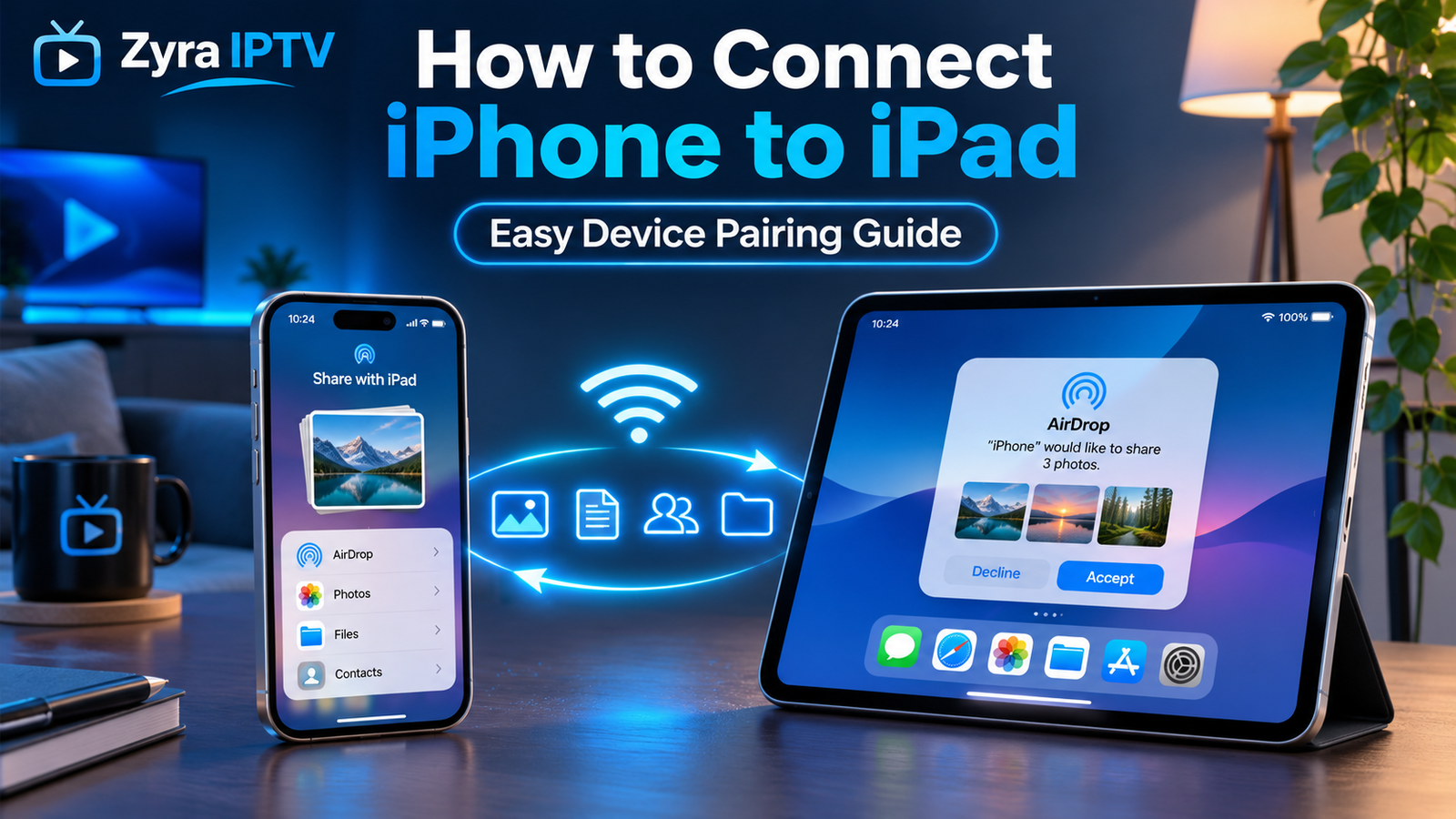
If you are asking how do I connect iPhone to iPad, the right method depends on what you want the two devices to do. There is no single “pair iPhone with iPad” button for every task.
You can keep photos, contacts, notes, and other supported information synchronized through iCloud, send individual files with AirDrop, use your iPhone’s cellular connection as an iPad hotspot, or continue compatible activities between the devices with Apple’s Handoff feature.
For most people who own both devices, signing in to the same Apple Account and enabling the appropriate iCloud and Continuity settings provides the simplest setup.
Ways to Connect an iPhone to an iPad
An iPhone and iPad can work together in several different ways.
| What you want to do | Best method |
|---|---|
| Keep photos and other supported data updated | iCloud |
| Send individual photos or files | AirDrop |
| Give the iPad internet access | Personal Hotspot |
| Continue an activity on another device | Handoff |
| Copy on one device and paste on another | Universal Clipboard |
| Keep compatible apps and services coordinated | Same Apple Account |
The important point is that “connecting” does not necessarily mean creating a permanent direct connection between the devices.
Apple’s Continuity features are designed to let an iPhone and iPad work together while remaining separate devices.
How to Connect iPhone to iPad Using iCloud
If your goal is to keep information available on both devices, iCloud is usually the most useful method.
Start by making sure your iPhone and iPad are signed in to the same Apple Account.
On each device:
- Open Settings.
- Tap your name at the top.
- Select iCloud.
- Review the apps and services using iCloud.
- Enable the categories you want available on both devices.
Depending on your configuration, supported categories can include photos, contacts, calendars, notes, files, passwords, and other app data.
Once the same iCloud services are enabled, supported information can update across both devices instead of requiring you to manually transfer everything from the iPhone to the iPad.
Apple’s own community guidance for users asking how to sync an iPhone and iPad recommends using the same Apple Account and enabling the desired iCloud categories on both devices.
If you use both devices for streaming, the Zyra IPTV iOS guide covers IPTV setup for iPhone and iPad separately from Apple’s synchronization features.
How to Transfer Files From iPhone to iPad With AirDrop
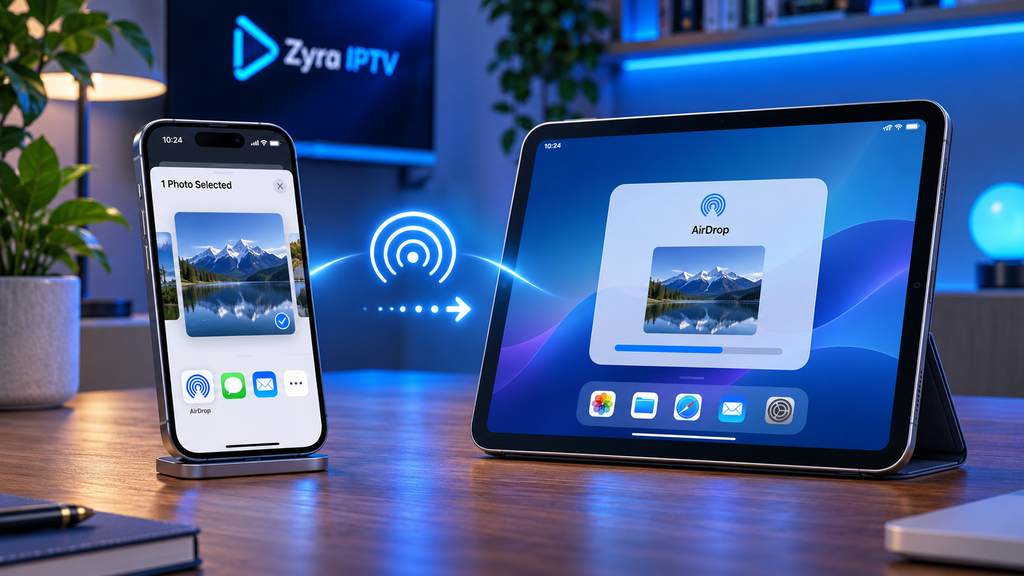
AirDrop is usually the better choice when you want to send one photo, video, document, link, contact, or another supported item rather than synchronize all your data.
Apple supports AirDrop between nearby iPhones and iPads. Wi-Fi and Bluetooth should be enabled on both devices.
To send something from your iPhone:
- Open the photo, file, webpage, or other item.
- Tap the Share button.
- Choose AirDrop.
- Select your iPad.
- Accept the transfer on the iPad if prompted.
If both devices belong to you and use the same Apple Account, transfers may be accepted automatically in supported situations.
AirDrop is particularly useful when you do not want to turn on full iCloud synchronization for a particular type of content.
How to Connect an iPad to an iPhone Hotspot
Your iPhone can also provide internet access to an iPad through Personal Hotspot.
This is useful when the iPad has no available Wi-Fi connection and your iPhone has an active cellular data connection.
On the iPhone:
- Open Settings.
- Open the Personal Hotspot or Cellular settings.
- Enable Personal Hotspot if it is available with your mobile service.
- Note the hotspot password if required.
Then on the iPad:
- Open Settings.
- Tap Wi-Fi.
- Find your iPhone in the available network list.
- Select it.
- Enter the hotspot password if requested.
Apple also supports Instant Hotspot between compatible Apple devices. When the devices are appropriately configured, your iPhone may appear as an internet connection option on the iPad without requiring the normal manual hotspot process.
Personal Hotspot availability, data usage, and any additional charges depend on your mobile carrier and plan, so these conditions can differ between Australia, the United States, Canada, and other regions.
How to Use Handoff Between iPhone and iPad
Handoff lets you begin a supported task on one Apple device and continue it on another.
For example, you might begin browsing a webpage on your iPhone and continue from your iPad.
Apple states that Handoff works between iPhone, iPad, Mac, and other supported Apple devices, including with apps such as Safari, Mail, Maps, and several other Apple and third-party applications.
To configure Handoff on both the iPhone and iPad:
- Open Settings.
- Select General.
- Open AirPlay & Continuity.
- Turn on Handoff.
Make sure:
- Wi-Fi is enabled on both devices
- Bluetooth is enabled
- both devices are signed in to the same Apple Account
- the devices are near each other
When a compatible activity is available, the Handoff option can appear on the other device.
Copy and Paste Between iPhone and iPad
Once Apple’s Continuity features are configured, Universal Clipboard can let you copy supported content on one device and paste it on another.
For example, you could copy:
- text
- an image
- a link
- a photo
on your iPhone and paste it into a compatible app on your iPad.
Apple identifies Universal Clipboard as one of the Continuity features available when compatible Apple devices are configured to work together.
This can be more convenient than sending yourself a message or email simply to move a small piece of information between devices.
Can You Connect iPhone to iPad With Bluetooth?
Bluetooth is used by several Apple Continuity features, but pairing an iPhone and iPad through the Bluetooth settings is generally not the main method for sharing files or synchronizing data.
For most common tasks:
- use AirDrop for files
- use iCloud for synchronization
- use Personal Hotspot for internet access
- use Handoff for continuing activities
Bluetooth still plays an important background role in features such as Handoff, AirDrop, and Instant Hotspot. Apple recommends keeping both Wi-Fi and Bluetooth enabled for many Continuity functions.
Can You Connect iPhone to iPad With a Cable?
A cable is not normally required to keep an iPhone and iPad synchronized with each other.
Apple’s standard device syncing workflow using Finder, iTunes, or the Apple Devices app is designed around syncing an iPhone or iPad with a computer, rather than directly syncing an iPhone to another iPad.
For everyday iPhone-to-iPad use, iCloud, AirDrop, Handoff, and Personal Hotspot are generally the more appropriate tools.
A physical USB connection may have specialized uses depending on the ports, accessories, applications, and device models involved, but it should not be treated as the normal method for synchronizing the two devices.
Can an iPhone and iPad Use the Same Apple Account?
Yes. Using the same Apple Account is an important part of making Apple’s ecosystem features work smoothly across your own devices.
It can help with:
- iCloud synchronization
- Handoff
- Universal Clipboard
- AirDrop between your own devices
- Instant Hotspot
- access to supported purchases and Apple services
You can still control which types of information are synchronized through the settings on each device.
For example, using the same Apple Account does not mean you must enable every available iCloud category.
Can You Use IPTV on Both iPhone and iPad?
IPTV applications may be available on both iPhone and iPad, depending on the individual application’s current platform support.
However, connecting your iPhone to your iPad does not automatically transfer an IPTV subscription, playlist, login, M3U URL, or player configuration between apps.
How an IPTV setup is transferred depends on the player and service being used. Some apps may synchronize their own settings, while others require configuration on each device separately.
If you are configuring streaming on Apple devices, the IPTV setup guides provide additional information about supported installation workflows.
Why Won’t My iPhone Connect to My iPad?
If an Apple Continuity feature is not working, start with a few basic checks.
Check the Apple Account
If you are trying to use iCloud, Handoff, Universal Clipboard, or Instant Hotspot across your own devices, confirm that both devices are using the appropriate Apple Account.
Turn On Wi-Fi and Bluetooth
Many Apple Continuity features depend on Wi-Fi and Bluetooth being enabled.
Keep the Devices Nearby
Features such as AirDrop and Handoff are designed for nearby devices.
Check AirDrop Settings
If the iPad does not appear as an AirDrop destination, review AirDrop receiving permissions on both devices.
Check Personal Hotspot
If the iPad cannot use the iPhone’s internet connection, confirm that Personal Hotspot is supported and enabled for your cellular plan.
Restart Both Devices
Temporary connection or discovery problems can sometimes be corrected by restarting the iPhone and iPad.
Update iOS and iPadOS
Use current compatible software versions, particularly if a Continuity feature works differently from the instructions available for your devices.
Frequently Asked Questions
How do I connect iPhone to iPad?
There is no single connection required for every purpose. Use iCloud to synchronize supported data, AirDrop to transfer individual files, Personal Hotspot to share cellular internet, and Handoff to continue supported tasks between devices.
How do you connect iPhone to iPad for photos?
For ongoing photo synchronization, configure iCloud Photos appropriately on both devices. For a small number of individual photos, AirDrop is usually more convenient.
Can I connect my iPhone to my iPad without Wi-Fi?
Some functions have different connectivity requirements, but many Continuity features rely on Wi-Fi and Bluetooth. AirDrop uses Apple’s nearby-device technology, while Personal Hotspot allows the iPad to use the iPhone’s cellular internet connection.
Can I mirror my iPhone screen to an iPad?
Standard AirPlay does not make an iPad a general-purpose AirPlay receiver for mirroring another iPhone in the same way a supported Mac or Apple TV can be used. Third-party applications may offer different functionality, so verify their current capabilities before installing them.
Will everything automatically sync between my iPhone and iPad?
No. What synchronizes depends on your Apple Account, iCloud settings, individual apps, and enabled services. You can control supported categories separately.
Connect Your iPhone and iPad the Right Way
If you are wondering how do I connect iPhone to iPad, first decide what you want to accomplish. Use iCloud for ongoing synchronization, AirDrop for individual files, Personal Hotspot for internet sharing, and Handoff or Universal Clipboard for moving smoothly between devices.
There is usually no need to create one permanent physical connection between an iPhone and iPad. Apple’s ecosystem is designed to let the devices cooperate wirelessly while each remains independently usable.
If you also use your iPhone or iPad for internet TV and other streaming, Zyra IPTV provides additional IPTV information and device setup guidance for compatible viewing workflows.