

If an Apple TV app freezes, stops responding, or does not behave normally, force quitting it and opening it again is one of the simplest troubleshooting steps.
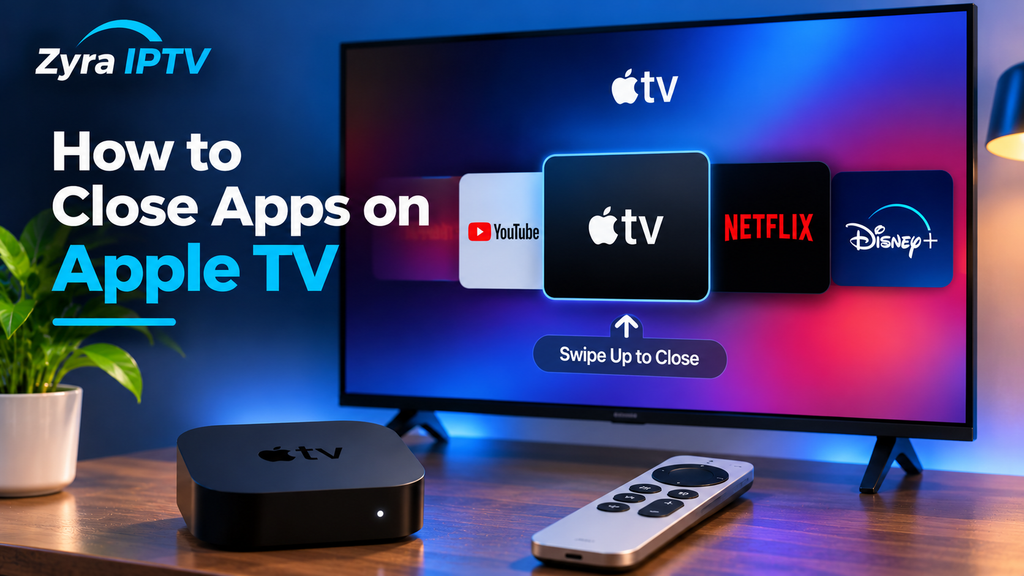
If you are searching for how to close apps Apple TV, the current method on Apple TV 4K is straightforward: press the TV button twice quickly on the remote, move to the app you want to close, then swipe up on the clickpad or touch surface. Apple recommends force quitting when an app is not working correctly.
Closing an app is different from returning to the Home Screen and also different from deleting the app. This guide explains each option, how to use the Apple TV app switcher, and what to try when an app refuses to close.
How to Close Apps on Apple TV
On a current Apple TV 4K, follow these steps:
- Press the TV button twice quickly on your Apple TV remote.
- The app-switching view will appear with your open apps displayed as cards.
- Move left or right until the app you want to close is selected.
- Swipe upward on the clickpad or touch surface.
- The selected app will disappear from the app switcher.
- Return to the Home Screen and open the app again if needed.
Apple’s current Apple TV 4K guide uses this exact process for force quitting an app that is not working correctly.
You do not need to navigate through the Settings app to close an individual application.
What Is the Apple TV App Switcher?
The app switcher is the screen that lets you move between recently opened apps without returning to the normal Home Screen each time.
Apple provides a dedicated Switch between apps function as part of tvOS app management. The same interface is also used when you want to force quit an application.
To open it, press the TV button twice quickly.
Once the cards appear, navigate left or right to find the application you want.
This can be useful when moving between a streaming app, music, photos, or another application without repeatedly navigating through the Apple TV Home Screen.
For broader television and streaming setup information, you can also review the Smart TV setup resources from Zyra IPTV.
Closing an App vs Going Back to the Home Screen
Pressing the Back or Home-related controls and returning to the Apple TV Home Screen does not perform the same action as force quitting the app.
When troubleshooting, the important distinction is:
| Action | What it does |
|---|---|
| Return to Home Screen | Leaves the current app interface |
| Switch apps | Moves to another open app |
| Force quit app | Ends the app session so it can be reopened |
| Delete app | Removes the installed application |
If an app is working normally, you generally only need to leave it and open something else.
If it is frozen or behaving incorrectly, force quitting and reopening it is the more relevant troubleshooting step. Apple specifically describes force quitting as something to try when an app is not working right.
How to Close an App on Apple TV With the Siri Remote
The exact appearance of the Siri Remote has changed over different Apple TV generations, but current Apple TV 4K instructions rely on the TV button and the remote’s clickpad or touch surface.
The basic sequence is:
TV button twice → select app → swipe up
Make sure you press the TV button twice quickly. A single press performs a different action.
Once the app switcher appears, highlight the correct app before swiping upward.
If you only want to leave the app-switching view without closing anything, Apple says you can press the Back or Menu button, depending on the remote.
How Do You Close Multiple Apps on Apple TV?
Apple’s current instructions describe force quitting apps individually.
Open the app switcher, select an app, and swipe it upward. You can then move to another app and repeat the process.
There is no need to close every application simply because it appears in the switcher. Force quitting is most relevant when you are trying to correct a problem with a particular application.
For example, you might close and reopen an app if:
- it stops responding
- menus are not loading correctly
- playback controls stop working
- the interface becomes stuck
- an app does not behave normally after reopening it
If the problem affects an IPTV player or another streaming application, the troubleshooting resources in the Zyra IPTV guides may also help with device and player setup.
What to Do if an Apple TV App Is Frozen
If the app itself is frozen but the Apple TV remote still responds, try force quitting it first.
- Press the TV button twice.
- Find the frozen app.
- Swipe upward to force quit it.
- Return to the Home Screen.
- Open the app again.
This follows Apple’s official recommendation to force quit an application that is not working correctly and then reopen it from the Home Screen.
If the app immediately freezes again, the problem may require additional troubleshooting rather than repeatedly closing it.
What if Apple TV Is Completely Unresponsive?
If the entire Apple TV is not responding rather than just one app, restarting the device may be more appropriate.
On current Apple TV 4K software, Apple provides several restart methods.
You can go to:
Settings → System → Restart
Apple also documents a remote-button restart method. If the Apple TV does not respond to the remote, another option is to disconnect it from the power outlet, wait five seconds, and reconnect it.
A restart affects the Apple TV as a whole, so it is different from force quitting one problematic app.
Should You Delete an App if It Keeps Freezing?
Not immediately.
Closing an application and deleting an application solve different problems.
Force quitting ends the current app session. Deleting removes the application itself from the Apple TV.
A sensible troubleshooting order is:
- Force quit the problematic app.
- Reopen it.
- Restart the Apple TV if the problem continues.
- Check whether your Apple TV software and the application have available updates.
- Consider deleting and reinstalling the app only if the problem persists and doing so is appropriate for that app.
Remember that removing an application may also affect locally stored app data or require you to sign in or configure the app again.
Can You Close Apple TV Apps From an iPhone?
Apple allows an iPhone or iPad to be used as a remote for Apple TV 4K, and this functionality is included in Apple’s current Apple TV guide.
However, when following Apple’s official force-quit instructions, the clearest approach is to use the Apple TV remote controls described in the device guide.
If you are configuring other Apple devices alongside your streaming setup, Zyra IPTV also provides an iOS setup guide for iPhone and iPad IPTV-related configuration.
Why Won’t an Apple TV App Close?
If swiping up does not close the app, check these possibilities.
You Did Not Open the App Switcher
Press the TV button twice quickly, not once.
If you are still looking at the normal Home Screen, you are not yet in app-switching view.
The Wrong App Is Selected
Navigate left or right until the card for the problem app is highlighted.
Then swipe upward.
The Remote Is Not Responding Correctly
If the remote is not registering navigation or swipe gestures properly, the problem may be with the remote connection rather than the app.
Try the remote again after confirming the Apple TV itself still responds.
The Entire Apple TV Is Frozen
If you cannot open the app switcher or interact with tvOS at all, restart the Apple TV rather than continuing to attempt to close one app.
Apple recommends restarting Apple TV 4K if the device itself is not responding.
Does Closing an App Delete It?
No.
Force quitting an application does not uninstall it.
After you close the app, its icon remains available on the Apple TV Home Screen, and you can launch it again normally.
Deleting an app is a separate tvOS function. Apple’s current Apple TV guide lists Install or delete apps, Switch between apps, and Force quit an app as separate app-management actions.
This distinction is important if your only goal is to restart an app that has stopped responding.
Can Closing an App Fix Streaming Problems?
It can help when the problem is specifically caused by an application that has stopped responding or is behaving incorrectly.
However, not every playback issue is caused by the app session.
Streaming problems can also involve:
- the internet connection
- Wi-Fi performance
- application settings
- service availability
- account authentication
- outdated software
- the streaming source itself
For IPTV applications, closing and reopening the player may be one troubleshooting step, but it does not replace checking the app configuration, playlist, network connection, or service details.
Frequently Asked Questions
How do you close apps on Apple TV?
On Apple TV 4K, press the TV button twice quickly, navigate to the app you want to close, and swipe upward on the clickpad or touch surface.
How do I close an app on Apple TV if it freezes?
Open the app switcher by pressing the TV button twice, select the frozen app, swipe up to force quit it, then open the app again from the Home Screen.
Is closing an app the same as deleting it?
No. Closing ends the app’s current session. Deleting removes the application from the Apple TV.
How do I restart Apple TV if an app will not close?
On current Apple TV 4K software, go to Settings → System → Restart. Apple also provides remote-button and power-disconnection restart methods.
Do I need to close every open Apple TV app?
Apple’s guidance presents force quitting as a troubleshooting action for an app that is not working correctly. You do not need to force quit every app simply because it appears in the app switcher.
Close Apple TV Apps When Troubleshooting
Learning how to close apps Apple TV is useful when a streaming app, IPTV player, game, or other application stops responding. On Apple TV 4K, press the TV button twice, select the problem app, and swipe upward to force quit it. If the entire device is unresponsive, restart Apple TV instead.
For more information about IPTV viewing, compatible device setup, and streaming configuration, explore Zyra IPTV and its device guides.