
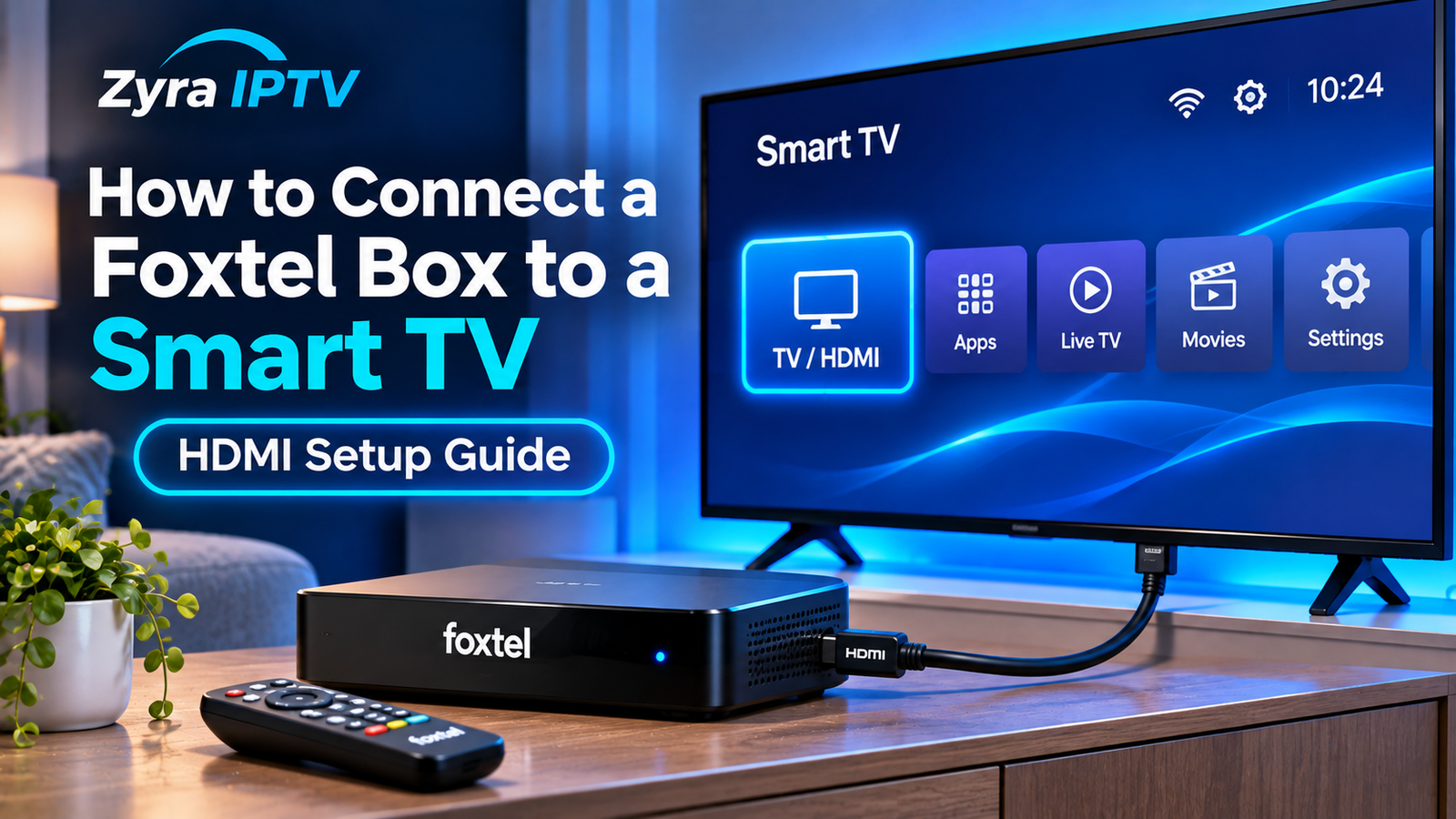
If you are wondering how to connect Foxtel box to Smart TV, the basic setup is straightforward. Connect the Foxtel box to an available HDMI port on your television, connect the box to power, turn both devices on, then select the matching HDMI input on your Smart TV.
For current Foxtel iQ boxes, HDMI carries the picture and sound from the Foxtel box to your television. Depending on your Foxtel box, installation type and the services you use, you may also need to connect satellite, aerial or internet cables.
This guide explains the complete setup for Australian viewers, including HDMI connections, Wi-Fi, free-to-air channels and common troubleshooting steps.
What You Need to Connect Foxtel to a TV
Before starting, have the following equipment ready:
- Foxtel iQ box
- Foxtel remote
- Smart TV with an available HDMI input
- HDMI cable
- Foxtel box power adapter
- your home Wi-Fi details if connecting wirelessly
- any satellite or aerial cables required for your installation
Foxtel’s current iQ setup information confirms that its installation kit includes an HDMI cable for connecting the box to the television.
Your television does not need to be a particular brand simply because you are using a Foxtel box. The important part for the physical connection is having a compatible HDMI input.
How to Connect Foxtel Box to Smart TV Step by Step
For a standard connection, follow these steps.
1. Turn Off Your TV and Foxtel Box
Before connecting cables, turn your television and Foxtel box off.
Foxtel’s iQ5 and iQ4 installation instructions advise turning the TV and existing Foxtel equipment off at the wall before completing the cable installation.
This also makes it easier to identify and connect cables without repeatedly changing inputs while the equipment is running.
2. Connect the HDMI Cable to the Foxtel Box
Locate the HDMI output on the rear of your Foxtel box.
Insert one end of the HDMI cable firmly into this port.
On current iQ installation diagrams, Foxtel identifies HDMI as the connection used between the iQ box and television.
3. Connect HDMI to Your Smart TV
Connect the other end of the HDMI cable to an available HDMI port on your television.
Most modern Smart TVs have several HDMI inputs labelled something similar to:
- HDMI 1
- HDMI 2
- HDMI 3
- HDMI ARC or eARC
Remember which port you use. For example, if you connect the Foxtel box to HDMI 2, you will need to select HDMI 2 from the television’s input menu later.
4. Connect the Foxtel Box to Power
Connect the supplied power cable to the Foxtel box, then connect the power adapter to a power point.
If your installation also requires Foxtel wall cables, an aerial connection or Ethernet, connect those according to the instructions supplied with your box.
Foxtel’s iQ5 setup diagram shows HDMI going to the TV and the power cable going to the power point, with additional connections available depending on the installation.
5. Turn On Your TV and Foxtel Box
Turn the television and Foxtel box back on.
Give the Foxtel box time to start. During an initial setup or after replacing equipment, you may see startup screens before the normal interface appears.
6. Select the Correct HDMI Input
Using your Smart TV remote, press the button labelled something like:
- Source
- Input
- Home
- External Inputs
Choose the HDMI port where you connected the Foxtel box.
For example:
Foxtel connected to HDMI 1: select HDMI 1.
Foxtel connected to HDMI 3: select HDMI 3.
Foxtel’s official iQ4 instructions similarly tell users to turn the television on and select the HDMI source to which the box is connected.
If everything is connected correctly, the Foxtel interface should appear.
How to Connect an iQ5 to a Smart TV
The iQ5 setup can differ slightly depending on how your Foxtel service is delivered.
Foxtel’s installation information shows the iQ5 using:
- HDMI to the television
- power to the power point
- optional aerial connection
- optional Foxtel wall connection
- internet connectivity where required
Foxtel specifically notes that an iQ5 installation without a satellite dish can disregard the satellite cable and use the remaining connections for an internet-based setup.
For the television itself, however, the important connection remains HDMI.
Once the cables are connected, turn the box on and follow the on-screen guided setup.
How to Connect Foxtel iQ4 to a Smart TV
The iQ4 connection is similar.
Foxtel’s official iQ4 setup guide instructs users to connect the supplied HDMI cable between the iQ4 and television, then select the corresponding HDMI source after turning the TV back on.
The iQ4 can also use:
- Foxtel wall cables
- a television aerial connection
- Wi-Fi
- Ethernet on relevant installations
If you are using compatible 4K equipment, Foxtel’s older iQ4K installation documentation specifies a 4K-compatible HDMI cable.
How to Connect Foxtel to Wi-Fi
Once your Foxtel box is displaying correctly on the TV, you may also want to connect it to your home internet.
On an iQ4, Foxtel’s setup instructions describe the process as:
- Open Home.
- Go to Settings.
- Select Internet Connection.
- Select WiFi.
- Choose your home network.
- Enter your Wi-Fi password.
- Confirm the connection.
Internet connectivity enables supported online features and on-demand streaming on compatible Foxtel equipment.
If Ethernet is available near the TV, a wired connection may also be an option depending on your box and home network.
For readers comparing different internet television configurations, Zyra IPTV also provides broader Smart TV IPTV setup guidance covering IPTV applications rather than Foxtel hardware.
How to Get Free-to-Air Channels Through Foxtel
Depending on your Foxtel box and installation, you may also connect a television aerial.
Foxtel’s iQ4 installation guide explains that users who want compatible free-to-air terrestrial channels can connect the box to the TV aerial wall plate and then perform a terrestrial channel scan from the settings menu.
Free-to-air availability varies according to location and installation.
This connection is separate from HDMI. The aerial provides the television signal, while HDMI sends the Foxtel box’s picture and sound to your TV.
Foxtel Connected but No Picture Appears
If the Foxtel box is powered on but your Smart TV displays “No Signal”, work through these checks.
Check the HDMI Input
The most common cause is selecting the wrong television input.
If your Foxtel cable is connected to HDMI 2, make sure your TV is displaying HDMI 2 rather than HDMI 1.
Reconnect the HDMI Cable
Remove and firmly reconnect the HDMI cable at both ends.
Check the connection at:
- the Foxtel box
- the Smart TV
A cable that appears connected may still be slightly loose.
Try Another HDMI Port
Move the Foxtel connection to another HDMI input on your television.
Remember to change the TV source afterward.
Try Another HDMI Cable
If another suitable HDMI cable is available, test it.
A damaged cable can cause problems such as:
- no image
- intermittent picture
- picture without stable sound
- repeated loss of signal
Restart the Equipment
Turn both the Smart TV and Foxtel box off, then restart them.
Allow the Foxtel box to complete its normal startup sequence before testing again.
Foxtel Has Picture but No Sound
If you can see Foxtel but cannot hear anything, first check that the Smart TV is not muted.
Next:
- raise the TV volume
- reconnect the HDMI cable
- try another HDMI port
- restart both devices
- check whether sound is being routed through a soundbar or AV receiver
HDMI normally carries both video and audio, so a separate audio cable is generally unnecessary for a basic TV-to-Foxtel connection.
Home theatre installations can be different, particularly when an AV receiver or soundbar sits between the television and the Foxtel box.
Do You Need a Foxtel Box on a Smart TV?
Not always.
Some compatible Smart TVs can access Foxtel through the Foxtel app rather than having a physical Foxtel box connected directly to that television.
Foxtel says its Multiscreen option can provide access through supported Smart TVs and streaming devices using the Foxtel app. Device compatibility depends on the television model, operating system and subscription arrangement.
This is different from connecting an iQ box.
With an iQ setup:
Foxtel box → HDMI cable → Smart TV
With an app-based setup:
Foxtel app → internet connection → compatible Smart TV
Check Foxtel’s current compatibility information before assuming that a particular television model supports its app.
Can You Cast Foxtel to a Smart TV?
Foxtel also supports casting in certain situations.
According to Foxtel, eligible customers can cast through the Foxtel app using a compatible Smart TV, Chromecast or Apple TV, with the relevant devices connected to the same Wi-Fi network.
Casting is therefore another option when you are not using the physical Foxtel box on that television.
It should not be confused with HDMI setup. HDMI creates a direct hardware connection, while casting sends supported streaming content across your home network.
Foxtel Box vs IPTV App on a Smart TV
A Foxtel box and a Smart TV IPTV app use different setup methods.
A Foxtel iQ box is external hardware connected to your TV through HDMI.
An IPTV setup can instead involve installing a compatible IPTV player directly on the Smart TV and configuring it with the appropriate service information.
For IPTV users, Zyra IPTV provides dedicated IPTV guides covering installation across different device types.
The two approaches can coexist on the same television because HDMI devices and Smart TV applications are accessed separately.
Frequently Asked Questions
How do I connect Foxtel to my Smart TV?
Connect an HDMI cable from the Foxtel box to an available HDMI input on your Smart TV, power on both devices, then select that HDMI input using the television remote.
Which HDMI port should Foxtel use?
You can generally use an available compatible HDMI input. Remember the port number so you can select the correct source on the television.
Does Foxtel need internet?
Internet access is used for supported streaming, on-demand and connected features. The exact requirements can vary depending on your Foxtel box and installation type. Foxtel’s iQ5 documentation also supports internet-based installation where applicable.
Why does my TV say no signal after connecting Foxtel?
Check that the TV is set to the same HDMI input used by the Foxtel box. If it is, reconnect the HDMI cable, test another port, restart both devices and try another suitable HDMI cable.
Can I use Foxtel without a box?
Some eligible customers can use the Foxtel app on supported Smart TVs and streaming devices. Compatibility and account requirements should be checked directly with Foxtel.
Conclusion
Knowing how to connect Foxtel box to Smart TV mainly comes down to one connection: run an HDMI cable from the Foxtel box to your television, turn both devices on and select the correct HDMI source. Additional satellite, aerial, Wi-Fi or Ethernet connections depend on the Foxtel box and installation type.
If you are also exploring internet-based television without relying solely on an external set-top box, Zyra IPTV provides further information about IPTV and compatible viewing setups for Smart TVs and other devices.