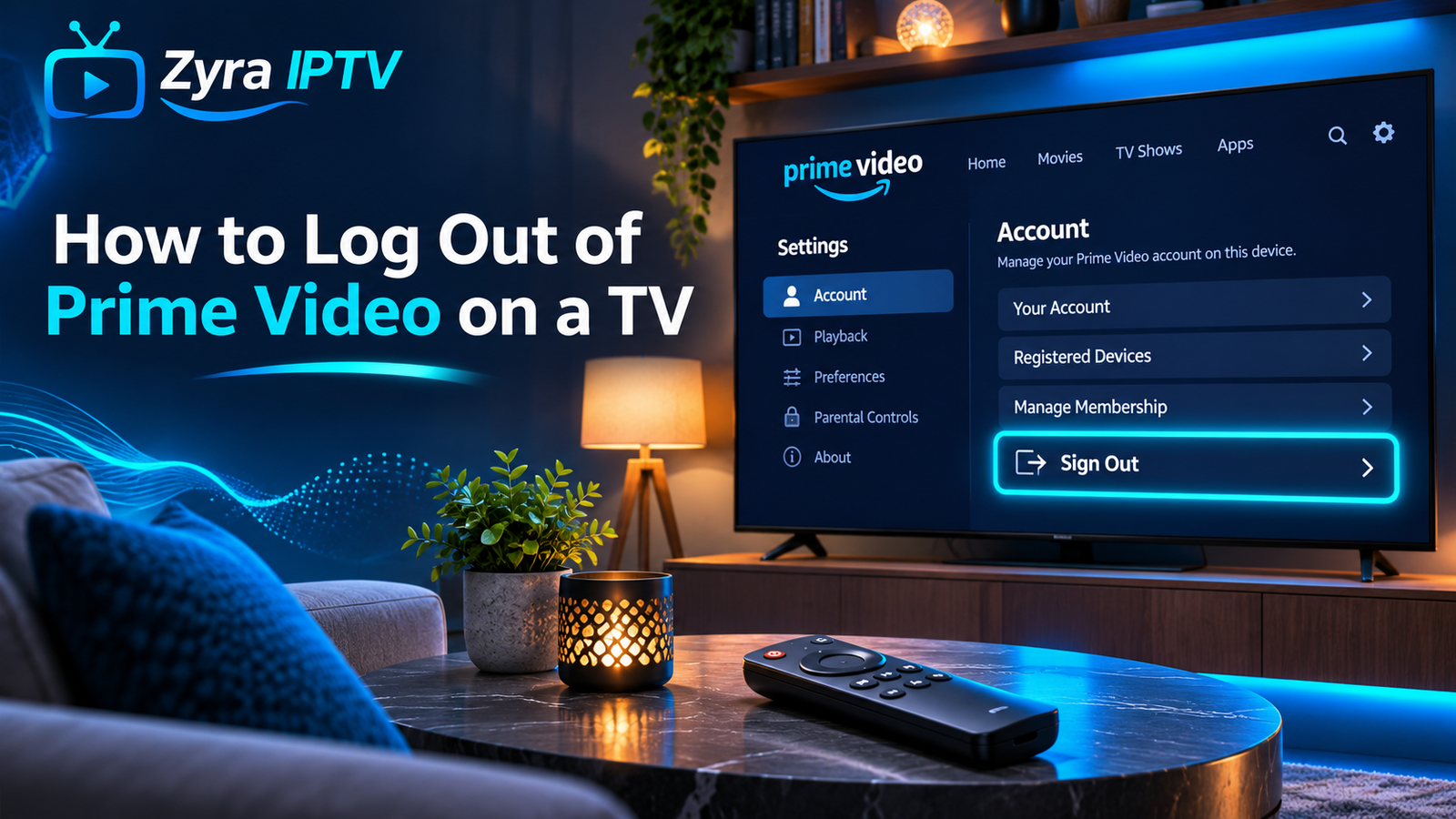
If you are wondering how to log out of Prime on TV, the usual method is to open the Prime Video app, go to Settings, select Sign Out or Deregister, and confirm your choice. The wording can vary depending on your Smart TV or streaming device.
If you no longer have access to the television, you can also remove it remotely. Amazon says you can open Prime Video’s Account & Settings, go to Devices, locate the television and deregister it.
This is useful when switching accounts, selling a television, signing out of a hotel TV, or removing a device you no longer recognise.
How to Log Out of Prime on TV
On most Smart TVs and compatible streaming devices, try these steps first:
- Open the Prime Video app.
- Select your profile if the profile screen appears.
- Open Settings or the gear icon.
- Scroll through the settings menu.
- Select Sign Out or Deregister.
- Confirm that you want to remove the account.
- Return to the Prime Video login screen.
The precise interface can differ between Samsung, LG, Roku, Apple TV, Android TV and other platforms because the Prime Video app is not displayed identically everywhere.
If you see Deregister instead of Sign Out, it performs the relevant account-removal function for that Prime Video device.
What Does Deregister Mean on Prime Video?
Amazon sometimes uses the word Deregister instead of simply saying “log out.”
Deregistering disconnects the device from the Amazon account associated with it. Amazon explains that deregistration removes the device’s access to Amazon account content and services until it is registered again.
After deregistering a television or streaming device, you can normally open Prime Video again and sign in using another Amazon account.
Deregistering does not mean deleting your Amazon account.
It also does not automatically cancel your Amazon Prime or Prime Video subscription.
How to Log Out of Prime Video Remotely
You do not need physical access to the television to remove your Prime Video account.
This is particularly useful if you:
- signed in on a hotel television
- used Prime Video at a friend’s house
- sold an old Smart TV
- forgot to sign out before giving away a device
- see an unfamiliar television connected to your account
Amazon’s current troubleshooting instructions say that if you cannot sign out directly, you can manage the device through Prime Video online.
The general process is:
- Open Prime Video in a web browser.
- Sign in to your Amazon account.
- Open Account & Settings.
- Select Devices.
- Locate the television or streaming device.
- Select Deregister next to that device.
- Confirm the action.
The television should then lose access to your Prime Video account.
This is one of the safest methods when the television is no longer in your possession.
How to Log Out of Prime Video on a Samsung TV
On a compatible Samsung Smart TV, open the Prime Video app and enter its settings menu.
Depending on the app version, the option may appear as:
- Sign Out
- Deregister
If you are initially shown a profile-selection screen, choose a profile first and then look for Settings.
After selecting the appropriate sign-out option, confirm that you want to remove the account.
If the option does not appear, use Prime Video’s online Devices page instead. Amazon specifically recommends remote deregistration when you cannot sign out normally.
For people using additional internet television apps on Samsung or another television platform, Zyra IPTV’s Smart TV IPTV setup guide covers IPTV-specific installation separately.
How to Log Out of Prime Video on an LG Smart TV
The process on an LG television is similar.
Open Prime Video and navigate to:
Prime Video → Settings → Sign Out
The menu position can change with Prime Video application updates, so you may need to scroll through the settings screen.
If your LG TV does not show a sign-out option, remove the television remotely from the Devices section of your Prime Video account.
After signing out, reopening Prime Video should present a sign-in or registration screen.
How to Log Out of Prime Video on Roku
If you watch Prime Video through a Roku rather than directly through your Smart TV, you need to sign out of the Prime Video app running on the Roku.
Open Prime Video, choose the relevant profile, open the settings menu and look for Sign Out or Deregister.
Remember that your Smart TV and Roku are separate devices. If Prime Video is installed directly on your television as well as on the Roku, signing out of one does not necessarily sign you out of the other.
You may need to deregister each device individually.
How to Log Out of Prime Video on Fire TV
Fire TV works differently because the streaming device itself is closely connected to an Amazon account.
Amazon’s deregistration guidance says removing an Amazon device disconnects it from the Amazon account and associated digital services.
If you are selling, gifting or permanently transferring a Fire TV, deregistration is particularly important.
Amazon also recommends deregistering and then performing a factory reset when preparing an Amazon device for another owner.
Be aware that deregistering the Fire TV can affect more than Prime Video because the Amazon account is connected to the device itself.
How to Switch Prime Video Accounts on a TV
If someone else’s Amazon account is currently signed in, you generally need to remove that account before adding yours.
First:
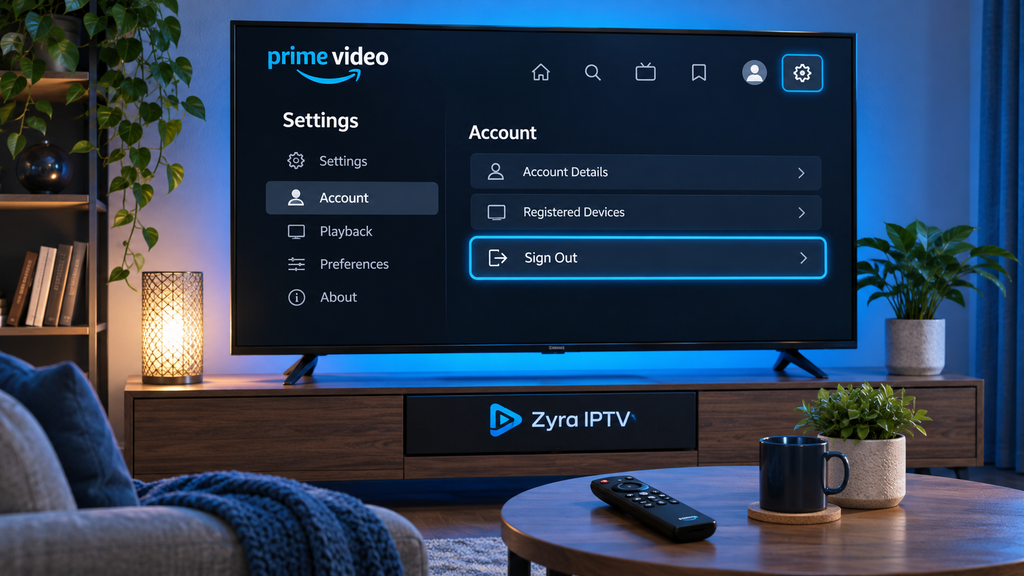
Prime Video → Settings → Sign Out or Deregister
Then reopen Prime Video.
The app should give you an option to register or sign in with a different Amazon account. Depending on the device, you may be asked to:
- enter an email address and password
- scan a QR code
- enter a registration code on another device
Follow the instructions displayed on the television.
Switching accounts is different from switching profiles. Prime Video profiles all exist within the same Amazon account.
Does Changing Prime Video Profiles Log Out the TV?
No.
A Prime Video profile helps organise things such as recommendations, viewing history and individual user preferences, but changing profiles does not disconnect the underlying Amazon account from the television.
If another person’s Amazon account is signed into your TV, choosing your own-looking profile is not enough.
You need to use Sign Out or Deregister to remove the Amazon account itself.
Why Can’t I Find the Sign Out Button?
Prime Video’s interface can change according to the device and app version.
If you cannot find Sign Out, look for:
- Settings
- Account
- My Account
- Registered Devices
- Deregister
Amazon’s official advice is to use the Prime Video website’s Account & Settings → Devices section if you cannot sign out through the device itself.
You can also try restarting the Prime Video app or television before checking again.
How to Remove an Old TV From Prime Video
If you have replaced a television but the old one still appears on your Amazon account, deregister it.
Open your Prime Video account in a browser, go to Account & Settings, select Devices, and remove the old television.
Amazon lists switching accounts, selling devices and troubleshooting as common reasons for deregistering hardware.
Removing unused devices can also make your registered-device list easier to understand.
What if You See a TV You Do Not Recognise?
If an unfamiliar device appears on your Amazon or Prime Video account, deregistering it is a sensible first step.
You should also review your Amazon account security.
Consider:
- changing your Amazon password
- checking recent account activity
- reviewing registered devices
- enabling two-step verification if available to your account
Simply deleting a Prime Video profile does not remove a device from your Amazon account.
Does Logging Out Cancel Amazon Prime?
No.
Logging out of Prime Video on your television does not cancel your membership.
Amazon treats cancelling a Prime Video subscription as a separate account action. Its current instructions require users to access Account & Settings and manage the subscription under the account section.
So these actions have different results:
Sign Out: removes account access from a device.
Deregister: removes that device’s association with your Amazon account.
Cancel Subscription: ends the relevant Prime Video subscription according to its billing terms.
Do not cancel your membership just because you want to remove Prime Video from one television.
Do You Need to Sign Out Before Selling a Smart TV?
Yes, removing streaming accounts before selling or giving away a television is a good practice.
Prime Video may contain access to:
- your viewing account
- purchased or rented content
- add-on subscriptions
- personalised profiles
You should sign out of Prime Video and other streaming applications before transferring the television to somebody else.
A factory reset of the Smart TV can also remove locally stored accounts and settings, but follow the television manufacturer’s instructions because the reset procedure varies by brand.
If the television is already gone, remotely deregister Prime Video through your account.
Prime Video and IPTV Apps Are Separate
Signing out of Prime Video does not affect unrelated IPTV applications installed on the same television.
Prime Video is an Amazon streaming service connected to your Amazon account. An IPTV player may instead use an M3U playlist, Xtream Codes login or another account method, depending on the application and service.
If you are managing multiple television apps, Zyra IPTV’s IPTV guides explain IPTV setup separately across different platforms.
Android-based television users can also review the Android TV IPTV guide for installation information relevant to that platform.
Frequently Asked Questions
How do I log out of Amazon Prime on my Smart TV?
Open Prime Video, go to Settings, and choose Sign Out or Deregister. If that option is unavailable, remove the television through Prime Video’s Account & Settings → Devices page.
Can I log out of Prime Video on a TV remotely?
Yes. Amazon says you can deregister the device from the Devices section of your Prime Video account when you cannot sign out directly.
Does deregistering Prime Video delete my account?
No. Deregistering removes the device’s connection to your Amazon account. It does not delete the Amazon account itself.
Does signing out of Prime Video cancel my subscription?
No. Subscription cancellation is a separate process handled through your Amazon or Prime Video account settings.
Can I switch Amazon accounts on a Smart TV?
Yes. Sign out or deregister the current Prime Video account, reopen the app and follow the registration process for the new Amazon account.
What should I do if I sold my TV without signing out?
Open Prime Video in a browser, go to Account & Settings → Devices, locate the old television and deregister it. You can also review your Amazon account security afterward.
Conclusion
Knowing how to log out of Prime on TV is usually straightforward: open Prime Video, enter Settings, select Sign Out or Deregister, and confirm. If you cannot access the television, Prime Video also lets you remove registered devices remotely through your account settings.
Signing out only removes Prime Video access from that device and does not cancel your subscription. If you are also setting up internet television or IPTV apps on a Smart TV, Zyra IPTV provides additional guidance for IPTV installation across supported viewing devices.