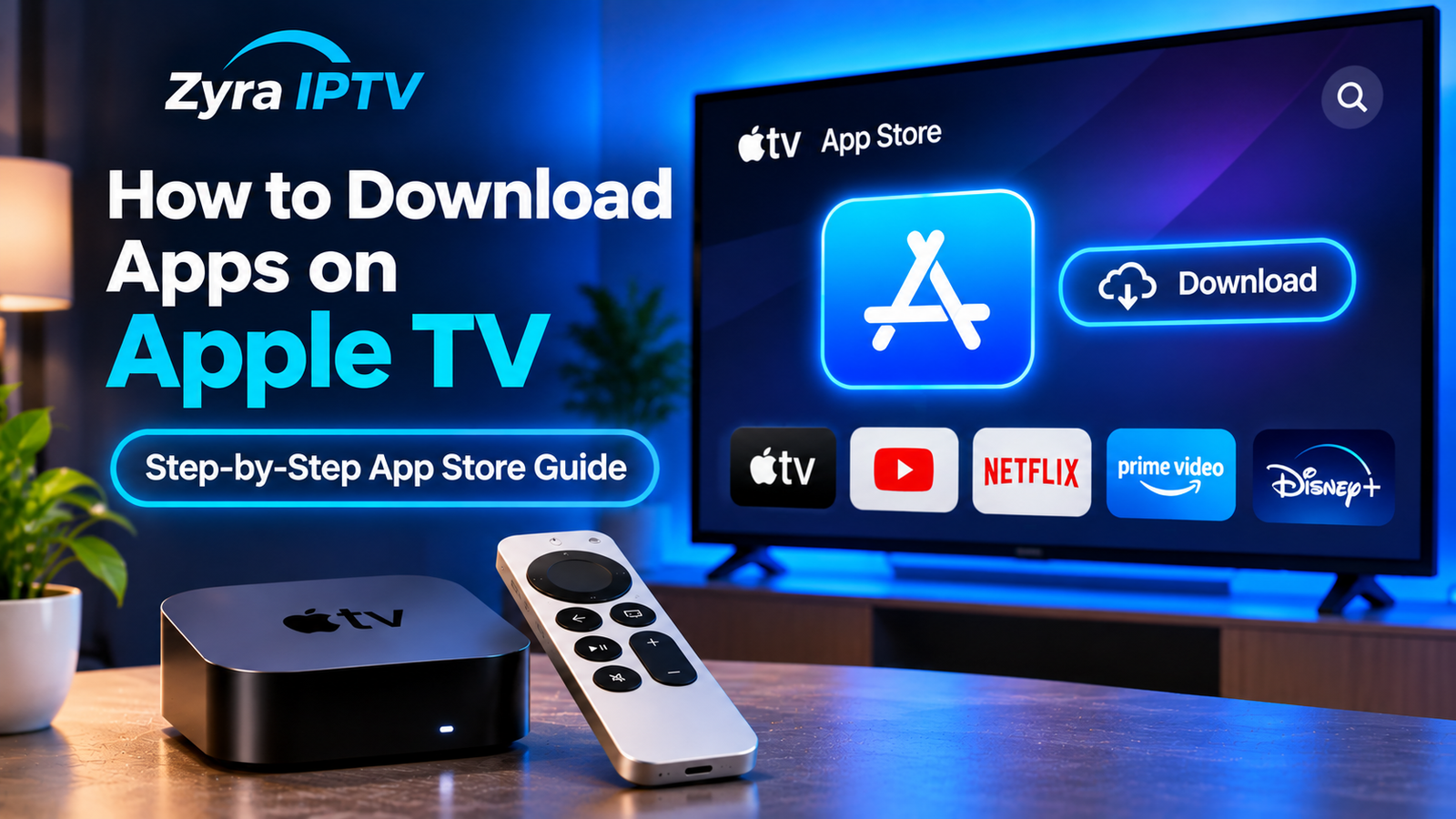
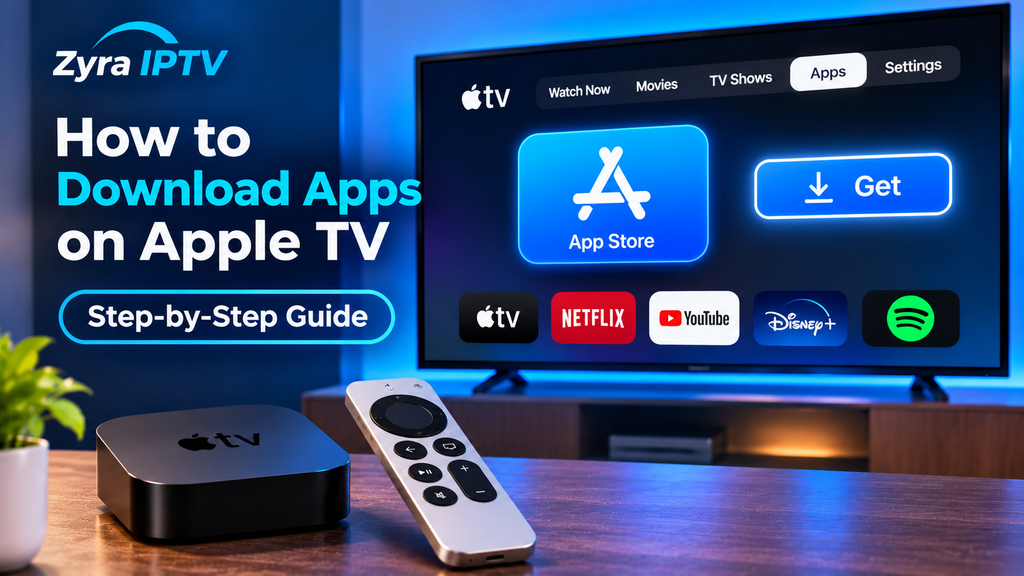
If you have recently set up an Apple TV, you may be wondering, how do you download Apple TV apps? On compatible Apple TV models, the process is simple: open the App Store, search for the app you want, select it, then choose Get or Buy.
The important detail is that not every Apple TV model supports downloadable apps. Apple TV 4K and Apple TV HD models provide access to the App Store, while older Apple TV models may be limited to their built-in applications.
This guide explains how to install apps, find previously purchased apps, troubleshoot a missing App Store, and understand the difference between the Apple TV device and the Apple TV app.
How Do You Download Apple TV Apps?
For an Apple TV 4K or Apple TV HD, follow these steps:
- Turn on your Apple TV and go to the Home Screen.
- Open the App Store.
- Select Search, or browse through available apps.
- Enter the name of the app you want.
- Select the app from the search results.
- Choose Get for a free app or select the displayed price for a paid app.
- Complete any requested Apple Account authentication.
- Wait for the installation to finish.
- Select Open or launch the app from your Home Screen.
Apple states that if the button says Open, the application is already installed. If it says Get, the app can be downloaded without an upfront purchase price, although some free applications may include subscriptions or in-app purchases.
The official instructions are also available from Apple Support.
How to Search for an App on Apple TV
Searching is usually the quickest way to install a specific streaming, entertainment, sports, IPTV player, or utility app.
Open the App Store and navigate to the search section. Depending on your Apple TV model and remote, you can enter the application’s name using the on-screen keyboard or supported voice-search features.
Select the correct result and check the app page before installing it. App pages can provide information such as the developer, age rating, screenshots, privacy information, and supported features.
This is particularly useful when several applications have similar names.
For IPTV users, you should also verify that the IPTV player you select supports the login or playlist method required by your service. Zyra IPTV maintains broader IPTV installation guides for users who need help with IPTV software after the app itself has been installed.
What Do Get, Buy, Install, and Open Mean?
Apple TV may show different buttons depending on whether you already own or have installed an application.
Get: The app does not have an upfront purchase price.
Buy or a price: You need to purchase the application before downloading it.
Install: You previously obtained the app and can download it again.
Open: The application is already installed on the Apple TV.
An application being free to download does not necessarily mean everything inside it is free. Streaming platforms, IPTV players, games, and other apps can offer subscriptions or additional purchases after installation.
Why Can’t I Find the App Store on Apple TV?
One of the most common problems occurs when someone follows modern Apple TV instructions but cannot find an App Store anywhere on the device.
Your Apple TV model may be the reason.
Apple explains that the App Store is available for Apple TV 4K and Apple TV HD, but Apple TV 3rd generation does not support downloading new third-party apps. Built-in applications on those older models can receive updates through system software, but you cannot install arbitrary new apps from an App Store.
If you are unsure which device you own, check the Apple TV model information in Settings and compare it with Apple’s device identification documentation.
An App Is Missing From Search
If the App Store is available but a specific app does not appear, possible reasons include:
- the developer does not offer an Apple TV version
- the application is unavailable in your Apple Account region
- the app has been removed from the App Store
- your Apple TV or tvOS version does not support it
- the application’s name is different from what you searched for
Apple notes that features and content can vary according to country, region, and Apple TV hardware.
That means an app available to somebody in the United States may not necessarily appear under the same conditions in Australia or Canada.
How to Redownload an Apple TV App
If you previously downloaded or purchased an application but later removed it, you may be able to reinstall it without purchasing it again using the same Apple Account.
A simple approach is to search for the application again in the App Store. If Apple recognises that you previously obtained it, the interface may offer an installation or redownload option instead of asking you to purchase it again.
Apple also provides access to previously purchased applications through the App Store’s purchase history on supported Apple TV models.
This can be useful when setting up a replacement Apple TV or restoring apps that were removed to free storage space.
Can You Download Apps From an iPhone to Apple TV?
An iPhone and Apple TV use related Apple platforms, but an iPhone app is not automatically an Apple TV app.
Developers decide which Apple devices their applications support. An app available on iPhone or iPad may have a dedicated tvOS version, but some applications are designed only for mobile devices.
If you want an application on Apple TV, the safest method is to search for it directly in the Apple TV App Store.
This distinction can matter for streaming and IPTV applications. An IPTV player available on an iPhone may not necessarily have the same Apple TV version or functionality. If your goal is specifically IPTV setup across Apple devices, see Zyra IPTV’s iOS and Apple TV guide rather than assuming the mobile installation process will be identical.
Apple TV Device vs Apple TV App
Another common source of confusion is the phrase “Apple TV.”
Apple TV 4K or Apple TV HD refers to Apple’s physical streaming device.
Apple TV app refers to Apple’s television application, which can also be available on other supported televisions and streaming devices.
Installing an app onto an Apple TV device is therefore different from adding or connecting a streaming service inside the Apple TV app.
For example, downloading a streaming application from the App Store does not necessarily mean that service will automatically become integrated into the Apple TV app. Integration can depend on the streaming provider, Apple support, and regional availability. This distinction is a frequent source of confusion among Apple TV users.
What to Do After Installing a Streaming App
Once the download finishes, select Open from the App Store or find the application on the Apple TV Home Screen.
What happens next depends on the application. You may need to:
- create or sign in to an account
- enter subscription credentials
- scan a QR code
- enter an activation code
- allow permissions
- configure the application’s settings
- add a playlist or account information
If you are installing an IPTV player, downloading the application is only the first stage. You will normally need to configure the player afterward according to the login method it supports.
For broader device instructions, you can explore Zyra IPTV’s IPTV guides, which cover setup information for different platforms.
Frequently Asked Questions
Do all Apple TVs let you download apps?
No. Apple TV 4K and Apple TV HD support App Store downloads. Apple TV 3rd generation does not provide an App Store for downloading new third-party applications.
Where do downloaded Apple TV apps appear?
Installed applications normally appear on the Apple TV Home Screen. You can then open or reorganise them from there.
Why does an Apple TV app say Open instead of Get?
It means the application is already installed on that Apple TV.
Are Apple TV apps free?
Some are free to download, while others require payment. Free applications may still offer subscriptions, premium features, or in-app purchases.
Can I install an IPTV app on Apple TV?
Compatible IPTV players can be installed when they have an Apple TV version available through the App Store. Availability and features depend on the individual developer and your region.
Conclusion
So, how do you download Apple TV apps? On a compatible Apple TV, open the App Store, search for the application, select Get or Buy, and wait for the installation to complete. If you cannot find the App Store, first check whether you are using an older Apple TV model that does not support downloadable applications.
After installing an IPTV player, you may still need to configure your account or playlist separately. If you are preparing an Apple TV for IPTV viewing, you can use the device guidance available from Zyra IPTV to continue with the setup process.