
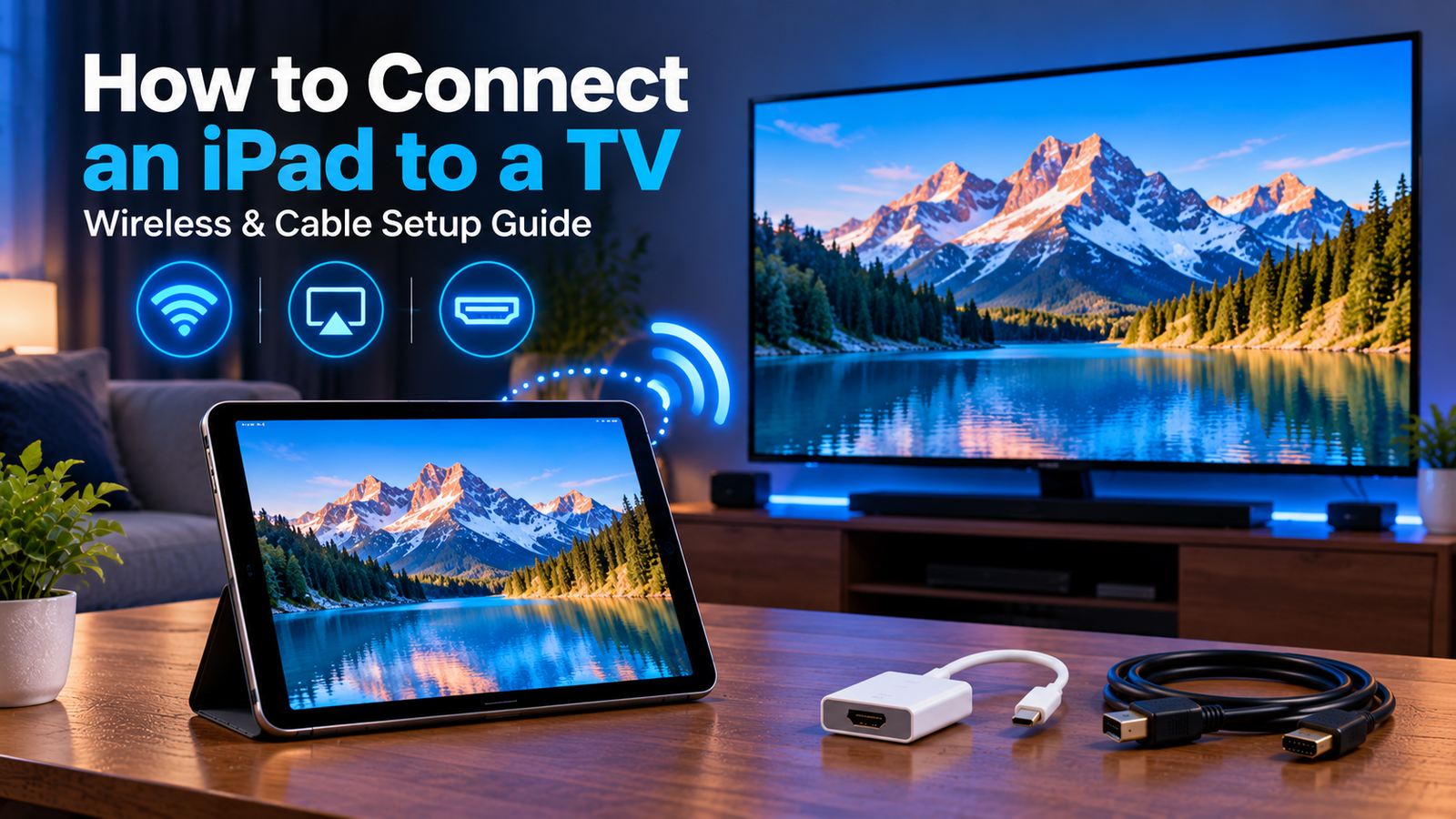
If you are wondering how do you hook iPad to TV, there are two main approaches: connect wirelessly with AirPlay or use a compatible cable and adapter. The right method depends on your iPad model, your television, and whether the TV supports AirPlay.
For a wireless connection, an Apple TV or AirPlay-compatible smart TV can receive video or mirror your iPad screen over Wi-Fi. For a wired setup, compatible iPads can connect to a television through HDMI using the appropriate USB-C or Lightning adapter.
How to Connect an iPad to a TV: Quick Overview
Here are the main connection options:
| Method | What You Need | Best For |
|---|---|---|
| AirPlay | Compatible smart TV or Apple TV, Wi-Fi | Wireless streaming |
| Screen Mirroring | AirPlay-compatible receiver, Wi-Fi | Showing the full iPad screen |
| USB-C to HDMI | Compatible USB-C iPad, adapter or cable | Stable wired connection |
| Lightning to HDMI | Lightning-equipped iPad, Digital AV Adapter | Older iPad models |
Before buying cables or adapters, identify which connector your iPad uses. Current and older iPad generations do not all use the same port.
How to Hook an iPad to a TV Wirelessly with AirPlay
AirPlay is Apple’s built-in wireless system for sending video, photos, audio, or the iPad screen to compatible devices.
Apple currently supports AirPlay streaming from an iPad to Apple TV and compatible smart TVs. For normal AirPlay use, the iPad and receiving device should be connected to the same Wi-Fi network.
To connect:
- Turn on your TV.
- Make sure the TV and iPad are connected to the same Wi-Fi network.
- Open the video, photo, or supported media you want to watch.
- Tap the AirPlay button when available.
- Select your television or Apple TV.
- If a passcode appears on the television, enter it on the iPad.
If your television does not appear, check whether AirPlay is enabled in the TV settings.
For readers using IPTV applications on an Apple device, the Zyra IPTV iOS setup guide provides additional information about IPTV setup on iPhone and iPad.
How to Screen Mirror an iPad to a TV
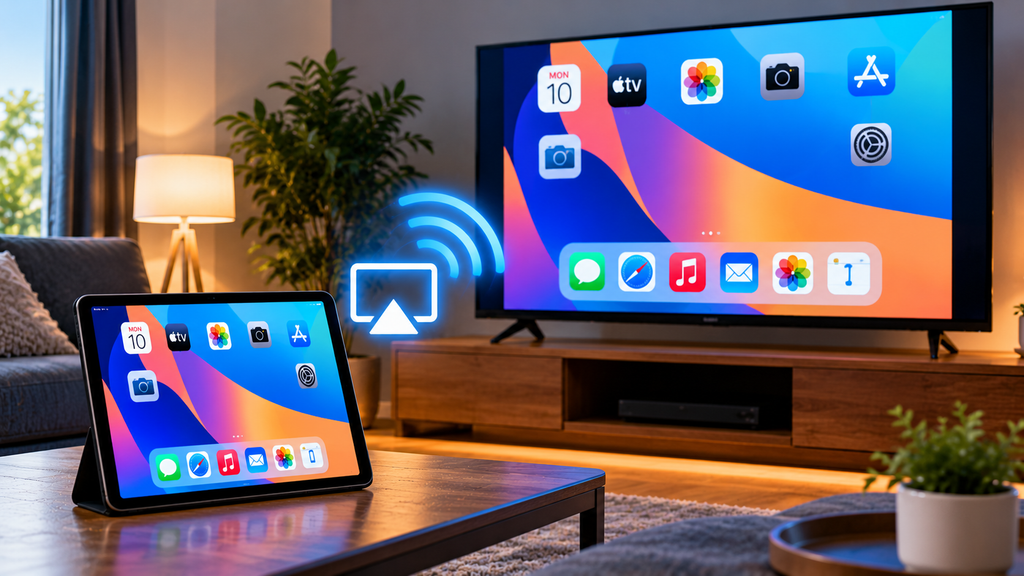
Screen mirroring is useful when you want the television to display the whole iPad interface rather than only one video.
To mirror the screen:
- Connect your iPad and television to the same Wi-Fi network.
- Swipe down from the upper-right corner of the iPad screen to open Control Center.
- Tap Screen Mirroring.
- Select your Apple TV or compatible smart TV.
- Enter the AirPlay code shown on the television if requested.
Apple’s current instructions use this process for iPads running modern versions of iPadOS.
Screen mirroring can be useful for viewing photos, websites, presentations, compatible apps, or other content on a larger display.
However, some video applications may restrict AirPlay or screen mirroring. Apple notes that not every video app supports AirPlay, so a blank video or unavailable AirPlay button does not necessarily mean your TV connection is broken.
How to Connect an iPad to a TV with HDMI
A wired connection is useful when you do not want to depend on Wi-Fi or when the television does not support AirPlay.
The exact setup depends on whether the iPad has USB-C or Lightning.
Connecting a USB-C iPad to HDMI
Many newer iPad models use USB-C.
Apple says compatible USB-C iPads can connect to external displays using the appropriate cable or display adapter. Where the TV uses HDMI, you can use a compatible USB-C display adapter and HDMI cable.
The basic process is:
- Connect a compatible USB-C display adapter to the iPad.
- Connect an HDMI cable to the adapter.
- Plug the other end of the HDMI cable into the TV.
- Turn on the television.
- Select the HDMI input that matches the port you used.
The iPad screen or supported content should then appear on the television.
Some compatible iPads may also connect directly to certain USB-C displays, but a standard television will commonly require HDMI.
Connecting a Lightning iPad to HDMI
Older iPads may use Apple’s Lightning connector.
Apple’s instructions for Lightning-equipped models specify using a compatible Lightning Digital AV Adapter or Lightning to VGA Adapter, depending on the display connection.
For HDMI:
- Connect the Lightning Digital AV Adapter to the iPad.
- Plug an HDMI cable into the adapter.
- Connect the HDMI cable to the television.
- Change the TV to the correct HDMI input.
This provides a wired alternative when wireless AirPlay is not suitable.
AirPlay or HDMI: Which Method Should You Use?
Both methods can connect an iPad to a television, but they solve slightly different problems.
Choose AirPlay when:
- You want to avoid cables.
- Your television supports AirPlay.
- Your Wi-Fi network is reliable.
- You frequently send photos or videos from the iPad to the TV.
Choose HDMI when:
- Your television does not support AirPlay.
- Wireless discovery is unreliable.
- You are using a network that blocks communication between devices.
- You prefer a direct physical connection.
For general home use, AirPlay is often the simpler option when the television already supports it. HDMI remains useful for older TVs, travel, presentations, and situations where Wi-Fi is unavailable.
If you are installing streaming applications directly on the television rather than connecting an iPad, the Smart TV IPTV guide covers the separate process of setting up IPTV on compatible television platforms.
Why Won’t My iPad Connect to My TV?
If the connection is not working, check the connection method first.
TV Does Not Appear in Screen Mirroring
Make sure:
- AirPlay is supported by the TV.
- AirPlay is enabled in the TV settings.
- Both devices are connected to the same Wi-Fi network.
- The TV and iPad are awake and connected.
- You are not using separate guest and main Wi-Fi networks.
Restarting the iPad and television may also restore device discovery.
HDMI Connection Shows No Picture
If you are using a cable:
- Confirm that the TV is set to the correct HDMI input.
- Disconnect and reconnect the adapter.
- Check that the cable is firmly connected.
- Confirm that the adapter is appropriate for your iPad connector.
- Try another HDMI port if the television has more than one.
Apple recommends reconnecting the display and checking its power if an external display does not activate after connection.
Video Plays on iPad but Not on TV
If the iPad menus appear on the TV but a particular video does not, the application itself may restrict external playback or AirPlay.
Try using the application’s own AirPlay option if available. You can also check whether the streaming service provides a native television app.
Can You Connect an iPad to a TV Without Wi-Fi?
Yes, a wired HDMI connection can work without using Wi-Fi for the display connection itself.
You still need internet access if the content you want to watch is being streamed online.
For locally stored photos, presentations, or other compatible content, the iPad-to-TV display connection does not inherently require an internet connection when you use a cable.
Can You Connect an iPad Directly to a Smart TV?
Yes, depending on the television.
An AirPlay-compatible smart TV can receive content wirelessly from an iPad without requiring a separate Apple TV box.
Alternatively, a television with an available HDMI input can be connected through an appropriate iPad adapter.
The important distinction is that being a “smart TV” does not automatically mean a television supports AirPlay. Check the specifications or settings for your particular TV model.
Does Bluetooth Connect an iPad Screen to a TV?
Bluetooth is generally not the method used for displaying the complete iPad screen on a television.
Bluetooth may be used for accessories and some audio connections, but AirPlay uses a network connection for wireless video streaming and screen mirroring.
If your goal is to show the iPad screen on the TV, look for AirPlay, Screen Mirroring, HDMI, or another video-casting technology specifically supported by your television.
Can You Watch IPTV from an iPad on a TV?
Depending on the IPTV application and television, you may be able to use AirPlay, screen mirroring, or a wired display connection.
Compatibility can vary between apps and content, so it is important not to assume every IPTV player supports every casting method.
If you are setting up IPTV across different devices, the Zyra IPTV guides provide additional device and installation information.
Frequently Asked Questions
How do you hook iPad to TV with no Apple TV?
You can use AirPlay if your smart TV supports it directly. Otherwise, use an appropriate USB-C or Lightning adapter with HDMI.
How do I know whether my iPad has USB-C or Lightning?
Look at the charging port on the iPad and check the official specifications for your exact model. Newer iPads commonly use USB-C, while many older models use Lightning.
Can I connect an iPad to an old TV?
If the television has HDMI, you may be able to connect it using the correct iPad adapter. TVs without HDMI may require other compatible equipment.
Why does my iPad show the TV but fail to connect?
Check the Wi-Fi network, AirPlay settings, TV software, and whether both devices can communicate on the same local network. Restarting both devices can also resolve temporary connection problems.
Is screen mirroring the same as AirPlay?
Screen mirroring uses AirPlay technology, but it mirrors the entire iPad display. AirPlay can also stream an individual video or other supported media without duplicating everything on the iPad screen.
Connect Your iPad to the TV in the Way That Fits Your Setup
If you are asking how do you hook iPad to TV, start by checking whether your television supports AirPlay. If it does, wireless streaming or Screen Mirroring is usually straightforward. If it does not, a compatible USB-C or Lightning adapter with HDMI provides a practical wired option.
For users who also want to use an iPad, smart TV, or other streaming device as part of an IPTV setup, Zyra IPTV provides additional IPTV information and device setup resources.