
If you are searching for how to download IPTV, it helps to understand one important distinction first: in most cases, you are downloading an IPTV app or player, not IPTV itself. The player is the software installed on your Smart TV, Android TV device, Apple TV, phone, tablet, computer, or other supported streaming device. Your IPTV service is then connected to that player using the account details supplied by your provider.
The safest approach is to identify your device, choose a compatible player, download it from an official or trusted source, and then add your IPTV login information. This guide explains the process across common streaming platforms.
What Are You Actually Downloading?
An IPTV player is an application designed to load and play television streams from a compatible source.
Depending on the app, it may support information such as:
- M3U playlists
- username and password
- server URL
- provider login details
- EPG data
- live TV categories
- movies and TV series
An IPTV player does not necessarily include television channels by itself. For example, one IPTV app currently listed on Google Play explicitly states that it contains no built-in channels and requires the user to provide a playlist.
This means you usually need two separate things:
| Requirement | Purpose |
|---|---|
| IPTV app or player | Displays and organizes streams |
| IPTV service | Provides the account or playlist information |
Understanding this difference prevents a common beginner mistake: installing an IPTV app and expecting channels to appear automatically.
What You Need Before Downloading an IPTV App
Before installing anything, prepare the following:
- A compatible streaming device
- A reliable internet connection
- An IPTV service or authorized playlist
- The login information supplied by your provider
- Enough storage space for the application
- Access to your device’s official app store
If you have not yet determined which setup applies to your device, the IPTV installation guides provide separate paths for supported platforms.
Step 1: Identify Your Streaming Device
The correct download method depends on the operating system running on your device.
Common platforms include:
- Android TV or Google TV
- Smart TV
- Apple TV
- iPhone or iPad
- Android phone or tablet
- Fire TV devices
- Windows or Mac computers
Do not assume that an IPTV app available on Android will automatically exist on Apple TV or a particular Smart TV platform.
App availability can change by operating system, device model, app store, and region.
How to Download IPTV on Android TV or Google TV
Android-based streaming devices generally use Google Play for supported applications.
Google’s official instructions for downloading Android apps are straightforward:
- Open Google Play.
- Search for the app you want.
- Select the correct application.
- Choose Install.
- Wait for installation to complete.
- Open the application.
Google also allows users to check whether an app is compatible with specific Android devices before installing it.
When searching for an IPTV app, verify the application name and developer before selecting Install. Similar names can appear in app stores.
For additional device-specific information, review the Android TV IPTV guide.
How to Download IPTV on an Android Phone or Tablet
The process is similar on Android mobile devices.
Open the Google Play Store, search for the IPTV player you intend to use, check the listing, and tap Install.
Before downloading, review:
- developer name
- recent updates
- app description
- supported devices
- permissions
- privacy information
- ratings and reviews
Google recommends downloading apps through Google Play where possible and warns that software from unknown sources can put devices and personal information at risk.
This is particularly important with IPTV because users may encounter unofficial APK files when searching online.
How to Download IPTV on iPhone or iPad
For an iPhone or iPad, use Apple’s App Store.
Apple’s current installation process is:
- Open the App Store.
- Use Search to find the app.
- Select the price or Get button.
- Authenticate the download if required.
- Wait for the app to install.
- Open it from your Home Screen or App Library.
Apple notes that some apps with a Get button can still contain in-app purchases or subscriptions, so check the listing before assuming every feature is free.
If your IPTV service supports iOS, use the iOS IPTV guide for platform-specific setup information.
How to Download an IPTV App on Apple TV
Compatible Apple TV models provide access to Apple’s App Store.
On a supported Apple TV:
- Open the App Store.
- Search for a compatible IPTV player.
- Select the app.
- Choose Get or the displayed price.
- Install and open the application.
Apple states that Apple TV 4K and Apple TV HD can download apps from the App Store, while older Apple TV models may have different capabilities.
Always check your exact Apple TV model before following installation instructions.
How to Download IPTV Apps on a Smart TV
Smart TV installation depends on the television’s operating system.
The general process is usually:
- Open your television’s app store.
- Search for the IPTV player’s exact name.
- Check that the application is compatible.
- Select Install or Download.
- Open the application after installation.
- Add your IPTV account information.
Not every Smart TV uses the same app store, and an app available on one television brand may not be available on another.
Before purchasing a subscription or paid player, confirm your television model and supported applications.
The Smart TV IPTV guide provides a starting point for television-based setup.
What About Fire TV Devices?
Fire TV deserves extra attention because Amazon uses different software platforms across its current device range.
Amazon’s current device information shows that some Fire TV products continue to use Fire OS while newer models can use Vega OS.
Because installation options can therefore differ by device, first check:
- your exact Fire TV model
- operating system
- Amazon Appstore availability
- whether your chosen IPTV player officially supports that device
Whenever the app is available through the device’s official store, that should generally be the simplest installation route.
Avoid following an old Fire TV tutorial without confirming that it applies to your current model and software.
Should You Sideload an IPTV APK?
Sideloading means installing an application from outside the device’s normal app store.
It is sometimes discussed in IPTV tutorials, particularly for Android-based devices, but it introduces additional security considerations.
Google specifically warns that downloading apps from unknown sources can expose your device or personal information to risk.
Before installing an APK, ask:
- Is the app available through the official store instead?
- Is this the developer’s official download source?
- Does the file come from a trustworthy website?
- Why does the app require sideloading?
- What permissions does it request?
- Is your provider directing you to a legitimate developer source?
Avoid random APK links, shortened URLs, unknown download codes, modified premium apps, or files shared in anonymous comments.
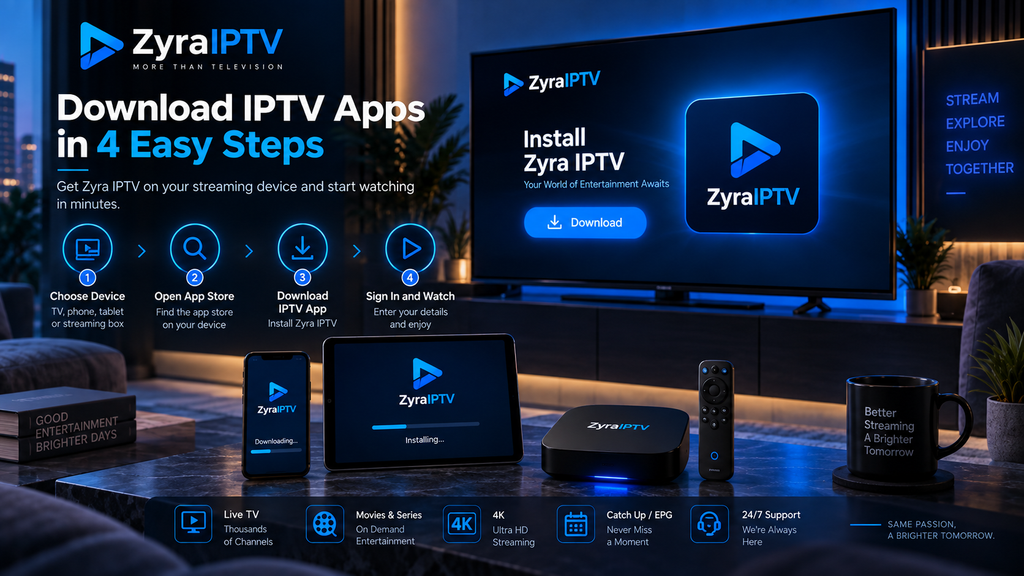
Step 2: Open the IPTV App
Once installation is complete, open the application.
Most IPTV players will initially display an empty interface because you have not connected your television service yet.
Look for an option such as:
- Add User
- Add Playlist
- Login
- M3U
- Add Portal
- Provider Login
The exact wording varies by application.
Step 3: Add Your IPTV Login Information
Your provider should supply the information required by your chosen player.
Depending on the service, this could include:
- username
- password
- server URL
- M3U playlist
- another supported connection method
Enter each item carefully.
If the login fails, check for:
- spelling errors
- additional spaces
- missing characters
- incorrect capitalization
- an incomplete server address
- expired account information
Do not publish screenshots showing your account credentials or personal playlist URLs.
Step 4: Wait for Channels and EPG to Load
Once your login is accepted, the application may load available content.
Depending on the service, this can include:
- live TV
- channel categories
- sports
- movies
- TV series
- EPG information
EPG stands for Electronic Programme Guide. It can display current and upcoming television schedules when supported.
If you want to review available programming before setup, see the Zyra IPTV channel information.
Step 5: Test the IPTV App
Do not immediately change advanced settings.
First test:
- several live channels
- audio
- video
- channel switching
- EPG
- movies or series if included
- search
- favorites
If everything works with the default settings, there may be no reason to change anything.
What If the IPTV App Will Not Download?
Several problems can prevent an installation.
The App Does Not Appear
It may not support your operating system, device model, or region.
Check the developer’s official compatibility information.
There Is Not Enough Storage
Remove unused applications or files and try again.
The App Store Will Not Download Anything
Restart the device and check the internet connection. Also confirm that your app store account is functioning normally.
The App Installed but Shows No Channels
Installing a player does not necessarily provide content. Add the valid subscription or playlist information supplied by your IPTV provider.
The App Says Your Login Is Incorrect
Recheck your account details before reinstalling the application. An authentication problem is different from an installation problem.
Frequently Asked Questions
How do I download IPTV?
You normally download an IPTV player from the official app store for your device, then connect your IPTV subscription using the login or playlist information supplied by your provider.
Can I download IPTV from Google Play?
Google Play contains IPTV player applications, but availability and compatibility vary. Search for the exact player you want and check its current listing before installing it.
Can I download IPTV on Apple TV?
Compatible Apple TV models can install supported IPTV players through the App Store. Check both your Apple TV model and the application’s compatibility.
Does downloading an IPTV app give me channels?
Not necessarily. Many IPTV players contain no built-in television channels and require a separate authorized playlist or IPTV subscription.
Is it safe to download an IPTV APK?
Installing software outside an official app store can create additional security risks. Use an official developer source when sideloading is genuinely necessary and avoid unknown APK websites.
Why can’t I find the same IPTV app on every device?
Apps are developed for specific operating systems and device families. Availability can also vary by app store and region.
Download the Right IPTV App for Your Device
Learning how to download IPTV starts with identifying what you actually need. In most cases, you are installing an IPTV player and then connecting it to a separate service using your account or playlist details.
Choose the correct app for your operating system, prefer official app stores and developer sources, verify compatibility before paying, and avoid unfamiliar APK downloads. Once the player is installed, add your login details and test the service before changing advanced settings.
If you are preparing an IPTV setup and want to compare a current service with your device requirements, you can review Zyra IPTV and use its installation information to choose the appropriate setup path.