
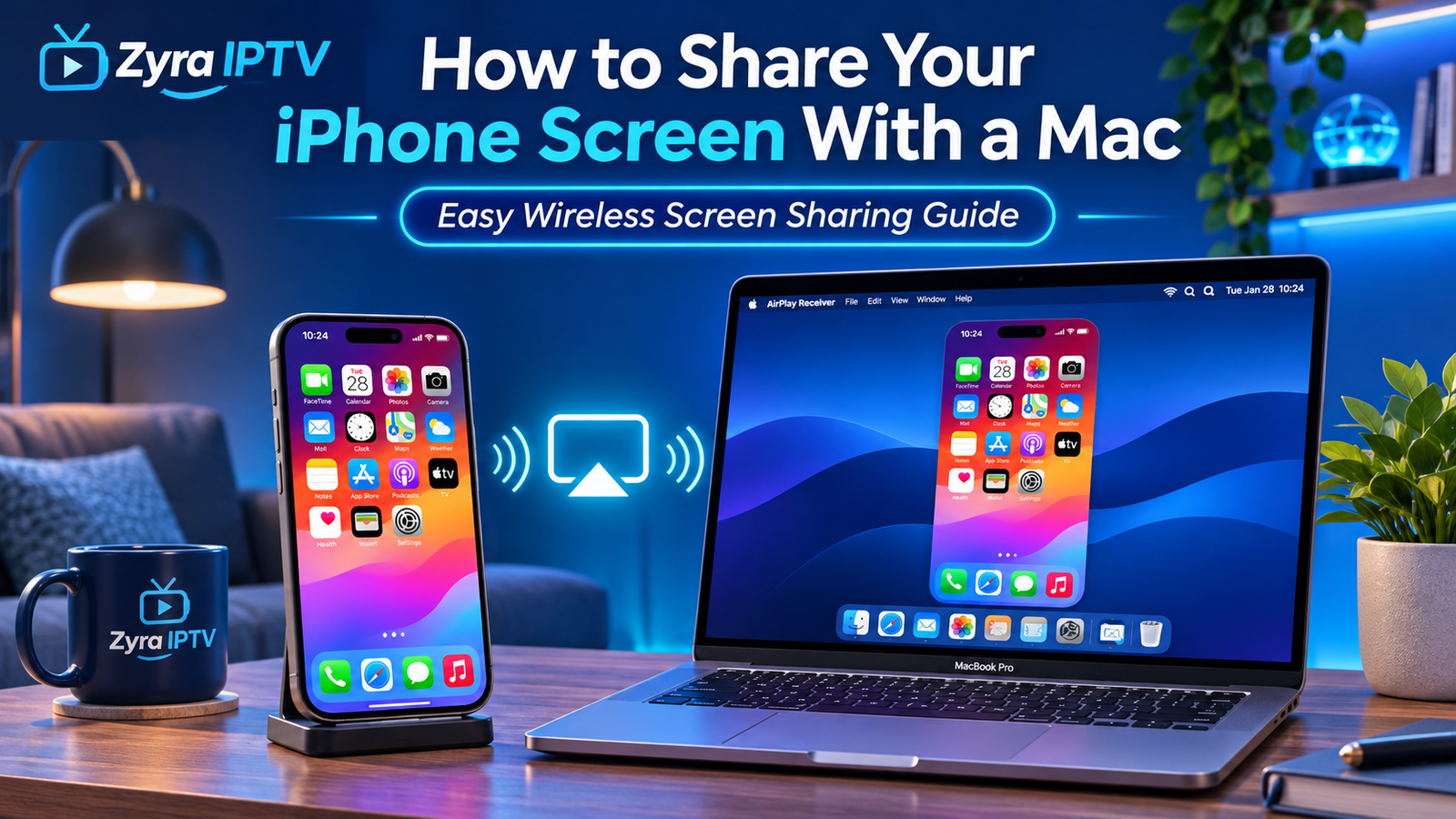
Sharing your iPhone screen with a Mac is useful when you want a larger display for photos, videos, presentations, apps, demonstrations, or other content. Apple provides two built-in methods for doing this: AirPlay screen mirroring and iPhone Mirroring.
If you simply want to display what is happening on your iPhone, AirPlay is usually the easiest option. Connect the iPhone and Mac to the same Wi-Fi network, open Control Center on the iPhone, choose Screen Mirroring, and select your Mac. Apple confirms that AirPlay can mirror an iPhone or iPad display directly to a compatible Mac.
If you want to do more than display the screen, iPhone Mirroring lets you interact with your iPhone from a compatible Mac using its keyboard, mouse, or trackpad.
How to Share iPhone Screen on Mac With AirPlay
AirPlay is the most straightforward method when your main goal is to show your iPhone screen on your Mac.
Before starting, make sure the Mac is configured to receive AirPlay connections and both devices are connected to the same Wi-Fi network.
Then follow these steps:
- Unlock your iPhone.
- Open Control Center.
- Tap Screen Mirroring.
- Wait for available AirPlay devices to appear.
- Select your Mac.
- Enter the AirPlay passcode on your iPhone if your Mac displays one.
Your iPhone screen should then appear on the Mac.
Apple’s current AirPlay instructions confirm that the iPhone and Mac should be connected to the same Wi-Fi network for standard screen mirroring. The Mac is then selected directly from the Screen Mirroring menu.
To disconnect, open Control Center again, tap Screen Mirroring, and choose Stop Mirroring.
How to Make Your Mac Available for Screen Sharing
If your Mac does not appear when you open Screen Mirroring on the iPhone, check the AirPlay Receiver settings.
On a recent version of macOS:
- Open System Settings on your Mac.
- Select General.
- Open the relevant AirDrop and Continuity settings.
- Make sure AirPlay Receiver is enabled.
- Review who is allowed to send AirPlay content to the Mac.
Once AirPlay Receiver is enabled, return to your iPhone and check the Screen Mirroring list again.
If you are also configuring streaming software on an Apple device, Zyra IPTV’s iOS IPTV setup guide covers IPTV-related setup separately from screen sharing.
AirPlay Screen Sharing vs iPhone Mirroring
The names can be confusing because both features can display an iPhone on a Mac, but they work differently.
| Feature | AirPlay Screen Mirroring | iPhone Mirroring |
|---|---|---|
| Shows iPhone display on Mac | Yes | Yes |
| Control iPhone from Mac | No | Yes |
| Uses Mac keyboard and trackpad | No | Yes |
| Good for showing photos or apps | Yes | Yes |
| iPhone can remain locked | No | Yes |
| Requires iOS 18 or later | No | Yes |
| Requires macOS Sequoia 15 or later | No | Yes |
Choose AirPlay when you primarily want to share the screen.
Choose iPhone Mirroring when you want to use the iPhone itself from your Mac.
Apple describes iPhone Mirroring as a feature that lets you wirelessly interact with your iPhone and its apps while the phone remains locked.
How to Share and Control Your iPhone With iPhone Mirroring
For compatible devices, iPhone Mirroring provides a more interactive experience than ordinary AirPlay.
Apple currently requires:
- iOS 18 or later on the iPhone
- macOS Sequoia 15 or later on the Mac
- a Mac with Apple silicon or the Apple T2 Security Chip
- the same Apple Account on both devices
- two-factor authentication
- Wi-Fi and Bluetooth enabled
- the iPhone to be nearby and locked
The Mac also cannot be using AirPlay or Sidecar at the same time.
To begin:
- Keep your iPhone nearby and lock its screen.
- Open the iPhone Mirroring app on your Mac.
- Follow the initial setup instructions.
- Enter your iPhone passcode if requested.
- Choose your preferred authentication option.
- Wait for the iPhone screen to appear on the Mac.
Once connected, you can navigate the iPhone interface with your Mac’s mouse or trackpad and type using the Mac keyboard.
Can You Share Videos From iPhone to Mac?
Yes. You do not always need to mirror the entire screen.
AirPlay can send supported video directly from an iPhone to a Mac.
The normal process is:
- Open the video you want to watch.
- Find the AirPlay button in the app.
- Tap it.
- Select your Mac.
Apple notes that the exact location of the AirPlay button varies between applications.
This method is useful when you want to watch a video on the Mac but do not need to show the entire iPhone interface.
For general computer streaming setup, you can also see Zyra IPTV’s computer IPTV guide.
Can You Share Photos From iPhone to Mac?
AirPlay can also be used for photos.
Instead of mirroring everything on your iPhone, open the photo or supported media and use its sharing or AirPlay controls to send it to your Mac.
This approach can be more convenient when you only want to display specific photos or videos rather than everything happening on the phone.
Can You Share iPhone Audio to a Mac?
Yes. A compatible Mac can also act as an AirPlay audio destination.
This means you can play supported audio from your iPhone through the Mac’s speakers without mirroring the complete display.
Screen sharing, video streaming, and audio streaming are therefore related AirPlay functions, but you do not always need to use full-screen mirroring.
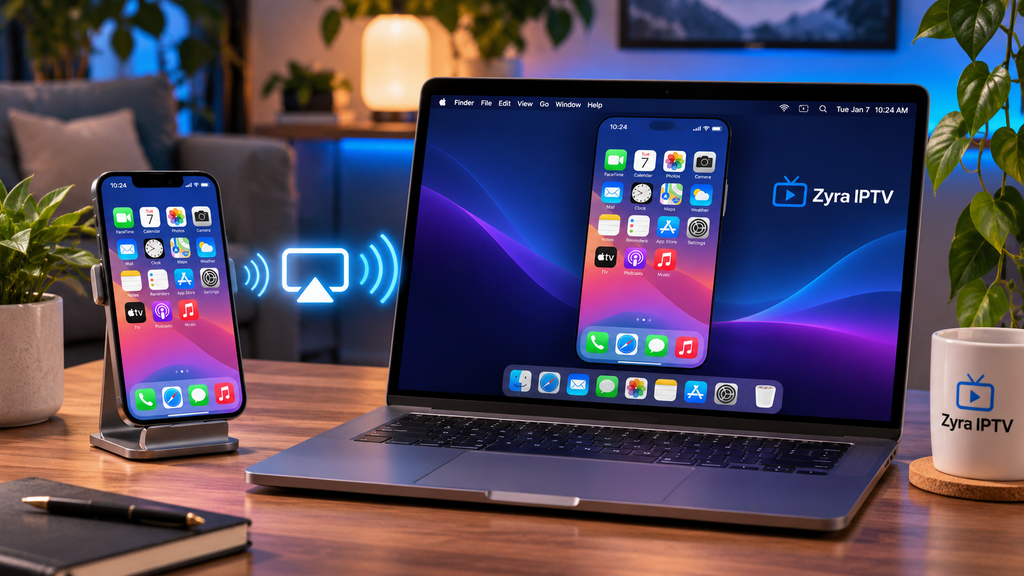
Why Is My Mac Not Showing in iPhone Screen Mirroring?
If your Mac does not appear in the list of available devices, check these common causes.
AirPlay Receiver Is Turned Off
Your Mac must be configured to accept incoming AirPlay connections.
Open System Settings and confirm that AirPlay Receiver is enabled.
The Devices Are on Different Wi-Fi Networks
For standard AirPlay screen mirroring, Apple instructs users to connect the iPhone and Mac to the same Wi-Fi network.
Check the network name on both devices before troubleshooting anything else.
Your Mac Does Not Support AirPlay to Mac
AirPlay receiving depends on compatible Mac hardware and macOS software.
If your Mac is older, check Apple’s current compatibility information before assuming there is a connection fault.
The AirPlay Permission Is Too Restrictive
Your Mac’s AirPlay Receiver settings can control which devices are allowed to connect.
Review these settings if your Mac works with one Apple device but does not appear for another.
The Connection Needs to Be Restarted
Try:
- turning Wi-Fi off and back on
- turning Bluetooth off and back on
- restarting the iPhone
- restarting the Mac
- disabling and re-enabling AirPlay Receiver
Simple connection resets often resolve temporary device discovery issues.
Why Is iPhone Mirroring Not Working?
iPhone Mirroring has more requirements than standard AirPlay.
Check that:
- your Mac is running macOS Sequoia 15 or later
- your iPhone is running iOS 18 or later
- your devices use the same Apple Account
- two-factor authentication is enabled
- Wi-Fi and Bluetooth are turned on
- your iPhone is nearby
- your iPhone is locked
- the Mac is not currently using AirPlay or Sidecar
Apple also specifies that iPhone Mirroring works with Apple silicon Macs and Macs containing the Apple T2 Security Chip.
If you simply need to view the iPhone display and iPhone Mirroring is unavailable, AirPlay screen mirroring is often the more appropriate option.
Can Every App Be Shared From iPhone to Mac?
Not always.
Apple notes that some video applications may not support AirPlay.
Streaming applications can also have their own playback, copyright, or external-display restrictions. As a result, you might successfully mirror the iPhone interface but encounter a problem when a particular video begins playing.
If one app does not work while other content mirrors normally, check that application’s AirPlay or external-screen support.
This consideration also applies to IPTV players. Screen sharing does not change how an IPTV app itself is configured. For app installation and IPTV configuration, use the appropriate Zyra IPTV device guides.
Is AirPlay Better Than iPhone Mirroring?
Neither method is universally better. They are designed for different purposes.
Use AirPlay when you want to:
- show your iPhone screen
- display photos
- stream supported video
- send audio to the Mac
- demonstrate an app on a larger screen
Use iPhone Mirroring when you want to:
- interact with the iPhone from the Mac
- use the Mac keyboard with iPhone apps
- navigate with a mouse or trackpad
- access your iPhone while its screen remains locked
For straightforward screen sharing, AirPlay is usually the simpler choice.
Frequently Asked Questions
How do I share my iPhone screen on my Mac?
Open Control Center on your iPhone, tap Screen Mirroring, and select your Mac. Your iPhone and Mac should be on the same Wi-Fi network, and your Mac must be configured to receive AirPlay.
How do I share my iPhone screen with a MacBook?
The process is the same as with a desktop Mac. Enable AirPlay Receiver on a compatible MacBook, open Screen Mirroring on the iPhone, and choose the MacBook.
Can I share my iPhone screen to my Mac without a cable?
Yes. AirPlay provides wireless screen mirroring between compatible devices. Apple’s iPhone Mirroring feature is also wireless and adds the ability to control the iPhone from the Mac.
Can I control my iPhone while sharing the screen?
With normal AirPlay mirroring, you continue controlling the device from the iPhone. With Apple’s iPhone Mirroring feature, compatible Macs can interact with the iPhone using a mouse, trackpad, and keyboard.
Why is there no Screen Mirroring option for my Mac?
Make sure AirPlay Receiver is enabled on the Mac and both devices meet Apple’s compatibility requirements. Also check that both devices are connected to the appropriate network.
Share Your iPhone Screen With the Right Method
Learning how to share iPhone screen on Mac is mainly about choosing between two Apple features. AirPlay is ideal when you simply want to show your iPhone display, photos, videos, or other supported content on a larger Mac screen. iPhone Mirroring is better when you also want to interact with your phone directly from macOS.
If you are using an iPhone or Mac as part of your streaming setup, Zyra IPTV provides additional IPTV information and device setup guidance for compatible viewing workflows.