
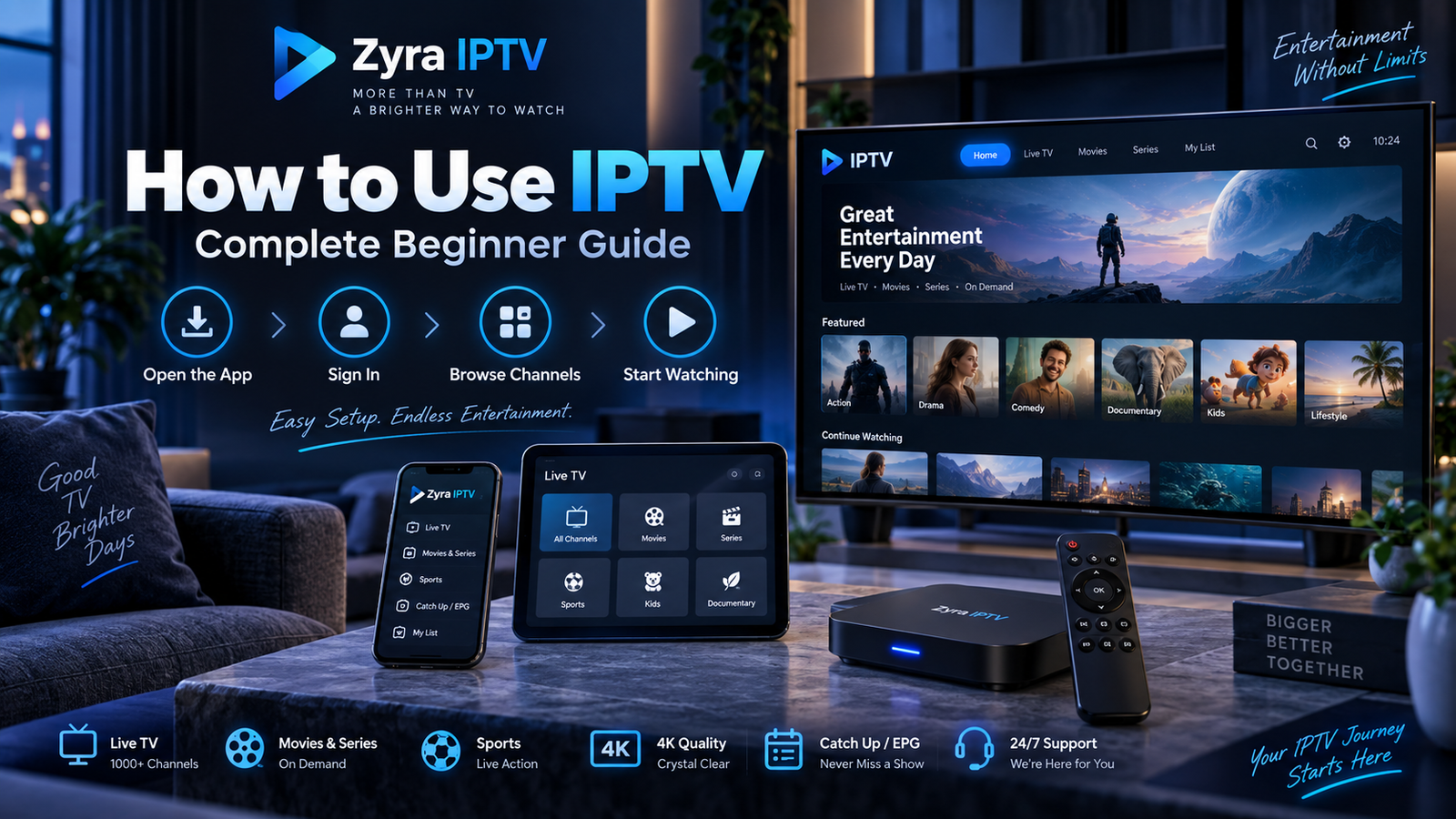
If you are learning how to use IPTV for the first time, the basic process is straightforward. You need an IPTV service, a compatible device, an appropriate IPTV player, and the login or playlist information supplied by your provider. Once the account is added, you can browse live TV, open an Electronic Programme Guide (EPG), watch available on-demand content, and organize channels.
The exact menus vary between apps and devices, but the overall process is similar. This guide explains what beginners need to know after getting an IPTV subscription, from signing in to improving playback and fixing common problems.
What Do You Need to Use IPTV?
Before opening an IPTV app, make sure you have the main parts of your setup ready.
| Requirement | Purpose |
|---|---|
| IPTV service | Provides access to the available content |
| Compatible device | Runs the IPTV player |
| IPTV player or app | Displays and organizes streams |
| Login details | Connects the app to your service |
| Internet connection | Delivers the stream to your device |
Depending on your provider, the account information may include a username, password, server URL, M3U playlist, or another supported connection method.
Zyra IPTV’s IPTV installation guides currently describe a basic process of installing an app, entering supplied account details, and then accessing available content.
Step 1: Install the Correct IPTV Player
An IPTV player is the application that receives and displays your television service.
The player itself does not necessarily include a subscription or channels. Think of it as the interface used to organize the content supplied through your IPTV account.
Before installing anything:
- Check which apps your provider supports.
- Confirm that the app works with your device.
- Use the official app store or developer source when possible.
- Avoid modified or unknown downloads.
- Check whether the player has a separate fee.
Your setup may differ between a Smart TV, Android TV device, iPhone, iPad, or computer, so do not assume instructions for one platform apply to another.
Step 2: Add Your IPTV Account
After installing the player, open it and look for an option such as:
- Add playlist
- Add user
- Login
- Add portal
- M3U playlist
- Provider login
The wording depends on the application.
Your IPTV provider should tell you which method to use.
Username, Password and Server URL
Some setups require three main pieces of information:
- username
- password
- server URL
Enter them exactly as supplied.
M3U Playlist
Another common setup uses an M3U URL. This is a link that allows a compatible player to load available streams.
Treat playlist URLs as private account information when they contain credentials.
Do not post your IPTV login details publicly or share screenshots that expose passwords, server addresses, or personal playlist URLs.
Step 3: Let the App Load Your Content
After your details are accepted, the IPTV player may begin loading available categories.
Depending on the service, you might see:
- live TV
- sports
- news
- movies
- TV series
- international channels
- children’s programming
- video on demand
- EPG information
Loading time can vary depending on the app, device, connection, and amount of available data.
Avoid repeatedly closing the application while the first synchronization is taking place.
Step 4: Learn the Live TV Screen
For many users asking how do I use IPTV, live television is the most important feature.
Most players organize live channels into categories. You may be able to browse by country, language, genre, or another grouping selected by the provider.
A typical viewing process is:
- Open Live TV.
- Select a category.
- Choose a channel.
- Wait for playback to begin.
- Use the remote or player controls to return to the channel list.
Instead of browsing every available channel, identify the ones you use regularly.
You can compare available programming through the Zyra IPTV channel information before organizing your preferred channels.
Step 5: Use the EPG
EPG stands for Electronic Programme Guide.
It provides scheduling information for television channels and can show what is currently playing and what is coming next.
A typical EPG may display:
- channel name
- current programme
- programme start time
- programme end time
- upcoming shows
If programme times look incorrect, first check your device’s date, time, and time-zone settings.
An incorrect device time zone can cause the guide to appear out of sync even when the IPTV account itself is working normally.
Not every channel or service necessarily provides complete EPG information, so availability should be checked with the provider.
Step 6: Create Favorites
A long channel list can become difficult to navigate.
Most IPTV players provide some form of favorites function. Use it to create a shorter list containing the channels you watch frequently.
You might organize favorites around:
- news
- live sports
- local television
- children’s channels
- entertainment
- international programming
This saves time and reduces the need to search through large categories every time you open the app.
Some applications also allow custom groups or recently watched lists.
Step 7: Watch Movies and TV Series
If your subscription includes video-on-demand content, the app may have separate sections for movies and TV series.
The interface may let you:
- browse categories
- search by title
- open episode lists
- resume playback
- view available programme information
Do not assume that every IPTV subscription includes VOD or that the same catalogue is available in every country.
Content availability can vary by service and market.
Step 8: Understand Playback Controls
Once a stream is playing, your IPTV app may provide controls for features such as:
- play and pause
- subtitles
- audio tracks
- aspect ratio
- external player selection
- stream quality
- full-screen mode
Only change settings when you understand what they do.
If playback works correctly with the default configuration, changing several options at once can create unnecessary problems and make troubleshooting harder.
For beginners, it is usually better to start with the default settings and adjust one option at a time.
Step 9: Use Search Instead of Scrolling
Searching is often faster than browsing through a large IPTV library.
Look for a search icon or search field inside:
- Live TV
- Movies
- TV Series
- EPG
Enter the exact or partial name of the channel or programme you need.
If the result does not appear, try a shorter version of the name because providers and apps may organize titles differently.
Step 10: Improve IPTV Playback
If the video buffers, freezes, or takes a long time to start, several factors may be involved.
Check these areas before assuming the service itself is the only cause:
Internet Connection
IPTV requires continuous data delivery. Connection instability can interrupt playback even when a speed test appears reasonable.
Wi-Fi
Weak wireless coverage can cause inconsistent streaming.
If possible, test:
- closer to your router
- on a different Wi-Fi band
- with Ethernet
Other Network Activity
Large downloads, cloud backups, gaming, or multiple simultaneous streams can use network capacity.
Device Performance
Older or heavily loaded devices may struggle with demanding streams or applications.
IPTV Player
App settings, cache problems, or software issues may also affect playback.
Test one change at a time so you can identify what actually solves the problem.
Step 11: Keep the App and Device Updated
Software updates can contain compatibility, stability, and security improvements.
Periodically check for updates to:
- the IPTV application
- Smart TV software
- Android TV system
- phone or tablet operating system
- streaming device firmware
Avoid updating from unofficial files sent through random messages or forums.
Use the platform’s normal update method or the official developer source when available.
Step 12: Know the Difference Between an App Problem and an Account Problem
When IPTV stops working, identifying the type of problem can save time.
Possible App or Device Problem
Examples include:
- app crashes
- menus do not open
- remote controls stop responding
- app freezes before login
Restarting the app or device can be a reasonable first troubleshooting step.
Possible Account Problem
Examples include:
- login rejected
- subscription expired
- playlist no longer authenticates
- server details changed
In these cases, verify your credentials and contact your provider if necessary.
Possible Network Problem
Examples include:
- all streams repeatedly buffer
- other streaming services also struggle
- Wi-Fi repeatedly disconnects
Test your internet connection and local network before changing account settings.
How to Use IPTV on a Smart TV
If your television supports an appropriate IPTV application, the general process is:
- Install the compatible IPTV player.
- Open the application.
- Enter the provider’s login or playlist information.
- Load the available content.
- Open live TV, EPG, movies, or series.
- Add frequently watched channels to favorites.
Because Smart TV operating systems differ, follow instructions for your specific television rather than a generic guide.
Zyra IPTV provides a dedicated Smart TV IPTV guide for users setting up television-based viewing.
How to Use IPTV on Android TV
Android TV users generally install a compatible player, enter their subscription details, and then browse content through the app.
The exact interface depends on the player.
If Android TV is your main platform, use the Android TV IPTV instructions rather than applying steps designed for a different operating system.
Common IPTV Beginner Mistakes
Avoid these common problems:
- installing an IPTV player before confirming compatibility
- assuming an app automatically includes channels
- entering login details incorrectly
- sharing subscription credentials publicly
- changing too many playback settings at once
- confusing device compatibility with simultaneous connections
- ignoring device time-zone settings when EPG is incorrect
- installing applications from unknown sources
- assuming every buffering problem comes from the provider
A simple, organized setup is usually easier to maintain and troubleshoot.
Frequently Asked Questions
How do I use IPTV?
Install a compatible IPTV player, add the login or playlist information supplied by your provider, allow the app to load available content, then browse live TV, EPG, movies, or series.
Do I need an IPTV player?
Many IPTV setups require a compatible application or player to organize and display the service. The exact requirement depends on the provider and device.
What is an M3U playlist?
An M3U playlist is a format that can provide a compatible player with information needed to access available streams. If the URL contains account credentials, keep it private.
What is EPG in IPTV?
EPG stands for Electronic Programme Guide. It displays television scheduling information, including current and upcoming programmes when supported.
Why does my IPTV keep buffering?
Possible causes include an unstable internet connection, weak Wi-Fi, network congestion, device performance, player settings, or stream-related issues. Test each area separately.
Can I use IPTV on more than one device?
That depends on the subscription. A service may support several device types while limiting the number of simultaneous streams, so check your provider’s terms.
Start Using IPTV With a Simple Setup
Learning how to use IPTV becomes much easier once you understand the basic workflow: install the correct player, enter your account information, load the available content, organize your favorite channels, use the EPG, and adjust playback only when necessary.
Keep your login information private, follow instructions designed for your device, and troubleshoot your app, network, and account separately when something goes wrong.
If you want to explore a current IPTV option and its setup information, review Zyra IPTV and compare the available service details with your viewing and device requirements.