
If you want to know how to use IPTV Smarters Pro on Samsung TV, you first need the correct Smarters Pro application installed on your Samsung Smart TV, followed by valid playlist or login information from your IPTV provider.
Samsung Smart TVs use Tizen rather than Android, so Android APK instructions should not be used directly on the television. At the time of writing, the official Smarters Pro Samsung installation page says its updated Samsung app is going through app-store approval and provides a temporary USB installation method for supported Samsung TVs.
Once the player is installed, the everyday setup is straightforward: open Smarters Pro, add your authorized media source, allow it to load, then use the TV remote to browse live TV, EPG information, movies, series, favourites, and other supported features.
What You Need Before Starting
Before setting up Smarters Pro on your Samsung TV, make sure you have:
- A compatible Samsung Smart TV connected to the internet
- Smarters Pro installed from a verified source
- Your Samsung TV remote
- IPTV username and password, if supplied
- Server URL, if required
- M3U or another compatible playlist, depending on your setup
Smarters Pro is a media player rather than an IPTV subscription. Its official website states that it does not provide or sell IPTV channels, subscriptions, or third-party media content.
If you are new to Smart TV IPTV setup in general, the Zyra IPTV Smart TV guide provides additional device guidance.
Step 1: Check Whether Smarters Pro Is Already Installed
Press the Home button on your Samsung remote and open the Apps section.
Samsung’s current support instructions say apps can normally be found by opening Apps, using Search, choosing the required application, and selecting Install. App availability can vary according to TV model, software version, and region.
Search for Smarters Pro.
If the verified version you need is already installed, open it and continue to the login section below.
Do not install another similarly named app without checking the developer. Samsung’s own app catalogue contains other applications with “Smarters” in their names that are not necessarily the same Smarters Pro application.
Step 2: Install Smarters Pro if It Is Missing
The normal Samsung method is to use the TV’s Apps section when the correct application is available.
However, the official Smarters Pro developer currently provides a separate Samsung TV USB installation page because its updated Samsung version is awaiting app-store publication. The page provides a current userwidget package and specifically warns users to download the latest package because older packages can expire.
The current official USB process is:
- Remove an existing Smarters Pro installation if instructed.
- Download the latest Samsung package from the official Smarters Pro source.
- Extract the downloaded package on a computer.
- Copy the complete
userwidgetfolder to a USB drive. - Connect the Samsung TV to the internet.
- Insert the USB drive into the television.
- Allow the TV to detect and install the package.
Use only the current package supplied by the developer. Do not download Samsung widget files from random IPTV websites.
The official developer also states that the temporary USB package has a limited installation and execution period, so the latest version should be obtained directly from its current Samsung installation page.
Step 3: Open IPTV Smarters Pro
After installation, press Home and open the Apps section.
Launch Smarters Pro.
Depending on the Samsung version, the first screen may ask you to add a media source, playlist, or account.
The exact wording can change between versions, but the basic goal is the same: connect Smarters Pro to the authorized media information supplied by your IPTV provider.
For a broader explanation of the player itself, see the complete IPTV Smarters Pro beginner guide.
Step 4: Add Your IPTV Login Details
Your IPTV provider determines which details you need.
A common account-based setup includes:
| Detail | What it is used for |
|---|---|
| Profile name | Helps identify the saved account |
| Username | Identifies your IPTV account |
| Password | Authenticates the account |
| Server URL | Connects the player to the provider |
| M3U URL | Loads a compatible playlist |
Enter all information exactly as provided.
Do not remove port numbers, change the server address, or insert spaces into URLs unless your provider specifically tells you to.
Smarters Pro’s official documentation confirms support for M3U and JSON playlists and says subscription credentials come from the user’s service provider.
Step 5: Wait for the Playlist to Load
After saving your account or playlist, Smarters Pro needs time to retrieve and organize the available information.
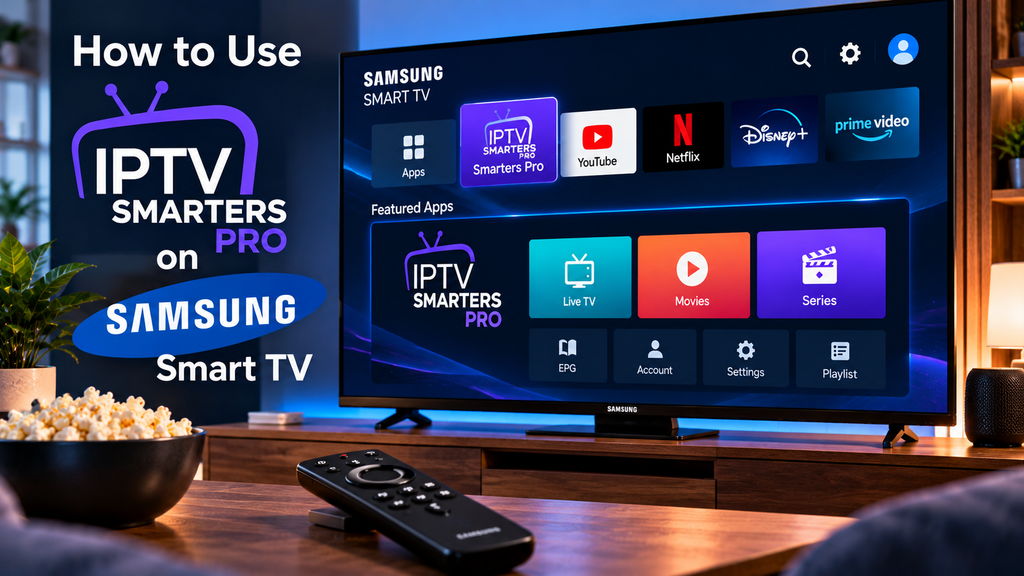
Depending on the source, the dashboard may display sections such as:
- Live TV
- Movies
- TV series
- EPG
- Favourites
- Search
These are player capabilities rather than a guarantee that every IPTV account includes every content category.
For example, Smarters Pro supports movie and series playback, EPG, favourites, multiple playlists, Picture-in-Picture, search, parental controls, and multiple users.
The actual channels and media come from your configured source.
Step 6: Watch Live TV on Samsung
Open Live TV from the Smarters Pro dashboard.
Choose a category, then select a channel with your Samsung remote.
Depending on the app version, you may be able to open additional controls for:
- Programme information
- Favourites
- Audio tracks
- Subtitles
- Player settings
- Channel search
If one channel does not work but several others play normally, the problem may relate to that individual stream rather than your Samsung TV installation.
Step 7: Use the EPG TV Guide
EPG stands for Electronic Program Guide.
Smarters Pro currently lists EPG support as one of its features.
Open the EPG or TV Guide area to view programme information where it is supplied by your media source.
If channels work but the guide is empty, possible causes include missing EPG data, incorrect channel mapping, outdated guide information, or a source that simply does not provide programme schedules.
Restarting or reinstalling the app will not create EPG data that is absent from the source.
Step 8: Add Channels to Favourites
If you watch the same channels regularly, favourites can reduce the amount of navigation required.
Smarters Pro officially lists Add to Favourite among its supported features.
While viewing or highlighting a channel, look for a star icon, Favourite option, or contextual menu.
The exact remote action depends on the Samsung app version.
Step 9: Use Search for Channels, Movies and Series
Smarters Pro currently includes a Master Search feature intended to locate content across available live TV, movies, and series.
This is particularly useful when your authorized playlist contains many categories.
Rather than scrolling through every group, open Search and enter part of the title or channel name.
Search results still depend on the information supplied by your media source.
Smarters Pro Is Installed but Login Fails
If the application opens correctly but refuses your credentials, the Samsung installation itself may not be the problem.
Check:
- Username spelling.
- Password spelling and capitalization.
- Complete server URL.
- Required port number.
- Whether you selected the correct login method.
- Whether the IPTV account is still active.
The Reddit discussion supplied for this topic also shows reports of Samsung-specific authentication behaviour in some Smarters-based setups, so testing the same authorized credentials on another supported player or device can help determine whether the issue is Samsung-specific.
Do not post your username, password, or private M3U URL publicly while asking for help.
Smarters Pro Is Missing From Samsung Apps
This can happen even if another person can see the app on their Samsung TV.
Samsung states that app availability can vary by region, TV model, software version, and other platform factors.
The current official Smarters Pro Samsung page is especially useful in this situation because it says the updated store version is undergoing approval and provides its temporary USB installation option.
Do not try to install an Android APK directly onto Samsung Tizen. Samsung Smart TVs do not use Android as their native television operating system.
Smarters Pro Opens but Channels Do Not Play
Work through the problem systematically.
If nothing plays, check the internet connection and login details first.
If only particular channels fail, test several others.
If live TV works but movies do not, the issue may relate to that content category rather than the entire application.
If playback pauses frequently, test another legitimate streaming app on the Samsung TV. If several apps are having connection problems, investigate Wi-Fi or Ethernet performance before changing Smarters Pro settings.
The Zyra IPTV setup guides provide additional guidance for troubleshooting IPTV installations across different platforms.
Frequently Asked Questions
How to use IPTV Smarters Pro on Samsung TV?
Install the verified Smarters Pro application using the current supported Samsung method, open the player, enter the playlist or login details supplied by your IPTV provider, allow the content to load, then browse Live TV, EPG, movies, series, and other available sections.
Is IPTV Smarters Pro available on Samsung Smart TV?
The situation can change. As of October 2026, the official Smarters Pro Samsung installation page says an updated Samsung version is going through app-store approval and currently provides a temporary USB installation package for supported TVs.
Can I install the Android APK on a Samsung TV?
No, you should not assume Android APK installation works on a Samsung Smart TV. Samsung TVs use Tizen, so use Samsung-compatible installation instructions.
Does IPTV Smarters Pro provide channels?
No. The official Smarters Pro website states that it is a media player and does not provide IPTV subscriptions, channels, movies, or other third-party content.
Can I use an M3U playlist on Samsung Smarters Pro?
The current Smarters Pro platform supports M3U playlists. Enter only an authorized playlist that you are permitted to use.
Why is my EPG empty?
The configured source may not provide guide information, the EPG may need refreshing, or channel identifiers may not match the guide data.
Can I use another IPTV player on Samsung TV?
Yes, when another compatible app is available for your TV model and supports your playlist or login format. Samsung app availability varies by model and region.
Start Using Smarters Pro on Your Samsung TV
Learning how to use IPTV Smarters Pro on Samsung TV involves three main steps: install the correct Samsung-compatible version, add your authorized IPTV credentials or playlist, and learn the basic dashboard controls for live TV, EPG, favourites, movies, and series.
Because Samsung uses Tizen, always follow Samsung-specific instructions rather than copying Android APK steps. Also check the current Smarters Pro Samsung installation page because its store availability and temporary USB package can change.
For additional Smart TV setup guidance and help preparing your IPTV account, visit Zyra IPTV and review the instructions that match your television setup.