
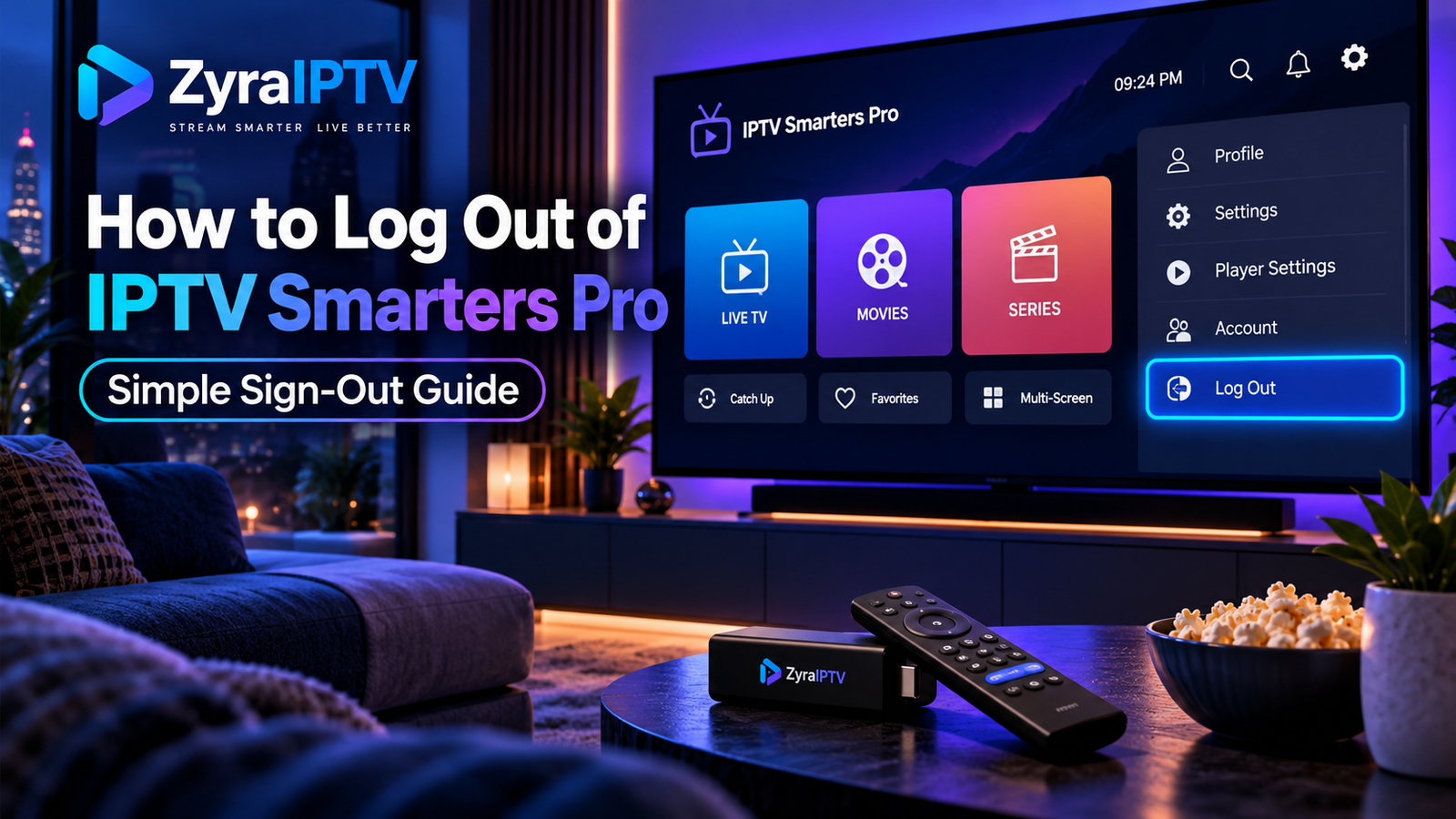
If you are trying to figure out how to log out of IPTV Smarters Pro, the exact process depends on the version and device you are using. Some versions provide a Log Out, Switch User, or List Users option, while others require you to return to the user screen and remove the saved profile.
The important distinction is that logging out of Smarters Pro only affects the media player on that device. Smarters Pro is not your IPTV subscription provider. Its official website describes it as a media player that supports multiple playlists and users rather than a service that supplies IPTV subscriptions.
If you simply want to use another IPTV login, you may not need to delete the existing profile at all.
Quick Answer: How to Log Out of IPTV Smarters Pro
Try this first:
- Open IPTV Smarters Pro.
- Return to the main dashboard or home screen.
- Look for Switch User, List Users, a profile icon, or a user-management option.
- Open the list of saved users.
- Select the profile currently in use.
- Choose Log Out, Remove User, or Delete User, depending on your version.
- Confirm the action if prompted.
- Return to the login screen and add another account if needed.
Current versions and similarly named Smarters apps can use different menu labels, which is why you may not see a button literally called “Log Out.”
Log Out vs Switch User vs Delete User
These options can sound similar but serve different purposes.
| Option | What it generally does |
|---|---|
| Log Out | Ends the current user session when supported |
| Switch User | Leaves the profile saved and opens another profile |
| Delete or Remove User | Removes the saved login profile from the app |
| Add User | Adds another playlist or provider login |
| Uninstall App | Removes the application from the device |
Smarters Pro’s current feature documentation confirms support for multiple playlists and multi-user functionality. This means you can often add another profile without removing the first one.
If your goal is only to change from one IPTV account to another, Switch User or Add User is usually more convenient than deleting everything.
How to Log Out on a Smart TV or Android TV
The interface can vary between Android TV, Google TV, Samsung TV, and other television versions.
A common process is:
- Open Smarters Pro.
- Back out of Live TV, Movies, or Series until you reach the main dashboard.
- Look for the profile or user-management icon.
- Open Switch User or the list of users.
- Highlight your current profile.
- Open its options.
- Choose Log Out, Delete, or Remove User if available.
On television interfaces, you may need to press and hold the centre OK button or use the remote’s menu button to reveal profile options.
If you are new to television IPTV apps, the Zyra IPTV installation guides provide broader setup information for supported devices.
How to Log Out on Firestick
On Firestick, start from the Smarters Pro dashboard rather than the Fire TV settings.
Return to the app’s user or profile screen and look for:
Switch User
List Users
Manage Users
Delete User
Remove User
Some Smarters-based interfaces reveal additional options when you highlight the current user and press or hold the centre button on the Fire TV remote.
If a dedicated logout button is not displayed, removing the saved user profile is commonly the way to return the app to a login state.
Do not clear all Firestick data or factory reset the device simply because you cannot locate the logout option.
How to Log Out on Android Phone or Tablet
Touchscreen versions are usually easier to navigate.
Open Smarters Pro and return to the main screen. Tap the profile or user icon and look for the user list.
If your version supports multiple profiles, select the current account and look for a menu containing Log Out, Remove, or Delete.
On some interfaces, pressing and holding the profile can reveal additional options.
If your goal is simply to use a second account, add another user instead. Smarters Pro officially supports multiple playlists, so keeping more than one compatible media source inside the application is part of its current feature set.
How to Log Out on iPhone or iPad
The overall principle is similar on iOS:
- Open Smarters Pro.
- Return to the main profile or playlist screen.
- Open your user or playlist management area.
- Select the saved profile.
- Use the available logout, remove, or delete option.
- Add another playlist if required.
Interface labels can change between app releases.
If you are configuring the app again after logging out, the Zyra IPTV iOS setup guide covers the broader device setup process.
What If There Is No Log Out Button?
This is one of the most common points of confusion.
Some versions of Smarters Pro do not present account management like a conventional streaming service because the app is designed around playlists and user profiles.
Instead of searching endlessly for a “Sign Out” button, return to the user-selection screen.
Look for:
- Switch User
- List Users
- Manage Users
- Remove User
- Delete User
- Profile icon
A current Smarters Pro support page confirms that the application is designed to manage multiple playlists, which helps explain why switching or managing profiles may be emphasized instead of a traditional account logout.
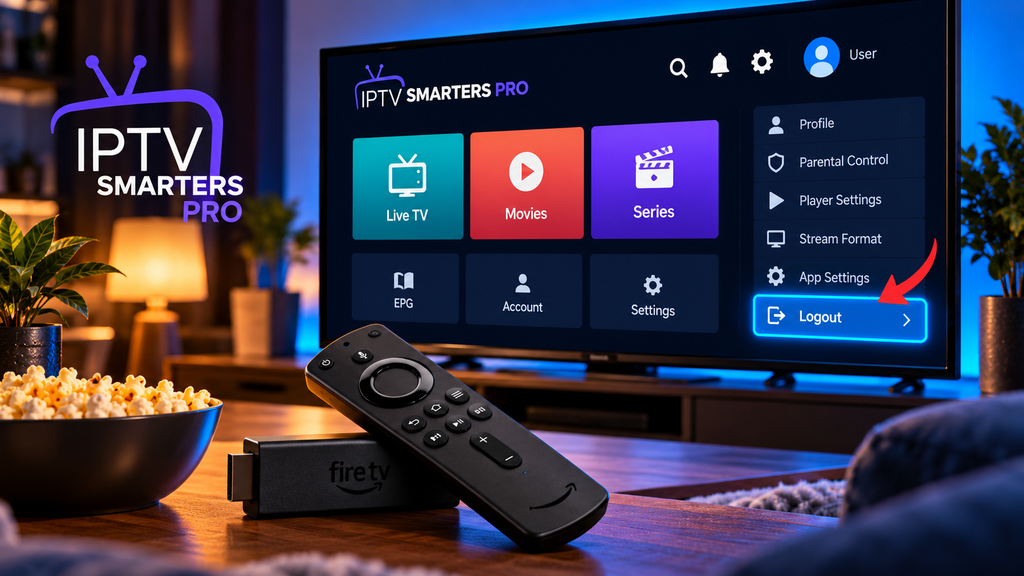
How to Remove an Old IPTV Login
If you changed IPTV providers or no longer need an old profile, removing it can prevent confusion.
Before deleting anything, make sure you still have the login information if you may need that profile again.
Your details may include:
- Username
- Password
- Server URL
- M3U playlist
- Other provider-specific information
Once you have saved the necessary information, return to the user list, select the old profile, and choose Delete or Remove User.
Removing a profile from the player does not itself cancel a subscription with an IPTV provider. Smarters Pro states that it does not sell or provide those subscriptions, so provider account management remains separate from the player.
How to Add a Different IPTV Account After Logging Out
Once you return to the user or login screen, choose the relevant option for adding your authorized media source.
Depending on the app version and provider, you may be asked for:
| Login detail | Purpose |
|---|---|
| Profile name | Helps identify the saved account |
| Username | Identifies the IPTV account |
| Password | Authenticates the account |
| Server URL | Connects the player to the service |
| M3U URL | Loads a compatible playlist |
Smarters Pro’s current official documentation lists support for M3U and JSON playlists and multiple playlist management.
Enter the credentials exactly as supplied by your provider.
If you need a refresher on the rest of the interface, see the IPTV Smarters Pro beginner guide.
Will Logging Out Delete Your IPTV Subscription?
No, logging out of the player and cancelling your IPTV subscription are separate actions.
Smarters Pro describes itself as a media player and explicitly states that it does not provide or sell IPTV subscriptions or third-party media content.
Removing a login from Smarters Pro therefore does not tell an independent IPTV provider to cancel an account.
If you actually want to cancel a subscription, use the account or support process provided by that service.
What Happens to Favourites and App Settings?
This depends on the app version and the action you choose.
Switching users generally keeps each saved profile available.
Deleting a profile may remove locally stored information associated with that profile. If favourites, history, or other settings matter to you, avoid deleting the user unless necessary.
The safest approach is to use Switch User when you only want to access another saved account.
IPTV Smarters Pro Keeps Logging Back Into the Same User
If Smarters Pro repeatedly opens the same account, check whether that profile is still saved in the user list.
Return to the main user-management screen and remove the old profile if you no longer want the device to use those credentials.
If the interface seems stuck, restart the app and device before taking more disruptive steps.
Reinstalling the app should generally be treated as troubleshooting rather than the normal logout method because you may lose locally stored player configuration.
Can You Have Multiple Users Instead of Logging Out?
Yes, this is often the easier solution.
The current Smarters Pro feature list includes both multiple playlist support and multi-user functionality.
This can be useful when you manage more than one authorized playlist or media source. Instead of repeatedly deleting and re-entering credentials, keep the profiles separately named and switch between them.
Frequently Asked Questions
How to log out of IPTV Smarters Pro?
Open the user or profile management screen, select your current profile, and choose Log Out if available. If your version does not show a logout option, use Switch User or remove the saved user profile.
Why is there no logout button in IPTV Smarters Pro?
Different versions organize accounts as users or playlists rather than traditional streaming-service accounts. Look for Switch User, List Users, Manage Users, Remove User, or Delete User.
Does deleting a user cancel my IPTV subscription?
No. Removing a profile from Smarters Pro only affects the player configuration on that device. Subscription management is handled separately by your IPTV provider.
Can I add another account without logging out?
Yes. Smarters Pro currently supports multiple playlists and users, so compatible versions can keep more than one profile.
Will logging out delete my channels?
Logging out or removing the saved profile can remove that account’s content from the player until you add the credentials again. It does not delete content from the IPTV provider itself.
Can I log back in after deleting a user?
Yes, provided you still have the correct username, password, server URL, M3U playlist, or other required credentials.
Log Out of IPTV Smarters Pro Without Losing Track of Your Login
Learning how to log out of IPTV Smarters Pro is mainly about understanding how your version handles user profiles. Look for a dedicated logout option first, then check Switch User or user-management controls if it is not available.
If you only want to change accounts, switching users is usually simpler. If you want the old credentials removed from the device, remove or delete the saved profile after making sure you still have any login information you may need later.
For more help setting up IPTV applications and managing your streaming device, visit Zyra IPTV for additional setup guidance.