
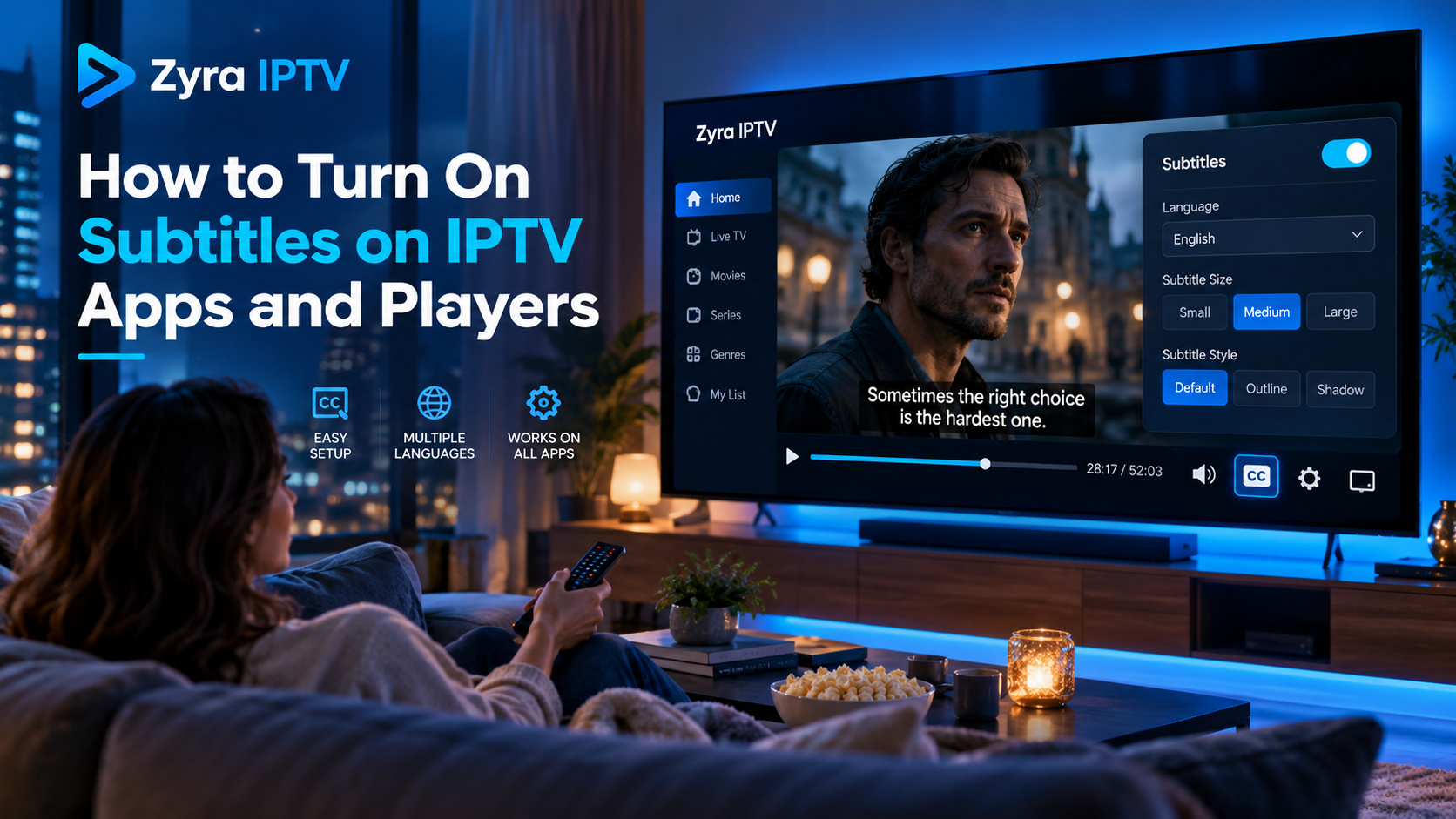
If you want to know how to turn on subtitles on IPTV, start playing the channel, movie, or episode, open the player’s on-screen controls, and look for Subtitles, CC, a speech-bubble icon, or an audio and subtitle menu. Choose an available subtitle track and language.
The exact controls vary between IPTV apps and devices. More importantly, the player can normally display subtitles only when the stream or video contains a supported subtitle track. If no subtitle language appears, changing the subtitle setting alone may not create captions.
This guide explains how subtitles work in IPTV players, how to enable them on common platforms, and what to check when subtitles are missing or out of sync.
How IPTV Subtitles Work
IPTV subtitles can be delivered in several ways.
Some video streams contain an embedded subtitle or closed-caption track. Other on-demand videos may use a separate subtitle file, such as an SRT file, if the player supports loading external subtitles.
Your IPTV player reads this information and displays the text over the video.
Smarters Pro currently lists subtitle support and subtitle selection among its playback capabilities. Its documentation also confirms that it is a media player rather than a content provider, so the media and available subtitle tracks come from the user’s configured source.
This distinction matters because installing a different player cannot guarantee subtitles if the source itself contains no subtitle or caption data.
Quick Way to Turn On Subtitles on IPTV
The most common method works like this:
- Start playing the IPTV channel, movie, or TV episode.
- Press OK, Select, or the playback button on your remote, or tap the screen on a mobile device.
- Look for Subtitles, CC, a speech-bubble icon, or playback settings.
- Open the subtitle list.
- Choose the available language.
- Resume playback.
If you see Off, None, or no languages at all, the stream may not contain a selectable subtitle track.
Menu names differ between players, so the control may also appear inside an audio-track menu or player settings.
How to Turn On Subtitles in IPTV Smarters Pro
Smarters Pro officially includes subtitle support and language-related playback features, although the exact interface can differ between Android, TV, iOS, and other versions.
A practical approach is:
- Open Smarters Pro.
- Start the live channel, movie, or episode.
- Bring up the playback controls.
- Find the subtitle or language option.
- Select an available subtitle track.
- Choose your preferred language.
Some versions may also provide subtitle-related preferences in the player’s settings.
If you use Smarters Pro regularly and need help with the broader setup, the Zyra IPTV installation guides cover IPTV app configuration across supported device types.
Why Smarters Pro May Show No Subtitle Option
If the subtitle control is present but no languages are listed, the media source may not contain a subtitle track compatible with the player.
This is different from subtitles simply being switched off.
You can test another movie, episode, or channel. If subtitles work elsewhere, the player itself is probably functioning normally.
How to Turn On Subtitles in TiviMate
TiviMate is designed for Android TV devices and focuses heavily on remote-controlled television playback. Its official documentation confirms that it works with user-supplied playlists and provides television-focused playback features.
When watching a stream in TiviMate:
- Start playback.
- Press the remote button that opens the player controls.
- Open the playback or track options.
- Look for subtitles or closed captions.
- Select an available subtitle track.
The exact interface can change between versions.
If no subtitle track appears, check another stream before changing the entire app configuration. Community discussions about TiviMate frequently note that subtitle availability depends on what is actually carried by the stream.
How to Turn On Subtitles in VLC
VLC provides clear subtitle controls for supported media.
On the desktop version, VideoLAN’s official documentation says you can open the Subtitle menu and select an available subtitle track. VLC also supports external subtitle formats such as SRT, ASS, SSA, SUB, and several others.
If multiple tracks are available:
Subtitle > Sub Track > Choose your language
VLC also allows subtitle styling and synchronization adjustments. On Windows, for example, its documentation notes that subtitle delay can be adjusted during playback if the text appears too early or too late.
This makes VLC particularly useful for testing whether a media file or compatible stream actually contains a readable subtitle track.
Turning On IPTV Captions on Android TV
Android TV includes system-level caption preferences.
Google’s current instructions place them under:
Settings > Device Preferences > Accessibility > Captions
From there, you can select the caption source and adjust available options.
Android also provides centralized caption preferences that apps can choose to adopt, including language and visual style.
However, switching captions on at the Android TV level does not guarantee that every IPTV app or every stream will display them. Google specifically notes that system caption preferences depend on app support.
For general Android television configuration, see the Android TV IPTV guide.
Subtitles on Apple TV, iPhone and iPad
Apple devices also provide system subtitle and caption preferences.
Apple’s current guidance allows users to enable Closed Captions and SDH through Accessibility settings and customize properties such as text style, size, background, and opacity.
Inside a compatible video application, subtitles normally still need to be selected from that app’s playback controls.
The important point is that device accessibility settings and IPTV player subtitle controls are related but separate. Your IPTV application still needs to support and recognize the subtitle information in the media.
Users configuring IPTV on Apple mobile devices can also review the iOS IPTV setup guide.
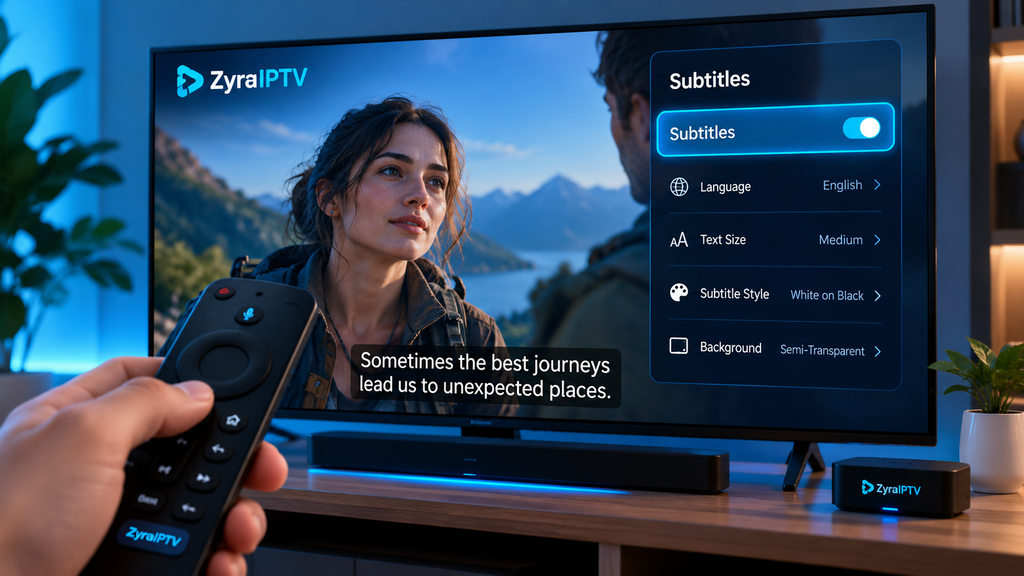
Live TV Subtitles vs VOD Subtitles
Subtitles can behave differently on live channels and video-on-demand content.
| Content type | Typical subtitle situation |
|---|---|
| Live TV | Depends on whether caption data is included in the live stream |
| Movies | May contain one or more embedded subtitle tracks |
| TV series | Languages can vary by episode |
| Local media files | May support embedded or separate subtitle files |
| Catch-up content | Depends on how the recorded stream preserves captions |
A television channel having captions on traditional broadcast TV does not automatically mean the IPTV version of that channel carries the same caption data.
The IPTV stream must preserve a compatible subtitle or closed-caption track for the player to display it.
Why IPTV Subtitles Are Not Showing
If subtitles are missing, work through the issue logically instead of changing every player setting.
The Stream Has No Subtitle Track
This is one of the most common explanations.
Try another movie or channel. If other content displays subtitles correctly, the original stream probably does not include them.
The Wrong Subtitle Track Is Selected
Open the subtitle menu and check whether another language or track is available.
Sometimes a player defaults to Off or selects an unexpected language.
The IPTV Player Does Not Support the Subtitle Format
Different players support different caption and subtitle technologies.
Testing the same authorized content in another compatible player can help determine whether the issue is app-specific.
The App Is Using an External Player
Some IPTV apps can hand playback to another media player.
If this happens, the subtitle controls belong to the external player rather than the IPTV application’s normal interface.
For example, if VLC handles playback, use VLC’s subtitle controls.
The App Needs Updating
Player bugs and compatibility issues can change between releases.
If subtitle controls previously worked but have disappeared, check whether an official application update is available before reinstalling everything.
Can You Add Your Own Subtitle File?
Sometimes.
Players such as VLC support loading external subtitle files for compatible media. VideoLAN’s official documentation lists several supported text subtitle formats, including SRT.
Dedicated IPTV applications vary more widely.
External subtitle files are generally more practical for movies or locally accessible VOD content than for constantly changing live television streams.
If your player has options such as Load Subtitle, Add Subtitle, or Select Subtitle File, follow the app developer’s instructions for supported formats.
How to Fix Subtitles That Are Out of Sync
Subtitles that appear too early or too late are a synchronization problem rather than an availability problem.
If your player supports subtitle delay or offset:
- use a positive delay when subtitles appear too early
- use a negative adjustment when subtitles appear too late
- make small adjustments while watching the same scene
VLC officially provides subtitle delay controls, which makes it useful when troubleshooting timing problems.
If the timing becomes progressively worse throughout a movie, the subtitle file itself may not match that specific video version.
Can You Change Subtitle Size and Appearance?
Yes, on supported players and devices.
Possible customization options include:
- Text size
- Font
- Text colour
- Background colour
- Background opacity
- Edge or outline style
- Preferred language
Android TV offers system caption preferences, while Apple also provides caption style customization through its accessibility settings.
VLC allows additional text-based subtitle styling through its preferences.
Remember that system styling may not apply when an IPTV app uses its own subtitle renderer.
Subtitles vs Closed Captions
The terms are often used interchangeably in IPTV interfaces, but they are not always identical.
Subtitles generally display spoken dialogue, often for translation or comprehension.
Closed captions can also include information about sounds, music, or speakers for viewers who are deaf or hard of hearing.
Apple, for example, distinguishes regular subtitles from closed captions and SDH in its accessibility documentation.
An IPTV app may label all of these options simply as CC, Subtitles, or Tracks.
Frequently Asked Questions
How to turn on subtitles on IPTV?
Start the video, open the player controls, select the subtitle or CC option, and choose an available language. The exact menu varies by IPTV player.
Why does my IPTV have no subtitles?
The stream may not contain a subtitle track, the player may not support the available format, or subtitles may be disabled.
Can I turn on subtitles for live IPTV channels?
Yes, if the live stream carries supported caption or subtitle information. Not every live IPTV stream includes it.
Can IPTV Smarters Pro show subtitles?
Yes. Smarters Pro’s current official documentation lists subtitle support and subtitle selection among its media-player capabilities.
Can I add SRT subtitles to IPTV?
Some players, including VLC, support SRT files. Whether an IPTV application can load an external SRT file depends on that specific app and playback mode.
Why are IPTV subtitles in the wrong language?
Open the subtitle-track menu and select another available language. If only one track appears, the source may not provide additional language options.
Why are subtitles delayed?
The subtitle timing may not match the video, or the playback source may introduce timing differences. If your player provides subtitle delay controls, adjust the offset gradually.
Turn On IPTV Subtitles Using the Player Controls
Learning how to turn on subtitles on IPTV is usually straightforward: start the content, open the playback controls, choose the subtitle or CC menu, and select an available language.
The main limitation is the source itself. Your IPTV player can display supported subtitles, but it cannot guarantee that every live channel, movie, or episode includes a subtitle track. If subtitles are missing, test another title, check the player settings, and confirm device-level caption preferences before assuming the app is faulty.
For more help configuring IPTV applications and supported devices, visit Zyra IPTV and review the available setup guidance for your streaming platform.