
If you want to know how to connect iPad to TV wirelessly, the simplest method is usually AirPlay. With a compatible smart TV or Apple TV, you can stream videos, photos, and other supported content from your iPad without connecting an HDMI cable.
You can also use Screen Mirroring when you want the television to display the entire iPad screen. In most AirPlay setups, the iPad and receiving device should be connected to the same Wi-Fi network.
What You Need to Connect an iPad to a TV Wirelessly
Before starting, check that you have:
- An iPad with Wi-Fi enabled
- An Apple TV or AirPlay-compatible smart TV
- A working Wi-Fi network
- AirPlay enabled on the receiving device, where required
- Current software on the iPad and television where practical
Apple’s current AirPlay instructions specify that the iPad and Apple TV, compatible smart TV, or Mac should normally be connected to the same Wi-Fi network for wireless streaming and screen mirroring.
Not every smart TV automatically supports AirPlay, so check the settings or official specifications for your television model if you are unsure.
How to Connect iPad to TV Wirelessly with AirPlay
AirPlay is Apple’s wireless technology for sending compatible video, photos, audio, and other content from an iPad to another supported device.
Follow these steps:
- Turn on your television.
- Connect your iPad and TV to the same Wi-Fi network.
- Open the video, photo, or supported content you want to watch.
- Look for the AirPlay icon inside the app.
- Tap it and select your television or Apple TV.
- Enter the AirPlay passcode on your iPad if one appears on the TV.
- Start watching the content on the television.
Apple notes that the exact location of the AirPlay control can differ between apps. In Photos, for example, you may need to open the Share menu before choosing AirPlay.
If you are also configuring IPTV applications on your tablet, the Zyra IPTV iOS setup guide covers broader IPTV setup information for iPhone and iPad.
How to Screen Mirror iPad to TV Wirelessly
AirPlay streaming is useful when you want to send a particular video to the television. Screen Mirroring is different because it displays the full iPad interface.
To mirror your iPad:
- Connect the iPad and television to the same Wi-Fi network.
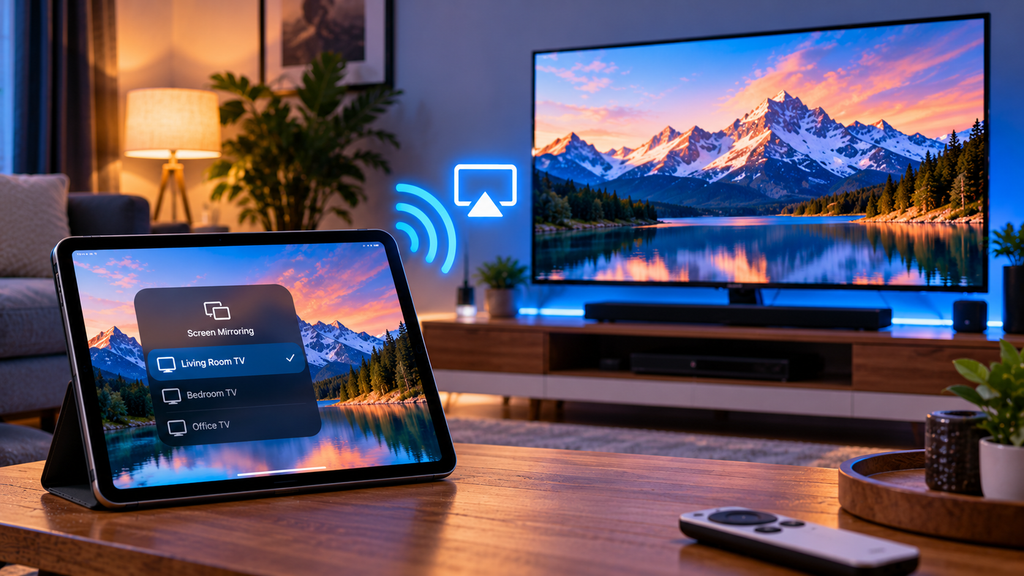
- Swipe down from the upper-right corner of the iPad to open Control Center.
- Tap Screen Mirroring.
- Choose your Apple TV or AirPlay-compatible smart TV.
- Enter the onscreen AirPlay code if requested.
The television should then display what appears on the iPad.
This can be useful for:
- Photos
- Presentations
- Websites
- Supported video apps
- Demonstrations
- Compatible IPTV or media applications
Keep in mind that some applications may restrict wireless playback or screen mirroring.
AirPlay Streaming vs Screen Mirroring
Although both use Apple’s wireless technology, they serve different purposes.
| Method | What It Does | Useful For |
|---|---|---|
| AirPlay streaming | Sends supported media to the TV | Videos, photos, audio |
| Screen Mirroring | Displays the entire iPad screen | Apps, menus, websites, presentations |
If you only want to watch a supported video, direct AirPlay streaming can be convenient because you do not need to duplicate everything shown on the tablet.
If you need the television to reproduce your complete iPad interface, use Screen Mirroring instead.
Apple’s current documentation provides separate instructions for streaming video and mirroring an iPhone or iPad screen.
How to Connect an iPad Wirelessly Without Apple TV
You do not necessarily need an Apple TV streaming box.
Many modern smart TVs include AirPlay functionality directly. If your television supports AirPlay, you can usually connect the iPad without additional Apple hardware.
The general process is:
- Open the television settings.
- Find the AirPlay or Apple AirPlay option.
- Enable AirPlay if necessary.
- Connect the television to the same Wi-Fi network as the iPad.
- Open Control Center on the iPad.
- Choose Screen Mirroring.
- Select the television.
Menu names vary between television manufacturers and models.
If you prefer using streaming applications directly on your TV instead of sending them from the iPad, the Smart TV IPTV setup guide explains the separate approach of configuring IPTV on compatible television platforms.
Can You Connect an iPad to a TV Wirelessly Without Wi-Fi?
Standard AirPlay connections generally rely on Wi-Fi networking between compatible devices.
Some Apple devices can support specialised peer-to-peer AirPlay scenarios, but support depends on the hardware and configuration involved. For ordinary home use, connecting both devices to the same Wi-Fi network is the clearest and most widely applicable setup.
If Wi-Fi is unavailable and you need a dependable display connection, a compatible HDMI adapter may be a better alternative, although that is no longer a wireless connection.
Why Is My TV Not Appearing on My iPad?
If the television does not appear in the AirPlay or Screen Mirroring list, work through these checks.
Check That Both Devices Use the Same Wi-Fi
A common problem is that the iPad and TV are connected to different networks.
For example:
- The TV may be connected to the main Wi-Fi network.
- The iPad may be connected to a guest network.
- One device may have switched to a different router or access point.
Apple’s instructions require the devices to be on the same Wi-Fi network for normal AirPlay streaming and screen mirroring.
Make Sure AirPlay Is Enabled
Some smart TVs provide an option to disable AirPlay.
Open your television settings and look for options such as:
- Apple AirPlay
- AirPlay Settings
- Connections
- Network
- General Settings
The wording varies by television model.
Restart the iPad and TV
Temporary device-discovery problems can often be cleared by restarting both devices.
If multiple devices are having network problems, restarting the router may also help.
Check for Software Updates
Outdated iPadOS or television firmware can sometimes affect wireless features.
Check for available updates through:
iPad:
Settings > General > Software Update
For the television, use its built-in software or firmware update menu and follow the manufacturer’s instructions.
Why Is AirPlay Connected but the Video Is Black?
Sometimes the iPad connects successfully and its menus appear on the television, but a particular video remains black or refuses to play.
This can happen because individual apps control whether their content can be transmitted through AirPlay. Apple specifically notes that some video applications may not support AirPlay.
If this happens:
- Look for a dedicated AirPlay button inside the app.
- Check whether the service provides an official TV application.
- Test AirPlay with a photo or another app.
- Disconnect and reconnect AirPlay.
- Restart the application.
If other content works normally, the issue may be related to that particular application’s playback support rather than the iPad or television.
Can You Use IPTV from an iPad on a TV Wirelessly?
Potentially, depending on the IPTV player, television, and content being used.
An IPTV application that supports AirPlay may allow compatible content to be sent directly to the television. Screen Mirroring may also work with some apps.
However, compatibility should be checked for the particular player because not every IPTV application handles AirPlay or mirroring in the same way.
If you are setting up IPTV across multiple platforms, the IPTV guides provide additional information about installation and device setup.
How to Stop Wireless Streaming or Screen Mirroring
When you finish watching, disconnect properly.
For a video being streamed through AirPlay:
- Open the app currently streaming the content.
- Tap the AirPlay control.
- Select the iPad again to stop sending the video to the TV.
For Screen Mirroring:
- Open Control Center.
- Tap Screen Mirroring.
- Choose Stop Mirroring.
Apple documents these controls as the standard way to stop an AirPlay connection.
Frequently Asked Questions
How can I connect iPad to TV wirelessly?
Use AirPlay if your television supports it. Connect both devices to the same Wi-Fi network, open Control Center, tap Screen Mirroring, and choose your TV.
Can I connect an iPad to a smart TV without Apple TV?
Yes, if the television has built-in AirPlay support. An Apple TV box is not required when the smart TV can receive AirPlay directly.
Why won’t my iPad find my smart TV?
Check that AirPlay is supported and enabled, both devices use the same Wi-Fi network, and the television is turned on and discoverable.
Is screen mirroring the same as AirPlay?
Screen Mirroring uses AirPlay technology but duplicates the full iPad display. AirPlay can also send individual videos or other supported media without mirroring the entire screen.
Do I need Bluetooth to connect an iPad to a TV?
Bluetooth is generally not the main technology used for iPad screen mirroring. AirPlay normally uses a Wi-Fi network to transmit video and screen content.
Connect Your iPad to Your TV Without Cables
For most compatible setups, how to connect iPad to TV wirelessly comes down to AirPlay. Put the iPad and television on the same Wi-Fi network, use the AirPlay control for individual media, or open Screen Mirroring when you want to display the entire iPad interface.
If you also use your iPad or smart television for IPTV viewing and want additional setup information, Zyra IPTV provides IPTV service information and device guides for different viewing platforms.