
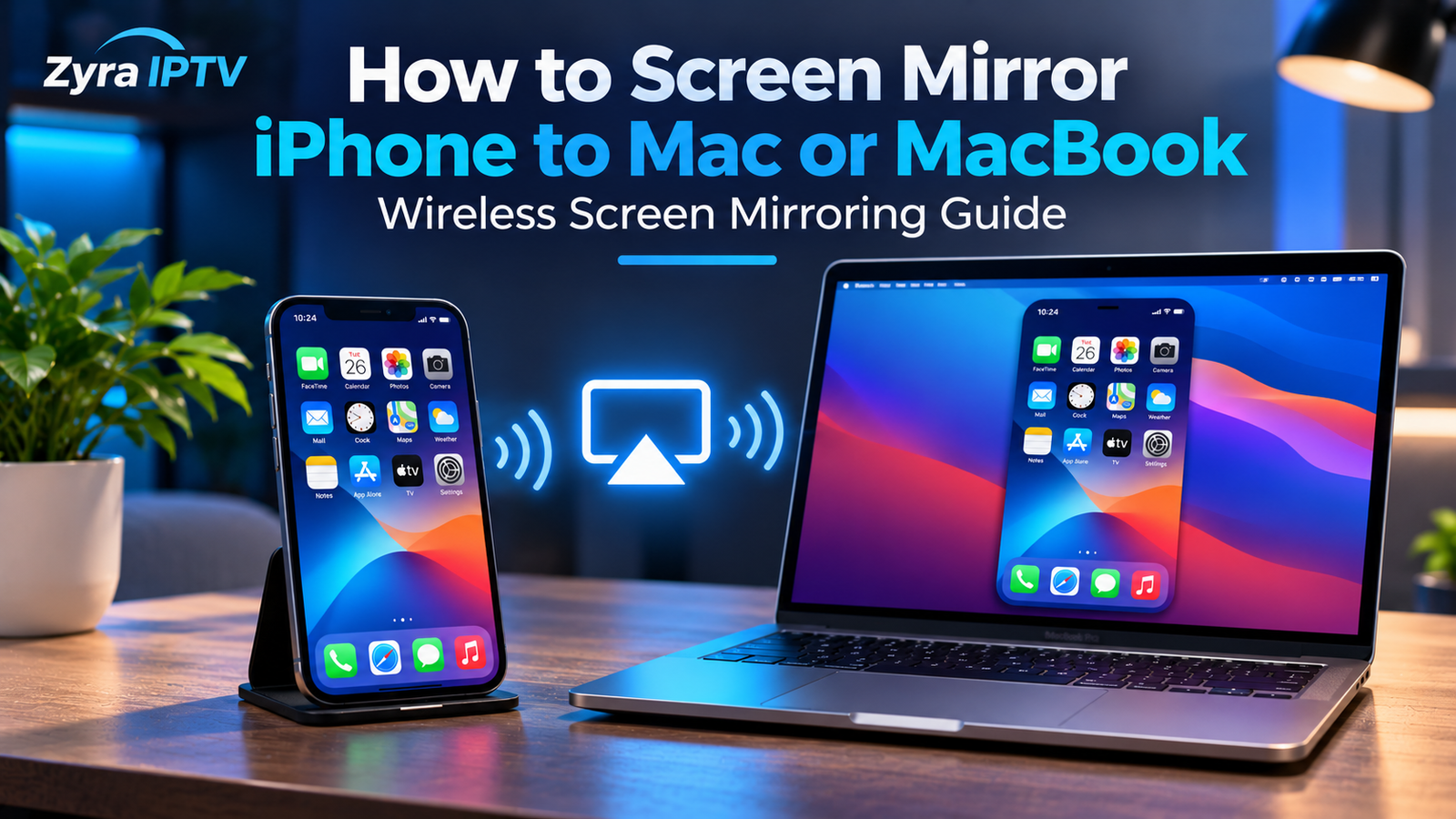
If you want to display your iPhone screen on a MacBook, iMac, or another compatible Mac, Apple gives you two main options: AirPlay screen mirroring and the newer iPhone Mirroring feature.
For simple screen sharing, AirPlay is usually the most direct method. Open Control Center on your iPhone, tap Screen Mirroring, and select your Mac. Your Mac must be configured as an AirPlay receiver and both devices should normally be connected to the same Wi-Fi network.
iPhone Mirroring is different. Instead of simply showing your iPhone screen, it lets you interact with your iPhone from your Mac using the Mac keyboard, mouse, or trackpad.
How to Screen Mirror iPhone to Mac With AirPlay
AirPlay is the easiest choice when your goal is simply to reflect your iPhone screen onto your Mac.
Follow these steps:
- Make sure your iPhone and Mac have Wi-Fi turned on.
- Connect both devices to the same Wi-Fi network.
- On your Mac, enable AirPlay Receiver.
- Open Control Center on your iPhone.
- Tap Screen Mirroring.
- Select your Mac from the available devices.
- Enter an AirPlay passcode if one appears on your Mac.
Your iPhone screen should then appear on the Mac display.
To stop mirroring, open Control Center on your iPhone again, tap Screen Mirroring, then choose Stop Mirroring.
How to Enable AirPlay Receiver on a Mac
If your Mac does not appear in the iPhone’s Screen Mirroring list, check whether AirPlay Receiver is enabled.
On recent versions of macOS:
- Open System Settings.
- Select General.
- Open AirDrop & Continuity or AirDrop & Handoff, depending on your macOS version.
- Turn on AirPlay Receiver.
- Choose who is allowed to AirPlay to the Mac.
Apple allows you to limit AirPlay access to your own devices, people on the same network, or other permitted users depending on the available settings.
If you regularly use an iPhone alongside a computer for streaming or IPTV setup, Zyra IPTV’s computer setup resources can also help with device-specific viewing configurations.
Which Macs Support AirPlay From iPhone?
Apple’s current compatibility information lists AirPlay to Mac support for:
- iMac Pro
- Mac mini introduced in 2020 or later
- Most other Mac models introduced in 2018 or later
For full supported operation, Apple lists macOS Monterey 12 or later, along with an iPhone 7 or later running iOS 14 or later. Some older devices may still support AirPlay at lower video resolutions when the Mac’s receiver settings allow it.
This means many modern MacBook Air and MacBook Pro models can receive an iPhone screen without installing third-party mirroring software.
How to Mirror iPhone to MacBook
The process for a MacBook is the same as for other supported Macs.
To mirror iPhone to MacBook:
- Enable AirPlay Receiver on the MacBook.
- Connect the iPhone and MacBook to the same Wi-Fi network.
- Swipe down from the top-right corner of a recent iPhone to open Control Center.
- Tap the Screen Mirroring icon.
- Select your MacBook.
- Enter the code shown on the MacBook if requested.
On older iPhones that use the previous Control Center layout, you may need to swipe up from the bottom of the screen instead.
Once connected, navigation and compatible content shown on your iPhone can appear on the MacBook display.
AirPlay vs iPhone Mirroring
It is easy to confuse Apple’s AirPlay screen mirroring with the feature officially called iPhone Mirroring, but they serve different purposes.
| Feature | AirPlay | iPhone Mirroring |
|---|---|---|
| Shows iPhone screen on Mac | Yes | Yes |
| Control iPhone using Mac | No | Yes |
| Mac keyboard and trackpad control | No | Yes |
| iPhone stays locked | No | Yes |
| Good for showing videos or photos | Yes | Yes, subject to app restrictions |
| Requires newer iOS and macOS | Less restrictive | Yes |
AirPlay is best when you simply want the Mac to act as another screen.
iPhone Mirroring is more useful when you want to operate your iPhone remotely from your Mac.
How to Use iPhone Mirroring on Mac
Apple’s iPhone Mirroring feature requires:
- iOS 18 or later
- macOS Sequoia 15 or later
- a Mac with Apple silicon or an Apple T2 Security Chip
- the same Apple Account on both devices
- two-factor authentication
- Wi-Fi and Bluetooth enabled
- the iPhone to be nearby and locked
The Mac must also not be using AirPlay or Sidecar at the same time.
To start:
- Lock your iPhone and keep it near the Mac.
- Open the iPhone Mirroring app on your Mac.
- Follow the setup prompts.
- Enter your iPhone passcode if requested.
- Choose your preferred authentication settings.
After the connection is established, you can click, swipe, scroll, and type using your Mac’s mouse, trackpad, and keyboard.
This feature is useful when you want more than simple screen reflection.
Can You Stream Video From iPhone to Mac?
Yes. AirPlay can stream supported photos, videos, and audio directly from an iPhone to a compatible Mac.
Instead of mirroring everything on the screen, you can sometimes send only the media being played.
For example:
- Open a supported video or photo app.
- Find the AirPlay button.
- Select your Mac.
- Control playback from your iPhone.
Apple notes that the exact AirPlay control can appear in different places depending on the app.
If you are using an IPTV player or another streaming application on an iPhone, Zyra IPTV’s iOS IPTV guide covers the iPhone and iPad side of IPTV setup.
Can All Streaming Apps Be Screen Mirrored?
Not necessarily.
Some video services can impose playback restrictions, and Apple states that certain apps may not support AirPlay. Premium streaming content can also be subject to provider-specific playback policies when using iPhone Mirroring.
If the iPhone interface appears correctly but the actual video is blank or unavailable, the problem may therefore be related to the app rather than the Wi-Fi connection or Mac.
For IPTV and streaming applications, always check the application’s own external-display or AirPlay support.
Why Is My iPhone Not Showing My Mac in Screen Mirroring?
If your Mac does not appear in the Screen Mirroring list, check these common causes.
AirPlay Receiver is disabled
Open your Mac’s AirDrop & Continuity settings and confirm that AirPlay Receiver is turned on.
The devices are on different networks
For standard AirPlay mirroring, put the iPhone and Mac on the same Wi-Fi network.
Your devices are not compatible
Check the Mac model, macOS version, iPhone model, and iOS version against Apple’s AirPlay to Mac requirements.
The Mac is not allowing your iPhone
Review the Allow AirPlay for setting. If it is limited to the current user, make sure the devices are configured appropriately.
A VPN is interfering
Apple notes that some VPN configurations can prevent local networking and interfere with Continuity features such as AirPlay.
Wi-Fi needs restarting
Turn Wi-Fi off and back on, then try reconnecting. Restarting the iPhone and Mac can also resolve temporary discovery problems.
Why Is iPhone Mirroring Not Working?
The dedicated iPhone Mirroring app has stricter requirements than AirPlay.
Check that:
- the iPhone is running iOS 18 or later
- the Mac is running macOS Sequoia 15 or later
- both devices use the same Apple Account
- two-factor authentication is enabled
- Bluetooth and Wi-Fi are turned on
- the iPhone is nearby and locked
- the Mac is not currently using AirPlay or Sidecar
Apple also recommends installing current software updates and restarting both devices if the connection repeatedly fails.
Can You Mirror an iPhone to a Mac Without Wi-Fi?
For normal AirPlay screen mirroring, Apple’s instructions specify connecting the devices to the same Wi-Fi network.
If Wi-Fi mirroring is not practical, another option for certain tasks is connecting the iPhone to the Mac with a cable and using supported Mac applications for viewing or recording the connected device.
However, this is different from standard AirPlay screen mirroring and should not be confused with Apple’s dedicated iPhone Mirroring feature.
Is Screen Mirroring Useful for IPTV?
It can be useful in some situations.
For example, if you already use an IPTV player on an iPhone and want to view supported content on a larger MacBook or iMac display, AirPlay may provide a convenient way to send or mirror the screen.
However, IPTV playback depends on the player, content source, and whether the application supports AirPlay or external displays. Screen mirroring is therefore a display method, not an alternative to correctly configuring the IPTV app itself.
For general setup help across devices, see the IPTV guides from Zyra IPTV.
Frequently Asked Questions
How do I screen mirror my iPhone to my Mac?
Enable AirPlay Receiver on your Mac, place the Mac and iPhone on the same Wi-Fi network, open Control Center on the iPhone, tap Screen Mirroring, and select your Mac.
Can I mirror my iPhone to a MacBook Air?
Yes, compatible MacBook Air models can receive AirPlay from an iPhone. Apple’s current AirPlay to Mac requirements include supported Macs introduced from the relevant model years and running compatible versions of macOS.
Is iPhone Mirroring the same as AirPlay?
No. AirPlay primarily displays or streams iPhone content to the Mac. iPhone Mirroring also lets you interact with the iPhone using the Mac’s keyboard, mouse, or trackpad while the iPhone remains locked.
Why can’t I see my Mac under Screen Mirroring?
Make sure AirPlay Receiver is enabled, both devices are on the same network, your Mac supports AirPlay to Mac, and its AirPlay permissions allow your iPhone to connect.
Can I control my iPhone from my Mac while mirroring?
Not with standard AirPlay. To control the iPhone from the Mac, use Apple’s iPhone Mirroring feature on compatible hardware running iOS 18 or later and macOS Sequoia 15 or later.
Mirror Your iPhone to Your Mac With the Right Method
Learning how to screen mirror iPhone to Mac is straightforward once you know which Apple feature fits your goal. Use AirPlay when you simply want to reflect your iPhone screen or stream supported media to a Mac or MacBook. Use iPhone Mirroring when you want to interact with your iPhone directly from your Mac.
If you are also configuring an iPhone, MacBook, or other device for IPTV viewing, Zyra IPTV provides additional IPTV and device setup information for compatible viewing workflows.