
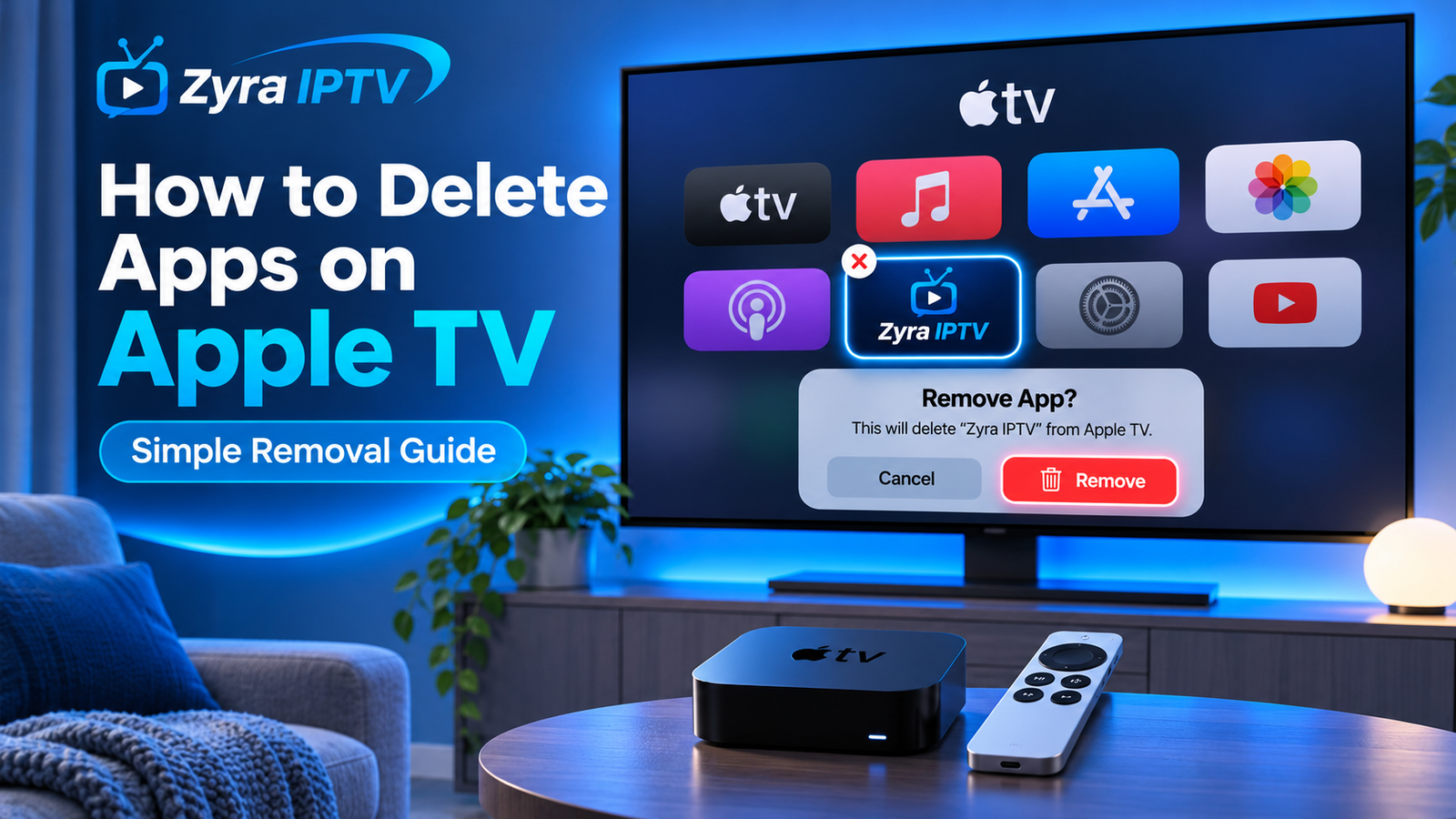
Knowing how to delete apps on Apple TV is useful when you no longer use an app, want to clean up the Home Screen, or need to free storage space. On current Apple TV 4K models, Apple lets you either delete an app completely or offload it while keeping its stored data for a possible reinstall.
The quickest method is simple: highlight the app on the Apple TV Home Screen, press and hold the clickpad or touch surface on the remote, choose Delete App, then select Delete.
Apple also provides a Manage Storage screen where you can see which apps use the most space and remove them from one place.
How to Delete Apps on Apple TV From the Home Screen
For most users, deleting an app directly from the Home Screen is the easiest method.
Follow these steps:
- Turn on your Apple TV and open the Home Screen.
- Navigate to the app you want to remove.
- Press and hold the clickpad or touch surface on your Apple TV remote.
- Wait for the app options to appear.
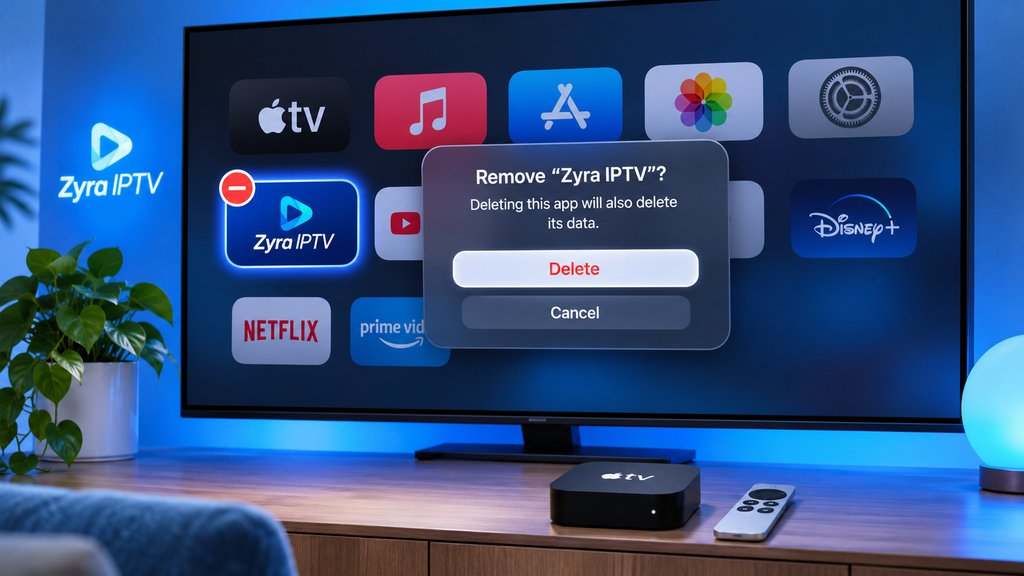
- Select Delete App.
- Choose Delete to remove the app and its data.
Apple’s current Apple TV 4K instructions confirm that apps can be deleted directly from the Home Screen using this process.
Be careful when selecting between Delete and Offload, because the two options work differently.
Delete vs Offload on Apple TV
Current Apple TV software gives you two useful ways to remove an application.
| Option | What happens |
|---|---|
| Delete | Removes the app and its stored data |
| Offload | Removes the app to free space but keeps its data |
| Reinstall | Downloads the app again from the App Store |
Deleting is more appropriate when you no longer want the application or its locally stored data.
Offloading is useful when you temporarily want to recover storage space but may use the application again later.
Apple states that offloading removes the app from the Home Screen while retaining its data in case it is downloaded again.
How to Offload an App on Apple TV
The offload option can be helpful when storage is your main concern.
To offload an app:
- Find the app on the Home Screen.
- Press and hold the remote’s clickpad or touch surface.
- Select Delete App.
- Choose Offload instead of Delete.
The application itself is removed, but its stored data remains on the Apple TV.
An offloaded app can display a download symbol on the Home Screen. Selecting it allows you to download the application again.
For users who regularly install streaming players or television applications, offloading can help manage available space without immediately removing all associated app data.
You can find additional device configuration information in the Zyra IPTV guides.
How to Delete Apple TV Apps From Settings
If you have many applications installed, it can be easier to manage them from Settings because Apple TV shows how much storage each app is using.
Follow these steps:
- Open Settings.
- Select General.
- Scroll to the Usage section.
- Select Manage Storage.
- Find the app you want to remove.
- Select the trash icon beside it.
- Choose Delete or Offload.
This method is particularly helpful when your goal is to free storage rather than simply remove an unwanted icon.
The storage list lets you compare installed applications and identify apps that are taking up more space.
How to Automatically Offload Unused Apple TV Apps
Current Apple TV 4K software can also offload apps automatically when they are not being used.
To enable the feature:
- Open Settings.
- Go to Apps.
- Find Offload Unused Apps.
- Turn the setting on.
When enabled, Apple TV can remove unused applications while retaining their associated data.
This option may be convenient if you frequently install apps but do not want to manually monitor storage.
An offloaded application can be downloaded again if it is still available through the App Store.
What Happens When You Delete an Apple TV App?
Deleting an app does more than remove its icon from the Home Screen.
According to Apple’s current guidance, deleting an application also removes its data from the Apple TV.
That can include locally stored information associated with the application.
You may therefore need to:
- sign in again after reinstalling
- reconfigure app preferences
- restore application settings where supported
- enter account information again
- set up an IPTV player again if its configuration was stored locally
If you use Apple TV for IPTV viewing, it is worth checking whether you have access to your IPTV login information, M3U URL, Xtream Codes credentials, or other required setup details before deleting the player.
For general Apple-device IPTV installation information, see the Zyra IPTV iOS guide.
Can You Reinstall an App After Deleting It?
Yes, provided the application remains available through the App Store.
Apple states that an app you previously obtained from the App Store can be downloaded again without repurchasing it.
However, reinstalling the app does not necessarily restore the data that was deleted with it.
To reinstall an application:
- Open the App Store on Apple TV.
- Search for the application.
- Open its App Store page.
- Select the available download or install option.
- Wait for the installation to finish.
- Sign in or configure the application again if necessary.
If retaining app data matters to you, consider Offload instead of Delete.
Does Deleting an App Cancel Its Subscription?
Not necessarily.
Deleting an application and cancelling a subscription are separate actions.
Removing a streaming app from Apple TV does not automatically mean that a paid subscription associated with your Apple Account or another provider has been cancelled.
If you no longer want a subscription, review the subscription separately through the appropriate account or subscription settings.
This is especially important for applications that charge on a recurring basis.
How to Remove an App From Apple TV Without Losing Its Data
Use the Offload option instead of Delete.
Offloading is specifically designed to free storage while retaining the application’s data.
The process is:
- Highlight the app.
- Press and hold the clickpad or touch surface.
- Select Delete App.
- Choose Offload.
If you later reinstall the application and it remains available from the App Store, its retained data may be restored.
This makes offloading a useful middle ground between keeping every app installed and permanently deleting its local data.
How to Free Up More Storage on Apple TV
Deleting applications is one way to manage storage, but it helps to identify what is actually occupying space first.
Go to:
Settings > General > Manage Storage
Apple TV displays installed applications together with their storage use.
You can then decide whether to:
- keep frequently used applications
- offload apps you may need again
- delete apps you no longer use
- reinstall an app later if necessary
Apple TV primarily streams movies, television, and music, while applications themselves are stored locally. As more apps are installed, they consume more of the available storage.
If you use Apple TV alongside a television-based IPTV setup, Zyra IPTV also provides Smart TV setup information for other compatible viewing configurations.
Why Can’t I Delete an App on Apple TV?
If the expected delete option does not appear, there are several things to check.
Check the Apple TV Model
Apple’s current delete and offload instructions specifically apply to Apple TV 4K. Features and menus can differ between Apple TV hardware generations.
Very old Apple TV models work differently from modern tvOS devices and may not support installing and removing apps in the same way.
Make Sure You Are Holding the Correct Button
Highlight the application and press and hold the clickpad or touch surface.
A quick press normally opens the app rather than showing management options.
Check Whether the App Can Be Removed
Not every built-in system component necessarily behaves like an application installed from the App Store.
If the normal delete option is unavailable, the particular application or system component may have different restrictions.
Restart Apple TV
If an application should be removable but the interface is not responding normally, restarting the Apple TV may resolve a temporary tvOS problem.
Check for tvOS Updates
Menu layouts and features can change with software versions. Keeping tvOS updated also helps ensure that you are using the current Apple TV interface.
Delete vs Force Quit an Apple TV App
Deleting an app should not be confused with closing or force quitting it.
If an application freezes, you normally do not need to uninstall it immediately.
| Action | Best use |
|---|---|
| Force quit | App is frozen or temporarily malfunctioning |
| Delete | You no longer need the app or its data |
| Offload | You want storage space but may use the app later |
| Reinstall | You want to restore a previously removed app |
If an application simply stops responding, try closing and reopening it before deleting it.
Deletion is more appropriate when you want to remove the application permanently or when reinstalling is part of troubleshooting.
Should You Delete and Reinstall a Streaming App?
Sometimes reinstalling an application can be a useful troubleshooting step, but it should not automatically be your first action.
Try this order:
- Close and reopen the app.
- Restart Apple TV.
- Check your internet connection.
- Check for app and tvOS updates.
- Confirm your account or service information.
- Delete and reinstall the app if the issue continues.
For an IPTV player, remember that deleting the app can remove locally stored setup information.
Keep any required login credentials or playlist information available before removing an IPTV application.
Frequently Asked Questions
How do I delete an app on Apple TV?
Highlight the application on the Apple TV 4K Home Screen, press and hold the remote’s clickpad or touch surface, select Delete App, and then choose Delete.
How do you remove an app from Apple TV without deleting its data?
Choose Offload instead of Delete. Offloading removes the application to recover storage while retaining its data.
Can I reinstall an Apple TV app after deleting it?
Yes, if the app remains available from the App Store. Previously obtained applications can generally be downloaded again without repurchasing them, although deleted local data may not return.
Does deleting an Apple TV app free storage?
Yes. Apps are stored locally on Apple TV, so deleting them can recover storage. You can see individual app storage usage under Settings > General > Manage Storage.
Does deleting an app cancel the subscription?
No, you should not assume that deleting an app cancels an associated subscription. Check and cancel the subscription separately if you no longer want the service.
Should I delete or offload an Apple TV app?
Delete the app if you no longer need it or its stored data. Choose Offload when you want to free storage while retaining app data for a possible reinstall.
Remove Apple TV Apps the Right Way
Learning how to delete apps on Apple TV is straightforward on current Apple TV 4K models. Highlight the unwanted app, press and hold the clickpad or touch surface, select Delete App, and choose Delete. If you only need more storage and want to preserve the application’s data, choose Offload instead.
Managing unused apps can keep your Apple TV Home Screen organized and free space for applications you actually use. If Apple TV is part of your internet television setup, Zyra IPTV also provides IPTV information and device guidance for compatible streaming setups.