
If you want to know how to download IPTV Smarters Pro, the correct method depends on your device. Android users can use the official Google Play listing, iPhone and iPad users can install Smarters Pro through Apple’s App Store, while Windows and macOS versions are available through the official Smarters Pro website. Smart TV and Fire TV installation methods can differ by platform and software version.
One important point is that Smarters Pro is a media player, not an IPTV subscription. The official developer states that it does not provide or sell IPTV channels or streaming subscriptions. You need your own authorized playlist or provider credentials after installation.
This guide explains how to download the app on the main supported platforms and how to avoid installing an unrelated app with a similar name.
What Is IPTV Smarters Pro?
IPTV Smarters Pro, currently presented by its developer as Smarters Pro, is a media player designed to open compatible media sources and playlists.
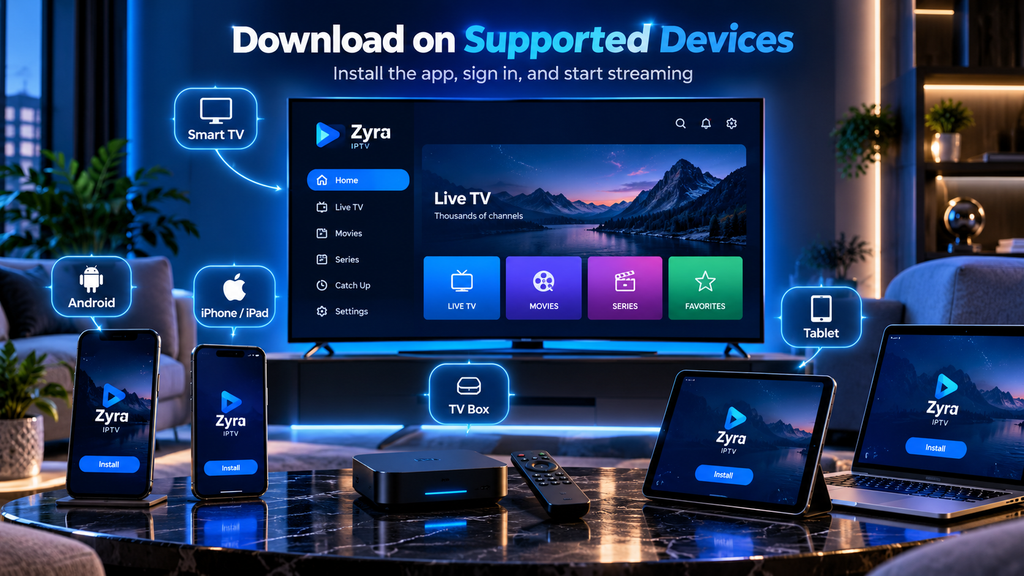
The official platform currently lists support for M3U and JSON playlists and provides versions for several device categories, including Android phones, Android TV, iPhone, iPad, Apple TV, Windows, macOS, Samsung Smart TV and web playback.
The player does not automatically contain:
- Live TV channels
- Movies
- TV series
- An IPTV subscription
- Username and password credentials
- An M3U playlist
Those come from the separate service or content source you choose.
If you are new to IPTV applications, the Zyra IPTV installation guides explain the broader setup process.
Download IPTV Smarters Pro From the Correct Source
Before installing anything, verify where the application is coming from.
Several apps use words such as “IPTV”, “Smarters” or “Smarters Pro” in their names. That does not mean they are all produced by the same developer.
The current official Smarters Pro site warns users about third parties copying its branding and tells users to verify the official platform before downloading or purchasing anything.
A safer approach is:
- Start from the official Smarters Pro website.
- Choose the download option for your platform.
- Follow the link to the relevant official app store when available.
- Check the developer information.
- Avoid modified or “premium unlocked” APK files from unknown websites.
This matters because you may later enter private IPTV credentials into the player.
How to Download IPTV Smarters Pro on Android
For an Android phone or tablet, the easiest method is through Google Play.
The official Smarters Pro website currently links directly to its Android mobile application on Google Play.
Follow these steps:
- Open Google Play Store.
- Search for Smarters Pro.
- Verify that you are selecting the official listing.
- Tap Install.
- Wait for installation to complete.
- Open the app.
- Add the playlist or login information provided by your IPTV service.
If you cannot find the app through search, use the download link provided by the official Smarters Pro website rather than selecting a similarly named application at random.
How to Download IPTV Smarters Pro on Android TV
Android TV uses a television-focused version of Android, so the correct TV application may differ from the mobile version.
The official Smarters Pro site currently provides a separate Android TV download that links to Google Play.
To install it:
- Open Google Play Store on your Android TV or Google TV device.
- Search for Smarters Pro.
- Select the appropriate TV version.
- Choose Install.
- Open the application after installation.
- Enter your authorized IPTV credentials or supported playlist.
For more information about television-based Android setups, see the Android TV IPTV guide.
Do not assume a phone APK is automatically the best choice for a television. A TV-specific application is generally designed around remote-control navigation and the large-screen interface.
How to Download IPTV Smarters Pro on iPhone and iPad
The official Smarters Pro website links to Apple’s App Store for iOS installation.
Apple’s current listing identifies the application as Smarters Pro and lists Tech Smarters Private Limited as the developer. The listing shows support for iPhone, iPad and Apple TV.
To download it:
- Open the App Store.
- Search for Smarters Pro.
- Check the developer information.
- Tap Get.
- Complete Apple authentication if requested.
- Open the application.
- Add your compatible media source.
If you are configuring IPTV specifically on an iPhone or iPad, the Zyra IPTV iOS guide provides additional device setup information.
How to Download Smarters Pro on Apple TV
Apple’s current App Store listing also includes Apple TV support.
On Apple TV:
- Open the App Store.
- Search for Smarters Pro.
- Verify the application and developer.
- Select Get or the available installation option.
- Open the player after installation.
- Add your authorized playlist or provider details.
Application availability can change, so check the current App Store listing on the device before relying on an older tutorial.
How to Download IPTV Smarters Pro on Windows
The official Smarters Pro site currently provides a Windows application and describes it as a beta version.
The general installation process is:
- Visit the official Smarters Pro download page.
- Choose the Windows version.
- Download the installation file.
- Open the downloaded
.exefile. - Follow the installation prompts.
- Launch Smarters Pro.
- Enter your provider credentials or supported playlist.
The official instructions note that Windows may display a security warning during installation. Always verify that you obtained the file through the official developer before continuing.
Avoid downloading Windows installers from random file-sharing sites.
How to Download IPTV Smarters Pro on macOS
Smarters Pro also currently provides a macOS version through its official website, listed as a beta version.
The developer’s current installation instructions involve downloading the macOS package, opening the .dmg file and moving Smarters Pro into the Applications folder.
The process is:
- Open the official Smarters Pro website.
- Select the macOS download.
- Download the
.dmgfile. - Open it.
- Move the application into Applications.
- Launch Smarters Pro.
- Configure your playlist or account.
Do not assume that the iPhone App Store version and the dedicated macOS download are identical.
How to Download IPTV Smarters Pro on Samsung Smart TV
The official Smarters Pro site currently lists Samsung Smart TV support.
Its published instructions say to open the Apps section on a supported Samsung television, search for SMARTERS PRO, verify the developer and install the application.
At the time of current research, the developer also provides a separate Samsung USB installation page because an updated Smart TV package is undergoing app-store processing. That page advises users to use the latest available installation package because previously downloaded packages may expire.
Because this information can change, check the official Smarters Pro instructions immediately before installing on Samsung TV.
Can You Download IPTV Smarters Pro on LG Smart TV?
Do not assume Samsung and LG use the same app availability.
The current official Smarters Pro website lists the LG Smart TV version as coming soon, while Samsung is currently listed as available.
If you use an LG television, check the official Smarters Pro website and your TV’s application store for the latest availability before attempting to install anything.
This is also why older tutorials can become inaccurate as app-store listings change.
How to Download IPTV Smarters Pro on Firestick
Fire TV requires extra care because Amazon now supports different Fire TV software environments across its device range.
Amazon’s developer documentation confirms that many Fire TV devices use Fire OS, which is based on Android, while its current Fire TV platform information also references newer Fire TV operating-system options.
For a Firestick:
- Search the Amazon Appstore first.
- Check whether an appropriate Smarters Pro version is available for your exact device.
- If it is unavailable, consult the current official Smarters Pro Fire TV instructions.
- Use manual APK installation only if your Fire TV model and software support it.
- Download APK files only from a source verified by the developer.
Do not rely on an old Downloader code or random APK URL simply because it appears in a tutorial. Device software and download locations can change.
What to Do After Downloading IPTV Smarters Pro
Installing the player is only the first step.
Your provider may supply information such as:
| Login method | Information you may receive |
|---|---|
| Playlist | M3U URL or supported file |
| Account login | Username, password and server URL |
| Other supported format | Information specified by the provider |
Open Smarters Pro and use the method that matches the details supplied to you.
Do not place an EPG URL in the playlist field or guess a server address.
The official Smarters Pro site states that subscription credentials must come from the user’s service provider.
Why Can I Not Find IPTV Smarters Pro?
Several reasons are possible:
Different app name: The official current branding may appear as Smarters Pro rather than the exact phrase IPTV Smarters Pro.
Regional availability: App-store availability can vary.
Unsupported device: Not every operating system has the same version.
Smart TV model differences: Television app stores differ by manufacturer and model.
Outdated tutorial: An old guide may reference an app listing or installation method that has since changed.
Start from the official developer website instead of repeatedly installing similarly named applications.
IPTV Smarters Pro Downloaded but Not Working
If the app installs but you cannot use it, separate installation problems from IPTV account problems.
| Problem | What to check |
|---|---|
| App will not open | Restart the device and check compatibility |
| Login fails | Recheck provider credentials |
| Playlist does not load | Verify the M3U source |
| No channels appear | Check the playlist or service account |
| EPG is missing | Verify programme-guide data |
| Streams buffer | Check the network and stream source |
| Wrong app installed | Verify the developer and official download source |
Reinstalling the app will not correct an expired account or incorrect server information.
Frequently Asked Questions
How to download IPTV Smarters Pro?
Start from the official Smarters Pro website and select the download method for your device. Android and Android TV versions currently link to Google Play, while iPhone, iPad and Apple TV use Apple’s App Store.
Is IPTV Smarters Pro free to download?
Current availability and pricing depend on the platform and version. Apple’s current Smarters Pro listing is free with in-app purchases. Check the official listing for your device before installing.
Does IPTV Smarters Pro include channels?
No. The official developer states that Smarters Pro is a standalone media player and does not provide or sell IPTV subscriptions or channels.
Can I download IPTV Smarters Pro on Android TV?
Yes. The official Smarters Pro website currently provides a dedicated Android TV listing through Google Play.
Can I download IPTV Smarters Pro on Windows?
Yes. The official website currently provides a Windows beta application that can be installed using its downloadable setup file.
Can I download IPTV Smarters Pro on a Smart TV?
Current support depends on the television platform. The official website currently lists Samsung Smart TV support, while LG is listed as coming soon.
Download IPTV Smarters Pro From the Right Source
Learning how to download IPTV Smarters Pro starts with identifying your device and using the correct official installation method.
Android and Android TV users can use the official Google Play listings, Apple users can use the App Store, Windows and macOS users can obtain the appropriate installer from Smarters Pro, and Smart TV or Fire TV users should follow the latest platform-specific instructions.
Most importantly, verify the application before entering private IPTV account information. Smarters Pro is the player, while your authorized IPTV provider supplies the content and login credentials.
If you are preparing a new device and need help with the IPTV side of the setup after installing your player, explore Zyra IPTV and review the available installation guidance for your preferred platform