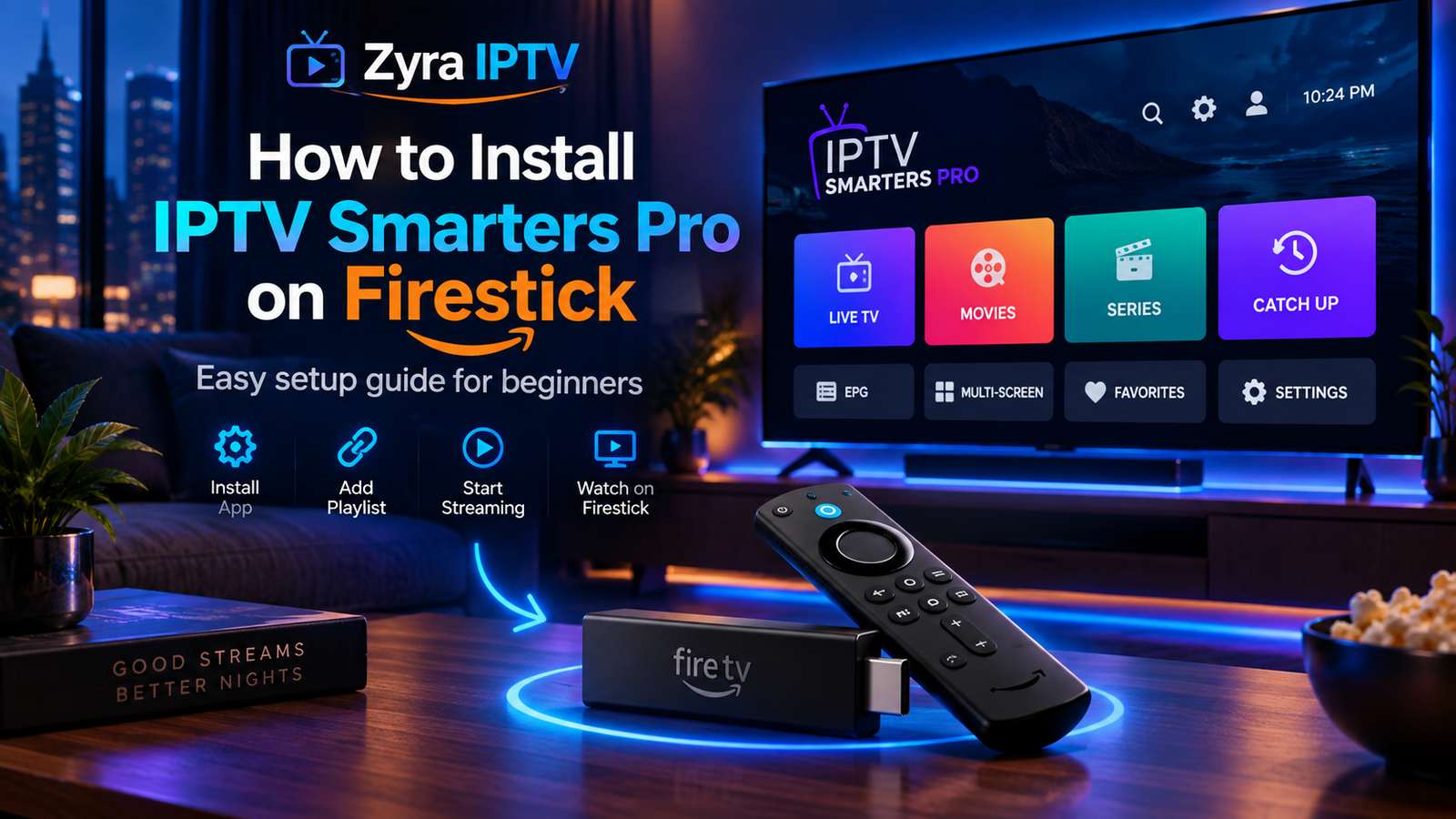
If you want to know how to install IPTV Smarters Pro on Firestick, start by checking whether the correct Smarters Pro app is available directly for your Fire TV device. If it is not, some Fire OS models allow you to install a verified Android APK using Downloader and the device’s app installation permissions.
The exact method depends on your Firestick model and Fire TV software version. Current Amazon documentation shows that developer settings can differ between Fire TV platforms, so instructions from older tutorials may not match every current device.
Smarters Pro is also only a media player. The official developer states that it does not sell IPTV subscriptions, channels, or third-party media content. You need your own authorized service credentials or compatible playlist.
What You Need Before Installing IPTV Smarters Pro
Prepare the following before you begin:
- Amazon Fire TV Stick connected to your television
- Working internet connection
- Amazon account configured on the Firestick
- Enough available storage
- Verified Smarters Pro installation source
- IPTV login details or compatible playlist from your provider
- Fire TV remote
Your IPTV provider may supply a username, password, server URL, M3U playlist, or another supported connection method.
Do not expect the app to generate IPTV credentials for you.
If you need help understanding IPTV setup information first, review the Zyra IPTV installation guides.
Step 1: Search for Smarters Pro on Firestick
Always check the Fire TV app interface before sideloading software.
From the Firestick home screen:
- Select Find or Search.
- Search for Smarters Pro.
- Review the available results.
- Verify the developer before installing.
- If you find the correct supported app, choose Download or Get.
The official Smarters Pro website warns that other websites and apps can copy its name and branding. It advises users to verify the official source before entering account information.
If the correct app is available directly for your Fire TV device, this is usually the simplest installation route.
Step 2: Check Whether Your Firestick Supports APK Installation
If the correct app is unavailable through your Fire TV interface, you may be able to install an Android APK manually.
This process is commonly called sideloading.
However, it is important not to assume that every current Fire TV device handles sideloading in the same way.
Amazon’s current documentation states that Developer Options are not supported on Fire OS 14. Amazon also documents different developer workflows for newer Fire TV platforms.
If your device does not offer the required app installation permission, do not try to bypass its platform restrictions. Use an officially supported installation route or another compatible device instead.
Step 3: Install Downloader on Compatible Fire OS Devices
On Fire OS devices that permit third-party APK installation, Downloader is commonly used to retrieve an installer.
To get Downloader:
- Return to the Firestick home screen.
- Select Find.
- Open Search.
- Type Downloader.
- Select the Downloader app.
- Choose Download or Get.
- Wait for installation to finish.
Downloader itself is only a utility for retrieving files.
Do not enter your IPTV username, password, or private M3U information into Downloader.
Step 4: Enable Installation Permission for Downloader
On compatible Fire OS versions, you may need to allow Downloader to install applications.
A commonly used path is:
Settings > My Fire TV > Developer Options > Install Unknown Apps
Select Downloader and enable the required permission.
If Developer Options is hidden on a compatible Fire OS version, Amazon documentation confirms that some Fire TV software versions reveal developer settings by selecting the device under:
Settings > My Fire TV > About
and pressing the select button repeatedly.
Do not enable unrelated debugging or developer settings simply because another tutorial recommends them.
Your menu may differ based on the Firestick generation and installed operating system.
Step 5: Use Only a Verified Smarters Pro Source
This is one of the most important parts of learning how to install IPTV Smarters on Firestick.
Avoid random APK sites, old Downloader codes, and modified versions claiming to include premium IPTV channels.
The official Smarters Pro website currently identifies smarterspro.com as its official platform and warns users about websites copying its brand.
When downloading the installer:
- Start with the official Smarters Pro website.
- Confirm that you are using the correct domain.
- Locate the current supported Android or Fire TV installation information.
- Follow the current official download route.
- Avoid copied APK files from unknown websites.
Do not depend permanently on a numeric Downloader code from an old article. Codes and file locations can change.
Step 6: Download and Install the App
If your Firestick permits APK installation and you have a verified source:
- Open Downloader.
- Enter the current verified installation address.
- Select Go.
- Wait for the APK to download.
- Allow Fire TV to open the installation screen.
- Choose Install.
- Wait for the installation to complete.
- Select Done or Open.
After installation, you can usually delete the downloaded APK file because the installer is no longer required.
This can help recover storage space on the Firestick.
Step 7: Open Smarters Pro
Return to the Fire TV home screen and open your applications.
Find Smarters Pro and launch it.
The player may ask you to accept terms or permissions before displaying its login screen.
Remember that installing the app does not automatically add channels.
The official Smarters Pro documentation describes the application as a media player that supports user-supplied content and formats such as M3U and JSON.
Step 8: Enter Your IPTV Login Information
Your provider determines which login method you should use.
Common information includes:
| Detail | Purpose |
|---|---|
| Username | Identifies the IPTV account |
| Password | Authenticates the account |
| Server URL | Connects the app to the service |
| M3U URL | Loads a compatible playlist |
| Playlist name | Helps identify the profile |
Enter the information exactly as supplied.
Do not:
- change the server address without instructions
- remove a required port number
- use an EPG URL as an M3U playlist
- share private M3U URLs publicly
- enter credentials into an app you have not verified
The official Smarters Pro instructions state that subscription credentials should come from your service provider.
Step 9: Wait for the Playlist to Load
Once the login succeeds, Smarters Pro may organize your provider’s available content.
Depending on your subscription, sections can include:
- Live TV
- Movies
- TV series
- EPG
- Favourites
- Search
These menu sections do not mean every account includes every content type.
For example, the player may support movie playback while your particular service provides only live television.
Step 10: Test Playback
Open several available channels after setup.
Check whether:
- video starts
- sound works
- the remote responds properly
- EPG information appears where available
- the Firestick remains connected to Wi-Fi
- the application stays open
Testing several channels helps separate an individual stream problem from an application or account problem.
If one stream fails while others work, reinstalling the entire app is usually unnecessary.
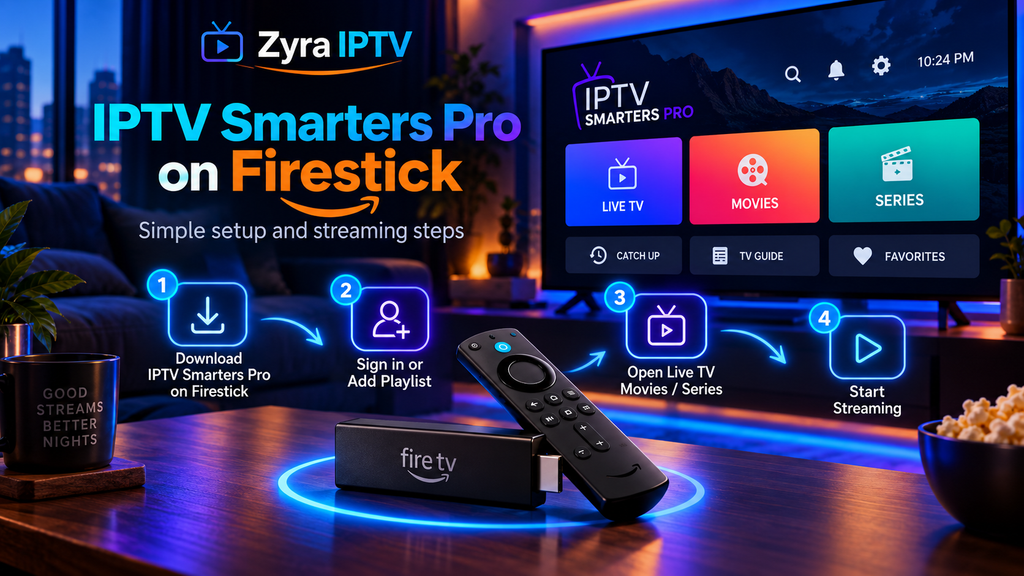
IPTV Smarters Pro Not Installing on Firestick
If installation fails, identify which stage is causing the problem.
| Problem | What to check |
|---|---|
| Downloader will not install APK | Check app installation permission |
| Developer Options missing | Check Fire TV platform and software version |
| APK does not download | Verify the official source and internet connection |
| Installation stops | Check available Firestick storage |
| App opens then closes | Restart Fire TV and check app compatibility |
| Login rejected | Verify username, password and server URL |
| Playlist does not load | Check the M3U source or service account |
| Channels buffer | Test the network and source stream |
Do not factory reset your Firestick as the first troubleshooting step.
A factory reset can remove apps and settings without fixing incorrect IPTV credentials or an incompatible installer.
Why Developer Options May Be Missing
Fire TV hardware and software have changed over time.
Amazon currently documents that Developer Options are not supported on Fire OS 14, while other Fire TV environments use different developer-mode systems.
This means an older guide showing:
Settings > My Fire TV > Developer Options > Install Unknown Apps
should not be assumed to work on every current device.
If that menu does not exist, check:
- Firestick model
- operating system version
- available Amazon Appstore apps
- current Amazon support information
- current Smarters Pro installation instructions
Avoid forcing Android APK installation onto a platform that does not support it.
Is IPTV Smarters Pro the IPTV Service?
No.
Smarters Pro is the media player.
Your IPTV provider or authorized media source supplies the actual account and content.
The official developer clearly states that Smarters Pro does not host, sell, or distribute IPTV subscriptions or third-party media content.
This distinction is useful when troubleshooting.
If the app installs correctly but your account will not load, the problem may involve the credentials or provider rather than Firestick installation.
Can You Use Another Device Instead?
Yes.
If installing Smarters Pro on your Firestick is difficult because of platform restrictions, you may be able to use another supported device.
The official Smarters Pro platform currently lists support for Android phones, Android TV, iPhone, iPad, Apple TV, Windows, macOS, Samsung Smart TV, and web playback, although availability can vary by platform.
For Android-based television devices, the Zyra IPTV Android TV guide explains another setup route.
Frequently Asked Questions
How to install IPTV Smarters Pro on Firestick?
Search for the correct supported Smarters Pro app on Fire TV first. If it is unavailable and your Fire OS device permits APK installation, use Downloader, enable the required installation permission, obtain the app from a verified official source, and install the APK.
How to install IPTV Smarters on Firestick without Downloader?
If the correct app is available through your Fire TV app interface, you can install it directly and do not need Downloader.
Why can I not find Developer Options on Firestick?
The available settings depend on your Fire TV platform and software version. Amazon currently states that Developer Options are not supported on Fire OS 14.
Does IPTV Smarters Pro include channels?
No. Smarters Pro is a media player and does not provide an IPTV subscription or channel package.
Can IPTV Smarters Pro use an M3U playlist?
The official Smarters Pro platform currently lists M3U support. The playlist itself should come from your provider or another authorized source.
Why does Smarters Pro install but show no channels?
Check your IPTV account, playlist, username, password, and server information. Installing the player alone does not provide content.
Should I use a Downloader code?
A Downloader code may be convenient, but it can change or redirect to a different file later. Using the current verified developer source is safer than relying permanently on a code copied from an old tutorial.
Finish Your Firestick Setup
Learning how to install IPTV Smarters Pro on Firestick starts with identifying the software running on your specific Fire TV device. Search for the supported app first, and use manual APK installation only when your Fire OS version permits it.
If sideloading is available, install Downloader, grant only the necessary installation permission, obtain Smarters Pro from a verified source, and then enter the credentials provided by your IPTV service.
For more help preparing your streaming device and IPTV account, visit Zyra IPTV and review the available installation guidance for your setup.