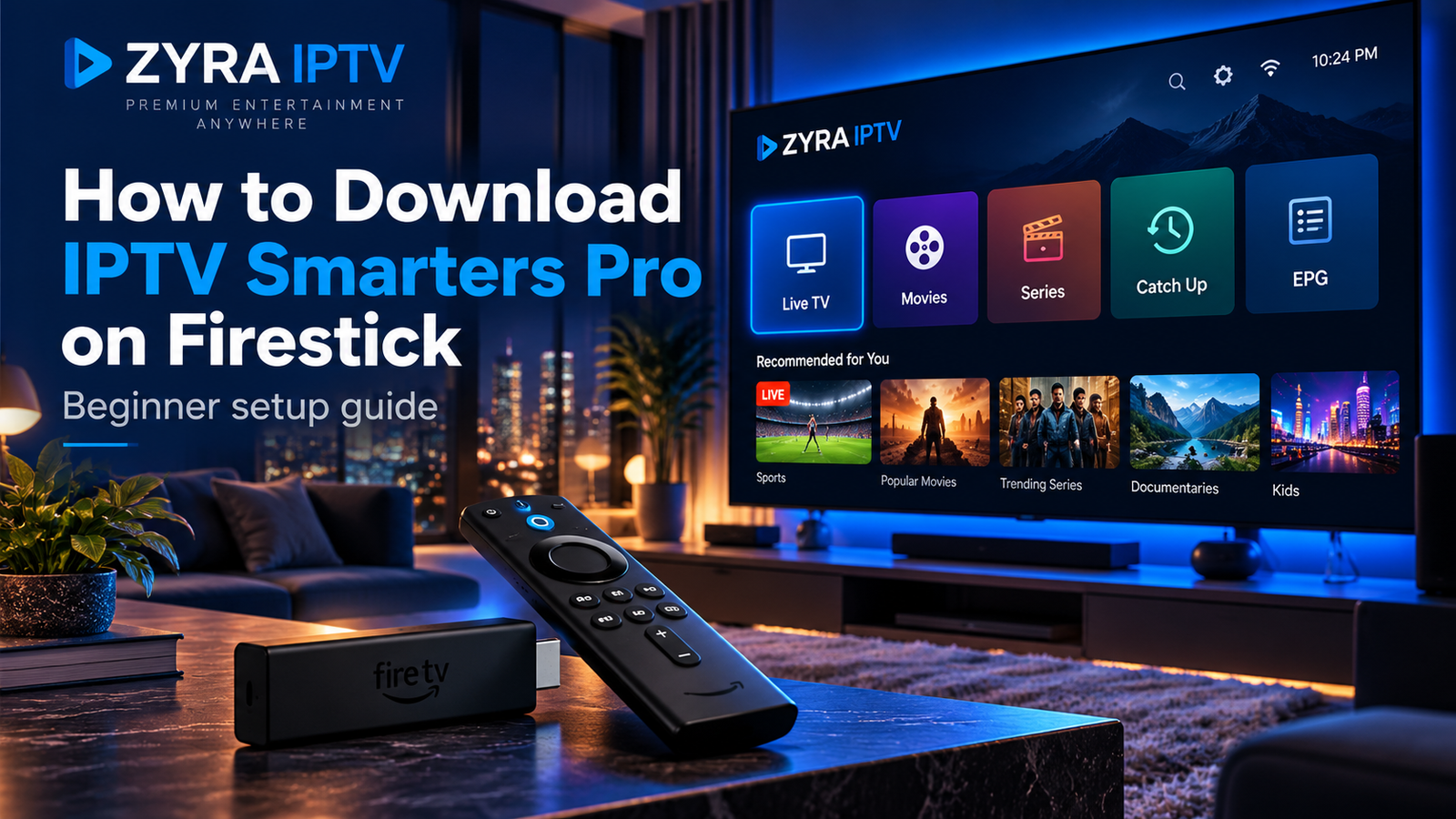
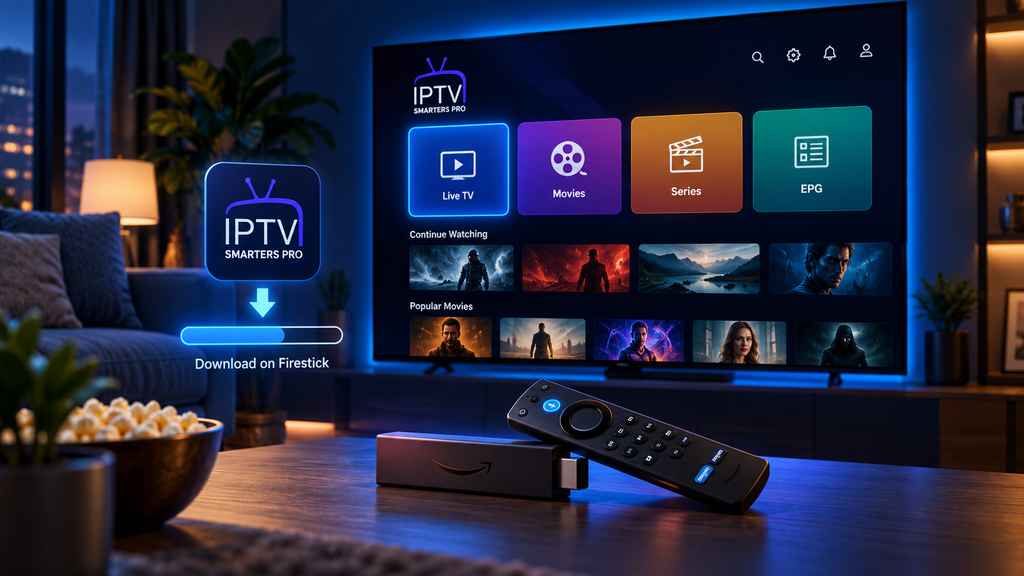
If you want to know how to download IPTV Smarters Pro on Firestick, first check which operating system your Fire TV device uses. Many Firesticks run Android-based Fire OS and can install compatible Android apps, while Amazon now also sells some Fire TV Stick models using its newer Vega OS platform. The traditional Downloader and APK method applies to compatible Fire OS devices, not automatically to every newer Firestick.
Smarters Pro is a media player rather than an IPTV subscription. Its official developer states that it does not provide channels, IPTV packages, or third-party media content. You need your own authorized IPTV service or compatible playlist after installing the player.
What You Need Before Downloading Smarters Pro
Before starting, make sure you have:
- A Fire TV Stick connected to your television
- A working internet connection
- An Amazon account configured on Fire TV
- Enough free storage for the application
- Access to the official Smarters Pro source
- IPTV credentials or an authorized playlist from your provider
Your provider may supply a username, password, server URL, M3U playlist, or another supported login method.
If you need help understanding the setup information first, review the Zyra IPTV installation guides.
Step 1: Check Your Firestick Operating System
This step is important because current Fire TV devices do not all use the same platform.
Amazon’s current device specifications show that many Fire TV models still use Fire OS, which is based on Android. However, the Fire TV Stick 4K Select from 2025 and Fire TV Stick HD from 2026 are listed with Vega OS instead.
To check your device:
- Open Settings.
- Select My Fire TV or Device & Software.
- Open About.
- Review your device model and software version.
If you have a compatible Fire OS model, Android APK installation may be possible.
If your device runs Vega OS, do not assume an Android APK will work.
Step 2: Search the Amazon Appstore First
Before sideloading anything, search directly on your Fire TV.
From the home screen:
- Select Find or Search.
- Search for Smarters Pro.
- Review the available results.
- Verify the developer or seller information.
- If a verified compatible version is available, install it directly.
App availability can vary by model, operating system, and region.
Avoid installing an application only because its name looks similar. Several unrelated IPTV players use similar words in their titles.
The official Smarters Pro website warns that third parties can copy its branding and advises users to verify the official source before entering account information.
Step 3: Install Downloader on Compatible Fire OS Devices
If the correct application is not available directly and your Fire OS device supports APK installation, Downloader can be used to retrieve the installer.
On your Firestick:
- Open Search.
- Type Downloader.
- Select the Downloader application.
- Choose Get or Download.
- Wait for it to install.
Downloader is simply a tool for retrieving files.
Do not enter your IPTV username, password, or private playlist information into Downloader.
Step 4: Enable Installation From Unknown Apps
Compatible Fire OS devices may require permission before Downloader can install an APK.
On many Fire OS versions, the setting appears under:
Settings > My Fire TV > Developer Options > Install Unknown Apps
Enable the permission specifically for Downloader.
If Developer Options is hidden, some Fire TV versions require you to open the About section and repeatedly select the device name to reveal the developer settings.
However, this process is not identical on every current Fire TV platform. Amazon specifically notes that Developer Options are not supported on Fire OS 14 in the same way as older versions.
If the required setting is unavailable on your device, do not try to bypass the operating system.
Step 5: Download Smarters Pro From a Verified Source
This is the most important part of the process.
Do not use random APK websites, old Downloader codes, or modified “premium” versions.
The official Smarters Pro website currently provides Android and Android TV download options and identifies itself as the official platform for the media player. It also lists M3U and JSON playlist support.
A safer process is:
- Open Downloader.
- Navigate to the official Smarters Pro website.
- Find the current Android or Android TV download option.
- Confirm that you are on the genuine
smarterspro.comdomain. - Download the appropriate installer only if it is compatible with your Fire OS device.
Avoid Downloader codes copied from old videos because the destination behind a code can change.
Step 6: Install IPTV Smarters Pro
Once the APK has downloaded on a compatible Fire OS device:
- Wait for the installation screen to appear.
- Select Install.
- Wait for the app installation to finish.
- Select Open to launch it, or Done if you want to delete the installer first.
Amazon confirms that Fire OS supports Android applications and that manually installed APKs are commonly referred to as sideloaded apps.
After installation, the downloaded APK is no longer normally required, so removing it can recover storage space.
What If Your Firestick Uses Vega OS?
Vega OS requires a different approach.
Amazon describes Vega OS as a newer Linux-based Fire TV platform rather than Android-based Fire OS. Its development and application packaging system is different from traditional Android APK installation.
If your Firestick runs Vega OS:
- Search the Amazon Appstore for a compatible Smarters Pro version
- Check the latest Smarters Pro support information
- Do not assume Fire OS APK instructions will work
- Consider another supported device if your required IPTV player is unavailable
This is why a Firestick tutorial from several years ago may no longer apply to every current model.
Step 7: Open Smarters Pro
Once the app is installed, open your Fire TV application library and launch Smarters Pro.
The player may ask you to accept its terms or choose a playlist method.
Smarters Pro currently supports formats including M3U and JSON playlists. The developer also states that login credentials should come from the user’s service provider.
Installing the app alone does not add television channels.
Step 8: Enter Your IPTV Details
Your IPTV provider determines which information you need.
Typical details include:
| Detail | Purpose |
|---|---|
| Username | Identifies your account |
| Password | Authenticates access |
| Server URL | Connects the player to your service |
| M3U URL | Loads a compatible playlist |
| Playlist name | Helps identify the profile |
Enter each value exactly as supplied.
Do not:
- change the server URL
- remove a required port number
- share your private M3U link
- use an EPG URL as a playlist
- enter credentials into an unverified app
Keep account details private.
Step 9: Let the Playlist Load
After successful login, the application may display sections such as:
- Live TV
- Movies
- TV series
- EPG
- Favourites
- Search
What you see depends on the media information supplied by your service.
Smarters Pro supports media playback and playlist management, but the player itself does not provide the channel lineup.
Step 10: Test Your Firestick Setup
Open several available streams and check:
- Video playback
- Audio
- Remote navigation
- EPG information where available
- Wi-Fi connection
- App stability
If one channel fails but others work, your installation may be fine.
If nothing loads, check your account credentials, playlist source, and internet connection before reinstalling the application.
IPTV Smarters Pro Will Not Download
Use the symptom to identify the likely problem.
| Problem | What to check |
|---|---|
| App not found | Device, region, and platform availability |
| Downloader cannot install | App installation permissions |
| APK fails to install | Fire OS compatibility and storage |
| Firestick uses Vega OS | Android APK method may not apply |
| Download stops | Internet connection and storage |
| App closes immediately | Device and app compatibility |
| Login fails | Username, password, and server URL |
| No channels load | IPTV account or playlist |
A factory reset should not be your first troubleshooting step because it will not fix incorrect credentials or an incompatible APK.
How to Get IPTV Smarters Pro on Firestick Safely
If your search is how to get IPTV Smarters Pro on Firestick, focus on the source of the application as much as the installation steps.
Prefer:
- A verified Amazon Appstore listing when available
- The official Smarters Pro website
- Current Fire TV instructions
- Only the installation permissions you need
Avoid:
- Unknown APK mirrors
- Modified IPTV apps
- Cracked premium versions
- Old Downloader codes with unclear destinations
- Apps promising bundled paid channels
The official Smarters Pro platform states that it is a media player and does not provide IPTV subscriptions or channel packages.
Can You Use Another Device Instead of Firestick?
Yes.
Smarters Pro currently lists support for Android phones, Android TV, iPhone, iPad, Apple TV, Windows, macOS, Samsung Smart TV, and web playback.
If your Firestick platform does not support the installation method you need, an Android TV device may be another option.
You can review the Android TV IPTV setup guide for a separate installation path.
Frequently Asked Questions
How to download IPTV Smarters Pro on Firestick?
Search the Amazon Appstore first. On a compatible Fire OS device, if a verified listing is unavailable, you may be able to use Downloader to obtain the app from the official Smarters Pro source.
How to download IPTV Smarters on Firestick without Downloader?
If a compatible verified version is available directly through the Amazon Appstore, Downloader is not necessary.
How to get IPTV Smarters Pro on Firestick?
Install the player using the method supported by your Fire TV operating system, then add the authorized login details or playlist supplied by your IPTV provider.
Why will IPTV Smarters Pro not install on my new Firestick?
Check your operating system. Some newer Fire TV Stick models use Vega OS instead of Android-based Fire OS, so traditional APK installation instructions may not apply.
Does IPTV Smarters Pro provide channels?
No. The official Smarters Pro developer states that the software is a media player and does not sell or provide IPTV subscriptions or third-party content.
Can IPTV Smarters Pro use an M3U playlist?
Yes. The official platform currently lists M3U among its supported playlist formats.
Download IPTV Smarters Pro on Firestick Correctly
Learning how to download IPTV Smarters Pro on Firestick now starts with identifying which Fire TV platform your device uses.
For compatible Fire OS devices, search for the app first and use a verified APK installation only when necessary. For Vega OS devices, use the installation options supported by that platform rather than assuming Android APK instructions will work.
After installing Smarters Pro, add only the credentials or playlist supplied by your authorized IPTV service. For further help with IPTV setup after the player is installed, visit Zyra IPTV and review the available device installation guidance.