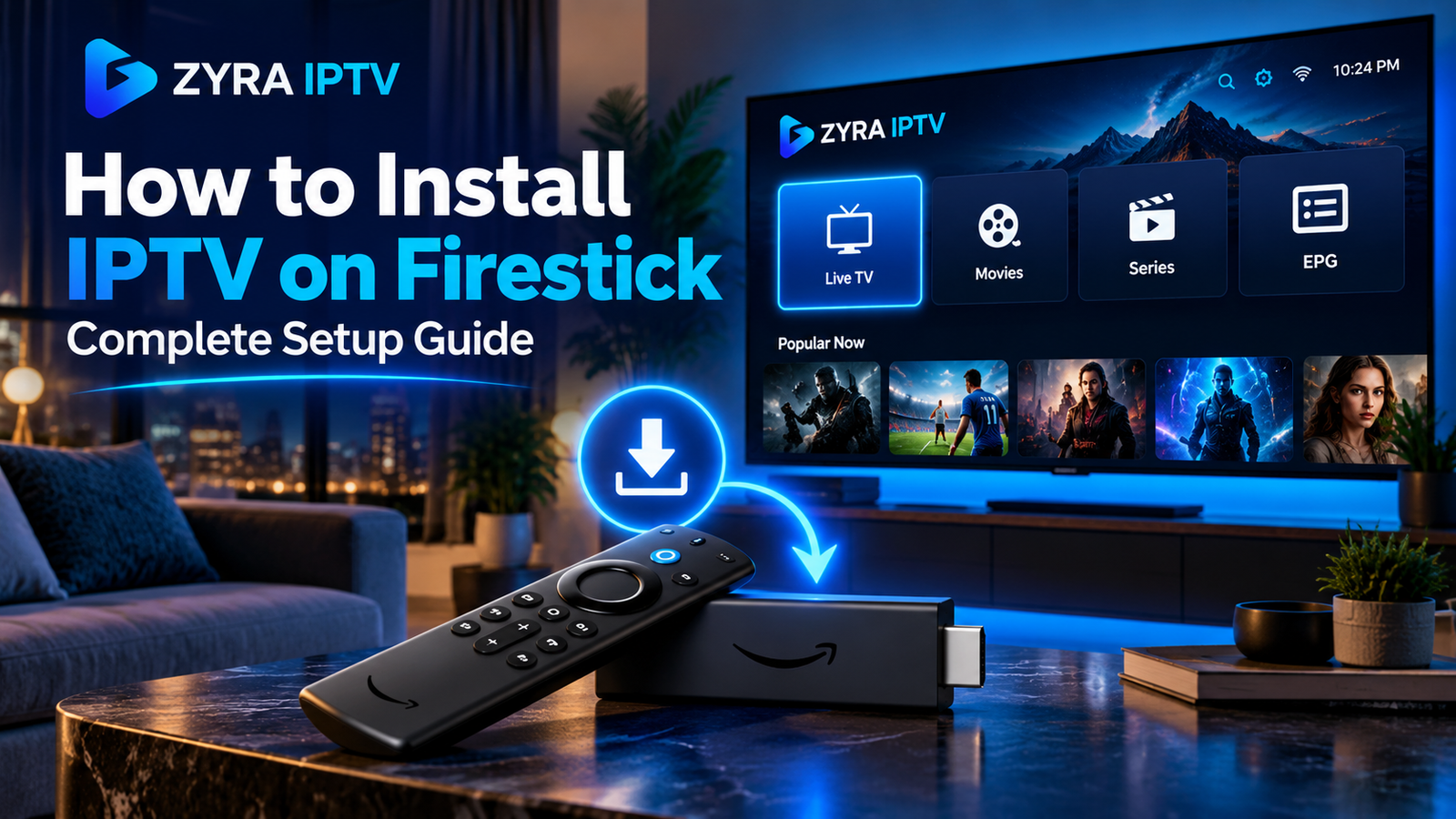
If you want to know how to install IPTV on Firestick, the basic process is to connect your Fire TV Stick to the internet, install a compatible IPTV player, enter the login details or playlist supplied by your IPTV provider, and allow the app to load your available content.
The exact installation method depends on your Fire TV model. Many Fire TV devices use Android-based Fire OS, while Amazon now also uses Vega OS on selected newer Fire TV Sticks. This matters because Android APK installation methods that work on Fire OS should not automatically be assumed to work on Vega OS.
This guide covers both the normal app-store approach and the additional steps that may apply when a compatible Fire OS device requires manual app installation.
What You Need Before Installing IPTV on Firestick
Before beginning, prepare:
- Amazon Fire TV Stick connected to your television
- Working Wi-Fi connection
- Amazon account configured on the device
- Compatible IPTV player
- IPTV username and password, M3U URL, or other provider-supplied login information
- Enough storage for the player application
An IPTV player and IPTV subscription are different things. Installing a player does not automatically provide television channels.
If you are unsure what login method your service uses, review the IPTV installation guides before configuring the Firestick.
Step 1: Check Your Firestick Model and Operating System
Start by identifying your Fire TV device.
Open:
Settings > My Fire TV > About
The exact wording can differ between Fire TV versions.
Amazon currently supports both Fire OS and Vega OS across its Fire TV range. Fire OS is based on Android, while Vega OS is a separate platform used on selected newer streaming devices.
This distinction affects which apps and installation methods are available.
If Your Device Uses Fire OS
Many Fire OS devices can run compatible Android applications. Amazon’s documentation confirms that Fire OS is based on the Android Open Source Project and maintains Android app compatibility.
If Your Device Uses Vega OS
Do not assume an Android APK will install.
Amazon uses a different application and development system for Vega OS. Current examples include Fire TV Stick 4K Select and Fire TV Stick HD models running Vega OS.
For these devices, use apps and installation methods specifically supported by the platform.
Step 2: Search the Fire TV Appstore for an IPTV Player
The simplest method is to install an IPTV player directly through your Fire TV interface.
From the Firestick home screen:
- Select Find or Search.
- Search for the IPTV player you want to use.
- Open the app listing.
- Verify the developer and application details.
- Select Get or Download.
- Wait for the installation to complete.
App availability can differ by country, device model, and Fire TV operating system.
Do not install the first application with “IPTV” in its name without checking what it is. The player must support the login format supplied by your IPTV provider.
Step 3: Understand Your IPTV Login Method
Before opening the player, check what information your provider gave you.
Common setup methods include:
| Setup method | Information you may receive |
|---|---|
| Account login | Server URL, username and password |
| M3U playlist | M3U URL or playlist file |
| Portal setup | Portal URL and supported device information |
| Provider app | Account credentials for a dedicated application |
Use the login method supported by both the provider and player.
Do not put an EPG URL into the M3U field or try to convert credentials yourself without instructions from your provider.
Step 4: Open the IPTV Player
After installation, launch the IPTV player from your Fire TV applications.
The first screen may ask you to:
- Add a playlist
- Add a user
- Enter account details
- Choose an M3U source
- Enter server credentials
Menu names differ between players.
Enter only the information provided for your subscription.
Step 5: Add Your IPTV Username and Password
If your service provides account-based credentials, you may need:
Profile name: Any recognizable name for the connection.
Username: Supplied by the IPTV service.
Password: Supplied by the IPTV service.
Server URL: The web address supplied for your account.
Enter everything exactly.
A missing character, incorrect port number, or extra space can prevent authentication.
Keep these credentials private because they may provide access to your subscription.
Step 6: Add an M3U Playlist
Some services provide an M3U URL instead of separate login details.
If your IPTV player supports M3U:
- Choose Add Playlist or a similar option.
- Select M3U URL.
- Give the playlist a name.
- Enter the complete M3U URL.
- Save it.
- Wait for the playlist to load.
An M3U playlist contains references to media streams and related information.
Do not share a private M3U URL publicly because it may contain account-specific information.
Step 7: Let Channels and EPG Load
After successful authentication, your player may organize available content into sections such as:
- Live TV
- TV Guide
- Movies
- Series
- Favourites
What appears depends on your subscription and player.
EPG stands for Electronic Program Guide. If programme information is available, it can display current and upcoming television schedules.
The player cannot create missing channels or EPG data that the configured source does not provide.
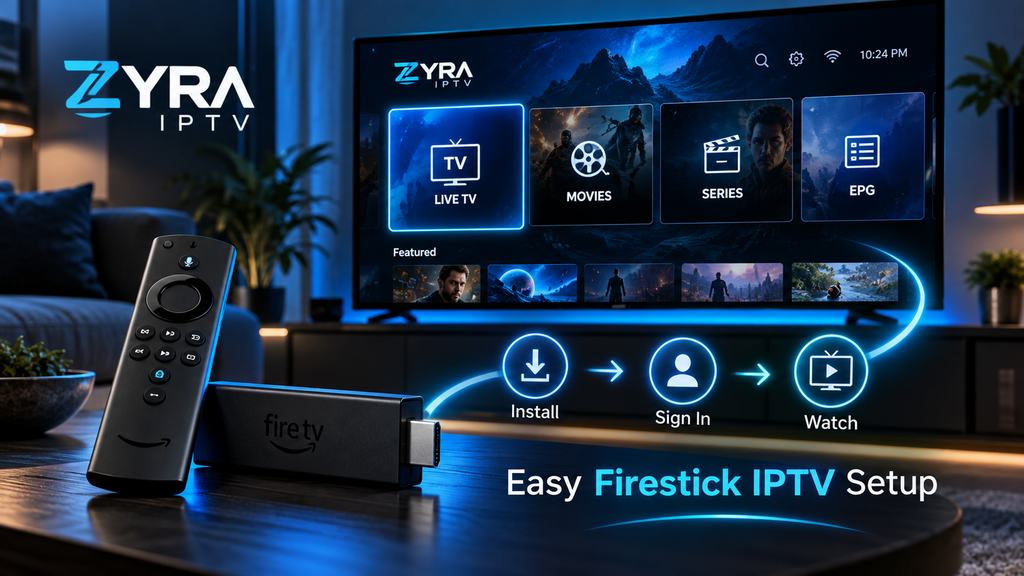
How to Install IPTV on Amazon Fire Stick by Sideloading
Sometimes the player you want is not available through the Fire TV app store.
On compatible Fire OS devices, installing an application from outside the store is commonly called sideloading. Amazon’s Fire TV documentation confirms that compatible apps can be installed outside the Appstore on Fire OS devices.
Only use this method when:
- your Firestick runs compatible Fire OS
- the player developer provides a legitimate Android APK
- you trust the download source
- the required installation options exist on your device
Do not use random APK mirrors or unknown installation codes.
Using Downloader on Compatible Fire OS Devices
Downloader is commonly used on compatible Fire OS devices to retrieve installation files.
The general process is:
- Search the Fire TV Appstore for Downloader.
- Install it.
- Open your Firestick settings.
- Enable the required permission for installing apps from that source, if your Fire OS version provides it.
- Open Downloader.
- Visit the official website of the IPTV player.
- Download the verified Android installer.
- Install the application.
Amazon’s menus and developer options vary between Fire OS releases. Its current documentation also notes that Developer Options are not supported on Fire OS 14 in the same way as on some older versions.
If the required menu does not exist, do not attempt to defeat the device’s platform restrictions.
What About IPTV Installation on Vega OS Firesticks?
This is an increasingly important distinction.
Amazon describes Vega OS as its newer Fire TV operating system and uses a separate development framework rather than the Android application system used by Fire OS.
If your Firestick runs Vega OS:
- Search the Amazon Appstore for a compatible IPTV player.
- Confirm that the player supports Vega OS.
- Use the developer’s current installation instructions.
- Do not assume an Android APK will work.
- Consider another supported streaming platform if your preferred player is unavailable.
This is one reason older Firestick tutorials may no longer match every current device.
How to Test IPTV After Installation
Once the player and account are configured, open several available channels.
Check:
- Video starts correctly
- Sound works
- Channel categories load
- EPG appears where supported
- Remote navigation works
- Wi-Fi remains connected
Testing several streams is important.
If one channel fails while the others work, the Firestick installation itself may be fine.
If nothing loads, check the IPTV credentials, service status, and internet connection before reinstalling the app.
IPTV on Firestick Keeps Buffering
Buffering is not always caused by the IPTV player.
Possible causes include:
- Weak Wi-Fi
- Network congestion
- High stream bitrate
- Source-stream problems
- Router placement
- Device performance
- Internet connection instability
First test another streaming application on the Firestick.
If all streaming apps are having problems, investigate your network before changing the IPTV configuration.
Restarting the Firestick and router can also help with temporary connection issues.
IPTV App Installed but Login Does Not Work
If the player opens but rejects your login:
- Recheck the username.
- Recheck the password.
- Verify the complete server URL.
- Check whether a port number is required.
- Confirm that the subscription is active.
- Make sure you selected the correct login method.
Do not repeatedly reinstall the player if the actual problem is the account information.
Should You Follow “How to Install IPTV on Firestick Reddit” Guides?
Reddit discussions can provide useful user experiences, but Fire TV instructions can become outdated as Amazon changes device software.
A post written for an older Fire OS model may not apply to a newer Firestick using Vega OS.
Use community discussions for troubleshooting ideas, but confirm device-specific installation steps through current Amazon documentation and the official website of the IPTV player you plan to install.
Do You Need a Firestick for IPTV?
No.
A Firestick is only one way to run an IPTV player.
Depending on your service and app compatibility, IPTV may also work through:
- Smart TV applications
- Android TV devices
- Apple TV
- Mobile devices
- Computers
- Other supported streaming hardware
If your television already supports the player you need, an external Firestick may not be necessary. The Smart TV IPTV setup guide explains the direct-TV approach.
Frequently Asked Questions
How to install IPTV on Firestick?
Install a compatible IPTV player through the Fire TV app store when available, open the app, and enter the M3U URL or login credentials supplied by your IPTV provider. Compatible Fire OS devices may also allow verified apps to be sideloaded.
How to install IPTV on Amazon Fire Stick without Downloader?
If your IPTV player is available directly through the Fire TV app store, install it there and Downloader is unnecessary.
Can you install any IPTV app on a Firestick?
No. Compatibility depends on the Fire TV model, operating system, app format, and current app-store availability.
Why can I not install an Android APK on my Firestick?
Your device may not support that installation method. Some newer Fire TV Sticks use Vega OS rather than Android-based Fire OS.
What login details do I need for IPTV on Firestick?
Your provider may supply a username, password, server URL, M3U playlist, portal URL, or another supported login method.
Does installing an IPTV player give me channels?
No. The player is software used to access a separate authorized television service or playlist.
Can I use Ethernet with Firestick?
Some Fire TV setups can use a compatible Ethernet adapter. Whether this is useful depends on your Firestick model and home network.
Finish Your Firestick IPTV Setup
Learning how to install IPTV on Firestick is mainly about matching the correct IPTV player and installation method to your specific Fire TV device.
Start with the Fire TV app store, verify your operating system, and use manual installation only when your Fire OS device supports it. After installing the player, enter the credentials or M3U information supplied by your authorized IPTV service and test several streams before changing advanced settings.
For additional IPTV installation information and device guidance, visit Zyra IPTV and review the available setup options for your preferred platform.