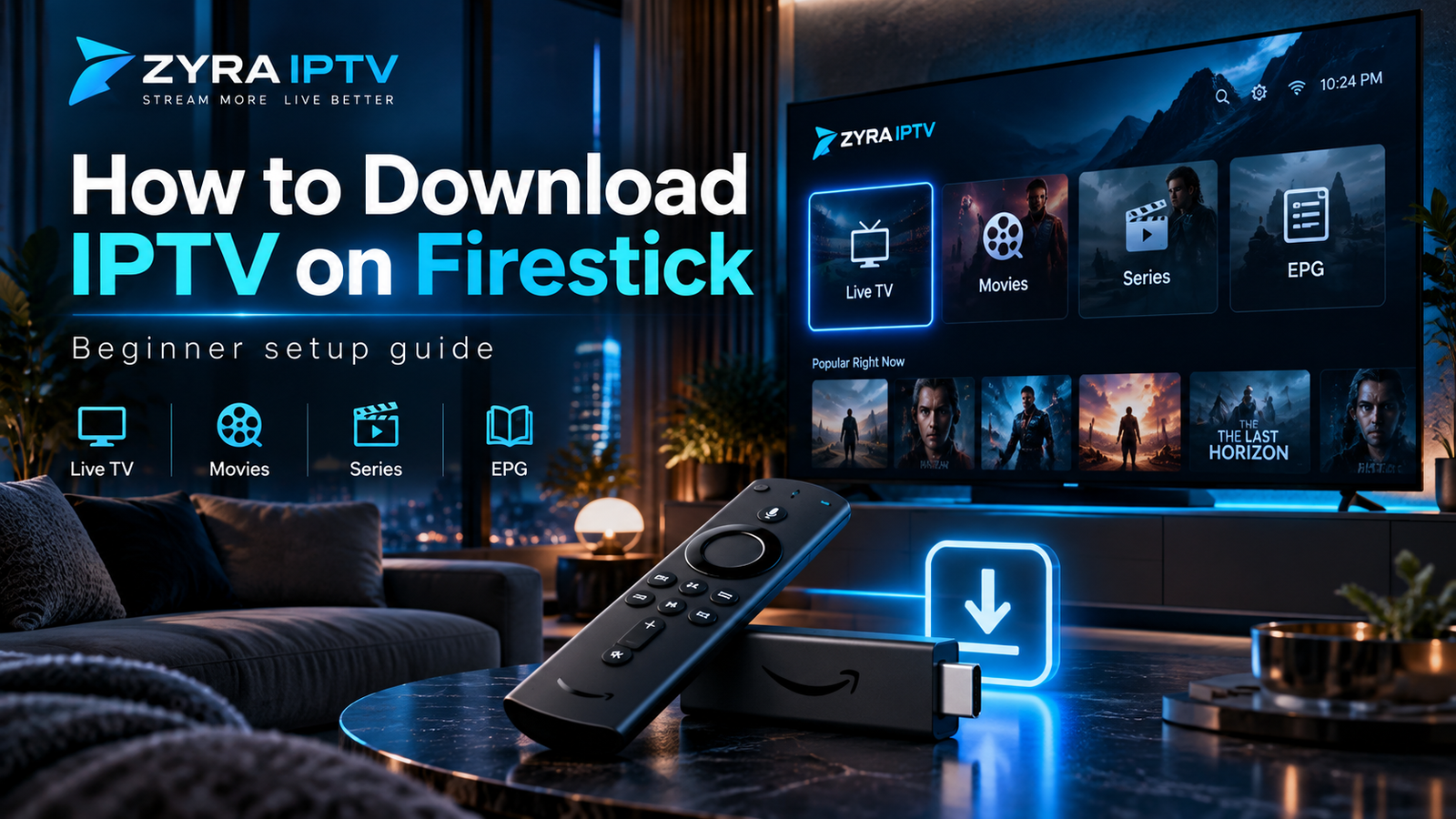
If you are searching for how to download IPTV on Firestick, what you actually need to download is a compatible IPTV player. The Firestick runs the player, while your separate IPTV service or authorized playlist supplies the television streams.
The easiest method is to search the Amazon Appstore for a compatible IPTV player and install it directly. On some Fire OS devices, a player that is not available in the Appstore may also be installed through a supported sideloading method. Newer Fire TV devices can use a different operating system, so older Firestick installation instructions do not apply to every current model.
This guide explains how to identify your Fire TV platform, download an IPTV player, add your login details, and troubleshoot common installation problems.
What Do You Need to Download IPTV on Firestick?
Prepare these items before starting:
- Amazon Fire TV Stick
- Fire TV remote
- Working internet connection
- Amazon account
- Compatible IPTV player
- IPTV login information or authorized M3U playlist
- Enough available storage for the app
Your IPTV provider may supply a username, password, server URL, M3U URL, or another supported connection method.
The player and subscription are separate. Installing an IPTV app does not automatically provide live channels, movies, or TV series.
For a broader explanation of device setup, see the Zyra IPTV installation guides.
Step 1: Check Which Firestick You Have
Before following any tutorial, identify your Fire TV model and operating system.
Amazon currently uses both Fire OS and Vega OS across Fire TV hardware. Fire OS is based on Android, while Vega OS uses a different app platform. Amazon’s current device specifications show Vega OS on newer models including the 2026 Fire TV Stick HD and Fire TV Stick 4K 3rd Gen.
On your Firestick, open:
Settings > My Fire TV > About
Depending on your software version, the menu wording may differ slightly.
Knowing the operating system matters because Android APK installation instructions designed for Fire OS should not be assumed to work on Vega OS.
Step 2: Search the Amazon Appstore First
The simplest way to download IPTV to Firestick is through the built-in app search.
From the Fire TV home screen:
- Open Find or Search.
- Enter the exact name of the IPTV player you want.
- Open the relevant app result.
- Check the developer or publisher.
- Select Get or Download.
- Wait for installation to finish.
Installing through the official app store avoids unnecessary manual installation steps.
Do not download the first application that contains “IPTV” in its name. Different players support different login methods, operating systems, and playlist formats.
Step 3: Choose a Player That Supports Your IPTV Login
Your IPTV service determines which player features you need.
Common connection methods include:
| IPTV setup | Information required |
|---|---|
| Account login | Username, password and server URL |
| M3U playlist | M3U URL or playlist file |
| Portal setup | Portal URL and supported device information |
| Dedicated app | Provider-specific login information |
Confirm your login type before installing several different apps.
For example, if your provider gives you an M3U URL, choose a player that supports M3U playlists. If you receive a server URL with username and password, make sure the player supports that login method.
Step 4: Open the IPTV Player
Once the app is installed, open it from your Fire TV app library.
Depending on the player, the first screen may offer options such as:
- Add Playlist
- Add User
- M3U URL
- Server Login
- Portal
- Provider Login
Choose the method that matches the information supplied by your provider.
Do not guess server addresses or convert one login format into another unless your provider instructs you to do so.
Step 5: Enter Your IPTV Details
Enter each credential exactly as provided.
You may need:
Username: Your IPTV account username.
Password: Your account password.
Server URL: The service address supplied by the provider.
M3U URL: A playlist address used by compatible IPTV players.
Small typing mistakes can stop authentication from working, especially with long URLs.
Keep private M3U links and account passwords confidential.
How to Download IPTV to Firestick When the App Is Not in the Store
If your preferred player is unavailable in the Amazon Appstore, compatible Fire OS devices may support sideloading.
Amazon describes sideloading as installing an application outside the Appstore and documents APK installation on compatible Fire TV devices.
Before using this method:
- confirm the device uses compatible Fire OS
- obtain the app only from its official developer
- verify the APK is intended for your device
- avoid random download links and unofficial modified apps
Current Fire OS is Android-based, which is why many Android applications can also be developed for compatible Fire TV devices.
Using Downloader on Compatible Fire OS Devices
Downloader is commonly used to retrieve app installers on compatible Fire OS hardware.
A typical process is:
- Search the Amazon Appstore for Downloader.
- Install and open it.
- Check whether your Fire OS version provides permission for installing apps from that source.
- Visit the IPTV player’s official developer website.
- Download the verified installer.
- Open the downloaded file.
- Select Install.
- Delete the installer afterward if you no longer need it.
Do not rely on a random numeric Downloader code from an old forum post or video without verifying where it currently redirects.
Download locations can change.
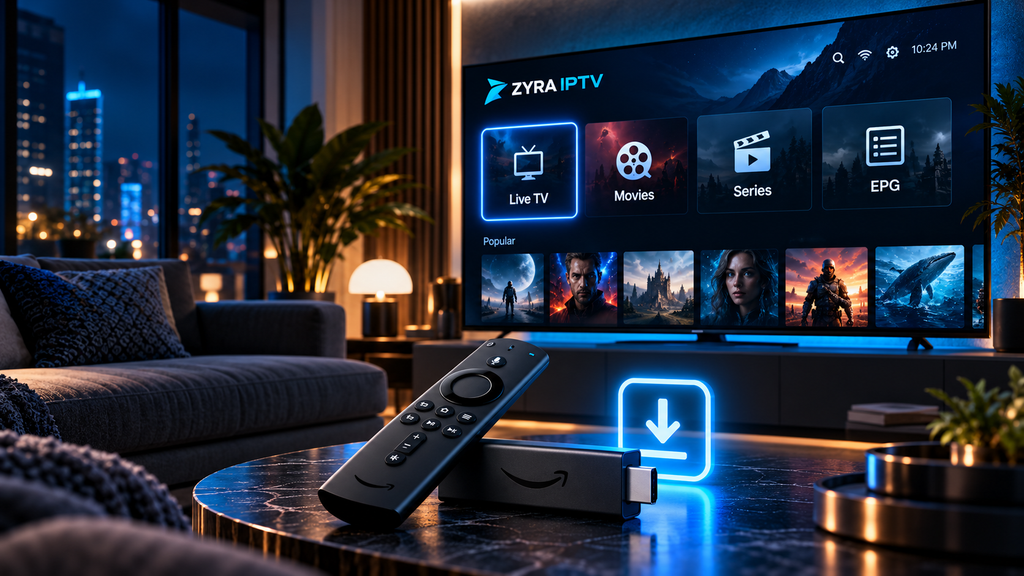
What If Your Firestick Uses Vega OS?
Vega OS uses a different application format from Fire OS.
Amazon’s current app-submission documentation specifies APK or Android App Bundle files for Fire OS, while Vega OS applications use VPKG packages.
Therefore, if your Firestick uses Vega OS:
- Search the Amazon Appstore for a compatible IPTV player.
- Check whether the player’s developer supports Vega OS.
- Follow current instructions for your exact device.
- Do not assume an Android APK can be installed using an older Fire OS guide.
This is especially important with current Fire TV models because older IPTV tutorials may have been written before Vega OS devices were introduced.
How to Download IPTV Smarters on Firestick
IPTV Smarters Pro, now commonly presented as Smarters Pro, is one popular type of IPTV media player.
Zyra IPTV already has a separate guide explaining the Firestick-specific installation process. If this is the player you intend to use, follow the IPTV Smarters Pro Firestick installation guide rather than applying generic APK instructions.
Remember that an IPTV player does not create a subscription. You still need your own compatible and authorized service information.
Step 6: Allow Your Channels and EPG to Load
After successful login, the IPTV player may retrieve your available content.
Depending on your service and player, you may see:
- Live TV
- Electronic Program Guide (EPG)
- Movies
- TV series
- Favourites
- Search
Not every service includes every feature.
If the player displays live channels but no EPG, that does not necessarily mean the Firestick installation failed. Programme-guide data is separate from the video stream.
Step 7: Test Several Streams
Do not judge the setup from a single channel.
Test several available streams and confirm:
- video starts correctly
- audio works
- remote navigation responds
- channel categories load
- EPG appears where supplied
- the app remains connected to your network
If one stream fails while others work, your Firestick and IPTV player may be configured correctly.
IPTV Downloaded but Channels Will Not Play
If the application opens but streaming does not work, check each part separately.
| Problem | What to check |
|---|---|
| Login rejected | Username, password and server URL |
| Playlist does not load | Full M3U URL |
| No channels appear | Account or playlist information |
| EPG missing | Programme-guide source |
| Video buffers | Wi-Fi and source-stream performance |
| App keeps closing | Device and app compatibility |
| APK will not install | Fire TV operating system and installer format |
Reinstalling the player is not always the solution.
An incorrect password or expired playlist will remain incorrect after reinstalling the app.
How to Reduce Buffering on Firestick
Buffering can have several causes.
Check:
- Wi-Fi signal strength
- router distance
- network congestion
- internet connection stability
- player settings
- stream bitrate
- device performance
- source-stream availability
Try another mainstream streaming app on the Firestick. If several applications buffer, the local network may be the issue rather than the IPTV player.
Restarting the Firestick and router can also resolve temporary connectivity problems.
Is Firestick the Same as Android TV?
Not exactly.
Fire OS is based on Android, but Fire TV and Android TV use different app ecosystems and interfaces. Vega OS Fire TV devices are even more distinct.
If you have an Android TV device instead of a Firestick, follow the Android TV IPTV instructions rather than assuming every Fire TV step will be identical.
Frequently Asked Questions
How to download IPTV on Firestick?
Search the Amazon Appstore for a compatible IPTV player, install it, then enter the username, password, server URL, M3U playlist, or other details supplied by your IPTV provider.
How to download IPTV to Firestick without Downloader?
Install a compatible IPTV player directly through the Amazon Appstore. Downloader is only relevant when a supported Fire OS device requires manual app installation.
Do I download IPTV or an IPTV player?
You normally download an IPTV player. Your separate IPTV service or authorized playlist supplies the streams and account information.
Why can I not install an IPTV APK on my Firestick?
The APK may be incompatible, your device may not support that installation method, or your Firestick may use Vega OS rather than Android-based Fire OS.
Can I use an M3U playlist on Firestick?
Yes, if the IPTV player installed on your Firestick supports M3U playlists.
Does downloading an IPTV app give me channels?
No. An IPTV player and an IPTV subscription are separate. The player displays content supplied by a compatible service or authorized playlist.
Do all Firesticks use Fire OS?
No. Amazon currently lists both Fire OS and Vega OS devices in its Fire TV range.
Download IPTV on Firestick the Right Way
Learning how to download IPTV on Firestick starts with choosing a compatible player rather than downloading a television service itself.
Search the Amazon Appstore first, confirm the login format supplied by your IPTV provider, and check whether your device uses Fire OS or Vega OS before following manual installation instructions. On compatible Fire OS devices, sideloading may be available when a legitimate player is not offered through the store. Vega OS requires apps designed for that platform.
Once your player is installed, enter your authorized account or playlist details and test several streams before changing advanced settings.
For additional IPTV setup information and guidance for supported devices, visit Zyra IPTV.