
If you are asking why is IPTV not working today when it worked normally before, the problem could be your internet connection, IPTV player, account credentials, subscription status, device, an individual stream, or a temporary provider-side outage.
Do not reinstall everything immediately. First determine whether the problem affects one channel, one device, or the entire IPTV account. A few simple tests can usually tell you which part of the setup needs attention.
First Check What Has Actually Stopped Working
Before changing settings, identify the scope of the problem.
| What you see | What to check first |
|---|---|
| One channel does not play | Test other channels |
| Every channel fails | Account, provider or network |
| Live TV fails but VOD works | Live stream source |
| VOD fails but live TV works | On-demand source |
| IPTV works on another device | Original app or device |
| Other internet apps also fail | Internet or Wi-Fi |
| Login suddenly fails | Credentials or account status |
| Only EPG is missing | Programme-guide data |
This distinction matters because one unavailable channel does not mean the entire IPTV service is offline.
1. Test Your Internet Connection
Start with the simplest possible test.
Open another streaming app, website, or online service on the same device. If nothing loads correctly, IPTV is unlikely to be the only problem.
Try restarting your router and streaming device, then reconnect to Wi-Fi.
If possible, compare Wi-Fi with Ethernet on a compatible device. A wired connection can also help determine whether wireless signal quality is contributing to the problem.
If every other online service works normally, continue to the next step.
2. Try Several IPTV Channels
Do not repeatedly test only the channel that originally failed.
Open channels from different categories. If several work while one does not, your app, account, and internet connection are probably still functioning.
The affected stream may simply be temporarily unavailable.
If every live channel fails, test movies, series, or another section of the service if your account includes them.
This helps determine whether the failure affects one stream, a category, or the complete service.
3. Check Whether Your IPTV Provider Has an Outage
IPTV is not one centralized global network. Different providers operate separate services and infrastructure.
This means there is no single answer to “is IPTV down today.”
Check your own provider’s official:
- status page
- customer dashboard
- service announcements
- support channel
- account notifications
Public website-status services can also tell you whether a website itself is responding. For example, Down for Everyone or Just Me checks whether a specific domain is reachable, but a working website does not necessarily prove that the provider’s streaming servers are also working.
If the provider confirms maintenance or an outage, changing app settings will not restore a server that is temporarily offline.
4. Restart the IPTV App and Device
Temporary application problems are common.
Close the IPTV player completely rather than simply returning to the home screen. Open it again and test playback.
If the problem remains, restart the streaming device.
A restart can clear temporary memory problems, stalled network connections, and app processes without removing your account information.
Avoid factory resetting the device at this stage.
5. Check Your IPTV Username, Password and Server URL
If your IPTV player displays an authentication error, the problem may be your login rather than the stream itself.
Check:
Username: Make sure there are no missing characters or spaces.
Password: Check capitalization and special characters.
Server URL: Confirm the full address and any required port.
Login method: Make sure you are using the format supplied by your provider.
An M3U URL, server login, and portal URL are different connection methods and should not be entered into the wrong fields.
If you need help understanding these details, see the IPTV username and password guide.
6. Check Whether Your IPTV Subscription Is Still Active
An expired account can look almost identical to a service outage.
Your playlist may stop loading, channels may disappear, or the application may report invalid credentials.
Check the account information provided by your IPTV service and confirm that the subscription is still active.
Do not assume that reinstalling the app will fix an account that is no longer authorized.
If the renewal or account information is unclear, contact the provider directly.
7. Refresh the Playlist or EPG
Sometimes the service works but the information stored inside the player is outdated.
If your player provides a playlist refresh option, use it before deleting the entire account.
You may also be able to refresh the Electronic Program Guide separately.
Remember that EPG information and video streams are different. If channels play but the TV guide is blank, the service itself is not necessarily down.
A missing EPG can involve guide data, synchronization, channel mapping, or an outdated guide cache.
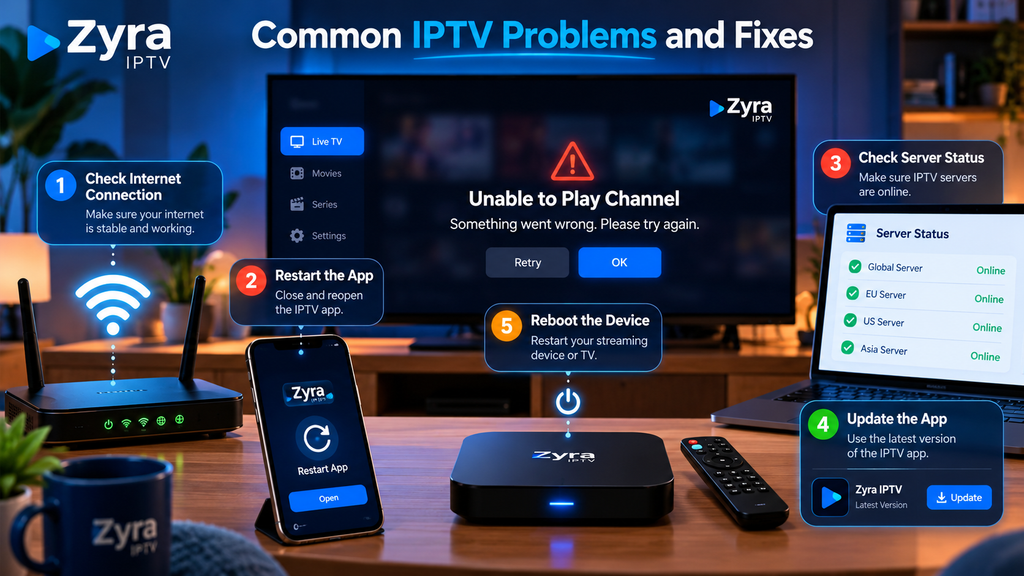
8. Test Another IPTV Player
If your account information is compatible with more than one authorized player, testing another app can be useful.
For example:
The same stream works in another player: The original IPTV app may be causing the problem.
The stream fails in both players: The issue is more likely to involve the network, account, source, or provider.
Do not install random APK files simply for troubleshooting. Use verified applications from their developers or supported app stores.
The Zyra IPTV setup guides explain common installation approaches across different device types.
9. Clear the App Cache Before Clearing App Data
On devices that provide cache controls, clearing temporary application cache may help when the app becomes slow, freezes, or fails to refresh information correctly.
Be careful not to confuse Clear Cache with Clear Data.
Clearing application data can remove saved IPTV profiles, playlists, usernames, settings, and other local configuration.
Therefore, use less destructive troubleshooting steps first.
If you eventually need to clear all app data, make sure you still have your correct login information.
10. IPTV Is Working but Keeps Buffering
Buffering is different from the service being completely offline.
If a video starts but repeatedly pauses, consider:
- weak Wi-Fi
- network congestion
- unstable internet
- high stream bitrate
- device performance
- player buffer settings
- source-stream instability
Test another normal streaming app.
If several streaming services buffer on the same device, investigate the network before blaming the IPTV provider.
If only one IPTV channel buffers while others work normally, the individual stream is a more likely cause.
11. IPTV Works on Your Phone but Not Your TV
This is a useful troubleshooting clue.
If the same authorized account works on a phone but fails on a Smart TV, Android TV device, or Firestick, the entire service is probably not down.
Check the television device for:
- outdated IPTV app
- incorrect saved login
- weak Wi-Fi connection
- unsupported player
- low available storage
- device-specific playback problem
For Android-based television devices, the Android TV IPTV guide provides additional setup information.
12. IPTV Shows a Black Screen
A black screen can have several meanings.
If audio works but video does not, check whether your player offers another supported video decoder or playback engine.
If neither audio nor video works, try another channel.
If every stream produces the same black screen, restart the app and device, then verify the login and network.
Do not immediately assume that a black screen means the entire IPTV service is offline.
13. IPTV Playlist Will Not Load
If your playlist fails completely, verify the complete M3U address supplied by your provider.
Common problems include:
- incomplete URL
- accidental spaces
- outdated playlist address
- inactive account
- server temporarily unavailable
- unsupported playlist format
Do not edit sections of the URL unless your provider specifically tells you to.
Private M3U links can also contain account information, so avoid posting them publicly while asking for technical help.
14. Check Whether the Problem Started After an Update
If IPTV worked yesterday but stopped today, think about what changed.
Did your:
- IPTV app update?
- Smart TV update?
- Fire TV update?
- Android TV firmware update?
- router restart?
- account renewal date pass?
A recent update does not automatically mean it caused the problem, but timing can help narrow your troubleshooting.
If an app has just updated, restart the device and check the developer’s current compatibility information before reinstalling an old version from an unknown source.
When Should You Contact IPTV Support?
Contact your provider when basic troubleshooting confirms that the problem is not limited to your device or home network.
Give support useful details such as:
Device: Firestick, Android TV, Smart TV, phone, or computer.
Player: The exact IPTV application.
Problem: Login failure, buffering, black screen, missing channels, or playlist failure.
Scope: One channel or all channels.
Timing: When the problem started.
Tests: Whether another app, device, or network works.
Do not send screenshots containing passwords or private playlist URLs unless you are using a verified private support channel and the information is genuinely required.
Frequently Asked Questions
Why is IPTV not working today?
Common causes include an internet problem, IPTV app issue, incorrect credentials, expired account, individual stream failure, or temporary provider-side outage. Test the internet and several channels before changing advanced settings.
Why was IPTV working yesterday but not today?
Something may have changed with your account, app, device, network, playlist, or provider infrastructure. Check recent updates and account status first.
Why are all my IPTV channels not working?
If every channel fails, test another device or compatible player and check your provider’s status information. An account, network, or provider problem becomes more likely.
Why does only one IPTV channel not work?
A single channel can experience a source problem while the rest of the service remains operational. Test several other channels before troubleshooting the whole setup.
Why does IPTV work on my phone but not my TV?
This usually points toward the television’s IPTV player, network connection, stored account settings, or device compatibility rather than a complete service outage.
Should I reinstall my IPTV app?
Not as the first step. Restart the app and device, verify your internet and credentials, and refresh the playlist first. Reinstall only when simpler troubleshooting does not solve an app-specific issue.
Does buffering mean IPTV is down?
No. Buffering means the stream is loading inconsistently. The cause could be Wi-Fi, internet stability, the player, device performance, or the source stream.
Fix IPTV Problems by Testing One Thing at a Time
When you wonder why is IPTV not working today, avoid changing every setting at once. First check your internet, then test several channels, verify your account, restart the app and device, and determine whether the same problem appears on another supported device.
This approach makes it much easier to distinguish a local problem from a real provider outage.
For additional IPTV setup and troubleshooting information, visit Zyra IPTV and review the guidance available for your streaming device.