
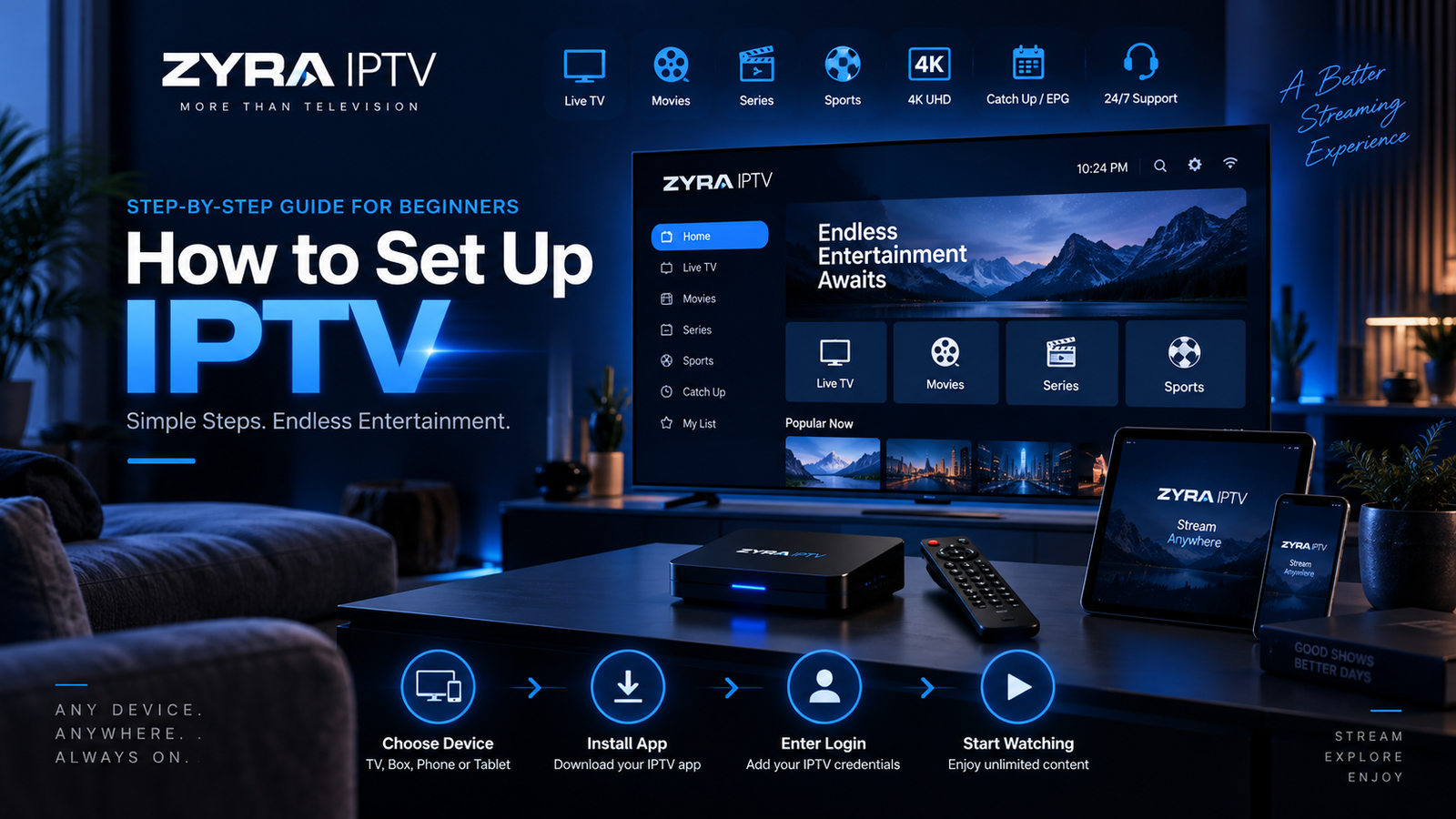
If you are learning how to set up IPTV, the basic process is to choose a compatible device, install an appropriate IPTV app or player, enter the account information supplied by your provider, load your channels, and test playback.
The exact menus and login methods vary between providers and devices. Some services use a username, password, and server URL, while others may provide an M3U playlist or another supported access method.
This guide focuses on the complete beginner setup process so you know what to prepare, what each step does, and what to check if IPTV does not work correctly the first time.
What Do You Need Before Setting Up IPTV?
Prepare the main parts of your setup before installing anything.
| Requirement | Why you need it |
|---|---|
| IPTV service | Supplies access to the available content |
| Compatible device | Runs your IPTV application |
| IPTV player | Loads and displays the service |
| Login details | Connect the player to your subscription |
| Internet connection | Delivers the video stream |
| Television or display | Shows the content |
You may already have a suitable Smart TV, Android TV device, computer, phone, tablet, or another supported platform.
Do not purchase additional equipment until you have confirmed what your chosen provider requires.
For an overview of Zyra IPTV’s available installation routes, review the IPTV installation guides.
Step 1: Choose the Device You Want to Use
Start with the screen or device on which you plan to watch IPTV.
Common device categories include:
- Smart TV
- Android TV
- iPhone or iPad
- computer
- streaming device
- compatible IPTV box
The correct IPTV setup depends on the operating system, not simply on the fact that the device connects to a television.
For example, Android TV and a Samsung or LG Smart TV may use different app stores and available IPTV players.
Before moving forward, determine:
- Your device brand and model
- Its operating system
- Whether an appropriate IPTV player is available
- Whether your provider supports that setup
This avoids purchasing a subscription and discovering later that your preferred setup is unsuitable.
Step 2: Get Your IPTV Account Details
After choosing a provider and subscription, you need the information that connects your IPTV player to the service.
Depending on the provider, this may include:
- username
- password
- server URL
- M3U playlist URL
- portal information
- another supported login method
Zyra IPTV’s current general installation page describes an account activation process using a username, password, and server URL.
Copy the details carefully and keep them private.
A missing character, extra space, or incorrect server address can prevent the account from loading.
Do not post screenshots containing your username, password, or personal playlist URL in public forums when asking for setup help.
Step 3: Choose an IPTV Player
An IPTV player and an IPTV subscription are not necessarily the same thing.
The IPTV service supplies access to content. The IPTV player is the application that organizes and plays that content.
Before installing an app, check:
- whether it supports your device
- whether it supports your provider’s login format
- whether it is free or paid
- whether it comes from a trusted source
- whether your provider has instructions for it
Do not assume an IPTV player automatically includes channels. Many players require you to add your own authorized service information.
For Android devices, Google recommends obtaining apps through Google Play where practical and notes that Play Protect checks installed apps for potentially harmful behavior.
Step 4: Install the IPTV App
Once you know which player to use, install it on your device.
The basic process is usually:
- Open your device’s supported app store.
- Search for the IPTV player.
- Confirm that you have selected the correct application.
- Install it.
- Open the app after installation.
If your provider instructs you to install software from outside an official app store, verify the source before proceeding.
Avoid randomly downloading APK files or modified versions of paid applications from unfamiliar websites. Google warns that apps downloaded from unknown sources can put a device and personal information at risk.
Step 5: Add Your IPTV Account
Open the IPTV player and look for an account or playlist option.
The wording may include:
- Add User
- Login
- Add Playlist
- M3U Playlist
- Add Portal
- Provider Login
Choose the method that matches the information your provider supplied.
Username, Password, and Server URL
If you received separate credentials, enter each item into the corresponding field.
Check capitalization and make sure there are no spaces before or after the details.
M3U Playlist
If your provider supplies an M3U URL, choose the playlist option supported by your app and enter the URL exactly.
The application should then attempt to retrieve the available content.
Keep M3U URLs private when they contain account credentials.
Step 6: Allow Channels and Categories to Load
After successful authentication, the player may begin loading account information.
Depending on your subscription, the interface may contain sections for:
- live television
- channel categories
- movies
- TV series
- EPG information
- favorites
Wait until the initial loading process has completed before assuming something is wrong.
If no content appears, first verify your username, password, server URL, playlist, and internet connection.
Step 7: Set Up the EPG
EPG stands for Electronic Programme Guide.
When supported, it shows programme schedules for live television channels.
Some providers or players load EPG information automatically. Other setups may require an EPG source or additional configuration.
After loading the guide, check:
- current programme names
- start and end times
- upcoming programmes
- your device time zone
If programme times appear incorrect, check your device’s date, time, and time-zone settings before making more complicated changes.
EPG availability and completeness can vary by provider and channel.
Step 8: Test Several Channels
Do not stop after confirming that one channel opens.
Test several categories and functions so you can identify setup problems early.
Check:
- several live channels
- audio and video
- channel switching
- EPG information
- subtitles if relevant
- movies or series if included
- full-screen playback
If one channel fails but others work normally, the issue may be limited to that particular stream.
If nothing loads, investigate the account, app, or network configuration.
Step 9: Check Wi-Fi or Ethernet Performance
IPTV relies on continuous network delivery, so your home connection can affect playback.
If you experience frequent freezing or buffering, check:
- Wi-Fi signal strength
- distance from the router
- other devices using the connection
- large downloads or backups
- device performance
- IPTV app behavior
- whether Ethernet is available
A wired Ethernet connection can remove Wi-Fi conditions from the troubleshooting process when both your device and network support it.
Do not immediately change advanced IPTV settings. First test the simplest possible causes.
Step 10: Organize Your IPTV Player
Once playback works, you can make the interface easier to use.
Useful options may include:
- adding favorite channels
- hiding categories you do not use
- arranging groups
- selecting subtitle preferences
- choosing audio tracks
- adjusting EPG settings
- enabling parental controls when supported
Make changes one at a time.
If you alter many settings simultaneously and something stops working, it becomes harder to identify which setting caused the problem.
How to Set Up IPTV on a Smart TV
Smart TV installation varies according to the television’s operating system.
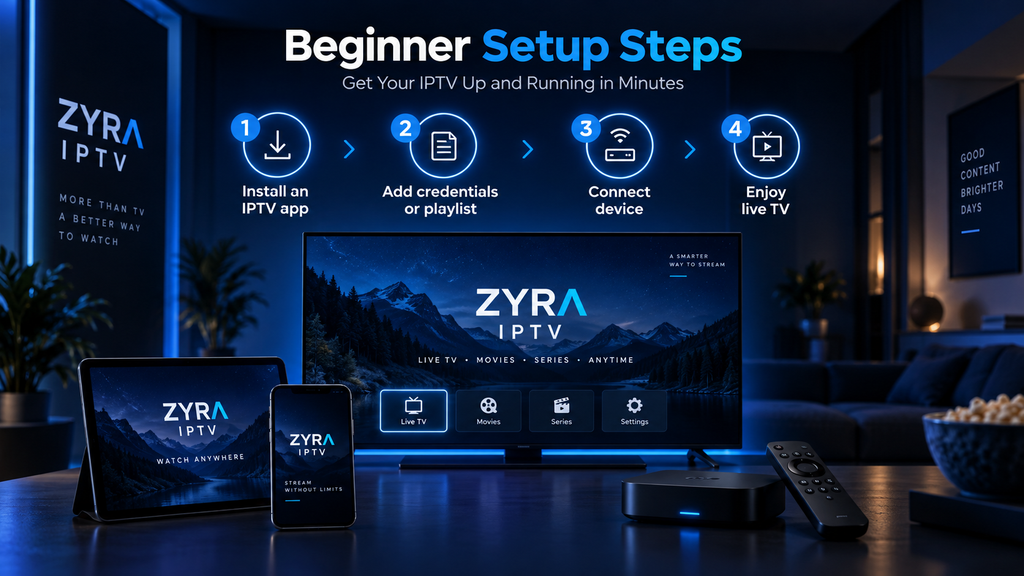
The general workflow is:
- Find a supported IPTV player.
- Install the application.
- Open the app.
- Add your provider details.
- Load your channels.
- Check the EPG and playback.
Do not assume every IPTV app is available on every Smart TV platform.
If your main device is a television, use the dedicated Smart TV IPTV setup information to check the available Zyra IPTV instructions for that platform.
How to Set Up IPTV on Android TV
Android TV follows the same basic account workflow, but app installation typically takes place through the Android environment.
After installing an appropriate player:
- Open the application.
- Select the correct login method.
- Add your IPTV credentials.
- Allow channels to load.
- Check live television and EPG.
- Add important channels to favorites.
For device-specific information, see the Android TV IPTV guide.
Common IPTV Setup Problems
Login Details Are Rejected
Check your username, password, and server information carefully.
If they are correct but authentication still fails, contact the provider to confirm that the subscription is active and the account information has not changed.
Channels Do Not Appear
Refresh the playlist or restart the application.
Also verify that the player successfully connected to the service.
EPG Is Missing
EPG data may require additional loading time or configuration. Availability also depends on the provider and channel.
IPTV Buffers Frequently
Test your network first. Check Wi-Fi signal strength, other network activity, Ethernet availability, and whether other streaming applications are also experiencing problems.
App Keeps Crashing
Restart the device and check whether an app update is available. If the problem continues, consult the application’s official support information or try another player supported by your provider.
IPTV Works on One Device but Not Another
The second device may have a different app, network connection, or configuration. It is also important to check whether your subscription permits the number of simultaneous streams you are attempting to use.
Beginner IPTV Setup Checklist
Before considering your setup complete, confirm that you have:
- chosen a compatible device
- installed an appropriate IPTV player
- entered the correct account details
- successfully loaded channels
- checked live television playback
- verified EPG information
- tested your main content categories
- checked Wi-Fi or Ethernet performance
- saved favorite channels
- kept your subscription credentials private
This provides a stable starting point before experimenting with advanced player settings.
Frequently Asked Questions
How do I set up IPTV?
Choose a compatible device, install an appropriate IPTV player, enter the login or playlist information supplied by your provider, allow the content to load, and test live television and EPG.
Do I need an IPTV app to set up IPTV?
Many consumer IPTV setups use an application or player. The exact software depends on your device and service provider.
What login details do I need for IPTV?
Depending on the provider, you may receive a username, password, server URL, M3U playlist, portal details, or another supported connection method.
Do I need an IPTV box?
Not necessarily. If an existing Smart TV, Android TV device, computer, phone, tablet, or other compatible device supports your chosen setup, additional hardware may not be required.
Why is my IPTV not loading after setup?
Possible causes include incorrect login information, an inactive account, an app problem, network connectivity, or a configuration issue. Check one area at a time.
Can I use Wi-Fi for IPTV?
IPTV can work over Wi-Fi when the connection is suitable. If playback is inconsistent, testing Ethernet can help determine whether the wireless network is contributing to the problem.
Complete Your IPTV Setup and Start Watching
Learning how to set up IPTV becomes much easier when you follow the process in order: choose your device, confirm your login method, install the correct player, add your account, load the channels and EPG, and test your network before changing advanced settings.
Keep your account credentials private, install applications from trusted sources, and use device-specific instructions when your television or streaming platform requires a different setup process.
If you are ready to compare a current IPTV option with your device and setup requirements, you can review Zyra IPTV and follow the available installation information for your preferred platform.