
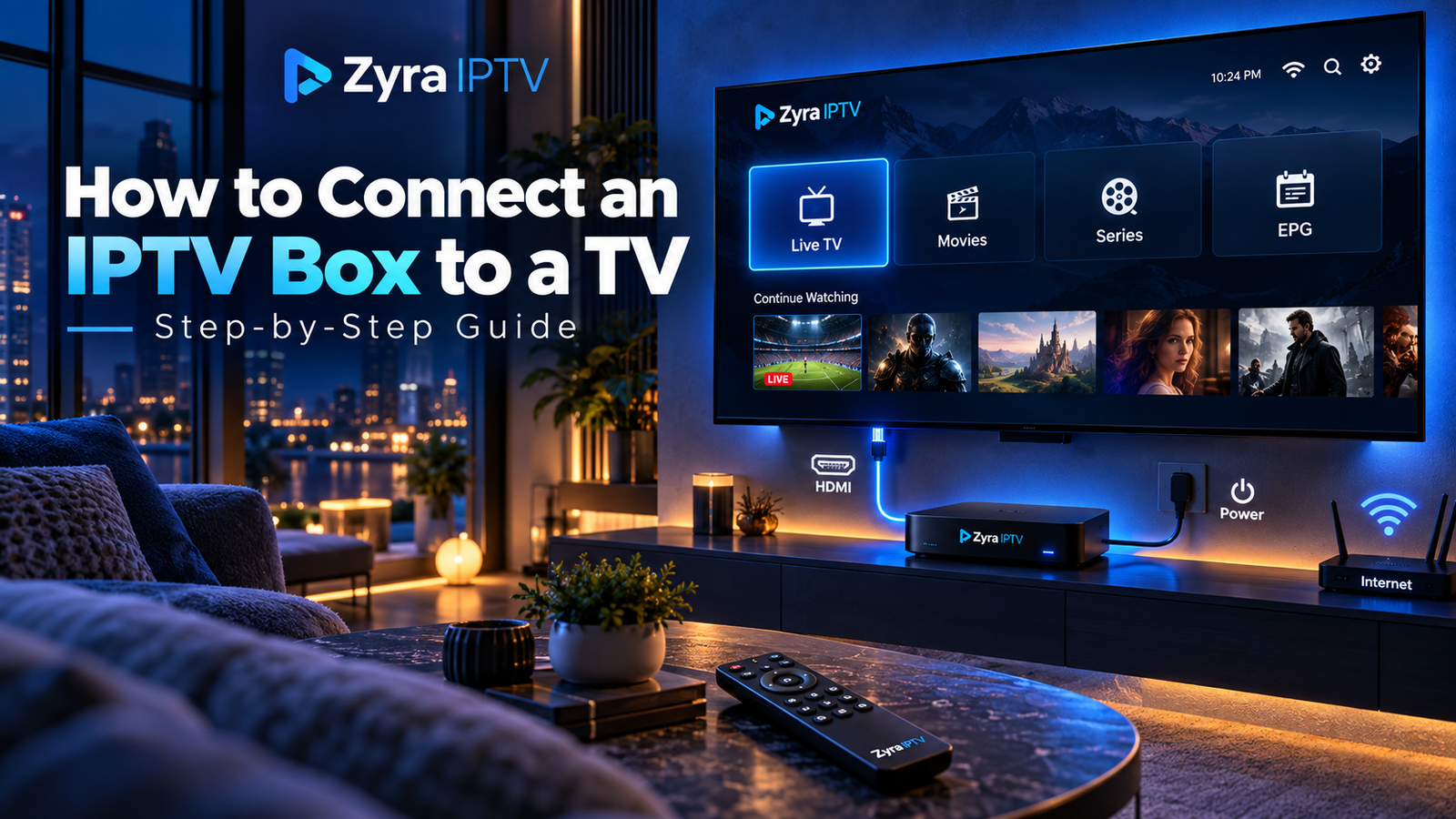
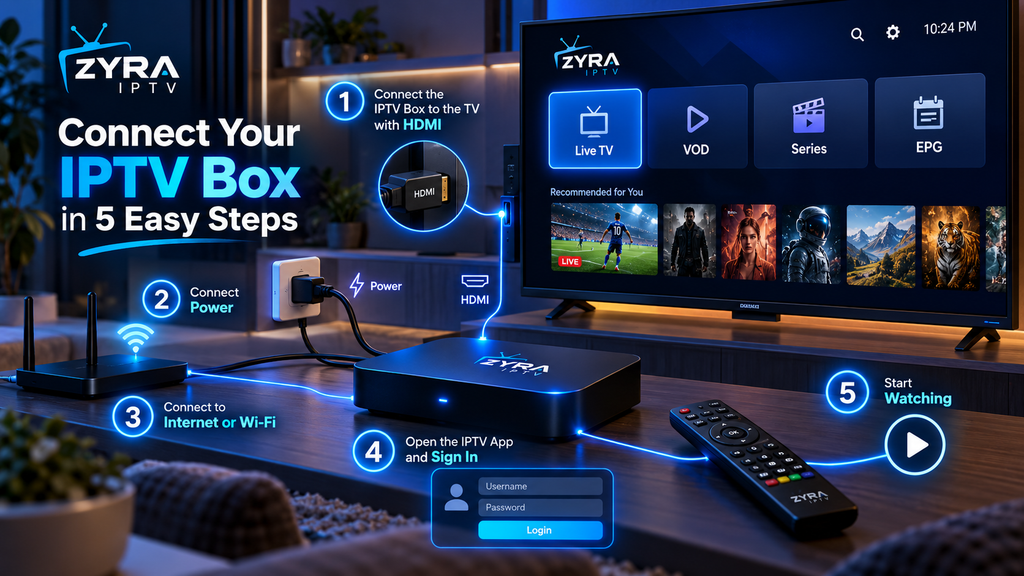
If you want to know how to connect IPTV box to TV, the basic process is straightforward. Connect the IPTV box to an available HDMI port on your television, connect the box to power, select the correct HDMI input, connect it to Wi-Fi or Ethernet, then configure a compatible IPTV app using the details supplied by your provider.
The exact menus vary between Android TV boxes, Google TV devices, provider-specific set-top boxes, and other streaming hardware, but the physical connection process is generally similar.
This guide takes you through the complete setup from cables to IPTV login and troubleshooting.
What Do You Need to Connect an IPTV Box?
Before starting, make sure you have the equipment required by your particular box.
In most setups you will need:
- IPTV or streaming box
- television with a compatible HDMI input
- HDMI cable, unless the device plugs directly into HDMI
- power adapter supplied for the box
- Wi-Fi network or Ethernet connection
- remote control
- compatible IPTV application
- IPTV account, M3U playlist, portal details, or other login information supplied by your provider
An IPTV box does not normally create television channels by itself. It is the hardware used to run the player or provider interface.
Google’s current Google TV setup documentation, for example, requires an HDMI-compatible display plus a Wi-Fi or Ethernet connection. Google Help
Step 1: Connect the IPTV Box to Your TV With HDMI
Find an available HDMI port on the back or side of your television.
The ports are usually labelled:
- HDMI 1
- HDMI 2
- HDMI 3
- HDMI ARC or eARC
Connect one end of the HDMI cable to the HDMI output on your IPTV box and the other end to an available HDMI input on the television.
Remember which HDMI number you used.
For example, if you connect the box to HDMI 2, you will need to select HDMI 2 from your television’s input menu later.
Current Google TV hardware follows the same basic process, with Google instructing users to connect the streaming device to an HDMI port and then switch the television to that input. Google Help
Step 2: Connect the IPTV Box to Power
Connect the power cable or adapter supplied with your IPTV box.
One end usually connects to the box, while the power adapter connects to a wall outlet or suitable power source.
Use the power supply recommended by the device manufacturer. A random USB adapter may not provide the voltage or current required by your box.
Once power is connected, switch on the IPTV box if it does not start automatically.
You should normally see a startup screen when the television is using the correct HDMI input.
Step 3: Select the Correct HDMI Input on the TV
If the television says No Signal, the first thing to check is the selected input.
Use the TV remote and look for a button labelled:
Source, Input, AV, or Home.
Select the HDMI port where you connected the IPTV box.
If you connected the box to HDMI 1, choose HDMI 1. If you used HDMI 3, choose HDMI 3.
Google similarly advises users of external Google TV devices to switch the display to the HDMI input where the streaming hardware is connected. Google Help
If you still see no picture, check that the HDMI cable is fully inserted at both ends and that the box has power.
Step 4: Pair or Prepare the IPTV Box Remote
Some boxes use a normal infrared remote and work immediately.
Others use Bluetooth and may require pairing during initial setup.
Follow the instructions displayed on the television.
For example, some Google TV devices can automatically pair their remote, while manual pairing is available if required. Google Help
Do not assume every IPTV box uses the same button combination. Follow the instructions for your specific manufacturer.
Step 5: Connect the IPTV Box to the Internet
Your IPTV box needs network access for internet-based streaming.
You will normally have two choices: Wi-Fi or Ethernet.
Connect Through Wi-Fi
Open the box’s network settings and select your home Wi-Fi network.
Enter the Wi-Fi password carefully and wait for the device to show that it is connected.
Wi-Fi is convenient when your router is in another room or running Ethernet cable would be difficult.
Connect Through Ethernet
If your IPTV box has an Ethernet or LAN port, connect an Ethernet cable between the box and your router or network switch.
A wired connection can help remove problems caused by weak Wi-Fi signals or wireless interference.
Google’s troubleshooting instructions recommend checking Wi-Fi, moving the router closer, or using a cable connection when network performance is poor. Google Help
Ethernet is not mandatory when Wi-Fi already provides a stable connection.
Step 6: Complete the Box’s Initial Setup
A new streaming box may ask you to configure settings before installing IPTV.
Depending on the device, this can include:
- language
- country or region
- Wi-Fi
- Google or platform account
- date and time
- display resolution
- software updates
- remote control settings
Follow the manufacturer’s on-screen instructions.
Avoid changing advanced display, network, or developer settings unless you have a specific reason.
If you are using Android-based hardware, the Zyra IPTV Android TV setup guide provides additional installation guidance for that platform.
Step 7: Install a Compatible IPTV App
Once the box is connected to the television and internet, you need an IPTV player or the official application required by your provider.
Open the device’s supported app store and search for the application you intend to use.
Do not assume that every IPTV player works on every box.
Availability can depend on:
- operating system
- country
- app store
- hardware model
- IPTV connection method
For a broader overview of device installation options, review the Zyra IPTV installation guides.
Prefer an official app store or the application’s official developer source rather than downloading unknown modified software.
Step 8: Enter Your IPTV Login Information
Open the IPTV application.
Your provider may give you one of several types of login information.
| Setup method | Information you may receive |
|---|---|
| Account login | Username, password and server URL |
| M3U | M3U playlist URL |
| Portal setup | Portal URL and required device information |
| Provider app | Account email, username or another provider-specific login |
Enter the information exactly as supplied.
Do not place an M3U playlist in a portal field or use an EPG address as your server URL.
The connection method must match the application and service.
Also keep passwords, private M3U links, and portal credentials private.
Step 9: Let Channels and EPG Load
After successful login, the application may need time to retrieve your available content and programme-guide information.
Depending on your setup, you may see sections such as:
- Live TV
- TV Guide
- Movies
- Series
- Favourites
Available sections depend entirely on the provider and subscription.
EPG stands for Electronic Program Guide. If your application requires a separate EPG source, enter only the information supplied for that purpose.
Do not worry if the layout differs from another IPTV application. Players organize content differently.
Step 10: Test the IPTV Box
Open several available channels and confirm that video and audio play correctly.
Check:
- picture appears
- audio works
- remote navigation works
- EPG loads where available
- Wi-Fi or Ethernet remains connected
- video fits the screen correctly
Testing more than one channel is useful because a problem affecting one stream does not necessarily indicate that the entire box is incorrectly configured.
How to Connect an IPTV Box to a Non-Smart TV
A television does not usually need Smart TV features to work with an external IPTV box.
What matters is whether the TV has a compatible input, normally HDMI for current streaming boxes.
The IPTV box handles the apps and network connection, while the television acts as the display.
Google states that its current Google TV Streamer can work with a television or display that has an HDMI connection, although the maximum resolution is limited by both the display and streaming hardware. Google Help
This means an external box can also be useful for an older television that lacks modern streaming apps.
Can You Connect an IPTV Box Without HDMI?
That depends on the box and television.
Most modern streaming boxes are designed for HDMI.
If you have an older TV with only composite or other legacy inputs, you may need compatible conversion hardware. However, converters can introduce compatibility, resolution, and copy-protection issues.
It is usually better to verify both devices’ connections before purchasing an adapter.
Never force a connector into an incompatible port.
IPTV Box Connected but No Picture: What to Check
If everything is plugged in but nothing appears, work through these checks:
| Problem | What to try |
|---|---|
| TV says No Signal | Select the correct HDMI input |
| Box has no power | Check its power adapter and outlet |
| Blank screen | Reconnect the HDMI cable |
| Picture appears intermittently | Test another compatible HDMI cable or port |
| Box loads but has no internet | Check Wi-Fi or Ethernet |
| App opens but content does not load | Verify account and provider information |
| Remote does not respond | Check batteries or pairing |
| Wrong resolution | Review the box’s display settings |
Restarting the television and box can also resolve temporary HDMI or software issues.
Avoid factory-resetting the device as your first troubleshooting step because this can erase your apps and configuration.
Why Does IPTV Buffer After Connecting the Box?
Connecting the box correctly does not guarantee that every streaming problem is caused by hardware.
Buffering may be related to:
- weak Wi-Fi
- network congestion
- stream bitrate
- source-server performance
- IPTV app configuration
- device performance
- internet connection stability
First test whether other streaming applications work normally on the box.
If Wi-Fi appears unstable and your box supports it, test Ethernet.
Google also recommends checking the wireless connection, moving the router closer, restarting network equipment, or using a cable when troubleshooting streaming connectivity. Google Help
IPTV Box vs Smart TV App
You may not need an external box if your Smart TV already supports the IPTV application you want.
A box is more useful when your television has limited app support, an outdated operating system, or slower hardware.
A Smart TV installation avoids an additional device and HDMI cable.
If you are deciding between the two approaches, the Smart TV IPTV setup guide explains the television-based option separately.
Frequently Asked Questions
How to connect IPTV box to TV?
Connect the IPTV box to an available HDMI port, connect its power supply, select the corresponding HDMI input on the television, connect the box to Wi-Fi or Ethernet, then configure your IPTV application.
Does an IPTV box need an HDMI cable?
Most current IPTV and streaming boxes use HDMI, although the exact connection depends on the hardware.
Does an IPTV box need internet?
Internet-based IPTV requires a network connection. Depending on the device, you may be able to use Wi-Fi, Ethernet, or either option.
Why does my TV say No Signal after connecting the box?
Make sure the box has power and that the television is set to the same HDMI port where the box is connected.
Can I connect an IPTV box with Wi-Fi?
Yes, if the box supports Wi-Fi. Select your home wireless network in the device’s network settings and enter the password.
Is Ethernet better for an IPTV box?
Ethernet can provide a consistent wired connection and can be useful when Wi-Fi is weak or congested. Stable Wi-Fi can also work well.
Do I need a Smart TV for an IPTV box?
Not necessarily. A compatible external streaming box can provide its own apps and internet connectivity. The television mainly needs a compatible display input such as HDMI.
Connect Your IPTV Box and Finish the Setup
Learning how to connect IPTV box to TV comes down to five essential parts: HDMI, power, the correct TV input, an internet connection, and a compatible IPTV application.
Connect the hardware first, establish Wi-Fi or Ethernet, install the appropriate player, and enter only the login information supplied for your service. If something fails, troubleshoot the HDMI connection, network and IPTV account separately instead of changing everything at once.
For device-specific installation information after your box is connected, you can explore Zyra IPTV and review the available setup guidance for your preferred device.