
If you want to know how to use IPTV Smarters Pro, the basic process is simple: install the correct Smarters Pro application, obtain valid playlist or login information from your IPTV provider, add those details to the player, allow your content to load, and then use the dashboard to browse live TV, movies, series, EPG information, and favourites where available.
The most important thing to understand is that IPTV Smarters Pro is a media player, not an IPTV subscription. The current official Smarters Pro platform states that it does not provide or sell IPTV subscriptions, channels, or third-party media content.
This beginner guide explains the complete setup process and the main features you are likely to use.
What Do You Need Before Using IPTV Smarters Pro?
Before opening the app, prepare the information supplied by your IPTV provider or other authorized content source.
Depending on your setup, you may need:
- IPTV username
- IPTV password
- Server URL
- M3U playlist URL
- M3U file
- Compatible playlist information
- Internet connection
- Supported device
The current official Smarters Pro documentation confirms support for M3U and JSON playlists, while its platform documentation also describes provider-supplied login credentials.
Do not expect the application itself to generate login details or provide channels.
Step 1: Install the Correct Smarters Pro App
The first step is installing the correct application for your device.
The official Smarters Pro platform currently lists support across several environments, including Android, iOS, Android TV, Smart TVs, Windows, macOS, and web-based access, although exact availability can vary by platform and region.
Because several unrelated apps use similar names, verify the developer before installing.
For example, Apple’s current Smarters Pro listing identifies the developer as Tech Smarters Private Limited.
A safer process is:
- Start from the official Smarters Pro website.
- Choose the download option for your platform.
- Verify the developer or seller.
- Install the application.
- Open it after installation.
Avoid modified APK files or unknown download websites when an official source is available.
If you need broader installation help, review the Zyra IPTV installation guides.
Step 2: Get Your IPTV Login Information
After installation, you need the information required to connect the player to your authorized content source.
The official Smarters Pro instructions state that subscription credentials should come from your service provider.
Depending on your provider and app version, you may receive information such as:
| Information | What it does |
|---|---|
| Username | Identifies your IPTV account |
| Password | Authenticates your account |
| Server URL | Connects the player to the provider |
| M3U URL | Loads a compatible playlist |
| Playlist file | Imports media entries into the player |
Do not mix these fields.
An EPG address, for example, is not the same thing as a server URL or M3U playlist.
Keep your username, password, and private playlist URLs confidential.
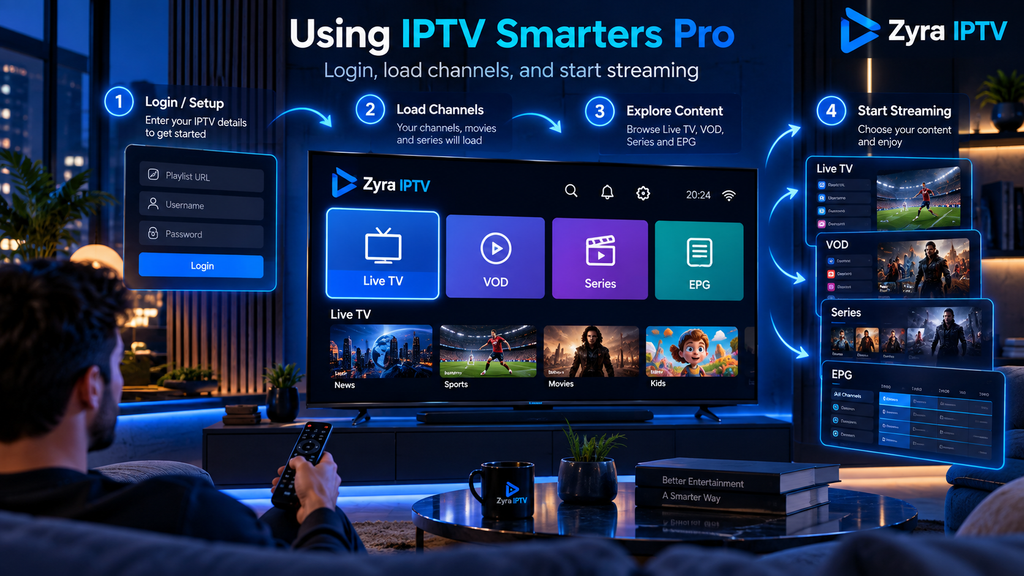
Step 3: Add Your Playlist or IPTV Account
Open Smarters Pro.
The exact menu wording can vary between app versions and platforms, but look for an option to add a playlist, user, profile, or provider information.
If You Have an M3U URL
Select the playlist or M3U option.
You will generally need to:
- Give the playlist a recognizable name.
- Paste the complete M3U URL.
- Save or add the playlist.
- Wait while the player processes the information.
The official Smarters Pro platform currently confirms support for M3U playlists.
If You Have Username, Password and Server URL
Some Smarters-based versions and platforms support provider-account login methods using supplied service credentials.
Enter the information exactly as provided.
Do not remove port numbers or change the server address unless your provider specifically instructs you to do so.
If login fails, recheck the information before reinstalling the application.
Step 4: Wait for Your Content to Load
After you add the account or playlist, Smarters Pro needs to retrieve and organize the available information.
Depending on your content source, sections may include:
- Live TV
- Movies
- TV series
- EPG
- Favourites
- Search
The official Smarters Pro feature list currently includes movie and series playback, favourites, multiple playlists, EPG support, Picture-in-Picture, Chromecast support, and search.
These are player capabilities. They do not guarantee that your IPTV subscription includes every type of content.
For example, if your provider supplies only live TV, installing Smarters Pro does not automatically add movies.
Step 5: Watch Live TV
If your playlist or account contains live television, open the Live TV section.
You can usually browse categories and select a channel.
Depending on your version, you may also be able to:
- search for channels
- open programme information
- add channels to favourites
- switch audio tracks
- use subtitles when available
- change playback settings
If one channel fails but others work, the problem may be with that particular stream rather than the application.
If nothing plays, first confirm that your provider account is active and your internet connection is working.
Step 6: Use the EPG TV Guide
EPG stands for Electronic Program Guide.
It displays television schedule information such as programme names, start times, and upcoming shows.
The official Smarters Pro feature list confirms EPG support.
Open the EPG or TV Guide section to browse available scheduling information.
If channels play correctly but EPG information is missing, possible causes include:
- provider has not supplied guide data
- EPG has not refreshed
- channel identifiers do not match
- device time or time zone is incorrect
- the affected channel has no available schedule data
EPG information comes from the configured source. The player cannot create missing programme schedules by itself.
Step 7: Add Channels to Favourites
If you regularly watch the same channels, favourites can make navigation easier.
Smarters Pro currently lists Add to Favourite as a supported feature.
Depending on your version, you may see a star icon or a contextual menu when selecting a channel.
Add frequently watched channels to your favourites section so you do not need to search through the complete playlist every time.
Step 8: Browse Movies and TV Series
If your provider supplies video-on-demand content, Smarters Pro can organize compatible movies and series.
The official feature documentation lists support for movies and series streaming.
Available information may include:
- title
- category
- episode
- season
- description
- poster artwork
The actual catalogue comes from your provider or playlist source.
Smarters Pro does not automatically supply movies simply because the application contains a Movies section.
Step 9: Use Search and Multiple Playlists
Search can be useful when your playlist contains many channels or programmes.
The current official feature list includes a master search function for locating compatible content across live TV, movies, and series.
The platform also lists support for multiple playlists.
This can be useful if you manage more than one authorized media source.
Keep each playlist clearly named so you know which provider or source it belongs to.
Step 10: Configure Parental Controls
Smarters Pro currently lists parental control functionality among its supported features.
The exact setup varies by platform and version.
If parental controls are important in your household, open the application’s settings and look for parental control, PIN, or content restriction options.
Remember that application-level controls are only one part of managing access. Your Smart TV, Android TV device, Apple device, or router may also have separate parental control settings.
How to Use IPTV Smarters Pro on Android TV
The overall setup on Android TV follows the same basic process:
- Install the supported Smarters Pro application.
- Open it.
- Add the credentials or playlist supplied by your provider.
- Allow the playlist to load.
- Open Live TV or another available section.
- Use the remote to browse channels and settings.
For Android-based television installations, see the Zyra IPTV Android TV guide for additional device-specific setup information.
Do not assume every Android application is available on every Android TV device. Verify the current app listing before installation.
How to Use IPTV Smarters Pro on iPhone or iPad
Apple currently lists the official Smarters Pro app from Tech Smarters Private Limited for iPhone, iPad, and Apple TV. Its listing describes support for M3U and JSON playlists and states that it is a standalone media player.
The general process is:
- Install the verified application.
- Open it.
- Add your compatible playlist.
- Wait for your content to load.
- Browse and play your authorized media.
For more device-specific information, review the Zyra IPTV iOS setup guide.
IPTV Smarters Pro Not Working: Common Fixes
Different symptoms usually point to different causes.
| Problem | What to check |
|---|---|
| Login fails | Recheck username, password and server URL |
| Playlist does not load | Verify the M3U address |
| No channels appear | Check the provider account or playlist |
| Channels appear but do not play | Test the internet connection and source |
| EPG is empty | Refresh or verify EPG information |
| App feels slow | Restart the app and device |
| Wrong content appears | Confirm you loaded the correct profile |
| App looks different from tutorials | Check the exact version and developer |
Do not factory-reset your television or streaming box as your first troubleshooting step.
Start with the account details, playlist, internet connection, and app version.
Frequently Asked Questions
How to use IPTV Smarters Pro for the first time?
Install the verified app, obtain valid credentials or a playlist from your provider, add the information to Smarters Pro, allow it to load, then browse the available Live TV, EPG, movies, series, or other sections.
Does IPTV Smarters Pro come with channels?
No. The official Smarters Pro platform states that it does not provide or sell IPTV subscriptions or third-party content.
Can I use an M3U playlist with Smarters Pro?
Yes. The current official documentation lists M3U playlist support.
Why is my EPG not showing?
The provider may not have supplied EPG data, the guide may need refreshing, or channel mapping and time settings may be incorrect.
Can I add favourites in IPTV Smarters Pro?
Yes. Add to Favourite is currently listed among Smarters Pro’s supported features.
Is IPTV Smarters Pro an IPTV provider?
No. Smarters Pro is a media player. The IPTV provider or authorized playlist source is separate.
Start Using IPTV Smarters Pro Correctly
Learning how to use IPTV Smarters Pro becomes much easier once you separate the player from the IPTV service.
Install the verified application, obtain the correct login information from your provider, add your account or playlist, then use the available Live TV, EPG, favourites, search, movies, and series features supported by your setup.
If something does not work, troubleshoot the login credentials, playlist, network connection, and provider information separately instead of changing multiple settings at once.
If you are preparing a new IPTV setup and want device-specific installation guidance, visit Zyra IPTV and review the available instructions for your preferred platform.