
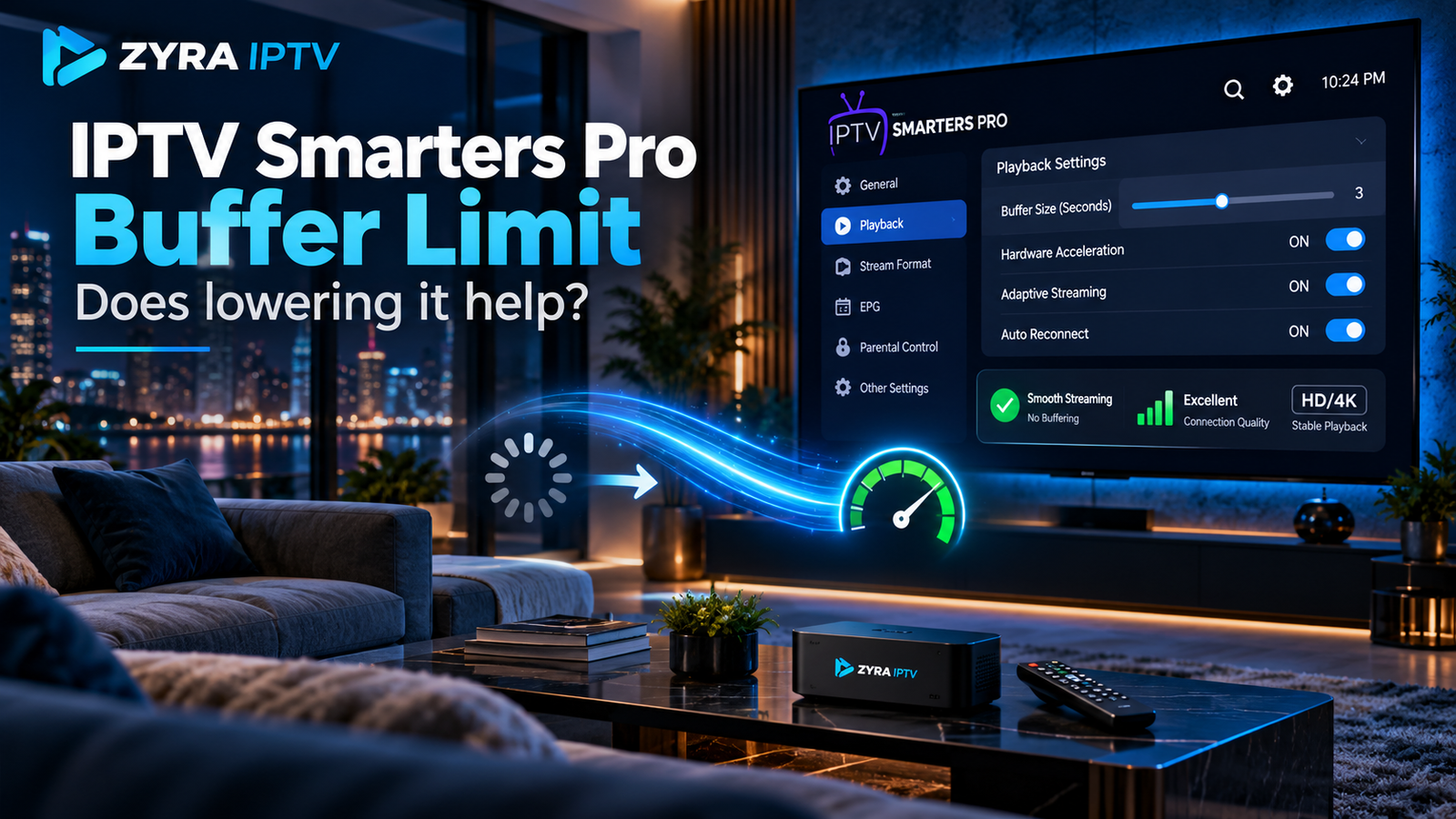
If you are asking does making buffer limit lower do anything IPTV Smarters Pro, the answer is yes. A lower buffer generally means the player keeps less video prepared ahead of the current playback position. That can make playback start faster, reduce delay behind a live stream, and sometimes make channel changes feel quicker.
The trade-off is that a smaller buffer gives the player less protection against temporary Wi-Fi drops, network congestion, or inconsistent stream delivery. If your connection is unstable, lowering the buffer can actually cause more pauses rather than fewer.
Smarters Pro has documented adjustable buffer-size functionality in some versions, but menu names and available settings can differ by platform and app release. Its public documentation does not specify exactly how every current version implements each buffer option.
What Does Buffering Mean in IPTV Smarters Pro?
Streaming video is not normally played the instant every byte arrives.
The player downloads a small amount of video ahead of what you are currently watching. This stored video is the playback buffer.
If your internet connection slows briefly, the player can continue showing the video already stored in that buffer while it waits for more data.
When the player reaches the end of the buffered data before enough new video arrives, playback stops and you see buffering.
Android’s Media3 player documentation describes the same general principle through buffer duration and playback thresholds. Its load-control system determines how much media should be buffered and when playback should start or resume.
This does not prove that every Smarters Pro version uses Android Media3 internally, but it illustrates the normal technical trade-off behind video-player buffer settings.
What Happens When You Lower the Buffer Limit?
A lower buffer tells the player, in general terms, to operate with less video stored ahead.
That can have several effects.
| Lower buffer effect | What you may notice |
|---|---|
| Less video preloaded | Playback may start sooner |
| Less stored live video | Live stream may be closer to real time |
| Smaller safety margin | Short network drops can interrupt playback more easily |
| Less waiting before playback | Channel switching may feel quicker |
| Less data held ahead | It may use slightly fewer playback resources |
The biggest mistake is assuming that a lower buffer automatically fixes buffering.
It can improve responsiveness, but it reduces the player’s protection against an unstable stream.
Can a Lower Buffer Make IPTV Smarters Pro Faster?
It can make certain actions feel faster.
For example, a smaller buffer may reduce the amount of data the player waits for before beginning playback. That can help with:
- Channel start time
- Switching between live channels
- Delay behind a live broadcast
- Resuming after certain playback actions
However, it does not increase your internet speed.
It also does not improve the quality of a weak IPTV stream or repair an overloaded source server.
If you are still learning the basic player controls, the IPTV Smarters Pro beginner guide explains the broader setup and playback process.
When Is a Small Buffer a Good Choice?
A smaller buffer can work well when your connection and stream source are already stable.
For example, you may prefer a lower setting when:
- Your Wi-Fi or Ethernet connection is consistently stable
- Channels already play without repeated interruptions
- Fast channel switching matters
- You watch live sports and want less delay
- You have enough sustained bandwidth for the selected stream
In that situation, keeping a large amount of video stored ahead may provide little practical benefit.
A Reddit discussion among TiviMate users shows the same real-world trade-off, with some users preferring small or no additional buffer when their connection and source were already stable. That community experience is useful context, but it should not be treated as official Smarters Pro documentation.
When Should You Use a Larger Buffer?
A larger buffer may be more useful when your network has short periods of instability.
For example:
- Wi-Fi occasionally drops in speed
- Other household devices compete for bandwidth
- The stream arrives unevenly
- Higher-bitrate channels pause occasionally
- You experience short bursts of network congestion
A larger buffer gives the player more stored video to keep playing during those temporary slowdowns.
Android Media3 documentation reflects this principle by allowing streaming players to define minimum and maximum buffer durations and separate thresholds for starting playback after rebuffering.
The disadvantage is that more buffering can mean a slightly longer wait before playback begins or resumes.
Should You Use Small, Normal, or Large?
There is no universal best setting.
A practical approach is:
Start with the default or normal setting.
If playback is already smooth, there may be no reason to change anything.
Try a smaller setting if responsiveness matters.
Test whether channels open faster and whether live delay decreases.
Move back to normal or larger if playback starts pausing.
If reducing the buffer creates more rebuffering, the smaller setting is not suitable for that network or stream.
Change only one setting at a time so you can tell whether it actually helped.
Why Lowering the Buffer Can Make Buffering Worse
Suppose your stream needs a steady flow of video data.
Your connection briefly slows for two seconds.
With a larger buffer, the player may already have enough video stored to continue playing throughout that slowdown.
With a very small buffer, it may run out of stored video before the connection recovers.
The result is a loading spinner or frozen picture.
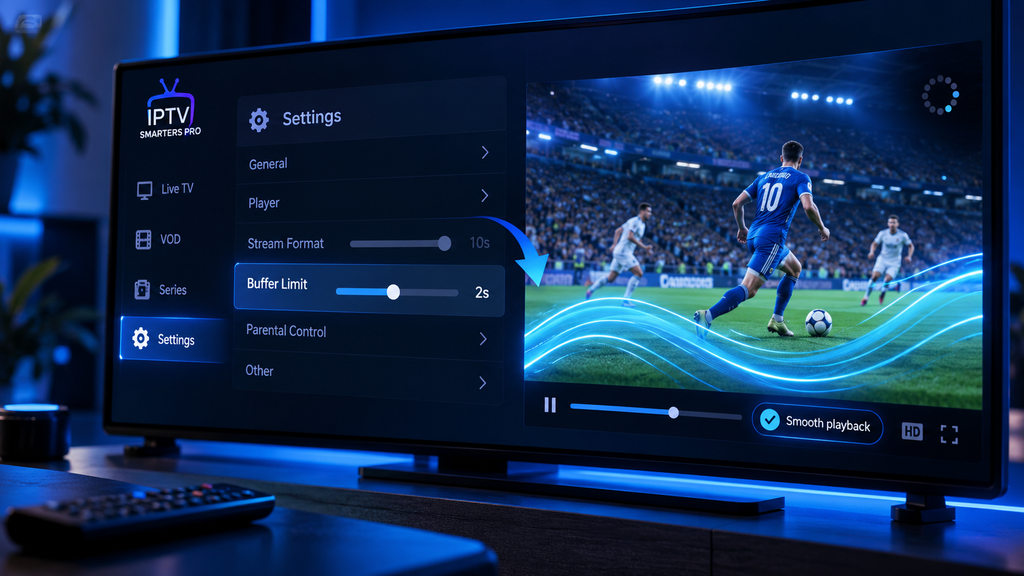
This is why the term “buffering” can be confusing. Increasing the playback buffer can sometimes reduce visible buffering interruptions.
Does a Large Buffer Fix Bad IPTV?
No.
A buffer can smooth over short interruptions, but it cannot compensate indefinitely when data consistently arrives more slowly than playback consumes it.
For example, increasing the buffer is unlikely to solve:
- Consistently insufficient internet bandwidth
- A weak or congested Wi-Fi connection
- An overloaded stream source
- An incorrect playlist
- Device performance problems
- Unsupported codecs
- A stream that repeatedly disconnects
Smarters Pro’s own troubleshooting guidance recommends checking internet stability, software updates, device resources, and streaming quality when buffering occurs.
Buffer Limit vs Video Quality
Buffer size and video quality are related, but they are not the same setting.
A 4K or high-bitrate stream transfers more data than a lower-bitrate stream. If the network cannot reliably keep up, changing only the buffer may not solve the problem.
Reducing video quality, when that option is legitimately available from the source, reduces the amount of data required for playback.
Changing the buffer changes how much incoming video the player keeps ready.
Think of it this way:
Video quality affects how quickly the bucket needs to be filled.
Buffer size affects how large the bucket is.
A larger bucket can help during temporary interruptions, but it will eventually empty if water is consistently arriving too slowly.
How to Test Buffer Settings Properly
Do not judge a setting after watching for only a few seconds.
Use the same channel and similar network conditions for each test.
Try this process:
- Note your current buffer setting.
- Watch a normally reliable live channel for several minutes.
- Check channel-switching speed and interruptions.
- Lower the buffer one level.
- Test the same stream again.
- If pauses increase, return to the previous setting.
- If playback remains stable and response feels faster, the lower setting may suit your setup.
Do not change buffer size, video decoder, stream format, Wi-Fi connection, and DNS at the same time. You will not know which adjustment affected playback.
What If Smarters Pro Keeps Buffering Regardless of the Setting?
If small, normal, and large buffer options all produce similar interruptions, the cause may be elsewhere.
Check your internet connection first.
Test another legitimate streaming app on the same device. If several apps are buffering, your local connection or Wi-Fi is more likely to be involved.
Then test several channels in Smarters Pro.
If only one stream buffers while others work normally, the problem may be specific to that stream.
Also restart the device and make sure you are using a current supported Smarters Pro version. The developer’s own optimization guidance recommends a stable internet connection, updated software, managing device resources, and selecting video quality appropriate for the connection.
For broader troubleshooting and setup help, see the Zyra IPTV guides.
Does Buffer Size Affect Firestick Performance?
Potentially, but do not assume every playback problem on a Firestick is caused by the buffer.
The device still needs to decode the video, run the application, maintain the network connection, and manage available memory.
If you are specifically using Smarters Pro on Amazon Fire TV, follow the IPTV Smarters Pro Firestick setup guide to make sure the player itself is installed correctly before changing playback settings.
Frequently Asked Questions
Does making buffer limit lower do anything IPTV Smarters Pro?
Yes. In general, lowering the buffer means less video is stored ahead of playback. This may improve startup speed, live-stream latency, and channel switching, but it can also make playback more vulnerable to network interruptions.
Should IPTV Smarters Pro buffer be small or large?
Use the smallest setting that remains stable for your connection. If a small buffer causes repeated pauses, return to normal or try a larger setting.
Does increasing buffer stop IPTV freezing?
It may help with brief network fluctuations, but it cannot fix consistently slow internet, poor Wi-Fi, device limitations, or problems with the stream source.
Does lower buffer reduce IPTV delay?
It can reduce some playback delay because the player keeps less content stored ahead. The exact effect depends on the stream format, player implementation, and source.
Can buffer settings improve channel switching?
A smaller buffer can sometimes make channel changes feel faster because the player may wait for less data before starting playback.
Why does IPTV buffer even with fast internet?
Raw speed is only one factor. Wi-Fi stability, latency, network congestion, device performance, stream bitrate, and the source itself can all affect playback.
Should You Lower the IPTV Smarters Pro Buffer Limit?
If your IPTV playback is already stable, lowering the buffer can be worth testing when you want faster channel changes or less live-stream delay.
If your connection is inconsistent, a larger buffer may work better because it stores more video to cover temporary network slowdowns.
The key is to avoid treating buffer size as a universal buffering fix. Start with the default setting, change one level at a time, and compare real playback under the same conditions.
For additional help configuring your player and IPTV setup, visit Zyra IPTV and use the device guidance that matches your setup.