
If you are asking is IPTV down, there is no single global IPTV network that can go offline at once. IPTV is a television delivery technology used by many independent services. Your specific IPTV provider, streaming server, playlist, internet connection, or player can experience a problem while other IPTV services continue working normally.
To find out whether your IPTV service is down right now, first test another internet service, then try several IPTV channels, check your provider’s official status or support information, and test the account on another compatible device or network if possible.
The key is to identify whether the problem affects the entire service or only your own setup.
Is IPTV Down Right Now?
When IPTV suddenly stops working, check the scope of the problem before changing any settings.
Start with these questions:
- Does your internet work in other apps?
- Do all IPTV channels fail or only one?
- Do live TV and VOD both fail?
- Can the IPTV app still log in?
- Does the service work on another device?
- Does the provider report an outage?
A provider-specific status page can be useful. For example, IPTVNOW operates a public status page that separately reports its main server and regional infrastructure. That page applies only to IPTVNOW, not to IPTV services generally.
This is why searching simply for “IPTV outage” may not tell you whether your own subscription is affected.
Step 1: Check Your Internet Connection
IPTV depends on an active internet connection.
Before assuming that the provider is offline, open another online service on the same device. Try a normal website, YouTube, or another legitimate streaming app.
If nothing online works, the problem is probably with your internet connection, Wi-Fi, router, or device rather than the IPTV service.
Try:
- reconnecting to Wi-Fi
- restarting the router
- restarting the streaming device
- testing another device on the same network
- testing Ethernet if your device supports it
If other internet services work normally, continue troubleshooting the IPTV connection.
Step 2: Test Several IPTV Channels
Do not judge the entire service from one channel.
Open several channels from different categories.
If one channel fails but the others work, your IPTV service is probably not completely down. The problem may involve that particular stream or channel source.
If every live channel fails, try another part of the service, such as VOD or EPG information if available.
The result can help narrow down the issue.
| What is failing? | What it may indicate |
|---|---|
| One channel only | Individual stream problem |
| One category | Source or category-specific problem |
| Live TV only | Live streaming system issue |
| VOD only | On-demand system issue |
| Everything | Account, provider, network, or app problem |
| EPG only | Programme-guide problem, not necessarily an outage |
A blank EPG does not mean IPTV itself is down if channels continue playing.
Step 3: Check the Provider’s Official Status Information
The most useful outage information normally comes from the service you actually use.
Check whether your provider has:
- an official status page
- customer dashboard notices
- service announcements
- support messages
- official social channels
- maintenance notifications
Some status pages monitor individual servers every few minutes and distinguish between operational service, degraded performance, partial outages, and major outages.
If the provider confirms maintenance or an outage, repeatedly reinstalling your IPTV app will not fix it.
Wait for the provider to restore the affected system.
Step 4: Understand What Website Outage Checkers Can Tell You
Tools such as Down for Everyone or Just Me can test whether a website responds from outside your own network. The service currently offers a dedicated availability check for iptv.org.
This can be useful, but website availability and IPTV stream availability are not always the same thing.
A provider’s public website could be online while:
- streaming servers are unavailable
- login servers are experiencing problems
- only one region is affected
- a particular playlist endpoint is unavailable
The reverse is also possible. A marketing website could have a problem while existing streams continue working.
Use website checkers as one signal, not as the only test.
Step 5: Check Your IPTV Login
If the player opens but refuses to authenticate, the service may not actually be down.
Recheck your:
- username
- password
- server URL
- port number
- M3U playlist address
- account status
An expired subscription or incorrect password can look like an outage because no channels load.
If you are having login problems specifically, the Zyra IPTV guide to IPTV usernames and passwords explains the common information used by IPTV players.
Do not post your IPTV username, password, M3U URL, or server credentials publicly while asking whether a service is down.
Step 6: Try Another Compatible IPTV Player
Sometimes the IPTV service is working but the player is not.
If your account is supported in another verified IPTV player, testing it can help isolate the problem.
For example:
Player A fails, Player B works: the issue may involve Player A or its configuration.
Both players fail: investigate the account, provider, server, or network.
The same account works on another device: the original device or application may be responsible.
Do not change several settings at once. Testing one variable at a time makes the cause easier to identify.
For additional player and device troubleshooting, use the IPTV setup guides.
Step 7: Try Another Device
If possible, test your authorized account on another compatible device.
For example, if IPTV stops working on a Smart TV, try the same service on a phone, tablet, computer, or another supported streaming device.
If it works elsewhere, the service itself is unlikely to be completely offline.
Check the original device for:
- app problems
- outdated software
- network connection issues
- incorrect login profile
- insufficient available storage
- device-specific compatibility problems
Do not factory-reset the device as your first troubleshooting step.
Step 8: Test Another Network
Testing another network can help separate provider problems from local internet problems.
For example, if your service permits it and your device supports it, temporarily test using another Wi-Fi connection or mobile hotspot.
If IPTV works on the second network but not your normal home connection, investigate your home network or internet connection.
If it fails on both networks, the problem may be more closely related to the service, account, playlist, or application.
Remember that provider rules may restrict where or how an account can be used, so follow the conditions of your own subscription.
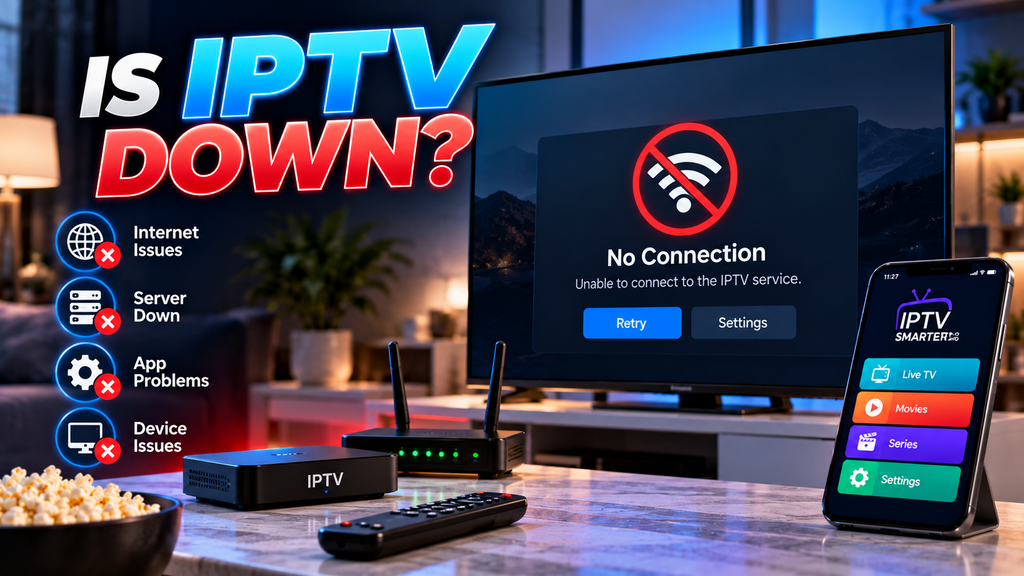
IPTV Shows Channels but Nothing Plays
If categories and channel names appear but playback fails, the app has probably loaded at least some account information.
Possible causes include:
- stream source unavailable
- internet instability
- individual server problem
- expired account authorization
- player compatibility issue
- temporary provider-side interruption
Test several channels rather than repeatedly opening the same one.
If every stream fails while the app continues loading categories normally, contact the provider and describe exactly what is working and what is not.
IPTV App Will Not Load at All
If the application itself will not open, this points more toward an app or device issue than a general IPTV outage.
Try closing and reopening the application.
Then restart the device.
Check whether an official app update is available and confirm that your player still supports the device.
An IPTV player is separate from the IPTV provider. A player can crash while the streaming service remains fully operational.
IPTV Works but Keeps Buffering
Buffering is not the same as a full outage.
A buffering stream is still receiving data, but playback is being interrupted because data is not arriving consistently enough.
Possible factors include:
- weak Wi-Fi
- network congestion
- unstable internet
- stream bitrate
- source-server performance
- device performance
- player configuration
If only one channel buffers, test others.
If every streaming application on the device buffers, investigate your network before assuming the IPTV provider is down.
IPTV Works on Some Devices but Not Others
This usually suggests that the entire IPTV service is not offline.
Compare the devices for differences in:
- IPTV player
- Wi-Fi connection
- account profile
- operating system
- app version
- login method
Also check your provider’s rules for simultaneous connections. Some subscriptions may limit how many streams or devices can be used at the same time.
The Zyra IPTV guides can help when comparing installation methods between device types.
How to Tell a Real IPTV Outage From a Local Problem
A provider-side outage becomes more likely when several signs appear together.
For example, your internet works normally, every IPTV channel fails, the account also fails on another compatible device or network, and the provider reports technical problems.
A local issue becomes more likely when only one device, one player, one channel, or one home network is affected.
Use this quick comparison:
| Sign | More likely provider outage | More likely local issue |
|---|---|---|
| All channels fail | Yes | Possible |
| Provider confirms outage | Yes | No |
| Other streaming apps fail | No | Yes |
| IPTV works on another device | No | Yes |
| Only one channel fails | No | Yes |
| Multiple networks fail | Yes | Possible |
| Login credentials rejected | Possible | Account issue |
| EPG alone is missing | No | Guide/configuration issue |
No single test is perfect, so combine several checks.
Frequently Asked Questions
Is IPTV down right now?
There is no universal IPTV status because IPTV is used by many independent providers. Check your specific provider’s status information and test several channels, another app or device, and your internet connection.
Why is my IPTV suddenly not working?
Possible causes include an internet problem, app issue, incorrect login, expired account, unavailable stream, provider maintenance, or server outage.
How do I know if my IPTV server is down?
If your internet works but all channels and account functions fail across multiple compatible devices or networks, a provider-side issue becomes more likely. Check the provider’s official status or support channels.
Can one IPTV channel be down while the others work?
Yes. Individual streams can fail independently. If other channels play normally, the whole service is probably not down.
Does buffering mean IPTV is down?
No. Buffering means playback is being interrupted, not necessarily that the service is completely offline.
Should I reinstall my IPTV app during an outage?
Usually not as a first step. If the provider confirms an outage, reinstalling the app will not restore the provider’s servers.
Can an IPTV website be online while the service is down?
Yes. A provider’s website and its streaming infrastructure can be separate systems. A website availability checker therefore cannot always confirm whether live streams are working.
Is Your IPTV Actually Down?
When you ask is IPTV down, first remember that IPTV itself is not one centralized service. You need to determine whether your specific provider is experiencing an outage or whether the problem is limited to your internet connection, app, device, account, or an individual stream.
Start with the simplest tests: verify your internet, try several channels, check official provider information, and test another compatible device or network when possible. Avoid deleting your setup or factory-resetting devices until you know where the problem is.
For additional IPTV troubleshooting and device setup guidance, visit Zyra IPTV and review the available installation information for your setup.