
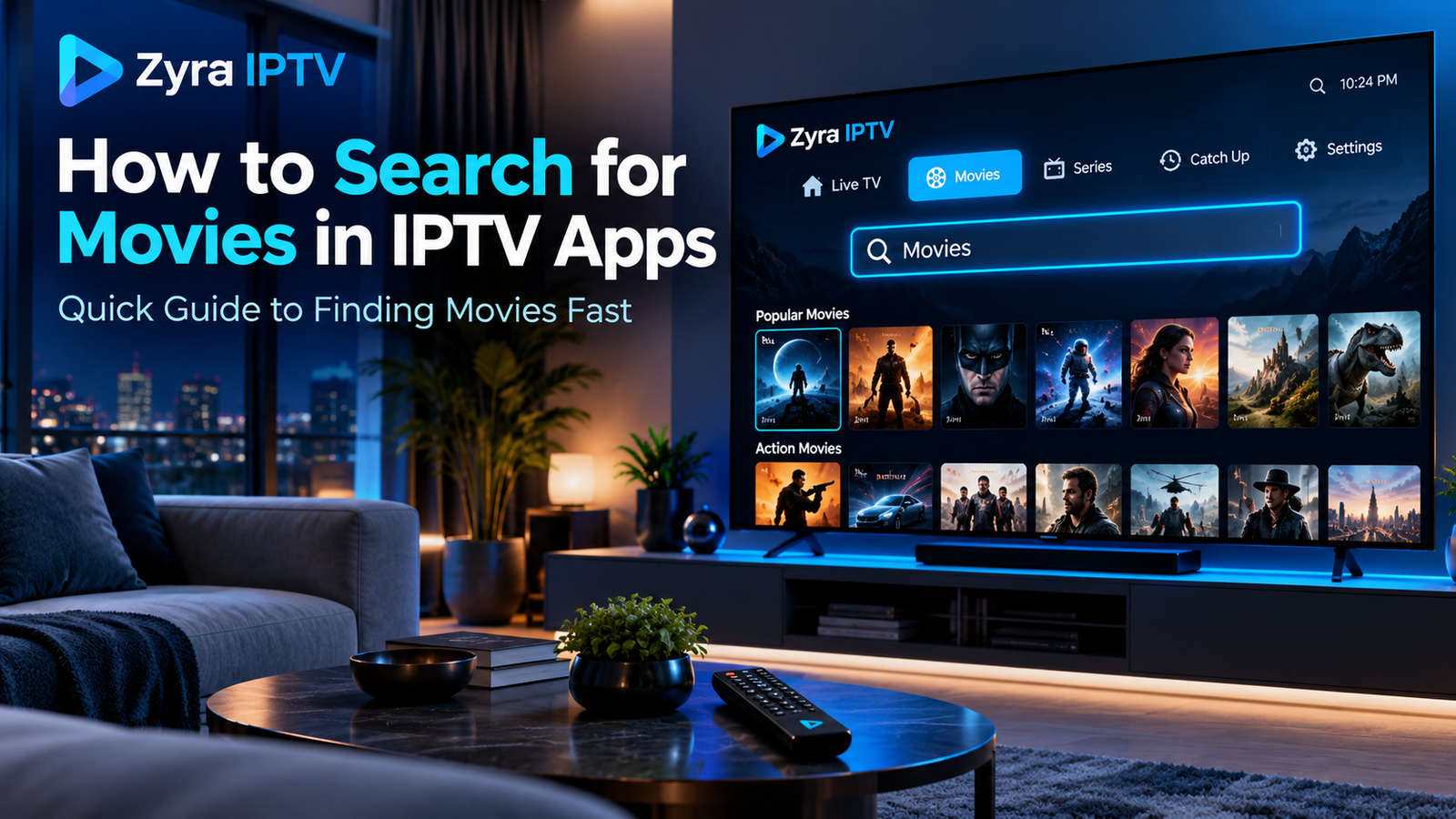
If you want to know how to search movie in IPTV, open the Movies or VOD section of your IPTV player, select the search or magnifying-glass option, and enter the movie title. If your app offers global search, you may also be able to search movies directly from the main dashboard.
The exact process depends on the IPTV player, device, and media source you use. Some apps search live channels, movies, series, and EPG data together, while others keep each search separate.
Most importantly, an IPTV player can only find movies that are actually included in your authorized media source and have loaded correctly into the app.
What Does Movie Search Mean in IPTV?
IPTV applications can organize different types of content, including live television, movies, series, and programme-guide information.
Movies are usually placed inside a Movies, VOD, or Video on Demand section.
VOD means Video on Demand, where you select an available movie or programme and start it when you choose instead of waiting for a scheduled broadcast. You can read the full Zyra IPTV VOD guide if you want to understand how on-demand content differs from live television.
The search function normally checks the title and other metadata loaded from your media source. It does not search the entire internet or automatically add movies that are not part of the configured library.
Quick Steps to Search for a Movie
For most IPTV apps, the process is similar:
- Open your IPTV player.
- Allow your playlist or account to finish loading.
- Open Movies, VOD, or Video on Demand.
- Find the search or magnifying-glass icon.
- Enter the full or partial movie title.
- Review the matching results.
- Select the movie to view its information.
- Choose Play if the title is available to your account.
If nothing appears, try entering fewer words from the title.
For example, instead of typing a long movie name with punctuation, try the most distinctive two or three words.
Search Movies in IPTV Smarters Pro
Smarters Pro is one example of a player with built-in discovery tools.
Its current feature documentation lists Global Search, which can locate channels, movies, series, and other available content from the connected media source. It also supports separate organization for movies and series.
A typical search process is:
- Open Smarters Pro.
- Wait for your media source to finish loading.
- Open the Movies section.
- Select Search or the magnifying-glass symbol.
- Type the movie title.
- Open the matching result.
Depending on your version, global search may also be accessible outside the Movies section.
If you need help understanding the rest of the interface, the IPTV Smarters Pro beginner guide covers live TV, movies, series, EPG, favourites, and general navigation.
Search Movies in TiviMate
TiviMate also includes a search feature. Its official site lists Search among the player’s core features for locating content within configured playlists.
However, search behaviour can depend on the version, playlist format, and the information provided by your source.
If your TiviMate setup contains VOD:
- Open the relevant movie or VOD area.
- Open Search.
- Enter part of the title.
- Review available matches.
- Select the correct result.
If you can search channels but cannot find a movie, confirm that the movie library itself has loaded and that your configured source actually contains VOD data.
Search Movies on Firestick and Android TV
On television devices, search usually works through the IPTV player’s own interface rather than through a web browser.
Open the Movies or VOD section and look for a magnifying-glass icon or Search option.
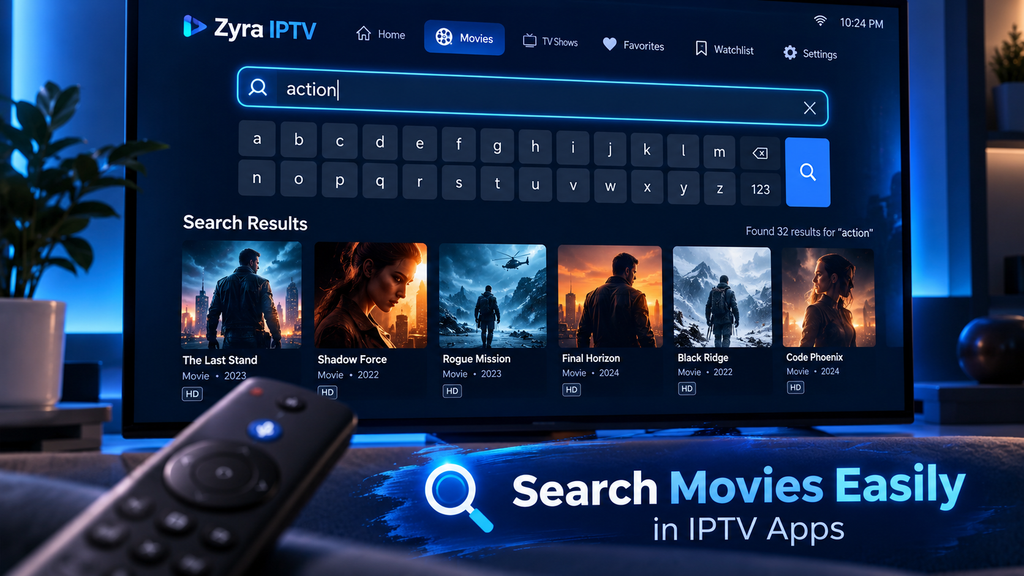
Use the on-screen keyboard with your remote to enter the movie title.
A shorter search phrase is often easier on a TV remote. For example, search:
Dark Knight
instead of:
The Dark Knight 2008 Full Movie
If your app supports voice input through the device, it may simplify text entry, but support depends on the device and application.
For general IPTV installation and player guidance, see the Zyra IPTV guides.
Search Movies on a Smart TV
Smart TV IPTV applications can organize search differently.
Some place Search at the top of the Movies screen. Others include it inside a side menu, remote-control menu, or global search page.
The basic method remains the same:
Open Movies > Search > Enter title > Select result
Do not assume that the television’s own universal search searches inside every IPTV application. In many cases, you need to use the IPTV player’s internal search function.
App capabilities also vary between television operating systems, so menu locations can differ even when two people use the same IPTV service.
Search Movies on iPhone or Android Phones
Mobile IPTV apps usually make searching easier because you can use the touchscreen keyboard.
Open the movie library and tap the search symbol. Enter the title, then choose the relevant result.
If your app supports global search, you may be able to find a movie without opening the Movies category first.
Current Smarters Pro documentation specifically describes search across movies, series, channels, and other connected content.
The results still depend on what your connected source provides.
Why Can I Not Find a Movie in IPTV Search?
A missing search result does not automatically mean the app is broken.
Several different issues can cause it.
| Problem | What to check |
|---|---|
| Movie does not appear | Confirm it exists in your available VOD library |
| Search returns nothing | Refresh or reload the playlist |
| Only channels appear | Search from the Movies or VOD section |
| Some movies are missing | Check whether all categories loaded |
| Wrong title appears | Try fewer or more distinctive words |
| Search works on one device only | Check app version and playlist refresh |
| Movies section is completely missing | Your source may not include VOD |
The first question should always be whether the title actually exists in the media library available to your account.
Refresh Your IPTV Playlist
If a movie was recently added but does not appear in search, refresh the media source if your player provides that option.
A refresh can update:
- movie titles
- categories
- series
- channel information
- artwork
- programme information
- other source metadata
Do not delete your profile immediately.
Refreshing the playlist is less disruptive because deleting an account may require you to enter the username, password, server URL, or M3U information again.
Make Sure the VOD Library Has Finished Loading
Large media libraries can take time to populate after login or refresh.
Searching before the application finishes loading may produce incomplete results.
Watch for a loading indicator or wait until the Movies categories appear normally before searching again.
If the app repeatedly fails to finish loading, restart it and confirm that your internet connection is stable.
Try a Partial Movie Title
Search systems are not always equally good at handling punctuation, subtitles, years, and alternate naming.
If the full title does not work, try a shorter version.
For example:
Mission Impossible
may work better than a longer title containing a subtitle and release year.
Also check spelling carefully. IPTV apps may not automatically correct typing mistakes.
Avoid adding terms such as HD, 4K, dubbed, or subtitles unless you know the source actually uses those terms in its title metadata.
Search the Correct Content Section
One common mistake is searching for a movie while still inside Live TV.
An IPTV app may have several independent databases:
Live TV: Searches channel names.
Movies: Searches VOD movie titles.
Series: Searches television series.
EPG: Searches programmes in television schedules.
A search inside Live TV may therefore return no results even when the same movie exists in the VOD section.
Players with a global search option can reduce this problem by searching several content types from one place.
What If the IPTV App Has No Search Button?
Not every IPTV player has the same features.
If your application has no movie search function, you may need to browse through VOD categories such as genre, recently added, alphabetical groups, or other categories supplied by the media source.
You can also check whether a current version of the app adds better search functionality.
Do not install an unrelated app solely because it has a similar name. Verify the developer and device compatibility before changing IPTV players.
Does Searching IPTV Add New Movies?
No.
Search only helps you locate content already available through the connected media source.
For example, Smarters Pro describes itself as a media player and states that it does not provide movies, channels, series, subscriptions, or playlists itself. Users connect their own compatible sources.
Installing an IPTV player with a movie-search feature therefore does not automatically create a VOD library.
Search vs Browsing Movie Categories
Search is useful when you already know what movie you want.
Categories are better when you want to discover something to watch.
Depending on your app and source, movie categories may include genres or other organizational groups.
Use search when you know the title, and use categories when you are browsing more generally.
Favourites or recently watched features can also make repeat viewing easier when supported by the player.
Frequently Asked Questions
How to search movie in IPTV?
Open the Movies or VOD section, select the search icon, type the full or partial movie title, and choose a matching result. Some IPTV players also provide global search from the main screen.
Why can I not find movies on my IPTV app?
Your connected source may not include VOD, the movie may not be in the available library, or the playlist may not have loaded completely.
Can I search movies in IPTV Smarters Pro?
Yes. Current Smarters Pro documentation lists global search for available channels, movies, series, and other connected content.
Why does IPTV search only show channels?
You may be searching from the Live TV section. Open Movies or VOD and search again, or use global search if your player supports it.
Should I search using the full movie title?
Start with the normal title. If there are no results, try a shorter and distinctive part of the name.
Does every IPTV subscription include movies?
No. IPTV services can differ significantly. Some provide live television only, while others may include VOD movies or series. Zyra IPTV’s existing VOD guide also notes that VOD is not automatically included with every IPTV subscription.
Find Movies Faster in Your IPTV App
Learning how to search movie in IPTV is mostly about using the correct section of your player. Open Movies or VOD, let the media library load, use Search, and enter a clear part of the title.
If nothing appears, refresh the playlist, check the spelling, try fewer words, and confirm that the movie is actually part of your available media source. Remember that the player organizes content, but it cannot search for or add movies that your source does not provide.
For more help using IPTV players and setting up your streaming device, visit Zyra IPTV and review the available setup guidance.