
What Is the Best Stream Format for IPTV? TS, HLS and M3U8 Explained
What is the best stream format for IPTV? There is no single format that works best for every setup. HLS is often useful when network conditions change, particularly if the provider offers adaptive-quality streams. A continuous MPEG Transport Stream (TS) may suit compatible live TV setups where straightforward delivery and low latency are priorities. The better choice depends on your IPTV provider, player, device, internet connection, and the way the stream is configured. If your IPTV application offers TS, HLS, or M3U8 options, understanding their differences can help you make an informed choice instead of changing settings randomly. IPTV Stream Formats at a Glance IPTV services use different methods to package and deliver video over IP networks. Three terms commonly appear in IPTV discussions: TS, HLS, and M3U8. Term What it means Main purpose TS MPEG Transport Stream Packages audio and video for transport HLS HTTP Live Streaming Delivers media through playlists and segments M3U8 UTF-8 playlist file format Commonly identifies HLS playlists These terms are related but do not describe three completely separate video technologies. In particular, M3U8 is not an alternative streaming protocol competing with HLS. It is the playlist format commonly used by HLS. What Is MPEG-TS in IPTV? MPEG-TS stands for MPEG Transport Stream. It is a container format designed to carry audio, video, and related information together. In a typical IPTV context, a TS output option may deliver a continuous transport stream through a network connection. Instead of repeatedly requesting individual media segments listed in an HLS playlist, the player receives the ongoing stream. Potential Benefits of TS A compatible continuous TS setup can offer straightforward live television delivery. Depending on how the provider configures the stream, it may also have relatively low playback latency. Latency refers to the delay between a live event happening and appearing on your screen. This can matter when watching live sports or other time-sensitive broadcasts. Limitations of TS A continuous TS stream does not automatically adapt its bitrate when your available bandwidth drops. If the connection cannot consistently deliver the required data, playback may pause or buffer. However, TS is not inherently unreliable. Performance depends on the actual stream, network, server, and player. It is also important to remember that MPEG-TS is a container format. It can be used inside other delivery systems, including HLS. What Is HLS in IPTV? HLS stands for HTTP Live Streaming. It is a streaming technology developed by Apple that delivers media through ordinary HTTP connections. Instead of depending on one continuous media transfer, HLS uses playlists that point to smaller media segments. The player reads the playlist, requests the relevant segments, and plays them in sequence. Apple’s official HTTP Live Streaming documentation explains how HLS supports live and on-demand delivery over web infrastructure. Why HLS Can Help With Changing Internet Speeds HLS can support adaptive bitrate streaming. When a provider supplies multiple versions of the same video at different bitrates, a compatible player can switch between them according to available bandwidth. For example, the player may select a lower-bitrate version when the connection becomes congested. This can help maintain playback, although the picture quality may temporarily decrease. Important: HLS does not automatically provide adaptive quality. The provider must supply suitable alternative streams, and the player must support switching between them. What Is M3U8 in IPTV? M3U8 refers to a UTF-8-encoded playlist format commonly used in HLS streaming. An HLS playlist tells the player which media segments to request. It may also point to alternative versions of a stream. A simplified HLS address might resemble: https://example.com/live/channel.m3u8 This is a fictional example, not a working IPTV stream. A file ending in .m3u8 generally indicates a playlist rather than the video data itself. HLS media segments may contain MPEG-TS or fragmented MP4 data, depending on the implementation. The technical relationship between playlists and segments is described in the HTTP Live Streaming specification, RFC 8216. Is M3U the Same as M3U8? Not exactly. An M3U file is a playlist that can contain links to multiple media sources, such as IPTV television channels. M3U8 indicates UTF-8 playlist encoding and is commonly associated with HLS. In IPTV, a general M3U playlist might contain a collection of channels, each pointing to a different stream. An HLS M3U8 playlist typically describes how to retrieve the media segments or variants for a particular stream. This distinction matters because an IPTV player may ask you to import an M3U playlist while separately offering an HLS playback option. Those settings perform different functions. TS vs HLS: What Are the Main Differences? The practical differences depend on how each stream is delivered. Feature Continuous TS delivery HLS delivery Delivery method Ongoing transport stream Playlist and media segments Adaptive bitrate Not inherent to a single continuous stream Supported when multiple variants are provided Live latency Can be relatively low Depends on segment and player configuration Changing bandwidth May require uninterrupted capacity Can adapt when configured appropriately Browser compatibility May require additional playback support Supported through compatible native players or software Content format MPEG transport stream Can use MPEG-TS or fragmented MP4 segments Neither format guarantees a particular resolution, buffering rate, or delay. An HLS stream can be poorly configured, while a continuous TS stream can perform smoothly on a suitable network. Similarly, low-latency HLS configurations can reduce delay, so it is inaccurate to assume that TS is always faster. Which Format Is Better for Live Sports? When watching live sports, viewers often care about two factors: playback stability and latency. A well-configured continuous TS stream may be useful when low delay is important. HLS may provide a better experience on changing networks when adaptive bitrate options are available. However, the actual delay depends on the provider’s encoding process, segment duration, player buffering, and delivery infrastructure. Switching to TS does not guarantee that a match will appear earlier. If both formats are available, test the same live channel on each and compare the results. Which Format Is Better for Wi-Fi or Mobile Data? HLS can be
What Is VOD? Video on Demand Explained
What is VOD? VOD stands for Video on Demand. It is a way of watching movies, television programmes, recorded streams, and other videos whenever you choose, rather than waiting for a scheduled broadcast. For example, instead of tuning in at a specific time to watch a movie on a live television channel, you open an on-demand library, select the movie, and press play. VOD is used by streaming platforms, television providers, IPTV services, and video-sharing websites. However, the content, playback features, pricing, and availability depend on the individual service. This guide explains how VOD works, its different types, and what to look for when comparing on-demand entertainment options. What Does VOD Stand For? VOD stands for Video on Demand. The important part is “on demand.” It means the viewer chooses when to start an available video instead of following a broadcaster’s fixed schedule. Common examples include: Not every video service offers the same content or controls. Some provide extensive libraries, while others focus on a particular category or type of programme. How Does Video on Demand Work? Most internet-based VOD services store video content on servers and deliver it to compatible devices when viewers request it. The basic process is straightforward. When you stream a video, your device receives the content progressively through the network instead of requiring you to download the entire file first. Some services also offer offline downloads, but this is an additional feature rather than a requirement of VOD. The viewing experience depends on the platform, internet connection, video format, device, and applicable content permissions. VOD vs Live TV: What Is the Difference? The main difference is who controls the viewing schedule. Live television follows a timetable. You watch whatever the channel is broadcasting at that moment. VOD allows you to choose an available programme and start it when you want. Feature VOD Live TV Viewing time Selected by the viewer Determined by the broadcast schedule Content Available on-demand titles Currently scheduled programmes Starting from the beginning Generally supported Depends on the service Pausing and seeking Common, but varies Requires supported playback features Typical example Selecting a movie from a library Watching a scheduled news bulletin A television service can provide both live TV and VOD through the same application. For instance, an IPTV player may have separate sections for live channels, movies, and TV series. What Is VOD in IPTV? IPTV stands for Internet Protocol Television. It describes television delivered through IP-based networks. VOD is a viewing model in which content is available when requested. The two concepts are related, but they are not identical. An IPTV service may offer live television alongside a separate VOD section containing movies or series. When you select an available title, the application requests that specific video rather than switching to a scheduled television channel. However, VOD is not automatically included in every IPTV subscription. The catalogue, supported devices, playback controls, and content availability depend on the provider and plan. If you are unfamiliar with IPTV applications, the IPTV installation guides explain the general setup options for different devices. What Types of Video on Demand Are Available? VOD describes how viewers access content. It does not determine how they pay for it. Several common business models exist. SVOD: Subscription Video on Demand SVOD gives viewers access to an available content library through a subscription. The subscription may renew monthly, annually, or according to another billing arrangement. Content remains accessible subject to the service’s terms, catalogue changes, and subscription status. AVOD: Advertising-Based Video on Demand AVOD provides access to on-demand video supported by advertising. Viewers may encounter advertisements before or during playback. Some AVOD services are free to access, while others combine subscriptions and advertising. TVOD: Transactional Video on Demand TVOD charges for individual titles or transactions. For example, a viewer may rent or purchase a particular movie instead of subscribing to an entire library. Rental periods, playback restrictions, and purchase conditions vary. PVOD: Premium Video on Demand PVOD generally refers to premium content made available for an additional payment, sometimes through an early-access release. The term does not guarantee that every new film or event is available through premium rental. Model Meaning Typical payment approach SVOD Subscription Video on Demand Recurring subscription AVOD Advertising-Based Video on Demand Advertising-supported access TVOD Transactional Video on Demand Individual rental or purchase PVOD Premium Video on Demand Additional payment for premium access Some platforms combine several models. A subscription service, for example, may offer an included catalogue alongside separately priced rentals. Is VOD the Same as Catch-Up TV? Not exactly. VOD generally refers to a library of videos that viewers can select when they want. Catch-up TV allows viewers to watch certain programmes after their original television broadcast. For example, a programme that aired yesterday may appear in a catch-up section for a limited period. The key distinction is how the content becomes available. A VOD library may contain movies and series unrelated to a recent television broadcast. Catch-up typically focuses on programmes previously shown on a channel. Some providers offer both services, but neither feature should be assumed to be included automatically. What Does VOD Mean on Twitch? On Twitch, a VOD usually means a recording of a previous livestream that viewers can watch after the broadcast ends. This use of the term is slightly different from a movie library, but the underlying idea is the same: the video is available for playback on the viewer’s schedule. For example, someone who misses a creator’s livestream may watch the saved broadcast later if the recording is available. A full broadcast recording, a highlight, and a short clip are not necessarily the same thing. Twitch’s official help documentation distinguishes between past broadcasts, highlights, and clips. Availability depends on the creator’s settings and the platform’s applicable retention rules. What Features Can a VOD Service Include? VOD platforms may provide several functions that make watching content more convenient. Depending on the service, these can include search, categories, playback controls, subtitles, audio-language options, and watch-history features.
What Is EPG in IPTV? Electronic Program Guide Explained
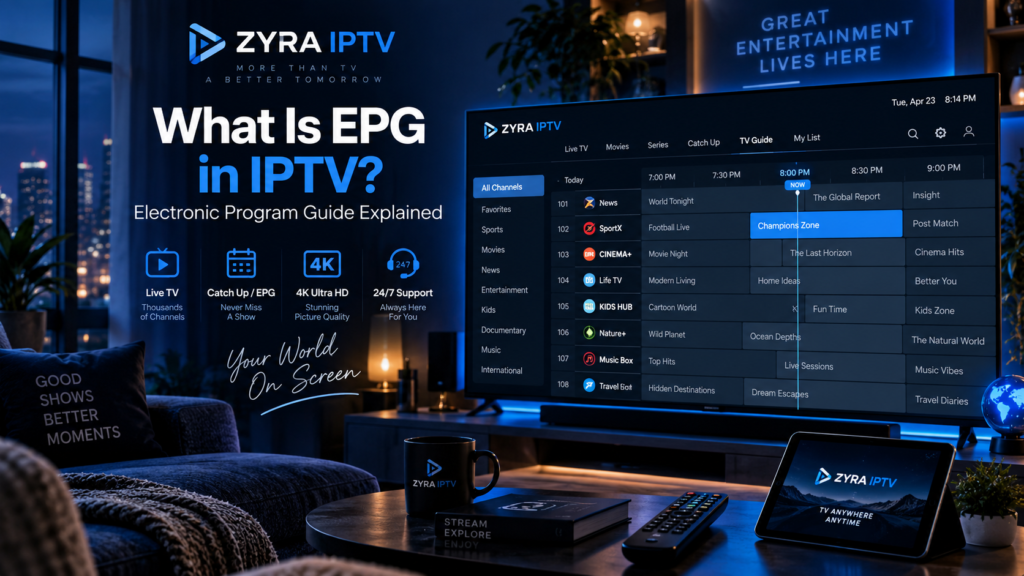
What is EPG IPTV? EPG stands for Electronic Program Guide. It is the on-screen television schedule that shows what is currently playing, what comes next, and when programmes are scheduled to start and finish. When you open an IPTV player, the EPG may appear as a grid with channel names on one side and programme times across the screen. It helps you browse live television without opening every channel individually. However, an EPG is not the same as an IPTV playlist, and installing an IPTV player does not automatically guarantee that programme information will appear. This guide explains how an IPTV EPG works, where its information comes from, how to configure it, and what to do when listings are missing or incorrect. What Does EPG Stand for in IPTV? EPG stands for Electronic Program Guide, sometimes written as Electronic Programme Guide. It is the digital equivalent of a traditional television listings guide. Instead of checking a printed schedule, you can open the guide inside a compatible IPTV application and browse programmes directly on your television or another device. An EPG may display: The information available depends on the EPG data source, IPTV provider, and application. Some guides only show basic titles and times, while others provide more detailed information. How Does an IPTV EPG Work? An IPTV EPG works by connecting programme schedule information to the channels available in your IPTV player. The process generally involves four stages. 1. Programme Information Is Created A broadcaster or scheduling provider prepares information about television programmes. This may include a programme’s title, channel, start time, end time, and description. 2. The Information Is Distributed The schedule is made available through an EPG data feed. XMLTV is one common format used to distribute television listings. 3. Your IPTV Player Loads the Data A compatible IPTV application retrieves the scheduling information from the configured source. Depending on the setup, the application may receive this information automatically or require a separate EPG URL. 4. The Guide Matches Programmes to Channels The application associates the schedule entries with the corresponding channels and displays them in a navigable television guide. The official Kodi IPTV Simple Client documentation explains how its player uses M3U playlists for live television sources and XMLTV data for EPG information. This distinction is important when troubleshooting an IPTV setup. What Does an IPTV EPG Look Like? Most electronic programme guides display a television schedule in a grid. A simplified example looks like this: Channel 7:00 PM 8:00 PM 9:00 PM News Channel Evening News Current Affairs Documentary Sports Channel Sports Update Live Match Match Analysis Movie Channel Film A Film A Film B Illustrative example only. These are not actual channel listings. You can generally move through the guide to see what is currently playing and what will air later. Some applications also allow you to select a programme, search the guide, or view additional details. The available controls depend on the player. What Is the Difference Between an IPTV Playlist and EPG? An IPTV playlist and an EPG serve different purposes. An IPTV playlist provides information about the channels or streams available to your player. An EPG provides scheduling information for those channels. Feature IPTV playlist EPG Main purpose Identifies available streams Displays programme schedules Typical information Channel names and stream addresses Titles, times, and descriptions Common format M3U XMLTV Required for programme listings Not sufficient by itself Supplies schedule information Can work independently? Channels may play without EPG EPG data alone does not supply television streams For example, your IPTV application may successfully display and play channels while showing “No information” in the programme guide. This usually means the video source is working, but the scheduling information is unavailable, has not loaded, or cannot be matched to the channels. What Is an EPG URL? An EPG URL is a web address that points to programme-guide data. An IPTV provider may supply this address alongside your subscription information. The URL allows a compatible application to retrieve television schedules. A simplified example might look like: https://example.com/guide.xml This is a fictional example, not a working EPG address. Real EPG URLs may use different paths or formats. Some contain account information, so they should be treated as private. Where Do You Find Your IPTV EPG URL? Check your provider’s activation email, customer dashboard, or official installation instructions. Look for terms such as EPG URL, XMLTV URL, TV Guide, or Programme Guide. If you received an IPTV username, password, and server URL but no separate EPG information, ask your provider whether its supported application retrieves guide data automatically. Do not assume that the server URL and EPG URL are interchangeable. How to Set Up EPG on IPTV The exact steps vary by application, but the general configuration process is straightforward. Step 1: Confirm That Your Service Provides EPG Data Check whether programme-guide information is included with your IPTV subscription. Not every service provides the same EPG coverage. Step 2: Obtain the Correct EPG Source If your player requires a separate source, request the appropriate XMLTV or EPG URL from your provider. Avoid guessing the address or using an unrelated feed without verifying compatibility and permission. Step 3: Open Your IPTV Player’s Settings Look for a section labelled EPG, TV Guide, Programme Guide, or EPG Sources. The exact menu depends on the application. Step 4: Add the EPG Information Enter the URL if the application requires one. Some players retrieve the guide through an account-based connection without needing a manually entered address. Step 5: Refresh the Guide Save your settings and use the application’s refresh or update option. Allow the player to retrieve and process the data. Step 6: Check Several Channels Open the guide and verify that programme information appears for your preferred channels. If some channels remain empty, the problem may involve missing schedule data or incorrect channel matching. For broader installation instructions, see the Zyra IPTV setup guides. Confirm the specific EPG method supported by your chosen player and subscription. What Is XMLTV in
What Is a Portal URL in IPTV and How Does It Work?
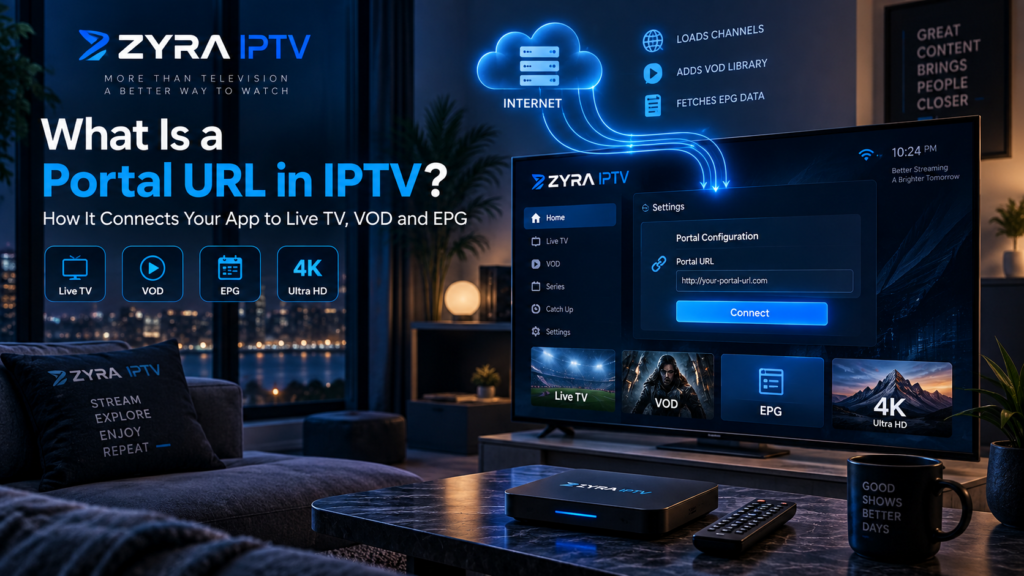
If your IPTV player or set-top box asks for a portal URL, you might wonder what information belongs in that field. A portal URL is a web address that connects a compatible device or application to an IPTV provider’s portal system. In a Stalker or Ministra-based setup, the portal manages communication between the device and the provider’s service. Depending on the system, it can authenticate the device and provide access to available channels, programme information, and other supported features. However, not every IPTV service uses a portal URL. Some require an M3U playlist, while others use a server URL, username, and password. This guide explains what an IPTV portal URL does, where to obtain it, how to enter it, and what to check when the connection fails. What Is a Portal URL in IPTV? An IPTV portal URL is the address of a provider’s portal interface. A compatible IPTV set-top box or player uses this address to connect to the service. The address normally includes a domain name or IP address. It may also contain a port number or a specific path. For illustration, a portal address might resemble: This is only a fictional example. It is not a working IPTV portal, and you should never substitute it for the address supplied by your provider. The term portal URL is especially associated with Stalker and Ministra IPTV systems. These systems have historically been used with MAG set-top boxes and compatible applications. Infomir, the manufacturer associated with MAG devices and the Ministra platform, documents portal configuration in its official external portal setup instructions. How Does an IPTV Portal URL Work? A portal URL acts as the connection point between your IPTV device and the provider’s portal system. The process generally works as follows: The portal may also supply channel categories, an Electronic Programme Guide (EPG), and video-on-demand information when the service supports those features. A portal address does not automatically provide access to television. You still need a valid account or properly authorized device. What Is the Difference Between a Portal URL, M3U and Xtream Codes? These terms refer to different ways of connecting an IPTV player to a service. They are related, but they are not interchangeable. Connection method Information normally required How it works Stalker or Ministra portal Portal URL and registered device information, often a MAC address Connects a compatible device to a portal system M3U playlist Playlist URL or file Supplies playlist information to a compatible player Xtream Codes-style login Server URL, username, and password Uses account credentials to access a compatible service A provider may offer more than one method, but this should never be assumed. Portal URL A Stalker-style portal commonly identifies an authorized device using its registered MAC address. Some implementations also require a username, password, or another authentication method. M3U Playlist An M3U playlist contains information that an IPTV player can use to locate streams. A provider may supply it as a file or URL. An M3U link can also contain account credentials, so keep it private. Xtream Codes Login A compatible Xtream Codes-style player typically asks for a server address, username, and password. Some people informally call that server address a portal URL. However, it is not necessarily a Stalker or Ministra portal. Use the connection method specified by your provider instead of entering an M3U link into a portal field or assuming an Xtream server URL will work as a Stalker portal. What Is a MAC Address in IPTV? A MAC address is a network identifier associated with a network interface. In certain portal-based IPTV systems, a provider registers a device identifier or MAC address as part of the authorization process. When the device connects, the portal checks whether that identifier is permitted to access the service. This means that a correct portal URL may still fail if your device is not registered or authorized. Not every IPTV setup uses MAC-based authentication. Some portals require additional credentials, while M3U and Xtream Codes-style connections use different access methods. If your provider requests a MAC address, follow its official instructions for identifying and registering the correct device. Do not publish your device identifiers or subscription information in public troubleshooting posts. Where Can You Find Your IPTV Portal URL? The correct portal URL must come from your IPTV provider. It may be included in your activation email, customer dashboard, installation instructions, or official support correspondence. Look for terms such as: If you cannot locate the address, contact the provider and ask which connection method your subscription supports. For example, Zyra IPTV’s published IPTV installation instructions describe entering a username, password, and server URL. That information alone does not establish that every Zyra IPTV subscription supports Stalker or Ministra portal access. If you need a portal specifically, confirm availability with the provider before selecting a portal-based player. Avoid websites advertising random portal URLs, shared MAC addresses, or unauthorized login credentials. How to Enter a Portal URL on an IPTV Device The exact process depends on your device and application. For a compatible MAG set-top box using the relevant Infomir interface, the manufacturer’s documented setup process provides a useful example. Step 1: Connect Your Device to the Internet Confirm that the device has a working Ethernet or Wi-Fi connection, depending on its capabilities. Step 2: Open the Portal Settings On supported MAG interfaces, navigate to: System Settings > Servers > Portals The menu may differ on other device models or software versions. Step 3: Enter the Portal Information Choose the appropriate portal field and enter the address supplied by your provider. You may also be able to assign the portal a recognizable name. Copy the complete address carefully, including its protocol, port, and path when supplied. Step 4: Save and Reload Save your changes and restart or reload the portal using the device’s documented procedure. Step 5: Confirm Account Authorization If your device is registered and the portal is available, the service should attempt to load. If an authorization error appears, contact your provider rather
What Does IPTV Offer? Live TV, VOD, EPG and More Explained
What does IPTV offer? IPTV can provide live television channels, movies, TV series, video on demand (VOD), an Electronic Programme Guide (EPG), and features such as catch-up TV or recording. Depending on the service, viewers may also have access to different device options, favourite channel lists, subtitles, and multiple simultaneous connections. However, IPTV is a television delivery technology, not a standard package with identical features across every provider. One subscription might include live channels and movies, while another may offer additional playback features or different content. This guide explains the main IPTV features, how they work, and what to check before choosing a subscription. IPTV Features at a Glance IPTV stands for Internet Protocol Television. It delivers television through IP-based networks rather than relying exclusively on traditional cable, satellite, or antenna broadcasting. The exact experience depends on the provider, subscription, application, and device. IPTV feature What it offers Live TV Television channels playing according to a schedule Video on demand Movies and programmes you can start when you choose TV series Episode-based content when included EPG An on-screen television schedule Catch-up TV Access to previously aired programmes when supported Recording The ability to save programmes on supported systems Device options Viewing through compatible televisions and other devices Favourites A personalised list of frequently watched channels These are potential capabilities, not guarantees that every IPTV subscription includes all of them. 1. Live TV Channels Live television is one of the main features associated with IPTV. Instead of receiving channels through a conventional satellite or cable connection, your device receives the television stream through an IP network. Depending on the provider, available categories may include news, entertainment, sports, documentaries, children’s programming, and international television. You generally select a channel from the IPTV player’s interface and start watching. Does IPTV Include Local and International Channels? It can, but availability varies significantly between providers and countries. A viewer in Canada may want Canadian television and French-language programming, while someone in Australia or the United States may prioritise different channels. Do not assume that a large advertised channel count guarantees the specific programming you want. Before subscribing, compare the provider’s published lineup with your actual viewing preferences. You can use the Zyra IPTV channel information as a starting point for checking listed programming. Remember that a channel’s presence on a list does not independently establish its current availability or distribution rights. 2. Video on Demand (VOD) VOD stands for Video on Demand. Unlike live television, where the broadcaster determines the schedule, VOD allows you to select available content and start it at a time that suits you. An IPTV service with VOD may organise content into categories such as movies, TV series, documentaries, or other programme types. Depending on the application and content, you may be able to pause, resume, rewind, or fast-forward. Is VOD Included With Every IPTV Subscription? No. Some subscriptions include on-demand content, while others focus primarily on live television. Even when VOD is included, the catalogue can change and may differ between regions or subscription packages. Check which titles are actually available instead of relying only on advertised library sizes. 3. TV Series and Episode Libraries Some IPTV services provide a separate TV series section. Rather than showing every episode as an individual item, a compatible player may organise programmes by season and episode. Possible features include programme descriptions, search, episode selection, and playback progress. However, these functions depend on the player and the information supplied by the provider. A service advertising TV series does not automatically guarantee complete seasons, every episode, or a particular programme. If there is a specific series you want to watch, verify its current availability before purchasing. 4. Electronic Programme Guide (EPG) An EPG, or Electronic Programme Guide, provides scheduling information for television channels. It functions similarly to the on-screen guide used by traditional television providers. An EPG may display programme titles, start times, end times, current shows, and upcoming broadcasts. This makes it easier to decide what to watch without opening each channel individually. What Happens if the IPTV EPG Is Missing? An IPTV player may display channels even when programme-guide information is unavailable. Missing or incorrect EPG information can result from incomplete data, configuration problems, or incorrect device time-zone settings. An EPG also does not guarantee that every channel has complete schedule information. Before choosing a service, check whether programme-guide data is available for the channels you regularly watch. 5. Catch-Up TV and Replay Catch-up TV allows viewers to access certain programmes after their original broadcast. For example, if a programme aired earlier in the day, a provider with catch-up functionality may allow you to replay it without waiting for another scheduled broadcast. However, catch-up is not necessarily available for every channel or programme. The length of the replay window also depends on the service. Is Catch-Up the Same as VOD? No. The two features serve different purposes. VOD usually provides a separate catalogue of programmes that you select whenever they are available. Catch-up gives access to content that previously aired on a live television channel. A subscription can offer both, either one, or neither. 6. Recording and Playback Controls Some IPTV systems include recording, pausing live television, restarting programmes, or rewinding supported streams. These capabilities are not automatic. Recording may depend on a compatible set-top box, storage space, provider functionality, recording permissions, and application support. For example, BT’s official television help explains that recording capabilities differ between its television box models. The same distinction matters when comparing IPTV services: an app may display a recording button, but that does not mean your subscription supports recording. Confirm exactly which playback and recording features are included. 7. Watching IPTV on Different Devices Another potential benefit of IPTV is the ability to use compatible devices instead of relying on one particular television receiver. Depending on the provider, supported options may include Smart TVs, Android TV devices, streaming boxes, smartphones, tablets, and computers. However, compatibility must be checked for each service and application. An IPTV player
How to Get IPTV Username and Password Login Details
If you are wondering how to get IPTV username and password details, the correct place to obtain them is your IPTV service provider. Depending on the service, your login information may arrive in a welcome email, appear in your customer account, or be supplied directly through an official support channel. You may also receive a server URL, M3U playlist, activation code, or other connection details. These formats are not interchangeable, so understanding what your provider has supplied is essential. This guide explains where to find your IPTV credentials, how to use them, what to do when they are missing, and how to protect your account. What Are IPTV Username and Password Details? An IPTV username and password are credentials used to authenticate your subscription with a compatible service or player. Many IPTV applications require three pieces of information: Login detail Purpose Username Identifies your IPTV subscription Password Authenticates your account Server URL Connects the application to the provider’s service Some providers supply an M3U playlist URL instead of separate login fields. Other systems use device identifiers, portal information, or activation codes. The correct method depends on your provider and IPTV application. Importantly, downloading an IPTV player does not automatically give you a subscription or login credentials. For example, the official TiviMate Google Play listing explains that the application is a media player and does not include television content. Users must provide their own playlists. Step 1: Obtain an IPTV Subscription From a Provider The usual starting point is obtaining an account from an IPTV provider that supplies the content and setup method you need. Before subscribing, check: Do not assume every provider supplies a username and password. Some services use their own applications, while others provide M3U playlists, portal access, or separate credentials for compatible players. Confirm the authentication method before purchasing a subscription. Step 2: Check Your IPTV Welcome Email After your subscription is activated, check the email address used during registration or checkout. Depending on the provider, you may receive an activation or welcome message containing your account information. Look for terms such as: The message might also include installation instructions or links to the provider’s support resources. Important: Do not assume your IPTV password is the same as the password used to access your email or the provider’s website. Some services use separate credentials for billing accounts and television playback. Step 3: Check Your Spam and Junk Folders If your login details have not arrived, check your email’s spam, junk, and promotional folders. Search for the provider’s name or words such as “activation,” “subscription,” and “IPTV.” Also verify that you entered the correct email address when purchasing. If you have received a payment confirmation but no activation information, keep the receipt and contact the provider through its official support channel. Do not send payment details or personal information to an unknown account claiming it can activate your subscription. Step 4: Check Your Customer Account Some providers make IPTV credentials available through a customer dashboard. If your service has an account area, sign in through its official website and look for sections such as: The exact wording varies. You may find the server address, username, password, playlist link, or activation instructions there. If the dashboard does not display these details, do not assume they are hidden somewhere in the website. Your provider may use a different delivery method. Step 5: Contact Your IPTV Provider If you cannot find your credentials, contact the provider directly. Use the support information published on its official website or included in your original order confirmation. Explain that you have an active subscription but cannot locate the login information needed for your IPTV player. Include only the information reasonably necessary to identify your order, such as your order reference or registered email address. Ask for: If the provider only supports its own application, ask whether a separate player is permitted before requesting additional credentials. Where Do Zyra IPTV Login Details Come From? Zyra IPTV’s published IPTV installation guide describes an activation process in which subscribers enter a username, password, and server URL provided by Zyra IPTV. Its installation information also directs customers to contact the service for help with setup problems. If you have already subscribed to Zyra IPTV but cannot locate your details, refer to your original order information and use the provider’s official support channel. Do not attempt to obtain another customer’s credentials or use random passwords found online. IPTV Username and Password vs M3U Playlist One of the most common sources of confusion is receiving an M3U URL when your application asks for separate credentials. These are different connection formats. Username, Password and Server URL Some IPTV players offer a login option labelled Xtream Codes or a similar name. This method typically asks you to enter the server address, username, and password separately. Use this method only when your provider supplies compatible credentials and authorizes that setup. M3U Playlist URL An M3U playlist may be provided as a single web address. Depending on the service, this URL can contain account information within the link itself. Because such links may provide access to your subscription, treat them as private credentials. Do not publish an M3U URL on Reddit, in YouTube comments, or on public troubleshooting websites. If you received an M3U playlist but your player requires separate login fields, ask the provider for the appropriate format. Avoid guessing or reconstructing credentials when you do not know whether the service supports that method. How to Enter Your IPTV Username and Password Once you have the correct details, the general setup process is straightforward. Step 1: Open Your IPTV Player Install and open the application supported by your provider. Use the official app store or developer source whenever possible. Step 2: Select the Correct Login Method Look for an option such as: The wording depends on your application. Step 3: Enter Your Details Enter the username, password, and server URL into the corresponding fields. Copy the information exactly as provided. Pay attention to
IPTV on the Go: How to Watch IPTV Away From Home
Want to watch your favourite television channels while travelling, staying in a hotel, or spending time away from home? On the go IPTV refers to using an internet television service on a portable device or another supported screen outside your usual home setup. The process can be straightforward: install a compatible IPTV player, connect to the internet, and sign in using your existing subscription details. However, whether this works depends on your provider’s device rules, simultaneous connection limits, regional availability, and network restrictions. This guide explains how to prepare your IPTV setup for travel, manage mobile data, and avoid common playback problems. Can You Watch IPTV Away From Home? Yes, some IPTV services allow subscribers to watch television away from home using compatible devices and an internet connection. However, not every subscription includes unrestricted access from different locations. Before travelling, confirm whether your provider permits: A service that works perfectly on your home television may have different conditions when accessed from another network. Do not assume that your subscription automatically includes worldwide access. What Do You Need for IPTV on the Go? You do not necessarily need a dedicated IPTV box when travelling. Depending on your provider and subscription, an existing phone, tablet, laptop, or compatible streaming device may be sufficient. Requirement What to check IPTV subscription Whether viewing away from home is permitted Portable device Compatibility with the required IPTV player Internet connection Wi-Fi, mobile data, or an approved hotspot IPTV application Correct app for your device Login details Valid credentials or playlist information Location permissions Whether the provider restricts certain regions Prepare these items before leaving home. The most important precaution is to test your setup on a different network while you still have access to your provider’s support. Step 1: Check Your IPTV Provider’s Travel Policy Start by reviewing your subscription conditions. Some services allow streaming on different networks, while others restrict access to a particular household, location, or number of simultaneous connections. Ask your provider: These questions are particularly important for households where someone may continue watching television at home while another person travels. A multiple-device subscription does not automatically mean unrestricted access from multiple locations. Step 2: Choose the Right Portable Device Your device should support the IPTV application or player required by your subscription. Smartphone A smartphone is convenient for watching television during commutes, trips, or breaks. Before relying on it, check the app’s compatibility, login method, and mobile network requirements. Tablet A tablet provides a larger screen while remaining portable. It can be useful for watching television in hotels or other temporary accommodation. Laptop A laptop may be suitable if your provider supports an appropriate computer application or playback method. Avoid assuming that a player designed for Android will work on Windows or macOS. Streaming Device A portable streaming device may be useful when connecting to a television away from home, but compatibility is not guaranteed. Hotel televisions, network restrictions, available HDMI ports, and device permissions can affect the setup. For help understanding different installation methods, review the IPTV installation guides. Step 3: Install the IPTV App Before Travelling Installing and testing the required application at home is easier than troubleshooting it after arriving somewhere unfamiliar. Follow this process: Your provider may supply a username, password, server URL, M3U playlist, or another supported login method. Keep those details private and securely accessible during your trip. If you plan to use an Apple device, the Zyra IPTV iOS guide provides information about the brand’s Apple-platform installation options. Verify that your exact device and application are supported before travelling. Step 4: Choose Between Wi-Fi and Mobile Data Your internet connection can make a significant difference when watching IPTV away from home. Hotel or Guest Wi-Fi Hotel Wi-Fi may be convenient, but its performance can vary with signal strength, network congestion, and local restrictions. Some networks require you to complete a sign-in page before internet access becomes available. Open a browser and confirm that your connection is working before troubleshooting the IPTV application. Mobile Data Mobile data can provide an alternative when Wi-Fi is unavailable. However, video streaming can consume a substantial amount of data, particularly at higher resolutions. Check your mobile plan’s data allowance and any speed restrictions before streaming regularly. Mobile Hotspot A hotspot allows a phone to share its internet connection with another device. This may help when using a laptop or streaming device, provided your mobile plan permits hotspot use. Remember that the connected devices share the same underlying mobile connection. How Much Mobile Data Does IPTV Use? Data usage varies according to video bitrate, resolution, compression, and playback duration. A lower-resolution stream will generally use less data than a higher-bitrate stream, although the exact difference depends on the source. To manage consumption: Do not assume that every channel labelled HD or 4K consumes exactly the same amount of data. If your mobile plan has a limited allowance, test your typical viewing session and check the recorded usage before streaming for several hours. Can You Watch IPTV While Travelling Abroad? Possibly, but international access should always be confirmed with your provider. Television rights and service availability can differ between countries. For example, Google’s official YouTube regional availability guidance explains that video owners can restrict availability to particular countries because of licensing rights. That example does not establish the rules for every IPTV provider, but it illustrates why internet access alone does not guarantee that all television content will remain available internationally. Before travelling abroad, verify: Do not rely on a VPN to bypass a provider’s geographic or contractual restrictions. Avoid Unexpected Roaming Charges International roaming can make mobile streaming expensive if your travel plan does not include sufficient data. Canada’s telecommunications regulator, the CRTC, advises travellers to check roaming options and charges before using mobile services abroad. Its international roaming guidance explains how roaming works and provides suggestions for managing costs. Australia’s ACMA also advises travellers to investigate mobile data charges before leaving the country. If you plan to stream IPTV
Can IPTV Be Used on Multiple Devices? Connections Explained
Can IPTV be used on multiple devices? Yes, many IPTV services can be accessed on more than one compatible device, but the exact rules depend on the provider and subscription. The most important detail is the difference between installing or signing in on several devices and streaming on several devices at the same time. A subscription might work on a Smart TV, Android TV device, phone, tablet, or computer, yet still permit only a certain number of simultaneous streams. Before using IPTV throughout your household, check what your provider means by “devices,” “connections,” and “simultaneous streams.” This guide explains how multi-device IPTV works and what to check before selecting a plan. IPTV Devices vs Simultaneous Connections These terms are often confused. A device is the hardware used to access IPTV, such as a television, phone, tablet, or computer. A simultaneous connection generally refers to an active stream being used at a particular time. For example, imagine IPTV is configured on: Having the service configured on several devices does not necessarily mean all of them can stream simultaneously. Your subscription terms determine how many active streams are permitted. Term What it usually refers to Compatible device Hardware capable of running the required IPTV setup Installed device Device where the IPTV player has been configured Connection An active stream or account session, depending on provider Simultaneous connection Stream being watched at the same time as another Multi-device plan Plan designed to support more than one device or connection Providers can define these terms differently, so always check the specific subscription conditions. How Does IPTV Work on Multiple Devices? IPTV delivers television through an IP-based network. A compatible application or player connects your device to the service using the access method supported by your provider. Depending on the service, that may involve: If the provider permits multiple devices, you may be able to configure the service on more than one supported platform. The provider’s account system then determines how many streams may operate simultaneously. This means multi-device use has two separate questions: Always get answers to both before buying a subscription. Can One IPTV Subscription Work on Multiple Devices? Potentially, yes. Some providers allow one subscription to be configured on multiple devices while limiting simultaneous playback. Others may structure subscriptions according to a fixed number of devices or connections. Do not assume that one subscription automatically provides unlimited access across every screen. Before purchasing, check: These details are especially important for households where several people watch television independently. How to Use IPTV on Multiple Devices If your subscription supports multi-device use, setup usually begins by preparing each compatible device. Step 1: Check Your Subscription Limit Find out how many connections or devices your plan permits. If your plan allows only one active stream, opening another stream at the same time may cause an error, interrupt playback, or simply fail to start, depending on the provider. Do not try to bypass the provider’s connection limits. Step 2: Choose Your Devices Decide which screens you actually need. For example: Using only the devices you regularly watch can make account management simpler. If you need help understanding the available setup paths, the IPTV installation guides explain how installation varies between platforms. Step 3: Install the Appropriate IPTV Player Each device needs a compatible IPTV player or application supported by your service. An app that works on Android TV may not be available on every Smart TV, computer, or mobile operating system. Check compatibility before installing anything. Step 4: Add Your IPTV Account Enter the login information supplied by your provider. This may include: Keep these details private. Do not publish login credentials or personal playlist URLs in forums, social media posts, or screenshots. Step 5: Test Devices One at a Time Before testing simultaneous playback, make sure each device works independently. Check: This helps separate device-specific problems from connection-limit issues. Step 6: Test Simultaneous Streaming If your subscription permits more than one connection, start streams on the number of devices your plan allows. For example, if your provider confirms two simultaneous connections, test two supported devices at the same time. Do not assume that installing the account on two devices proves simultaneous viewing is permitted. Can Two TVs Use the Same IPTV Subscription? They may be able to, depending on the subscription. Two televisions create several possible situations. Watching at Different Times If the provider allows the account on both devices and only one TV streams at a time, a single-connection plan may be sufficient in some services. Watching at the Same Time If two people want to watch separate channels simultaneously, the subscription generally needs to support the required number of concurrent streams. For television-specific configuration, review the Smart TV IPTV setup guide before installing the service on another TV. Can IPTV Work on a TV and Phone at the Same Time? Potentially, but simultaneous use depends on your plan. The hardware combination itself is not the main issue. A Smart TV and phone, two televisions, or a tablet and computer can all represent two simultaneous streams if both are actively playing content. The provider’s connection policy determines whether that is allowed. This is why a household should choose the number of connections based on how many people are likely to watch at the same time, not simply on how many devices it owns. IPTV on Android TV and Other Devices Android TV is one of several possible IPTV platforms. If you plan to use IPTV on an Android TV device alongside another screen, first confirm: The Android TV IPTV guide can help you understand the device-specific installation side of the process. Remember that installing the application is separate from determining how many simultaneous streams your subscription includes. What Happens If You Exceed the Connection Limit? The result depends on the provider and platform. Possible outcomes can include: Do not repeatedly attempt extra connections if your subscription does not support them. Instead, check your plan or contact the provider to determine whether additional connections
How to Download IPTV Apps on Your Streaming Device
If you are searching for how to download IPTV, it helps to understand one important distinction first: in most cases, you are downloading an IPTV app or player, not IPTV itself. The player is the software installed on your Smart TV, Android TV device, Apple TV, phone, tablet, computer, or other supported streaming device. Your IPTV service is then connected to that player using the account details supplied by your provider. The safest approach is to identify your device, choose a compatible player, download it from an official or trusted source, and then add your IPTV login information. This guide explains the process across common streaming platforms. What Are You Actually Downloading? An IPTV player is an application designed to load and play television streams from a compatible source. Depending on the app, it may support information such as: An IPTV player does not necessarily include television channels by itself. For example, one IPTV app currently listed on Google Play explicitly states that it contains no built-in channels and requires the user to provide a playlist. This means you usually need two separate things: Requirement Purpose IPTV app or player Displays and organizes streams IPTV service Provides the account or playlist information Understanding this difference prevents a common beginner mistake: installing an IPTV app and expecting channels to appear automatically. What You Need Before Downloading an IPTV App Before installing anything, prepare the following: If you have not yet determined which setup applies to your device, the IPTV installation guides provide separate paths for supported platforms. Step 1: Identify Your Streaming Device The correct download method depends on the operating system running on your device. Common platforms include: Do not assume that an IPTV app available on Android will automatically exist on Apple TV or a particular Smart TV platform. App availability can change by operating system, device model, app store, and region. How to Download IPTV on Android TV or Google TV Android-based streaming devices generally use Google Play for supported applications. Google’s official instructions for downloading Android apps are straightforward: Google also allows users to check whether an app is compatible with specific Android devices before installing it. When searching for an IPTV app, verify the application name and developer before selecting Install. Similar names can appear in app stores. For additional device-specific information, review the Android TV IPTV guide. How to Download IPTV on an Android Phone or Tablet The process is similar on Android mobile devices. Open the Google Play Store, search for the IPTV player you intend to use, check the listing, and tap Install. Before downloading, review: Google recommends downloading apps through Google Play where possible and warns that software from unknown sources can put devices and personal information at risk. This is particularly important with IPTV because users may encounter unofficial APK files when searching online. How to Download IPTV on iPhone or iPad For an iPhone or iPad, use Apple’s App Store. Apple’s current installation process is: Apple notes that some apps with a Get button can still contain in-app purchases or subscriptions, so check the listing before assuming every feature is free. If your IPTV service supports iOS, use the iOS IPTV guide for platform-specific setup information. How to Download an IPTV App on Apple TV Compatible Apple TV models provide access to Apple’s App Store. On a supported Apple TV: Apple states that Apple TV 4K and Apple TV HD can download apps from the App Store, while older Apple TV models may have different capabilities. Always check your exact Apple TV model before following installation instructions. How to Download IPTV Apps on a Smart TV Smart TV installation depends on the television’s operating system. The general process is usually: Not every Smart TV uses the same app store, and an app available on one television brand may not be available on another. Before purchasing a subscription or paid player, confirm your television model and supported applications. The Smart TV IPTV guide provides a starting point for television-based setup. What About Fire TV Devices? Fire TV deserves extra attention because Amazon uses different software platforms across its current device range. Amazon’s current device information shows that some Fire TV products continue to use Fire OS while newer models can use Vega OS. Because installation options can therefore differ by device, first check: Whenever the app is available through the device’s official store, that should generally be the simplest installation route. Avoid following an old Fire TV tutorial without confirming that it applies to your current model and software. Should You Sideload an IPTV APK? Sideloading means installing an application from outside the device’s normal app store. It is sometimes discussed in IPTV tutorials, particularly for Android-based devices, but it introduces additional security considerations. Google specifically warns that downloading apps from unknown sources can expose your device or personal information to risk. Before installing an APK, ask: Avoid random APK links, shortened URLs, unknown download codes, modified premium apps, or files shared in anonymous comments. Step 2: Open the IPTV App Once installation is complete, open the application. Most IPTV players will initially display an empty interface because you have not connected your television service yet. Look for an option such as: The exact wording varies by application. Step 3: Add Your IPTV Login Information Your provider should supply the information required by your chosen player. Depending on the service, this could include: Enter each item carefully. If the login fails, check for: Do not publish screenshots showing your account credentials or personal playlist URLs. Step 4: Wait for Channels and EPG to Load Once your login is accepted, the application may load available content. Depending on the service, this can include: EPG stands for Electronic Programme Guide. It can display current and upcoming television schedules when supported. If you want to review available programming before setup, see the Zyra IPTV channel information. Step 5: Test the IPTV App Do not immediately change advanced settings. First test: If everything works
How to Set Up IPTV: Step-by-Step Guide for Beginners
If you are learning how to set up IPTV, the basic process is to choose a compatible device, install an appropriate IPTV app or player, enter the account information supplied by your provider, load your channels, and test playback. The exact menus and login methods vary between providers and devices. Some services use a username, password, and server URL, while others may provide an M3U playlist or another supported access method. This guide focuses on the complete beginner setup process so you know what to prepare, what each step does, and what to check if IPTV does not work correctly the first time. What Do You Need Before Setting Up IPTV? Prepare the main parts of your setup before installing anything. Requirement Why you need it IPTV service Supplies access to the available content Compatible device Runs your IPTV application IPTV player Loads and displays the service Login details Connect the player to your subscription Internet connection Delivers the video stream Television or display Shows the content You may already have a suitable Smart TV, Android TV device, computer, phone, tablet, or another supported platform. Do not purchase additional equipment until you have confirmed what your chosen provider requires. For an overview of Zyra IPTV’s available installation routes, review the IPTV installation guides. Step 1: Choose the Device You Want to Use Start with the screen or device on which you plan to watch IPTV. Common device categories include: The correct IPTV setup depends on the operating system, not simply on the fact that the device connects to a television. For example, Android TV and a Samsung or LG Smart TV may use different app stores and available IPTV players. Before moving forward, determine: This avoids purchasing a subscription and discovering later that your preferred setup is unsuitable. Step 2: Get Your IPTV Account Details After choosing a provider and subscription, you need the information that connects your IPTV player to the service. Depending on the provider, this may include: Zyra IPTV’s current general installation page describes an account activation process using a username, password, and server URL. Copy the details carefully and keep them private. A missing character, extra space, or incorrect server address can prevent the account from loading. Do not post screenshots containing your username, password, or personal playlist URL in public forums when asking for setup help. Step 3: Choose an IPTV Player An IPTV player and an IPTV subscription are not necessarily the same thing. The IPTV service supplies access to content. The IPTV player is the application that organizes and plays that content. Before installing an app, check: Do not assume an IPTV player automatically includes channels. Many players require you to add your own authorized service information. For Android devices, Google recommends obtaining apps through Google Play where practical and notes that Play Protect checks installed apps for potentially harmful behavior. Step 4: Install the IPTV App Once you know which player to use, install it on your device. The basic process is usually: If your provider instructs you to install software from outside an official app store, verify the source before proceeding. Avoid randomly downloading APK files or modified versions of paid applications from unfamiliar websites. Google warns that apps downloaded from unknown sources can put a device and personal information at risk. Step 5: Add Your IPTV Account Open the IPTV player and look for an account or playlist option. The wording may include: Choose the method that matches the information your provider supplied. Username, Password, and Server URL If you received separate credentials, enter each item into the corresponding field. Check capitalization and make sure there are no spaces before or after the details. M3U Playlist If your provider supplies an M3U URL, choose the playlist option supported by your app and enter the URL exactly. The application should then attempt to retrieve the available content. Keep M3U URLs private when they contain account credentials. Step 6: Allow Channels and Categories to Load After successful authentication, the player may begin loading account information. Depending on your subscription, the interface may contain sections for: Wait until the initial loading process has completed before assuming something is wrong. If no content appears, first verify your username, password, server URL, playlist, and internet connection. Step 7: Set Up the EPG EPG stands for Electronic Programme Guide. When supported, it shows programme schedules for live television channels. Some providers or players load EPG information automatically. Other setups may require an EPG source or additional configuration. After loading the guide, check: If programme times appear incorrect, check your device’s date, time, and time-zone settings before making more complicated changes. EPG availability and completeness can vary by provider and channel. Step 8: Test Several Channels Do not stop after confirming that one channel opens. Test several categories and functions so you can identify setup problems early. Check: If one channel fails but others work normally, the issue may be limited to that particular stream. If nothing loads, investigate the account, app, or network configuration. Step 9: Check Wi-Fi or Ethernet Performance IPTV relies on continuous network delivery, so your home connection can affect playback. If you experience frequent freezing or buffering, check: A wired Ethernet connection can remove Wi-Fi conditions from the troubleshooting process when both your device and network support it. Do not immediately change advanced IPTV settings. First test the simplest possible causes. Step 10: Organize Your IPTV Player Once playback works, you can make the interface easier to use. Useful options may include: Make changes one at a time. If you alter many settings simultaneously and something stops working, it becomes harder to identify which setting caused the problem. How to Set Up IPTV on a Smart TV Smart TV installation varies according to the television’s operating system. The general workflow is: Do not assume every IPTV app is available on every Smart TV platform. If your main device is a television, use the dedicated Smart TV IPTV setup information to check